couch-tv
Health Uyari
- License — License: MIT
- Description — Repository has a description
- Active repo — Last push 0 days ago
- Low visibility — Only 8 GitHub stars
Code Gecti
- Code scan — Scanned 12 files during light audit, no dangerous patterns found
Permissions Gecti
- Permissions — No dangerous permissions requested
Bu listing icin henuz AI raporu yok.
Your own Google TV home screen and phone remote, with an optional Claude assistant. Set it up by handing this repo to your AI agent.
couch-tv
Your own home screen and phone remote for a Google TV. No ads on the home screen. Open source (MIT).
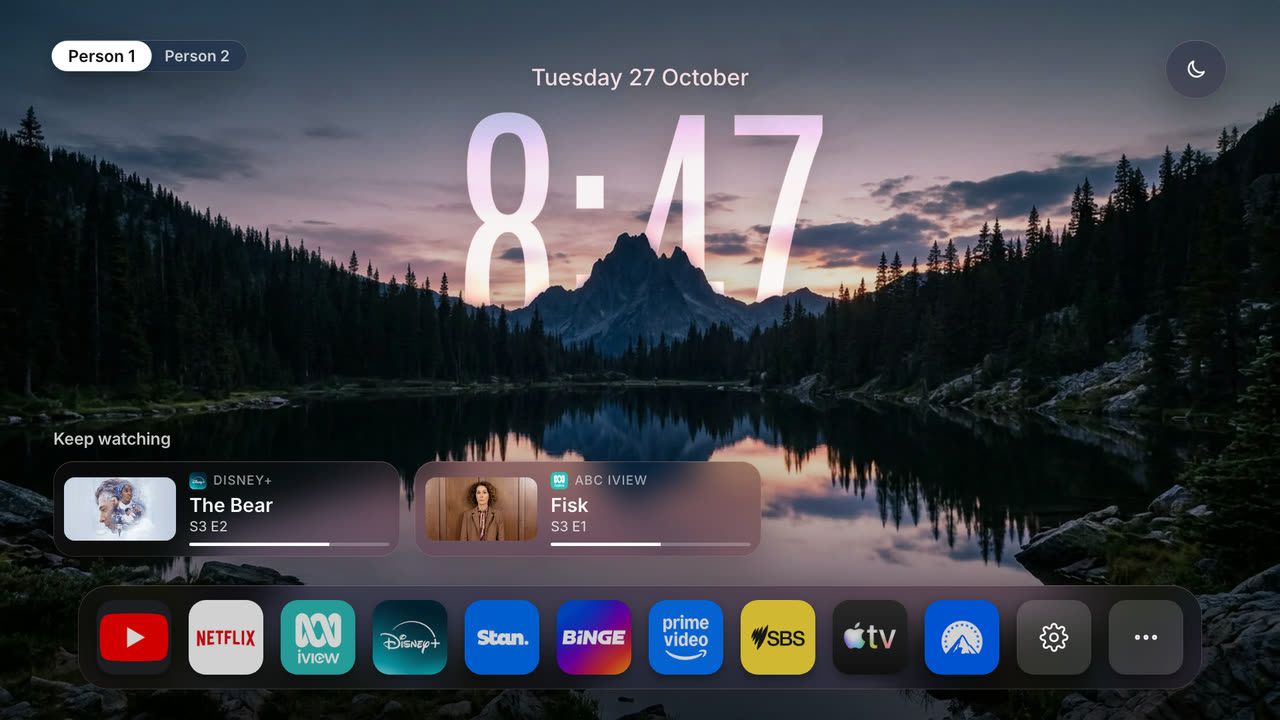
Home backgrounds
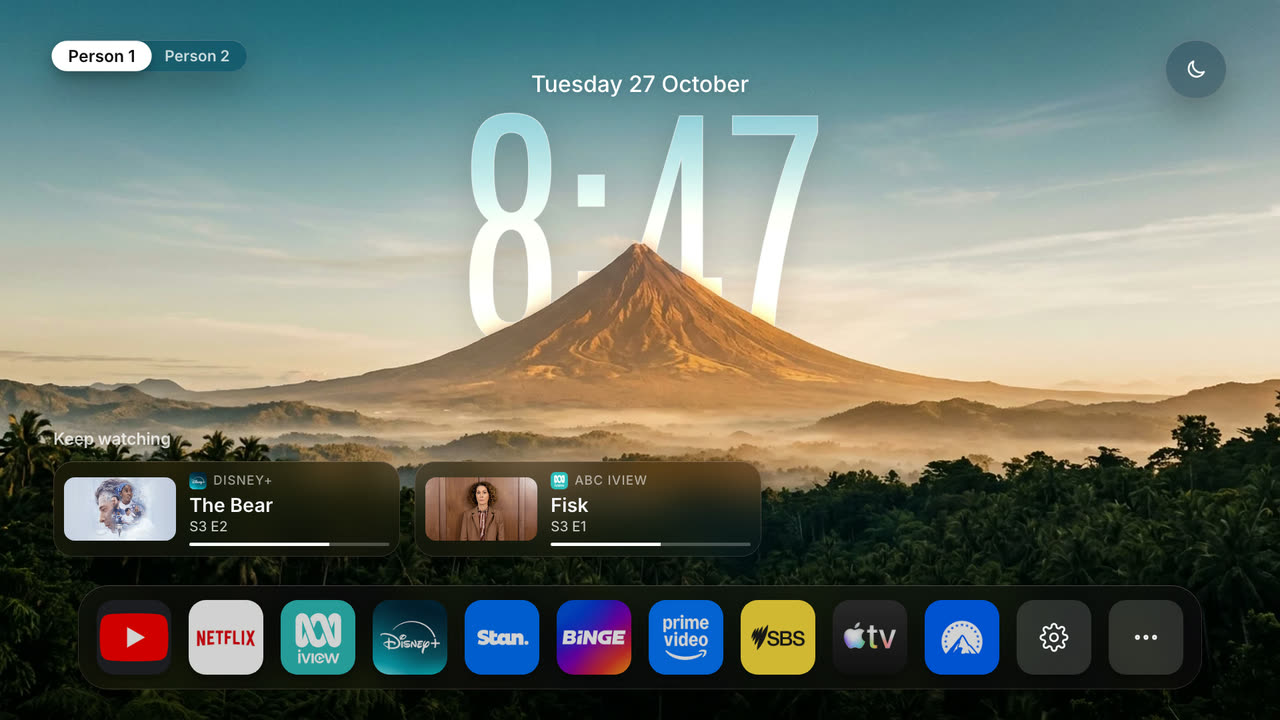
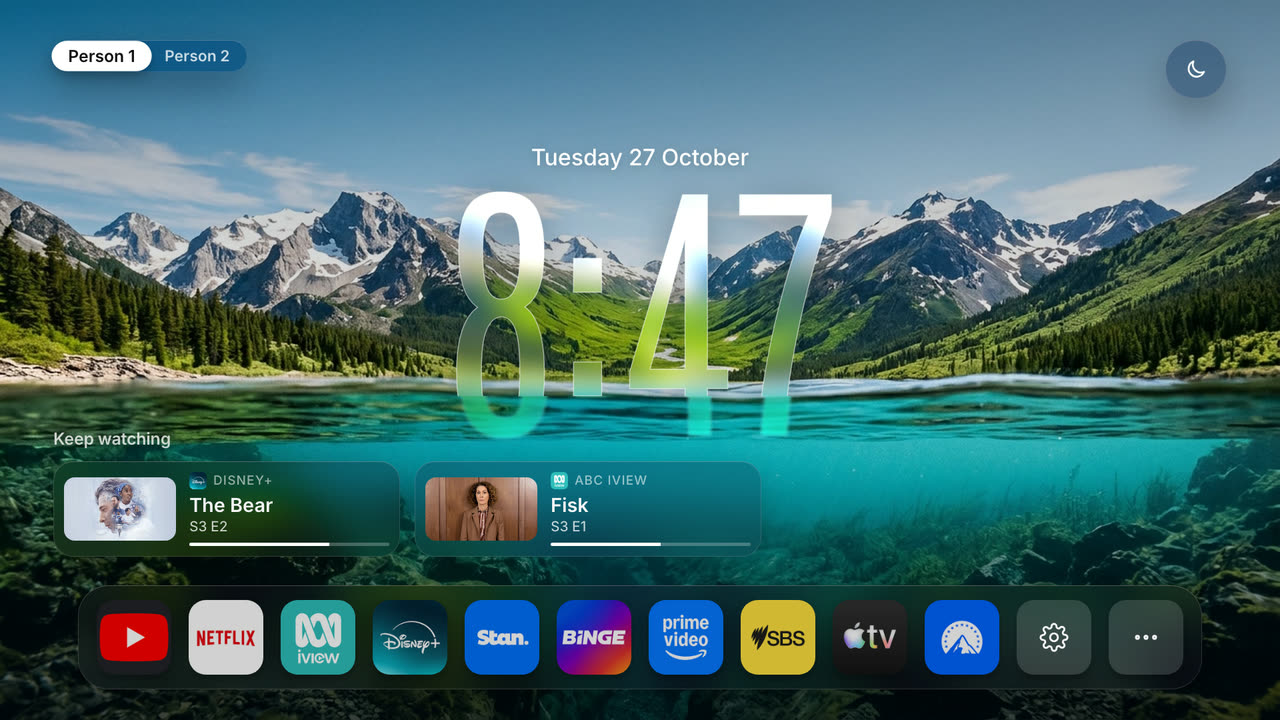
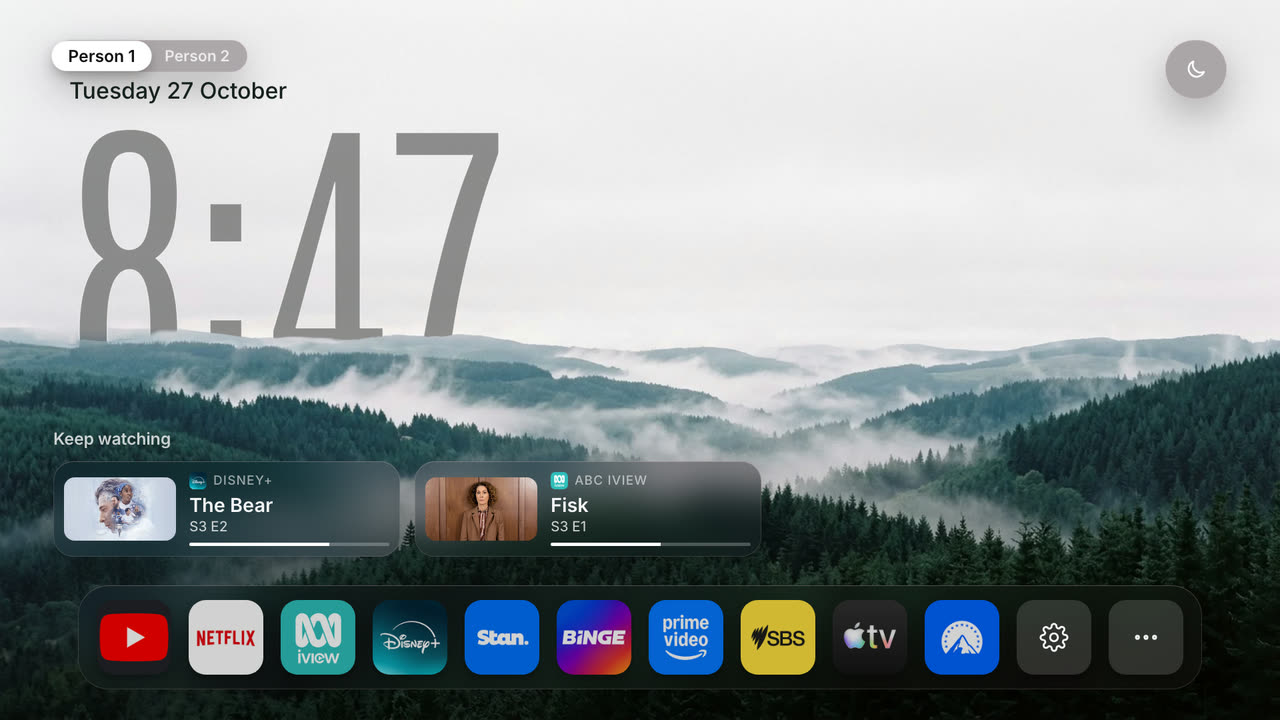
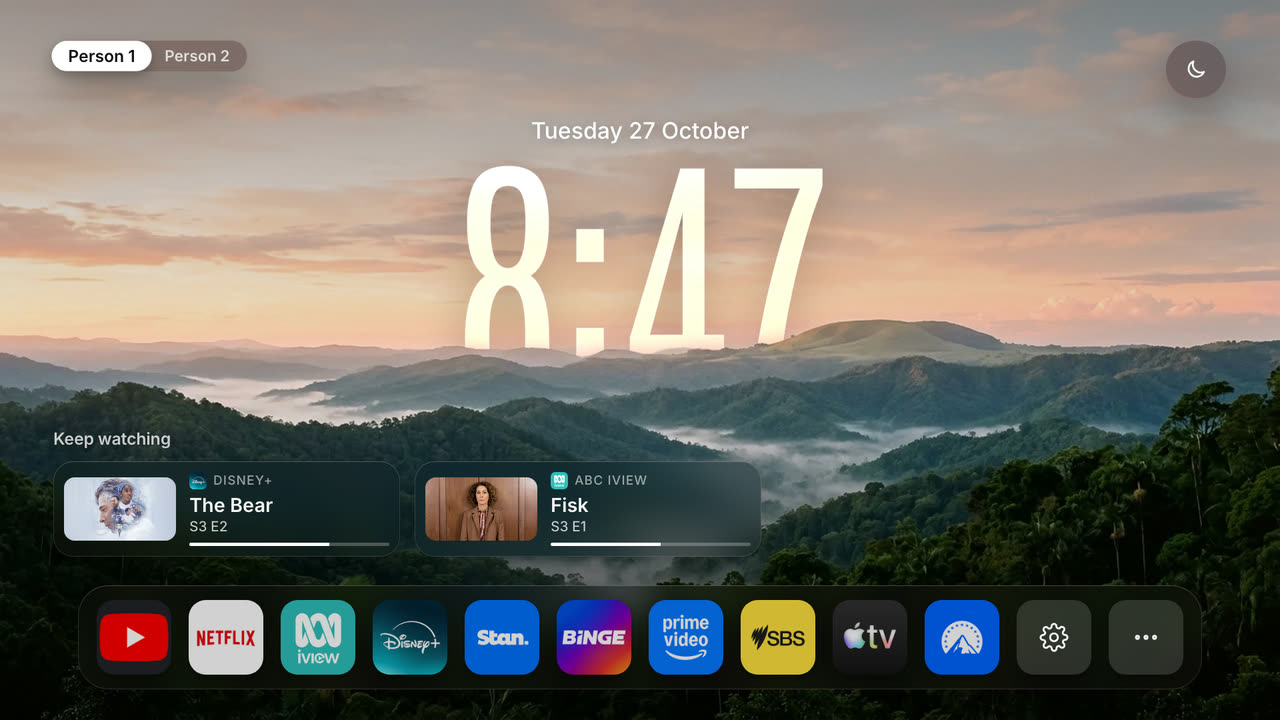
Five scenes take turns every 20 seconds, each with a big glass clock that sits just behind the
scenery: the peaks, the volcano and the misty hills overlap the bottom of the digits, and on the
waterline scene the clock floats on the lake with a blurred reflection under the surface. Your apps
and "keep watching" stay put. Start on one with ?scene=<name>, or swap in your own photos. To put
the clock behind your own photo, make a transparent cut-out of everything in front of the sky
(any background remover will do), save it next to the photo as <photo>-fg.webp and setfg: true; tv-home/web/backgrounds/CREDITS.md has the steps.
| Night | Golden hour | Waterline |
|---|---|---|
|
 |
 |
| Fog | Dawn | Classic (?theme=classic) |
 |
 |
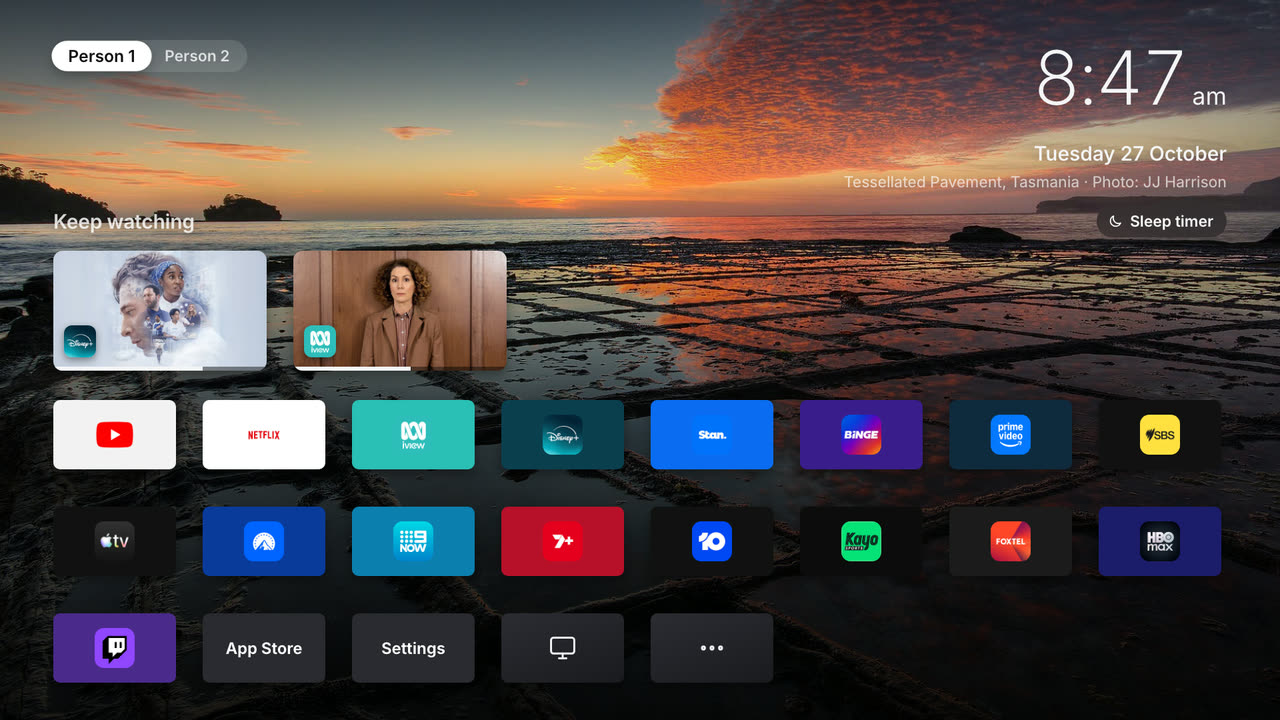 |
Shown with sample shows and sample people. On your TV, "keep watching" fills from what you
actually watch.
Three ways to run it
- A. TV home only. The new home screen, nothing else. You use your normal TV remote and no
computer has to stay on. - B. Computer bridge. The home screen plus the phone remote, "put on Bluey" search, turning the
TV on from the phone, keep watching across apps and an optional Claude assistant. A computer at
home (a Mac, a Linux box or a Raspberry Pi) stays on and runs the bridge. - C. Lives on the TV. The home screen and the phone remote with no computer: the bridge runs
inside an app on the TV. See on-tv/README.md.
Pick your option, then follow only its steps
- A: steps 1, 2 and 6 below.
- B: steps 1 to 6 below.
- C: on-tv/README.md (it has its own developer mode and install steps).
Will it work on my TV?
| Your TV | A. TV home only | B. Computer bridge | C. Lives on the TV |
|---|---|---|---|
| Google TV (Sony, TCL, Hisense Google TV, Philips and others) | Yes | Yes | Partial. Newer models may ask for a pairing code again after a restart |
| Google TV box (Google TV Streamer, Chromecast with Google TV, Onn) | Yes | Yes | Partial, as above |
| Older Android TV (Android 9 to 11) | Yes | Yes | Yes |
| Nvidia Shield | Yes (not tested) | Yes | Yes (not tested) |
| Fire TV on Fire OS (Fire TV Stick 4K Max, Fire TV Cube) | Partial. Workarounds only, and Amazon's home flashes up first | Partial | Yes |
| Fire TV on Vega OS (newer Fire TV sticks) | No | No | No |
| Samsung (Tizen) | No | No | No |
| LG (webOS) | No | No | No |
| Roku, Apple TV, Hisense with VIDAA | No | No | No |
Hisense, Sharp and other brands that sell more than one kind of TV: it depends on the model,
not the brand. Their Google TV and Android TV models should work. Their VIDAA models run
Hisense's own system and do not. Open Settings, System, About (or
Device Preferences, About): "Android TV OS" means yes. Or run scripts/check-tv.py.
Brand by brand (TCL, Philips, Panasonic, Sharp, Xiaomi and more, untested):
docs/TV-BRANDS.md.
What you can and cannot do on each:
- Google TV and Android TV: everything in this repo. Your own home screen, your apps in your
order, the phone remote, finding and playing shows, the sleep timer. Some Google Home features and
the YouTube button on the remote can stop working once the Google home is switched off. - Fire TV (Fire OS): the phone remote and app launching work. Amazon does not let another home
screen take over, so you keep Amazon's home. - Samsung and LG: they do not run Android apps and they lock their home screens, so there is no
new home screen and no app to install. Both can be controlled over Wi-Fi with their own protocols,
so a phone remote is possible in theory, but couch-tv does not do it. - Roku, Apple TV, VIDAA and Vega OS Fire TV: closed. Nothing here works on them.
Have a Samsung, LG or another TV that says no? Plug in a Google TV box (for example the Google
TV Streamer) and set couch-tv up on that. You then get everything, on any TV with an HDMI port.
Test your own TV (changes nothing on it, and installs nothing outside this folder):
git clone https://github.com/Seagey/couch-tv.git && cd couch-tv
python3 --version                                  # needs 3.11 or newer
python3 -m venv .venv && .venv/bin/pip install -r bridge/requirements.txt
.venv/bin/python scripts/find-tvs.py               # lists the TVs on your Wi-Fi
.venv/bin/python scripts/check-tv.py <tv address>  # says which options that TV can run
It knocks on the ports each kind of TV answers on (Android TV, Samsung, LG, Roku, Apple), so it
can tell a Samsung from a Google TV without touching anything. Or, by hand: on the TV open
Settings, System, About (Google TV) or Settings, Device Preferences, About (Android TV 9 to
11). If you see "Android TV OS", it works. Details and sources:
docs/TV-COMPATIBILITY.md.
Later, once Developer options are on (step 1), check-tv.py <tv address> --adb also reads the
Android version and the maker. That one makes the TV ask "Allow USB debugging?" and saves this
computer's key in ~/.android/adbkey, so it waits until you have decided to go ahead.
Setting it up with an AI agent
Open this folder in Claude Code (or any coding agent) and say "set this up on my TV". It reads
AGENTS.md and asks you two things before it touches anything: which TV you have, and
which option you want.
This repo is two separate things. You can use the first without the second, but the second
needs the first's TV set up the same way (developer mode on).
| 1. The TV home | 2. The phone remote and bridge | |
|---|---|---|
| What it is | An Android TV app that replaces the Google TV home screen. Scenes, clock, weather, your app row, "keep watching". | A phone web app (the remote) and a small Python service (the bridge) that runs on a computer at home and talks to the TV. |
| Where it lives | tv-home/ (android/ is the app, web/ is its screen) |
remote/ (phone app) and bridge/ (the service) |
| Runs on | The TV | Your phone, plus a computer that stays on |
| Options | A and B | B (C has its own app, in on-tv/) |
What you need
For every option:
- A Google TV or Android TV (Android 9 or newer) with Developer options and debugging on
(step 1). - A computer on the same Wi-Fi to set it up from: macOS or Linux with Python 3.11 or newer
(python3 --version). Missing or older: on macOSbrew install [email protected]or the installer
from python.org; on Linux your distribution's package (for examplesudo apt install python3.11 python3.11-venv). On a Mac the firstpython3orgitmay ask to install the developer tools:
say Install, it takes a few minutes. For option A that computer can go back in the cupboard
afterwards. - The TV app,
couch-tv-home.apk: download it from the GitHub Releases page, or build it
yourself ("Building the app" below).
Option B also needs:
- An always-on computer on the same Wi-Fi: a Mac or a Linux box (a Raspberry Pi is fine).
The bridge has to be running whenever you want the remote. - Node 20 or newer, once, to build the phone app.
- Optional, Claude "ask" ("put on something funny"): the Claude Code program, installed and
logged in to your own Claude plan. It runsclaude -pand stripsANTHROPIC_API_KEYfrom the
environment first, so it never bills an API key. It is off inconfig.example.json; turn it on
("ask": {"enabled": true}) once Claude Code works on that computer. - Where a show streams: nothing to set up. The bridge asks JustWatch's public search (no key) for
the country inconfig.json("country": "AU", or"US","GB"and so on). - A free TMDB key is not needed by this code. If you add your own poster lookup, put the key in
.env(seeenv.example). Never commit it.
The home with the computer off (option B): the app carries its own copy of the home and also
keeps the bridge's latest copy. If the computer is off, the TV still shows the clock, the weather
and your app row. It only loses "keep watching" and the picks. With option A that copy is the home.
Setup
Step 1. Developer mode on the TV (every option)
Do this on the TV itself.
- Open Settings, then System, then About (Google TV). On Android TV 9 to 11 it is
Settings, Device Preferences, About. - Go right down to Android TV OS build (or Build). Press OK on it seven times. A
countdown appears, then "You are now a developer!". - Go back. There is a new menu called Developer options (under System, or Device Preferences).
- Find USB debugging and switch it on.
- If there is also a Network debugging switch (also called ADB over network or ADB
debugging), switch it on too. Some TVs have no such switch: on a TCL with Android TV 11, USB
debugging alone opened the network port. Either way, check from the computer:.venv/bin/python scripts/check-tv.py <tv address>. If it says ADB is open on port 5555,
everything in this repo works as it is. If it says only Wireless debugging is on, see the box
below. - Find the TV's address: Settings, Network and Internet, your Wi-Fi (or Settings, Network,
your Wi-Fi, details). It looks like four numbers with dots. Give the TV a fixed address in your
router if you can, so it never changes.
The first time a computer connects, the TV asks "Allow USB debugging?". Tick Always allow
and press Allow. You never see it again.
Allow every computer before you switch the Google home off. Seen on one Google TV
(Android 14): afterapply.shswitched off the Google TV home and its setup app, the TV no longer
showed "Allow USB debugging?" for any new computer. Computers allowed before that kept working.
So connect each computer you will use (check-tv.py <tv address> --adb, and for option C the
app's Connect ADB) and press Allow before step 6. If it already happened, see "If
something is stuck" in docs/UNINSTALL.md.
Only Wireless debugging? Newer Google TVs (Android 11 and up) may offer only Wireless
debugging, which pairs with a code and uses a random port that changes after a restart.
couch-tv's scripts and the bridge speak plain ADB on a fixed port, so turn the fixed port on once
with Google's own tools (Android platform-tools):
- On the TV: Developer options, Wireless debugging on, then Pair device with pairing
code. It shows a code and an address with a port, for example<tv address>:37123.- On the computer:
adb pair <tv address>:<pairing port> <code>.- Back on the Wireless debugging screen, note the port under "IP address and port", then
adb connect <tv address>:<that port>.adb tcpip 5555. Port 5555 is now open andcheck-tv.pyshould say ADB is open on port 5555.On some TVs port 5555 closes again after a restart. Then run steps 2 to 4 again (option B's
daily guard and the remote need it open). If your TV keeps a different fixed port open, set"adb_port"on that TV inconfig.json(orADB_PORT=<port>for the scripts). The Wireless
debugging port itself needs Google'sadb; couch-tv cannot use it directly.
Mac: "allow devices on your local network". macOS asks once per program before it lets it
talk to devices at home. Say Allow for Terminal (or the app your AI agent runs in). A program
that is new to the Mac, like Google'sadbstraight after downloading it, can be blocked
silently: it then cannot reach the TV although everything else can. couch-tv's own tools
(tv-home/tools/tvadb.py,on-tv/scripts/real-tv.py,check-tv.py) are plain Python and run
inside the Python you have already allowed, so use them for everything except the one-off
Wireless debugging pairing above. Ifadbis blocked: System Settings, Privacy and Security,
Local Network, and switch on the app it runs in.
Step 2. Get the code and set up Python (every option)
git clone https://github.com/Seagey/couch-tv.git
cd couch-tv
python3 --version                    # 3.11 or newer
python3 -m venv .venv
.venv/bin/pip install -r bridge/requirements.txt
cp config.example.json config.json
Edit config.json (it is private, it never gets committed):
tvs: put your TV's address inip. Give it a name. Add more TVs by adding more entries.people: the names that show on the "who is watching" switch, any number. None or one: no
switch. Two: a switch. Three or more: a round head icon that opens a list. Mark children with"kid": trueand visitors with"guest": trueso they stay out of the household's picks.weather: your latitude, longitude, place name and time zone (Open-Meteo, free, no key). A
suburb or city, never a home address.country: two letter code, for where shows stream.- Option B:
bridge.host, the name of the computer that runs the bridge, for examplemy-computer.local. - Optional:
home(scenes, how long each stays, 12 or 24 hour clock, how many apps in the dock,
apps to hide),quickper TV (sleep timer, picture mode, look and input buttons),askandphone_remote.
Every key, with its default: docs/CONFIG.md. Which TV remotes work and which
keys do what: docs/REMOTES.md. How the phone remote is hosted and how to add it to
your phone: docs/REMOTE.md.
Optional settings (port, Claude location) go in .env. Copy env.example to .env.
Step 3. Pair the TV with the bridge (option B)
.venv/bin/python bridge/pair_tv.py living-room
The TV shows a 6 character code. Type it in and press Enter. That pairs the bridge as a remote (the
TV lists it as "Couch TV bridge"). An AI agent cannot type into the waiting script: it runs that
command in the background, asks you to read the code off the TV, then runs.venv/bin/python bridge/pair_tv.py living-room --code <the code>.
Then:
.venv/bin/python bridge/pair_tv.py living-room --adb
The TV asks "Allow USB debugging?". Tick Always allow, then Allow. The keys it makes are stored on
your computer (bridge/data/ and ~/.android/adbkey). They are in .gitignore.
Step 4. Build the phone remote (option B)
cd remote
npm ci
npm run build
cd ..
Step 5. Run the bridge (option B)
.venv/bin/python bridge/server.py
Open http://your-computer.local:5400 on your phone (same Wi-Fi). Add it to your home screen.
To keep the bridge running all the time, use bridge/examples/couch-tv-bridge.plist.example
(macOS) or bridge/examples/couch-tv-bridge.service.example (Linux). Both set CLAUDE_BIN and aPATH, because a background service does not see your shell's.
Anyone on your Wi-Fi can use the remote and the assistant. The bridge has no password, so
everyone on the network, kids included, can change the channel, turn the TV off or ask Claude for
a show. Put visitors on a guest Wi-Fi network (most routers have one) so they cannot reach it. The
bridge is for your home network only. Never put it on the internet or forward a port to it.
"phone_remote": false is for a house that only wants the TV home and its quick settings from the
bridge. The bridge still serves the API (the TV home needs it), and the phone page still loads if
someone opens it, so the same rule applies.
Step 6. Put the TV home on the TV (options A and B; this replaces the Google home screen)
Get couch-tv-home.apk from the GitHub Releases page (or build it, below). Look at the TV first
(it changes nothing):
TV_IP=<your tv address> .venv/bin/python tv-home/tools/survey-tv.py
It also reminds you that switching the setup wizard off makes some TVs forget their Wi-Fi. Nothing
can tell in advance which TVs, so plan for it on any TV: have the TV remote ready.
Then install it. Option A (no computer stays on):
TV_IP=<your tv address> APK=couch-tv-home.apk sh tv-home/tools/apply.sh
Option B (the home loads from the bridge):
TV_IP=<your tv address> APK=couch-tv-home.apk BRIDGE_URL=http://my-computer.local:5400 sh tv-home/tools/apply.sh
This installs the app, switches off the Google TV home (and ambient mode, the setup wizard and any
ad trackers you name in EXTRA_OFF), and makes the new home the TV's home. Other makers' own home
screens are left alone; the TV's default home is set to couch-tv instead. Nothing is deleted.
It also hands the app your config.json settings (people, weather, clock, look, quick buttons)
for its built-in copy. Read the Undo section before you run it.
The setup wizard goes off last, after everything else is done. If the TV then forgets its Wi-Fi,apply.sh says so: join the Wi-Fi again at the TV (Settings, Network and Internet) and run the
same command again. It is safe to run as often as you like.
KEEP_SETUP=1leaves the setup wizard on, so the Wi-Fi is never at risk. On some TVs the
wizard then keeps winning the Home button; if it does, the wizard has to go off.- A Google TV update can switch the Google home back on. With option B the bridge checks once
a day and switches it off again. With option A there is no bridge: runapply.shagain after an
update (and after you changeconfig.json).
Building the app (instead of downloading it)
You need JDK 21 and the Android SDK with platform 34 and build tools 34. Gradle is not
needed: tv-home/android/gradlew fetches Gradle 8.11.1 by itself.
- JDK 21. The simplest way, with no password needed: download the Temurin 21 JDK
.tar.gz
for your computer from adoptium.net, unpack
it into a folder you own (for examplecouch-tv/build/jdk, which git ignores) and pointJAVA_HOMEat it (on macOS theContents/Homefolder inside). Or install it system-wide:
macOSbrew install --cask temurin@21(asks for your password), Linuxsudo apt install openjdk-21-jdk. - The Android SDK command line tools: download "Command line tools only" from
developer.android.com/studio, unzip into~/Library/Android/sdk/cmdline-tools/latest(macOS) or~/Android/Sdk/cmdline-tools/latest
(Linux). - Then, with
ANDROID_HOMEset to thatsdkfolder:$ANDROID_HOME/cmdline-tools/latest/bin/sdkmanager "platforms;android-34" "build-tools;34.0.0" $ANDROID_HOME/cmdline-tools/latest/bin/sdkmanager --licenses # answer y to each licence - Build:
It prints where the APKs are (JAVA_HOME=/path/to/jdk-21 ANDROID_HOME=/path/to/android-sdk sh scripts/build-apk.shdist/couch-tv-home.apk, plusdist/couch-tv-ontv.apkfor
option C). The on-TV app carries the phone remote inside it, so for that one the script buildsremote/first, which needs Node 20 or newer.apply.shfindsdist/couch-tv-home.apk
by itself.
The release APK is signed with your local debug key, which is fine for your own TV. The built-in
copy uses config.example.json unless you pass CONFIG=config.json; apply.sh hands the TV your
own settings either way.
Undo: put the Google home screen back
The full guide, with the TV-remote-only way and what to do if something is stuck:
docs/UNINSTALL.md. In short:
- Option B: stop the bridge first, or its daily guard switches the Google home off again
(macOS:launchctl bootout gui/$(id -u)/app.couchtv.bridge; Linux:systemctl --user disable --now couch-tv-bridge). - Everything off, including developer mode:
TV_IP=<your tv address> DEV_OFF=1 sh tv-home/tools/remove-all.sh. If the computer cannot reach
the TV it says so, changes nothing and prints the TV-remote steps.
Only the home screen, keeping the app (10 seconds): TV_IP=<your tv address> sh tv-home/tools/undo.sh.
It switches back on exactly what apply.sh switched off, and makes the home the TV had before the
home again. To remove the app as well, after that:TV_IP=<your tv address> .venv/bin/python tv-home/tools/tvadb.py shell "pm uninstall app.couchtv.launcher".
With only the TV remote (no computer):
- On the couch-tv home, open the Settings tile (the gear at the end of the app row), or press
the Settings button on your remote. - Apps, then See all apps, then Show system apps.
- Open Google TV Home (it says Disabled) and press Enable. Do the same for Setup (the
Google TV setup app). Ambient mode and the ad tracker are optional. - Back in Apps, open Home (the new one) and press Uninstall.
- Press the Home button. Google TV is back.
Do step 3 before step 4. If the new home is removed while Google TV Home is still off, the TV has
no home screen. Apps still open from the remote's app buttons, and the computer undo above still
works.
If the TV ever loses its saved Wi-Fi after switching the setup wizard off, enable Setup again
(step 3) and set the Wi-Fi from there.
How it fits together
phone remote (remote/)  --->  bridge (bridge/, always-on computer)  --->  the TV
TV home (tv-home/)      --->  bridge (for shows and picks)               (Android TV Remote
                              TV home carries its own copy for when       protocol and ADB)
                              there is no bridge
- API contract: bridge/API.md.
- How shows open in each streaming app: bridge/DEEPLINKS.md.
- Watch history, taste and picks stay on your computer in
bridge/data/. That folder is in.gitignore. You can import your own Netflix and YouTube history: bridge/IMPORT.md.
Privacy and safety
- Your settings are in
config.json, your secrets in.env, your data inbridge/data/. All
three are ignored by git. - Before you push a fork, run
scripts/privacy-scan.sh. It checks for private addresses, emails,
phone numbers, MAC addresses, home network names and secrets, in the files and the git history.
You can also give it a file of your own words to block:scripts/privacy-scan.sh my-denylist.txt
(one word per line, keep that file out of the repo).scripts/install-hook.sh my-denylist.txt
runs it before every commit. - Option B: anyone on your Wi-Fi can use the remote and the assistant (see step 5). The bridge only
listens on your home network. Do not forward a port to it.
Limits
- Google TV and Android TV only. Developer mode has to be on.
- A Google TV update can switch the Google home back on. Option B's bridge checks once a day and
switches it off again; with option A, runapply.shagain. - Some apps will not open a show directly. They open the app instead. See
bridge/DEEPLINKS.md. - No support promise. It works on the TVs it was built on. Your TV may differ.
Credits
- The five scene backgrounds (
scene-*.jpg) were generated for this project and are free to use.
The Classic look's photos are Creative Commons from Wikimedia Commons. Both are listed intv-home/web/backgrounds/CREDITS.md. - The streaming app logos in
remote/src/app-logos/belong to their owners. - Fonts: Inter and Antonio (both SIL Open Font Licence).
- Show data and posters: JustWatch (credit them if you publish anything built on this).
- Weather: Open-Meteo.
MIT licence, see LICENSE.
Yorumlar (0)
Yorum birakmak icin giris yap.
Yorum birakSonuc bulunamadi