agent-muster
Health Warn
- License — License: MIT
- Description — Repository has a description
- Active repo — Last push 0 days ago
- Low visibility — Only 7 GitHub stars
Code Fail
- process.env — Environment variable access in .github/workflows/release.yml
- network request — Outbound network request in scripts/prepare-ffmpeg.mjs
- process.env — Environment variable access in src/agents/executable.ts
- exec() — Shell command execution in src/agents/management.ts
- network request — Outbound network request in src/agents/management.ts
- process.env — Environment variable access in src/agents/providers/claude.ts
- exec() — Shell command execution in src/agents/providers/codex.ts
- process.env — Environment variable access in src/agents/providers/codex.ts
Permissions Pass
- Permissions — No dangerous permissions requested
No AI report is available for this listing yet.
Agent Muster brings Codex, Claude Code, Pi, Gemini CLI, OpenCode, Cursor, and more into one desktop or local-web workspace. Manage projects and sessions with multi-pane layouts, file/Git/terminal side panels, image and file references, and automate tasks via DingTalk, Feishu, WeCom, and WeChat bots.
Agent Muster
English | 简体中文
Manage local AI coding agents, projects, and conversations in the desktop app or your browser. Send tasks and receive replies through DingTalk, Feishu, or WeCom bots.
Features
- Detect installed Codex, Claude Code, Pi, Gemini CLI, OpenCode, and Cursor agents.
- Organize conversations by project and work across one, two, or four conversation panes.
- Select agents and models, and view live replies, tool calls, execution status, and available token usage.
- Save projects and conversation history, resume conversations, and stop running tasks.
- Browse and search project files, inspect Git changes and diffs, and open a project terminal beside conversations. Use
@to reference files. - Choose per-session permissions and supported built-in sandbox settings, and check agent versions and updates.
- Connect DingTalk, Feishu, and WeCom applications to local agents through the dedicated IM integration page.
Screenshots
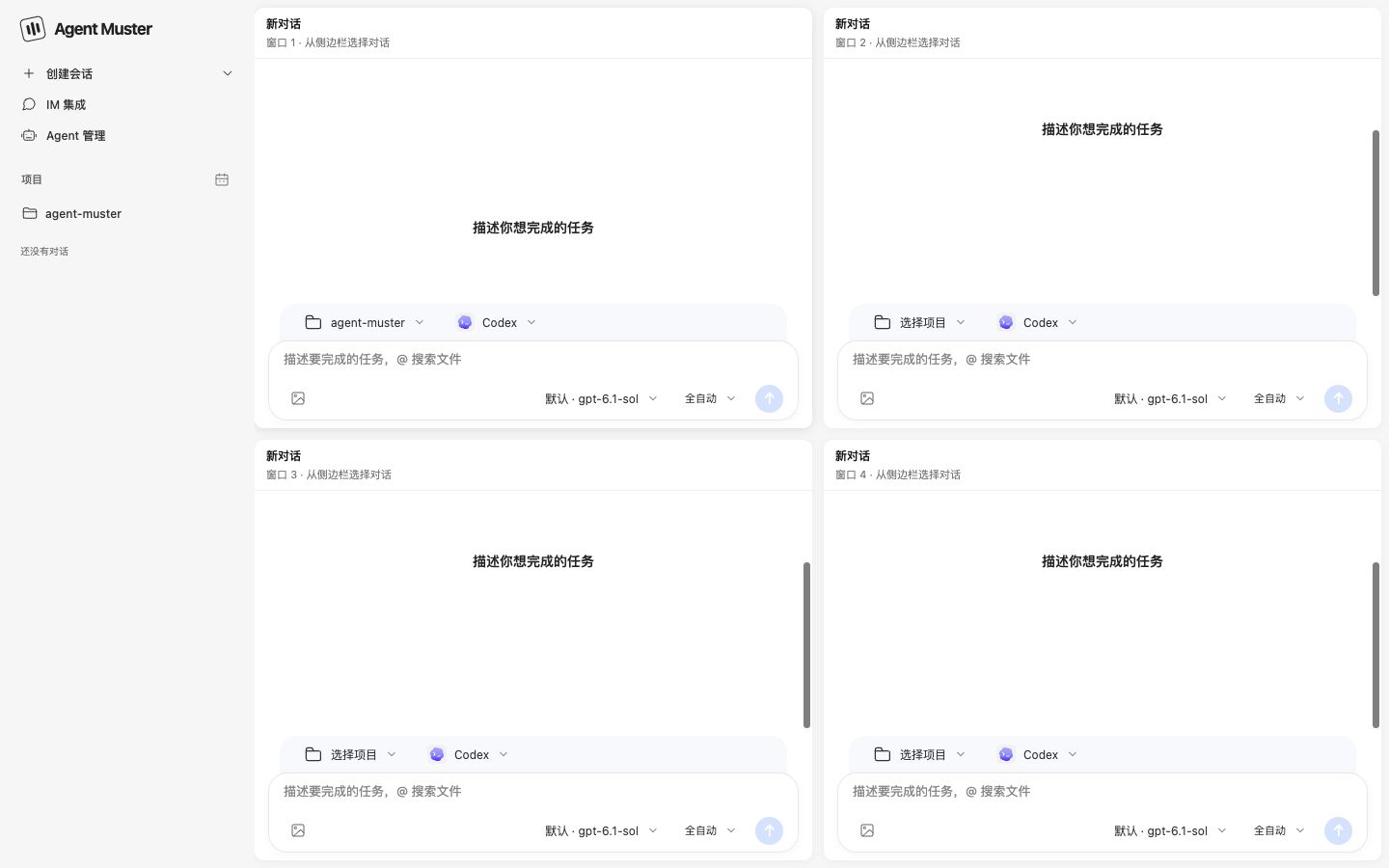
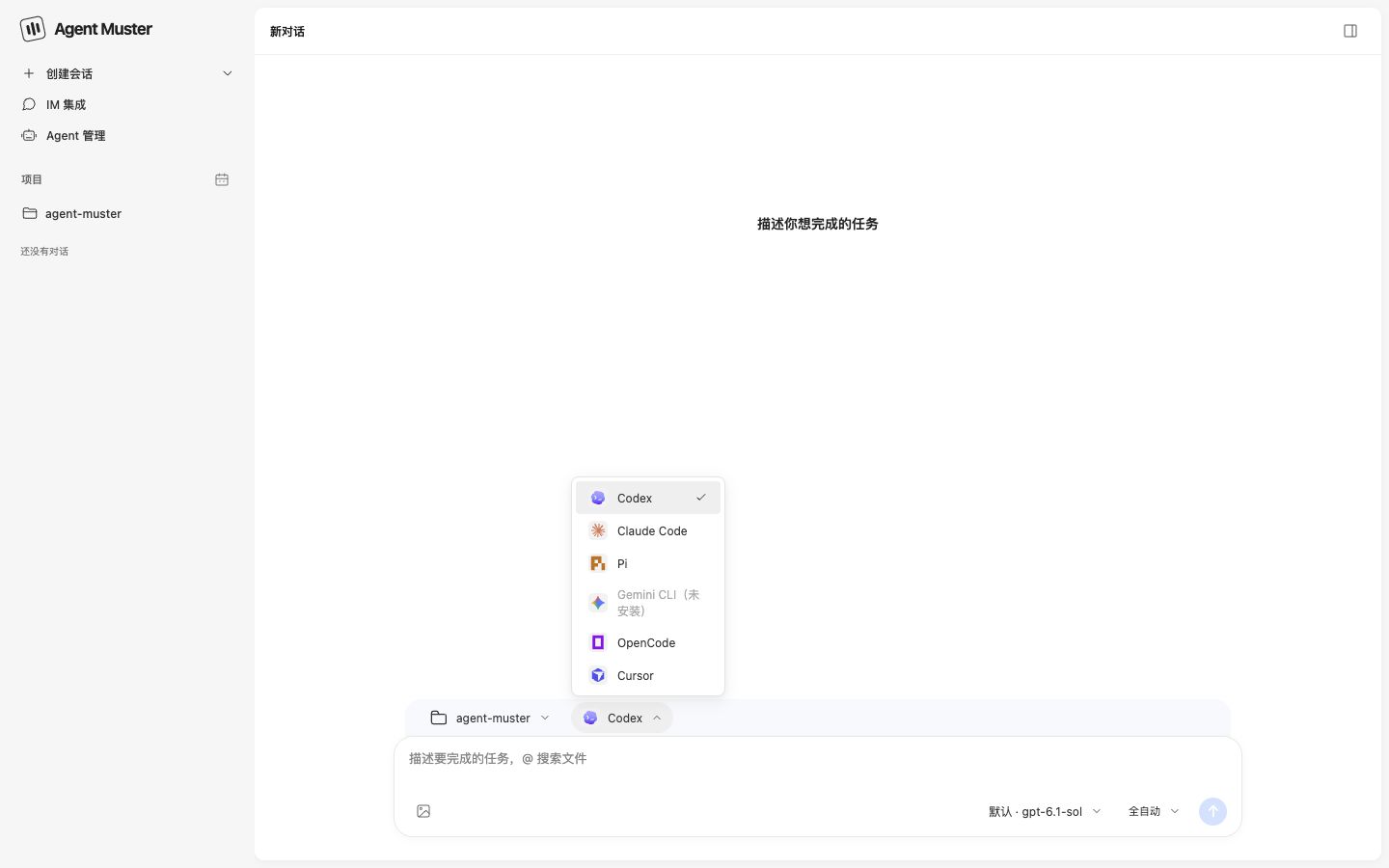
Create tasks and select agents
Select a project, agent, model, and permissions in the composer. Attach images, paste screenshots, or type @ to search project files.
Multiple conversation panes
Switch between one, two, or four panes, each with its own project and agent selection. The screenshot shows four panes ready for new conversations.
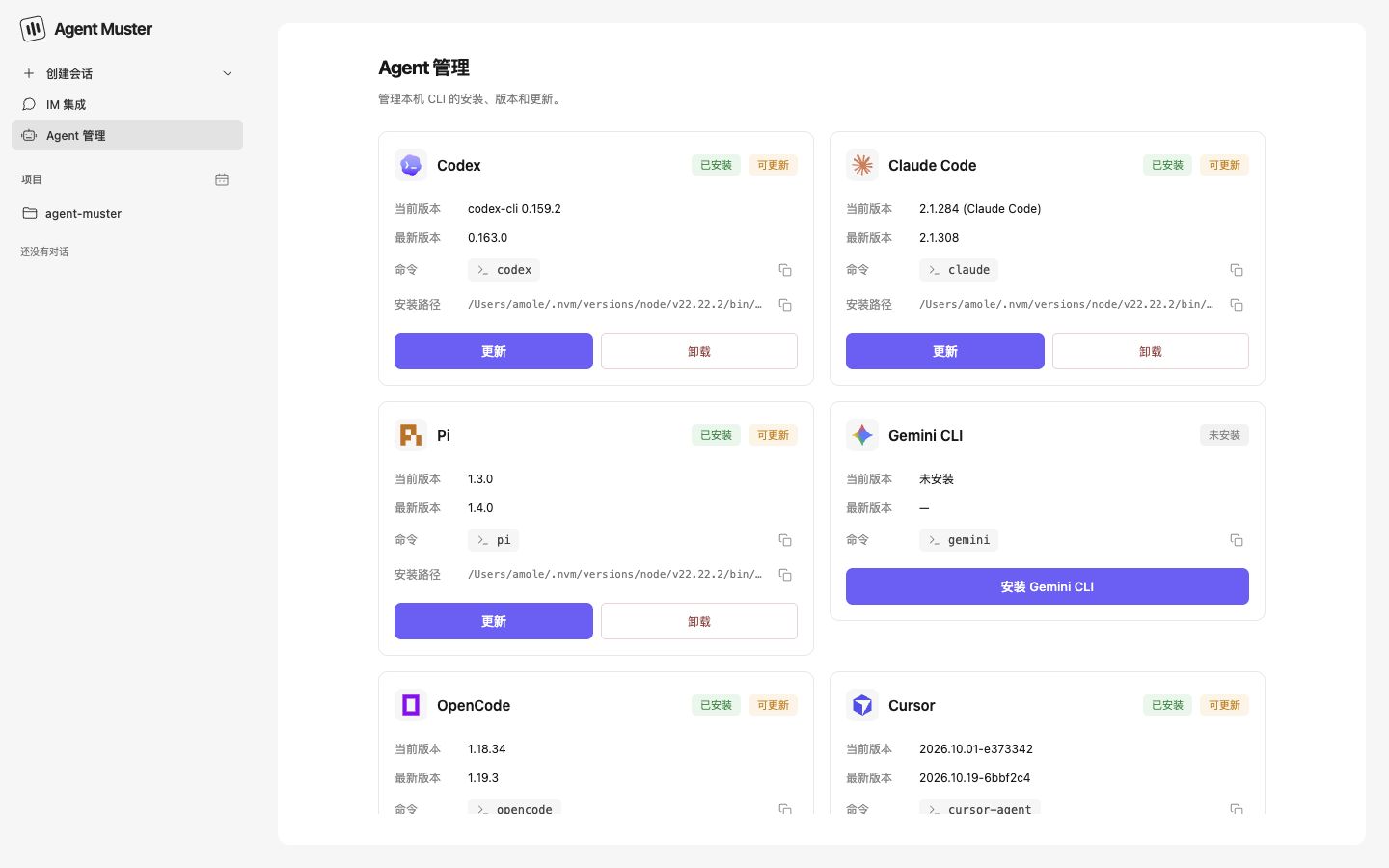
Agent management
View installed agents, CLI versions, and executable paths, with controls to install, update, or uninstall agents.
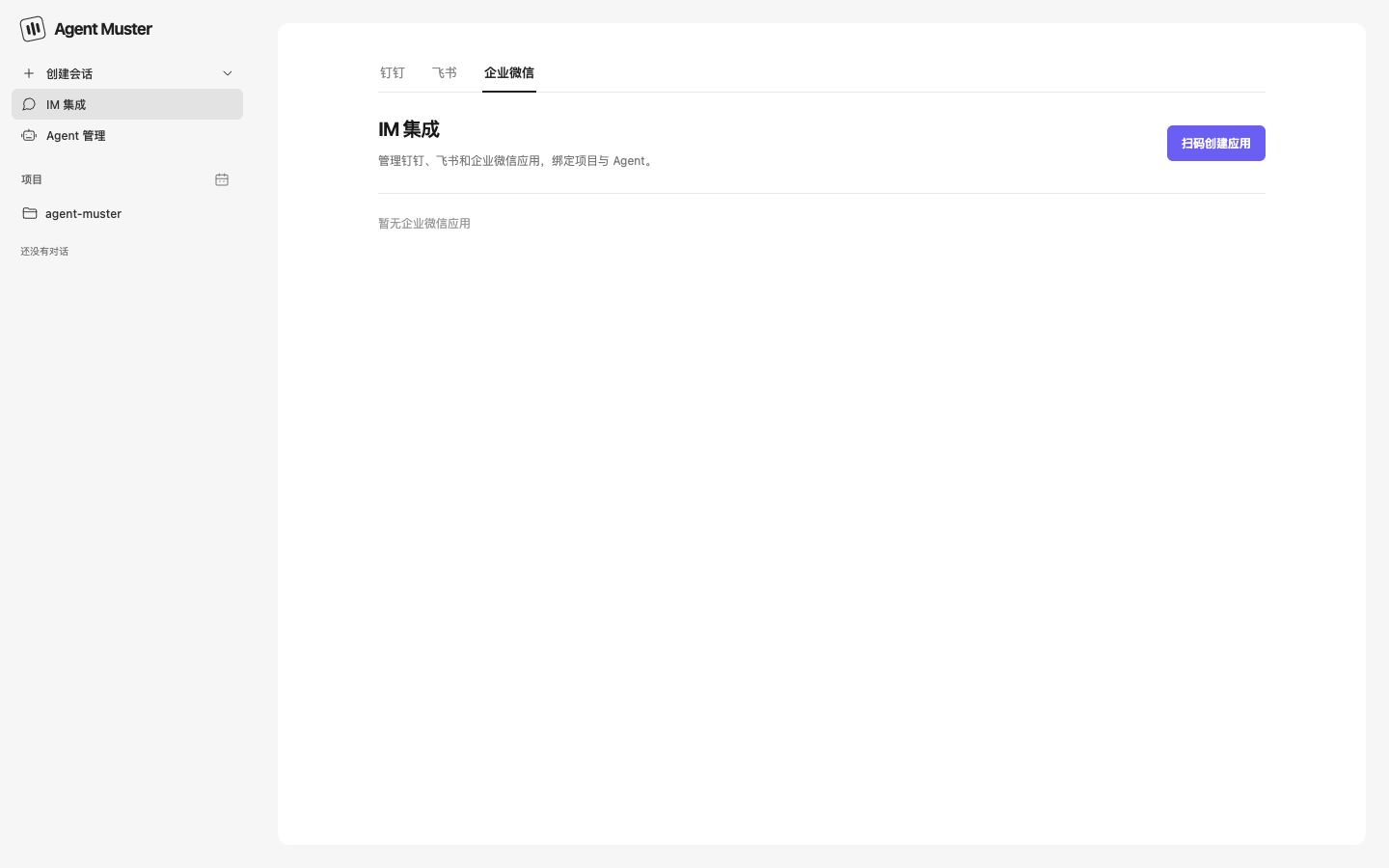
IM integration
Manage integrations through the DingTalk, Feishu, and WeCom tabs and start setup with the QR-code application creation button. The screenshot shows the page before any applications are connected.
Files, Git, and terminal
Open the project panel beside a conversation to search and preview files, inspect staged and unstaged Git diffs, or run commands in the project terminal.
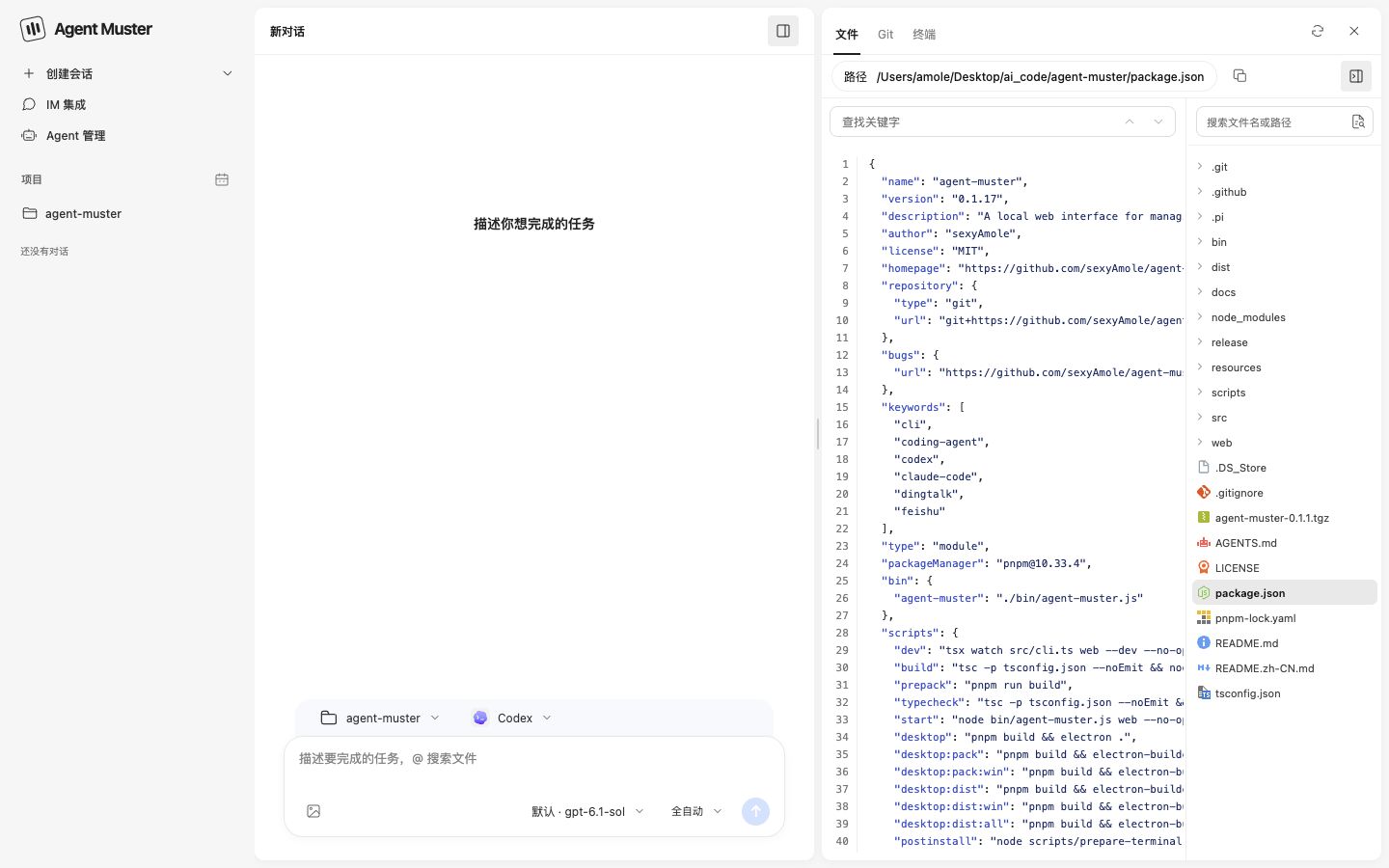
Requirements
- Node.js 22.19.0 or later.
- Install and configure at least one supported agent CLI, with its command available in
PATH. - Authentication, model access, and charges are managed by each agent's provider.
| Agent | Detected command |
|---|---|
| Codex | codex |
| Claude Code | claude |
| Pi | pi |
| Gemini CLI | gemini |
| OpenCode | opencode |
| Cursor | cursor-agent |
Quick Start
Desktop app
Download the installer for macOS Apple silicon, macOS Intel, or Windows 64-bit from GitHub Releases. Open the app after installing and signing in to at least one supported agent CLI.
Command line
Run without a global installation:
npx agent-muster
The browser opens automatically at the default address:
http://127.0.0.1:17321
Or install globally:
npm install -g agent-muster
agent-muster
Keep the terminal running. Press Ctrl+C to stop the service. The current web interface uses Chinese labels; their names are included below so you can find the relevant controls.
Commands
| Command | Description |
|---|---|
agent-muster |
Start the web interface and open the browser |
agent-muster web |
Explicitly start the web interface |
agent-muster web --no-open |
Start without opening the browser |
agent-muster web --port 18000 |
Use a custom listening port |
agent-muster agents |
List agents and their installation status |
agent-muster sessions |
List saved conversations |
agent-muster update |
Check for updates and update the global installation |
agent-muster help |
Show help; also available as --help or -h |
agent-muster --version |
Print the current version and exit; also available as -v |
The web command is optional. Combine port and browser options:
npx agent-muster web --port 18000 --no-open
npx agent-muster -p 18000 --no-open
| Web option | Description |
|---|---|
-p, --port <port> |
Set the listening port to an integer from 1 to 65535; defaults to 17321 |
--no-open |
Start without opening the browser |
--dev |
Enable development mode; requires the source checkout and development dependencies |
Use agent-muster web --help to show help. Unknown commands, unsupported options, and invalid ports produce an error before the service starts.
The service listens only on 127.0.0.1. With the custom port above, visit http://127.0.0.1:18000.
Create Your First Task
- Start Agent Muster and add a local project directory using 添加项目 (Add project).
- Click 新建对话 (New conversation) beside the project or 创建会话 (Create session) at the top, then select an installed agent, model, and permissions.
- Enter a task, such as:
Inspect this project's startup flow and explain how to run it. - Follow replies, tool calls, and execution status in the conversation pane. Send further messages to continue the task.
The agent runs in the selected project directory. Model availability depends on the corresponding CLI configuration and access permissions. Continuing a conversation requires a resumable session created by the agent.
Files and Execution Settings
- Open the project panel beside the conversation. 文件 (Files) offers a file tree, filename/content search, and code previews. Git shows changes and staged/unstaged diffs. 终端 (Terminal) runs commands in the project directory.
- Type
@in a message to search and reference project files. Attach images or paste screenshots into the composer. - Open the composer permission settings to select a mode supported by the agent and configure the current session’s built-in sandbox where available. Codex read-only, workspace-write, and auto-review modes require the sandbox.
- Rename conversations, edit user messages, copy replies, and inspect run logs. Usage distinguishes cumulative tokens from the latest context usage reported by the agent.
IM Integration
Open IM 集成 (IM integration) in the sidebar and choose 钉钉 (DingTalk), 飞书 (Feishu), or 企业微信 (WeCom). Each application has its own project, agent, and permission binding.
| Capability | DingTalk | Feishu | WeCom |
|---|---|---|---|
| Application creation | Mobile QR authorization | Mobile QR authorization | Mobile QR authorization |
| Message connection | Stream SDK | SDK WebSocket | AI bot SDK persistent connection |
| Incoming messages | Text, images, mixed messages | Text, images, rich text | Text, images, mixed messages, voice transcription |
| Chat context | Private chat, group mentions | Private chat, group mentions | Private chat, group bot messages |
| Replies | Automatic and direct web sending | Automatic and direct web sending | Automatic and direct web sending |
| Commands | New session, switch project/model, status | Same | Same |
| Management | Bind project, agent, permissions; sync name/icon | Same, with connection status | Bind project, agent, permissions; connection status |
Create and Connect an Application
- Add a project in Agent Muster and confirm the target agent is installed and configured.
- Open IM 集成, choose a platform, and click 扫码创建应用 (Create application by scanning).
- Scan the QR code with the selected platform's mobile app. Follow the authorization page to create and authorize the application. If the QR code expires, request a new one.
- Select a project, agent, and permission mode for the new application. DingTalk and Feishu support 一键同步 (Sync) to refresh the name and icon.
- Send the bot a direct message, or add it to a group and mention it with a task. For Feishu or WeCom, check that the application shows 消息监听已连接 (Message listener connected).
Keep Agent Muster running and connected to the selected platform. Messages are received through SDK connections established by the local service, so a public webhook address is not required.
Receive Tasks and Reply
An incoming task message starts a task using the application's bound agent in the project selected for that chat. A new chat initially uses the application's bound project, which can then be changed with a command. When execution finishes, Agent Muster sends the result back to the original IM conversation.
Messages in the same IM conversation reuse its local agent session and are processed in order. Changing an application's project or agent binding in the Web interface clears the session mappings and project/model settings for all of that application's chats; the next task message starts a new local conversation.
Both DingTalk and Feishu support standalone images and multiple images within rich-text messages. Images are passed to the agent as attachments. Image-only messages use “请查看这张图片。” as the task prompt. In groups, mention the bot; a Feishu rich-text message can include a mention, text, and images together.
Image input is supported by the Codex, Claude Code, Pi, Gemini CLI, and OpenCode integrations, provided the selected model supports images. The Cursor integration currently rejects image attachments with an explanation. Supported formats are PNG, JPEG, GIF, and WebP.
Feishu downloads user images through the message resource API. Newly created applications request the im:message:readonly permission. For existing applications, enable this permission in the Feishu developer console and publish a new application version. The bot returns an explanation if an image download fails.
WeCom also accepts image and mixed-message tasks, subject to the same agent/model restrictions, and submits platform-provided voice transcriptions as task text. WeCom displays its connection status and supports project, agent, and permission bindings; name/icon synchronization is available for DingTalk and Feishu.
IM Chat Commands
DingTalk, Feishu, and WeCom support the same commands. Send a text command directly in a private chat, or mention the bot when sending a command in a group. Send each command as a separate message. Agent Muster handles commands directly without submitting them as agent tasks.
| Command | Behavior |
|---|---|
/new |
Clear the current chat's session mapping so the next task starts a new conversation; keep history and the selected project/model |
/projects |
List registered projects with their numbers, names, and full paths |
/project <number or full path> |
Switch the current chat's project; the next task starts a new conversation |
/models |
List the bound agent's available models with their numbers, names, and IDs |
/model <number or model ID> |
Switch the current chat's model for the next task while continuing the current conversation |
/model default |
Use the agent's default model for the next task |
/status |
Show the current project, agent, model, and local conversation ID |
/help |
Show command help |
For example, send /projects, then /project 2 to select the second project. Send /models, then /model 1 to select the first model. Next, send your task message. To start a separate task in the current project, send /new before sending the new task.
Projects must already be registered in Agent Muster, and models must appear in the current agent's available model list. Numbers refer to the corresponding list; full project paths and model IDs are also accepted. Invalid commands, projects, or models return an explanation without changing the configuration.
Command changes affect only the current private or group chat. Group members share its configuration and conversation; other chats are unaffected. Project and model settings persist across service restarts. Commands and tasks are processed in order, so a command waits for earlier tasks to finish.
Send Messages from the Web Interface
Open a conversation created through IM, then use the send-mode selector beside the message input:
- 发送到钉钉 / 发送到飞书 / 发送到企业微信 (Send to DingTalk / Feishu / WeCom): send the entered text directly to the linked IM conversation as the application, without running the agent. The sent message is recorded in the local conversation.
- 交给 Agent (Send to agent): continue the local agent task. This mode does not automatically send the resulting reply to IM.
Direct sending requires an existing IM conversation mapping. The Feishu sender splits long replies into multiple text messages.
Remove an Integration
Click 删除 (Delete) on the application entry to remove its local integration and stop receiving its messages. Existing conversation history is retained. The application on the messaging platform is not deleted.
Local Data
Projects, conversations, and IM configuration are stored in .agent-muster under your home directory and loaded again on startup. Projects and sessions are organized under projects/. DingTalk, Feishu, and WeCom application credentials are stored in im/dingtalk/apps.json, im/feishu/apps.json, and im/wecom/apps.json, respectively. Keep these files private.
FAQ
An Agent Appears Uninstalled
Run its command in the terminal used to start Agent Muster. Confirm that the CLI is installed and works. Restart Agent Muster after installation or changes to PATH.
The Default Port Is in Use
Choose another port:
npx agent-muster web --port 18000
An IM Bot Does Not Reply
Confirm that Agent Muster is running, platform authorization is complete, and the application is bound to a project and an available agent. In groups, mention the bot. For Feishu or WeCom, check the connection status. If Feishu image downloads fail, confirm that im:message:readonly is enabled and the application version has been published. Inspect the web conversation log and startup terminal for task status and errors.
A Message Cannot Be Sent from the Web Interface
Send a message to the bot from IM first, then open the resulting local conversation. Confirm that the integration still exists and its project/agent binding has not changed. Select 发送到钉钉, 发送到飞书, or 发送到企业微信 before sending.
Updates
Check the version of the CLI you are running:
agent-muster --version
agent-muster -v
On web startup, Agent Muster checks for a newer version in the background and prints an update notice in the terminal.
For a global installation:
agent-muster update
This command checks the latest version and uses npm to update the global installation when an update is available. Restart the service afterward. You can also update manually:
npm install -g agent-muster@latest
When using npx, explicitly select the latest published version:
npx agent-muster@latest
Reviews (0)
Sign in to leave a review.
Leave a reviewNo results found