Universal-Dear-ImGui-Hook
Health Gecti
- License — License: MIT
- Description — Repository has a description
- Active repo — Last push 0 days ago
- Community trust — 507 GitHub stars
Code Gecti
- Code scan — Scanned 12 files during light audit, no dangerous patterns found
Permissions Gecti
- Permissions — No dangerous permissions requested
Bu listing icin henuz AI raporu yok.
Universal Dear ImGui overlay for Direct3D 9-12, Vulkan and OpenGL, on Windows and Linux (Steam Deck, Proton). Lets an AI assistant such as Claude see and play the game through MCP, with an in-game chat with Claude.
Universal-Dear-ImGui-Hook


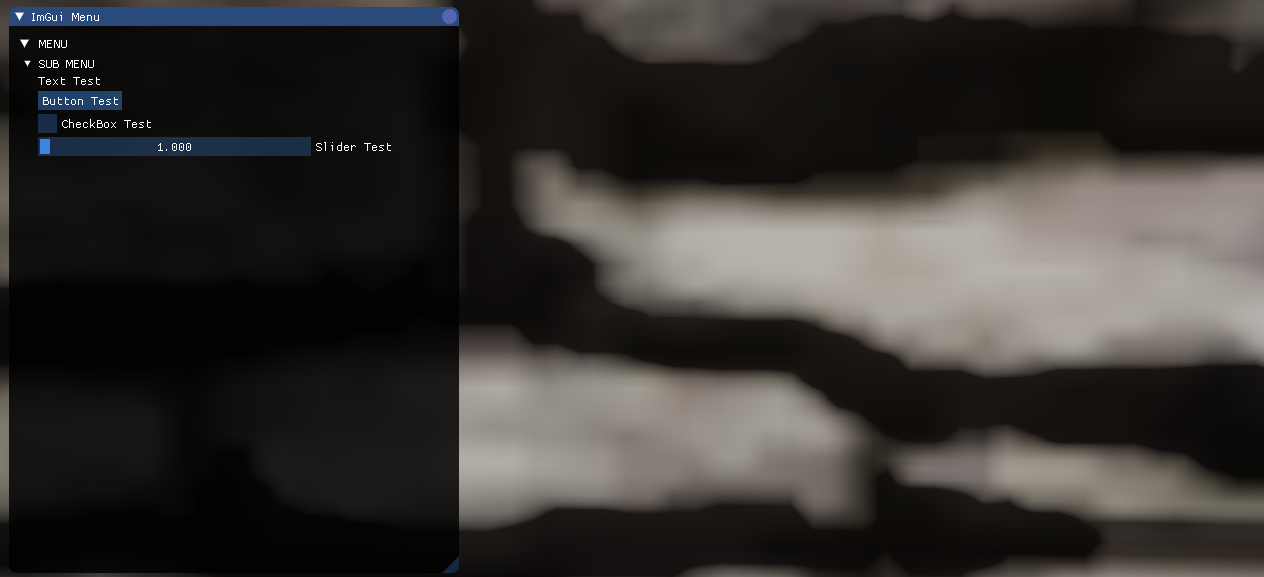
A Dear ImGui overlay that draws your interface inside another application, whatever graphics API it uses. The API is detected at runtime: build once, inject anywhere.
The overlay can also let an AI assistant such as Claude Code see and play the game through MCP, and you can chat with Claude from inside the game.
| API | Windows (x86, x64) | Linux (x86-64, ARM64) |
|---|---|---|
| Direct3D 9, 9Ex | :white_check_mark: | Windows DLL under Wine or Proton |
| Direct3D 10, 11, 12 | :white_check_mark: | Windows DLL under Wine or Proton |
| Vulkan | :white_check_mark: | :white_check_mark: |
| OpenGL 3.0+ | :white_check_mark: (WGL) | :white_check_mark: (GLX, EGL) |
[!IMPORTANT]
Use it on single-player games and your own software. Anti-cheat systems detect injected DLLs and can ban your account. While the remote control is on, any program running on your machine can control the game, and with the memory tools, read and write its memory.
Contents
- Features
- Quick start
- Usage: Windows, Linux, settings, your menu, as a library
- Talk to Claude from the game
- Remote control by an AI assistant
- API
- How it works
- Building
- Tests
- Contributing
- Limitations
- Credits, Support, License
Sections marked with ▶ expand on click. What changed in each version is listed in the releases.
Features
- Chat with Claude in the game: a chat window over the game where you tell Claude what to do. It looks at the game, plays it, reads or changes its memory, and answers in the chat.
- One library for every API: the backend is picked from the first API that presents a frame. Inject before or after the game initializes its graphics.
- AI remote control: through MCP, an assistant such as Claude Code sees the game, shows messages to the player, presses keys and clicks. With the advanced features, it also types text, drags the mouse, waits for the screen to change, follows pointer chains, freezes values and finds the code that writes them, and the AI Advanced Features window shows everything it does.
- Menu input:
INSERT, or L3 + R3 on a controller, opens the menu;F11removes the overlay and unloads the DLL. Both keys are settings. While the menu is open, the game receives no keyboard, mouse or controller input (on Linux, no key or button presses and no motion), and an XInput controller navigates the menu. - The overlay can't crash the game (MSVC builds on Windows, and Linux): an access violation or a C++ exception in the overlay, whether in a renderer backend or in your menu code, removes the overlay instead of taking the game down. The menu key brings it back.
- Images and frame capture:
uih::CreateTexture()turns RGBA pixels into an image forImGui::Image(), anduih::CaptureFrame()copies the game's frame, without the overlay, on every backend. - Multiple windows: when the game presents to more than one window or swap chain, the overlay stays on one of them and follows the focus.
- Readable on any display: the interface follows the game window's DPI, or a fixed scale, with correct colors on sRGB and floating-point back buffers.
- No injector needed: the DLL can be loaded as
dinput8.dll, and the Linux library withLD_PRELOAD. - No dependencies: Dear ImGui, MinHook and the Vulkan headers are vendored, and the C and C++ runtimes are linked statically.
- Tested in real games: on every commit, the CI loads the library into DDNet and a Godot project on Windows and Linux, with Direct3D 11, Direct3D 12, Vulkan and OpenGL, and plays them through the MCP server on Linux.
Quick start
1. Get the library. Prebuilt libraries are attached to each release, and every commit's builds are kept as workflow artifacts. Pick the one that matches the game, not your machine:
| Game | File |
|---|---|
| Windows, 64-bit | Universal-ImGui-Hook-msvc-x64.dll |
| Windows, 32-bit | Universal-ImGui-Hook-msvc-Win32.dll |
| Linux, x86-64 or ARM64 | Universal-ImGui-Hook-linux-x86_64.so or -linux-aarch64.so (glibc 2.28 or later) |
These are the Universal-ImGui-Hook.dll and .so that the build below produces, renamed after their platform; the rest of this page uses the short name.
Each release lists the SHA256 of its libraries in SHA256SUMS, and GitHub attests that this repository's CI built them: gh attestation verify Universal-ImGui-Hook-msvc-x64.dll --repo Sh0ckFR/Universal-Dear-ImGui-Hook checks a file you downloaded.
2. Or build it. On Windows, open Universal-ImGui-Hook.sln in Visual Studio 2022 or newer and build Release|x64 (Release|Win32 for a 32-bit game): the DLL is build/vs/x64/Release/Universal-ImGui-Hook.dll (build/vs/x86/Release/ for Win32). On Linux:
sudo apt install cmake ninja-build g++ pkg-config libxcb1-dev
cmake --preset linux && cmake --build --preset linux
LD_PRELOAD=$PWD/build/linux/Universal-ImGui-Hook.so ./game
3. Make it yours. You only edit the example; the hook itself, in src/, needs no changes:
| To change | Edit |
|---|---|
| The menu | example/menu.cpp, plain Dear ImGui code run every frame |
| Hotkeys, controller buttons, graphics API, interface scale | example/config.cpp |
| AI remote control and its pipe or socket name | example/config.cpp: see Remote control by an AI assistant |
| Fonts and style | a config.setup callback, run when the ImGui context is created, set next to config.render in example/dllmain.cpp (Windows) or example/preload.cpp (Linux) |
Usage
Windows
Inject Universal-ImGui-Hook.dll with any injector, with LoadLibrary, or with the script of this repository (see step 2 of the chat). F11 unloads an injected DLL; inject it again to bring the overlay back.
To load it without an injector, rename it to dinput8.dll and put it next to the game's executable. It exports DirectInput8Create and forwards it to the system library, so any game that imports DirectInput 8 loads it. Under Wine or Proton, add WINEDLLOVERRIDES="dinput8=n,b" %command% to the launch options. Loaded this way, the DLL stays in the game, which holds a reference to it: F11 removes the overlay and INSERT brings it back.
Logs (config.debugLog) go to OutputDebugString; read them with DebugView. The example DLL writes them when the game runs with the environment variable UIH_DEBUG=1.
Linux
LD_PRELOAD=/path/to/Universal-ImGui-Hook.so ./game
For a Steam game, set the launch options to LD_PRELOAD=/path/to/Universal-ImGui-Hook.so %command%. UIH_DEBUG=1 prints the log on stderr. A preloaded library cannot leave the process: F11 removes the overlay and its hooks, and INSERT brings them back.
Steam Deck. SteamOS is Linux: for a native game, set its launch options to LD_PRELOAD=/path/to/Universal-ImGui-Hook.so %command%. For a Windows game running under Proton, use the Windows DLL as dinput8.dll next to the game's executable, with WINEDLLOVERRIDES="dinput8=n,b" %command% in the launch options (see Windows). The controller buttons that open the menu (menuButtons) are read through XInput, which only the Windows DLL uses: in a native game, bind the menu key, INSERT by default, to a button of the Deck with Steam Input.
Settings
The example library's settings are compiled into it: edit example/config.cpp, next to dllmain.cpp, and rebuild.
void ApplySettings(uih::Config& config) {
    config.menuKey = VK_INSERT;                              // opens and closes the menu
    config.unloadKey = VK_F11;                               // removes the overlay, unloads the DLL
    config.menuButtons = uih::GamepadL3 | uih::GamepadR3;    // controller buttons held together, 0 to disable
    config.backend = uih::Backend::None;                     // graphics API to hook, None detects it
    config.scale = 0.0f;                                     // interface size, 0 follows the DPI
    config.remoteControl = false;                            // AI remote control
    config.remotePipe = "universal-imgui-hook";              // name of its pipe (Windows) or socket (Linux)
    config.remoteMemory = false;                             // memory tools of the remote control
    config.aiAdvancedFeatures = false;                       // advanced tools and the AI Advanced Features window
}
| Setting | Values |
|---|---|
menuKey, unloadKey |
Windows: virtual-key codes such as VK_F1 or 'M'. Linux: X11 keysyms from X11/keysymdef.h, such as 0xffbe for XK_F1; the file has its own #else branch for them. 0 disables the key. |
menuButtons |
uih::GamepadA, B, X, Y, L1, R1, L3, R3, Start, Back, DpadUp, DpadDown, DpadLeft, DpadRight, combined with |; first XInput controller, Windows only. |
backend |
uih::Backend::None detects the API from the first one that presents a frame, which is right for nearly every game. D3D9, D3D10, D3D11, D3D12, Vulkan or OpenGL forces one, for a game that uses several. |
scale |
0 follows the DPI of the game window; 1.5 draws the interface at 150%. |
remoteControl, remotePipe |
true serves the remote control on the named pipe \\.\pipe\<remotePipe> on Windows, or the Unix socket $XDG_RUNTIME_DIR/<remotePipe> on Linux. |
remoteMemory |
true, with remoteControl, also gives the assistant the memory tools: modules, read, write, value and pattern scans. |
aiAdvancedFeatures |
true, with remoteControl, gives the assistant the advanced tools and adds the AI Advanced Features button to the menu; the advanced memory tools also need remoteMemory. |
Writing your menu
The interface lives in example/menu.cpp. DrawMenu() is called every frame between ImGui::NewFrame() and ImGui::Render(), so any Dear ImGui code works there. The entry points, example/dllmain.cpp on Windows and example/preload.cpp on Linux, apply the settings and start the hook:
uih::Config config;
ApplySettings(config);         // example/config.cpp
config.render = DrawMenu;      // every frame
config.setup = LoadFonts;      // when the ImGui context is created: fonts, style
config.module = module;        // Windows: DLL unloaded by unloadKey
uih::Start(config);
Images are created once from RGBA pixels and drawn like any ImGui texture:
static ImTextureData* logo = uih::CreateTexture(pixels, 64, 64);
ImGui::Image(logo->GetTexRef(), ImVec2(64, 64));
The example menu is a tour of the common widgets (buttons, combo and list boxes, inputs, sliders, colors, tabs, trees, tables, plots, popups, draw lists), with imgui.png shown under the slider. Its Menu bar opens Dear ImGui's own demo window, which covers every function. example/image.cpp embeds the picture in the library and decodes it with stb_image.
Using the hook as a library
The repository is a CMake package. Link uih::uih to get include/uih.h and Dear ImGui's headers:
include(FetchContent)
FetchContent_Declare(uih
    GIT_REPOSITORY https://github.com/Sh0ckFR/Universal-Dear-ImGui-Hook.git
    GIT_TAG v2.1.0)   # a release tag, for reproducible builds
FetchContent_MakeAvailable(uih)
target_link_libraries(my_overlay PRIVATE uih::uih)
tests/consumer/ is a complete example, built by the CI. On Linux, linking uih::uih into a shared library applies src/linux/exports.map, which exports only the hooked functions.
Talk to Claude from the game
Chat with Claude in a window drawn over the game: ask it what it sees, or tell it what to do. It looks at the game, plays it, reads or changes its memory, and answers in the chat as it works.
flowchart LR
    A["Chat tab of the<br/>AI Advanced Features window"] -- "your messages" --> B["remote/uih_chat.py<br/>(the bridge)"]
    B -- "claude -p, for each message" --> C["Claude Code"]
    C -- "game tools" --> D["remote/uih_mcp.py"]
    D -- "screenshots, keys,<br/>clicks, memory" --> E["The library in the game"]
    B -- "the answers" --> A
What you need
| Claude Code | Installed and signed in: claude must start in a terminal. The chat uses your Claude Code plan. |
| Python | 3.8 or newer, from python.org on Windows. Nothing to install with pip. The commands below use python; on Linux, type python3. |
| This repository | Cloned, to build the library and run the scripts in remote/. |
| A single-player game | Anti-cheat systems detect injected DLLs. |
Step 1: build the library with the chat on
In example/config.cpp, set these settings to true:
config.remoteControl = true;        // the game can be controlled through a local pipe or socket
config.remoteMemory = true;         // optional: Claude can read and change the game's memory
config.aiAdvancedFeatures = true;   // the AI Advanced Features window and its chat
Then build. On Windows, open Universal-ImGui-Hook.sln in Visual Studio and build Release|x64 (Release|Win32 for a 32-bit game), which produces build/vs/x64/Release/Universal-ImGui-Hook.dll (build/vs/x86/Release/ for Win32). On Linux, cmake --preset linux && cmake --build --preset linux produces build/linux/Universal-ImGui-Hook.so.
Step 2: load the library into the game
Windows: the DLL must be loaded into the game, by any means. If it already is, with your own injector or as dinput8.dll next to the game, skip to the check below. Otherwise, start the game, wait for its window, then run this in a terminal opened in the repository:
python remote/uih_mcp.py inject game.exe build/vs/x64/Release/Universal-ImGui-Hook.dll
game.exe is the process name shown in the Task Manager (Details tab), or its PID. Give the process that shows the game window, not its launcher. inject only loads the DLL and exits: nothing else needs it.
Linux: start the game with the library preloaded:
LD_PRELOAD=$PWD/build/linux/Universal-ImGui-Hook.so /path/to/game
The socket opens with the overlay's first frame, in the process that draws it, not in the launch scripts that preload the library too.
The overlay shows up with the menu open: that is how you know the library is loaded. To check that the game also answers on its pipe or socket, however the library got in:
python remote/uih_mcp.py check
The game answers on universal-imgui-hook. Graphics API: Vulkan, window 1024x768, keyboard focus: True, overlay menu open: True, memory tools: on, advanced tools: on.
Add --pipe <name> if config.remotePipe is not the default.
Step 3: start the bridge
In a terminal opened in the repository, which you leave open while you play:
python remote/uih_chat.py
It prints Connected once it has found the game. Start it before or after the game, in any order: it waits for the game, and for it to come back after a restart.
You never start remote/uih_mcp.py yourself for the chat: the bridge hands it to Claude Code, which starts it for each answer. Run without arguments, it is an MCP server waiting for a client on its standard input, and does nothing on its own.
Step 4: chat
In the game, press INSERT to open the menu, click AI Advanced Features, and stay on the Chat tab. The top of the tab says Claude is listening in green. Type, then press Enter:
- What do you see?
- Find my health and keep it at 100.
- Walk to the door and open it.
- Type "gg" in the game's chat.
- Why can't I buy this item?
Claude writes in the chat as it works, and the line Claude is working shows which tool it is using. Stop ends its answer, and New conversation makes it forget what was said. To play, Claude closes the menu, since the game gets no keys or clicks while it is open; its answers then show at the top of the screen, and INSERT brings the chat back.
Bridge options
| Option | Default | Effect |
|---|---|---|
--pipe <name> |
universal-imgui-hook |
The game's config.remotePipe, if you changed it |
--model <model> |
Claude Code's default | sonnet answers faster, opus thinks more |
--claude <path> |
claude on the PATH |
The Claude Code executable |
Each message runs Claude Code headless (claude -p) with the tools of remote/uih_mcp.py and no other tool: no shell, no file access. It runs from its own folder in the temporary directory, so none of your CLAUDE.md files apply, and the conversation is kept there until New conversation.
Troubleshooting
| You see | Do |
|---|---|
INSERT shows nothing |
The library is not in the game: inject it into the process that shows the window, with the same architecture (x64 DLL for a 64-bit game). Some launchers start the game as a second process, such as Godot's _console.exe. |
The bridge stays on Waiting for the game |
Same as above, or config.remoteControl is false, or another game already holds the pipe: close it, or give each game its own remotePipe and --pipe. |
The game refuses the chat |
config.aiAdvancedFeatures is false: set it and rebuild. |
| Claude is not connected in the chat | The bridge is not running, or runs with another --pipe. |
Claude Code is not on the PATH |
Install Claude Code, or give its path with --claude. |
Claude Code failed in the chat |
Run claude once in a terminal and sign in. |
| Claude cannot press keys or read the memory | The switches at the top of the window are off, or config.remoteMemory is false. |
Remote control by an AI assistant
The library can let an AI assistant such as Claude Code see the game, show messages to the player, press keys and click, and optionally read and write the game's memory. The assistant speaks the Model Context Protocol (MCP) with remote/uih_mcp.py over standard input and output, and the script talks to the library over a local named pipe (Windows) or Unix socket (Linux). It works with every graphics API, and on Linux with X11 and XWayland games.
flowchart LR
    A["Assistant, such as Claude Code"] -- "MCP on stdin and stdout" --> B["remote/uih_mcp.py"]
    B -- "local named pipe or Unix socket" --> C["The library in the game"]
1. Turn it on and load the library into the game, as in steps 1 and 2 of the chat. Only config.remoteControl is required: remoteMemory adds the memory tools, and aiAdvancedFeatures adds the advanced tools and their window. config.remotePipe names the pipe, \\.\pipe\universal-imgui-hook by default, or the socket, $XDG_RUNTIME_DIR/universal-imgui-hook. python remote/uih_mcp.py check tells you whether the game answers.
2. Register the MCP server with the assistant, once. You do not start uih_mcp.py yourself: the assistant does when a session starts, and talks to it over its standard input and output. With Claude Code:
claude mcp add game -- python C:/path/to/Universal-Dear-ImGui-Hook/remote/uih_mcp.py
On Linux, use python3 /path/to/Universal-Dear-ImGui-Hook/remote/uih_mcp.py. With another remotePipe, add --pipe <name> after the script. Other MCP clients, such as Claude Desktop, take the same command in their configuration:
{
  "mcpServers": {
    "game": { "command": "python", "args": ["C:/path/to/Universal-Dear-ImGui-Hook/remote/uih_mcp.py"] }
  }
}
3. Ask. Start a new session of the assistant, or run /mcp in Claude Code, and talk about the game:
- Look at the game and tell me what you see.
- Write "Well done!" in the game for 5 seconds.
- Walk right to the edge of the platform, then jump.
- Open the overlay menu and describe it.
- Click on "New game" in the main menu.
- Find my money in memory and set it to 99999. (with
remoteMemory) - Type "gg" in the chat, then wait for the next round to start. (with
aiAdvancedFeatures) - Find my health, keep it at 100, and find a pointer to it that survives a restart. (with both)
Tools
The assistant gets these tools:
| Tool | Effect |
|---|---|
screenshot |
The current frame, without the overlay, at most 1280 pixels wide or high by default |
show_text |
A message to the player at the top of the screen, drawn by the overlay, for 10 seconds by default |
press_key |
Holds keys for a duration, 150 ms by default; right+space holds them together |
click |
Clicks at a point of the last screenshot, with the left, right or middle button |
game_info |
Graphics API, window size, keyboard focus, menu state, and whether the memory and advanced tools are on |
Memory tools
With remoteMemory, the assistant also gets memory tools, like those of a memory editor such as Cheat Engine:
| Tool | Effect |
|---|---|
memory_find, memory_next, memory_results |
Value scan of the writable memory (i8 to i64, f32, f64), narrowed by a new value or by changed, unchanged, increased, decreased, with the module+offset of each address |
memory_read, memory_write |
Hexadecimal dump, with the first bytes decoded as numbers and as a pointer; writes a value or bytes, code included |
memory_pattern |
Byte pattern with ?? wildcards in a module, the executable by default |
memory_modules |
The game's modules with their base address and size |
Addresses are hexadecimal or module+offset, such as game.exe+1a2b3c. With aiAdvancedFeatures, they can also be pointer chains: [game.exe+1a2b3c]+10 is the address 0x10 bytes after the one stored at game.exe+1a2b3c.
Advanced features and the AI Advanced Features window
With config.aiAdvancedFeatures = true, the assistant also gets these tools:
| Tool | Effect |
|---|---|
type_text |
Types Unicode text, for chat boxes and text fields; a new line presses Enter |
mouse_move, drag |
Moves the cursor to a point of the last screenshot, or drags from one point to another with a button held |
wait_for_change |
Waits until a share of the frame's pixels has changed, 1% by default, or for a timeout: use it after a loading screen or an animation, instead of taking screenshots in a loop |
and, with remoteMemory too:
| Tool | Effect |
|---|---|
memory_pointer |
Follows a pointer chain, [[game.exe+1a2b]+10]+8, and shows each pointer it reads |
memory_pointer_scan |
Finds the pointers to an address, those stored in a module first: [game.exe+offset]+delta finds the value again after a restart |
memory_watch, memory_freeze |
A watch list of values, each with a type and a label; a frozen value is written again every frame |
memory_what_writes |
The instructions that write a value, or read it, with their hit counts: hardware breakpoints on every thread, like a debugger's data breakpoint |
The example menu then shows an AI Advanced Features button, which opens a window provided by the library, uih::DrawAIAdvancedFeatures():
- Chat: talk to Claude from the game while
remote/uih_chat.pyruns: see Talk to Claude from the game; - Activity: the assistant's commands and their answers, newest first;
- two switches that pause the assistant's input (keys, clicks, typing, mouse) or its memory tools, without rebuilding;
- Watch list: the values watched by the assistant or the player, updated live, with a checkbox to freeze each one, a value to write, and a form to add one;
- Pointers: a pointer chain followed as you type it, and a pointer scan whose results go to the watch list in one click;
- What writes: the instruction watch on an address, with each instruction, its hit count and the bytes before it.
- Any program you run can use the pipe or the socket, so the remote control is off by default. Other machines cannot, nor, on Linux, other users. Turn it on for single-player games only: anti-cheat systems detect injected DLLs.
- While you type to the assistant, the game does not have the focus. Keys and clicks then reach it as window messages, or X11 events on Linux, which games that read the keyboard or mouse state directly (DirectInput, raw input) do not see, and neither does the overlay menu on Linux. With the focus, a click moves the player's cursor. Click the game window after sending your request, or let the assistant play on a second screen.
- While the overlay menu is open, the game receives no keys: the assistant can close it with
insert. - The assistant plays turn by turn, a screenshot and a few keys at a time: fine for menus, puzzles and slow games, not for reflexes.
- On Linux, keys and clicks go through the X server's XTEST extension; without it, they are sent as events to the window. Native Wayland games get neither.
- One game per pipe or socket name: a second game started with the same name logs that the remote control is unavailable.
unloadKeystops the remote control along with the overlay.- With
remoteMemory, any program you run can also read and write the game's memory through the pipe or the socket; on Linux, that bypasses Yama's ptrace restrictions for programs of your user. A value scan also finds copies of the value: change it in the game and narrow the scan until one address is left. - Typed text reaches games that read text input, as chat boxes do; games that read the keys themselves see only Enter and Tab, so use
press_keyfor them. On Linux, a character missing from the keyboard layout is mapped to a free keycode while it is typed, which the X server's other applications see too. memory_what_writessets debug register 3 of every thread of the game on Windows: a debugger attached to the game, or a game that uses that register, sees the change. On Linux, it asks the kernel for a hardware breakpoint on each thread (perf events), which unprivileged processes get whilekernel.perf_event_paranoidis 2 or lower. Ubuntu sets 4, so runsudo sysctl kernel.perf_event_paranoid=2once per boot. Threads started later are watched within half a second.- Screenshots of HDR back buffers, with more than 10 bits per channel, fail.
To write your own client instead of remote/uih_mcp.py, see the protocol: one text command per line on the pipe or socket.
API
Everything is in include/uih.h, in the uih namespace.
| Function | Description |
|---|---|
Start(config) |
Installs the hooks on a worker thread and returns. Safe to call from DllMain or a library constructor. |
Stop() |
Removes the overlay, releases the GPU resources on the rendering thread and removes the hooks. Blocks; do not call it from DllMain or a hook. Start() can be called again afterwards. |
ActiveBackend(), BackendName(backend) |
The API the overlay is drawn with, Backend::None until the first frame. |
IsMenuOpen(), SetMenuOpen(open) |
Menu state, also toggled by menuKey. |
AIAdvancedFeaturesEnabled(), DrawAIAdvancedFeatures(open) |
Whether the hook runs with remoteControl and aiAdvancedFeatures; draws the AI Advanced Features window from the render callback, and clears *open when it is closed. |
CreateTexture(rgba, width, height) |
Image from RGBA pixels, uploaded by the active backend on the next frame and again after a backend switch. Any thread. Returns null once kMaxTextures (256) images exist. |
DestroyTexture(texture) |
Releases an image on the next frame. |
CaptureFrame(pixels, width, height, timeoutMs) |
Copies the game's next frame, without the overlay, as RGBA pixels. Waits for that frame on any thread except the render callback's; returns false on timeout, or with a back buffer of more than 10 bits per channel (HDR). |
Config fields
Config field |
Default | Description |
|---|---|---|
render |
nullptr |
Called every frame, between ImGui::NewFrame() and ImGui::Render() |
setup |
nullptr |
Called when the ImGui context is created, and again if the game switches devices or windows |
backend |
None |
Restricts the hook to one API; None takes the first that presents |
menuKey, unloadKey |
INSERT, F11 |
Virtual-key codes on Windows, X11 keysyms on Linux |
menuButtons |
GamepadL3 | GamepadR3 |
Controller buttons held together to toggle the menu, 0 to disable; first XInput controller, Windows only |
scale |
0 |
Interface size; 0 follows the DPI of the game window |
module |
nullptr |
Windows: module freed by unloadKey. With nullptr, unloadKey removes the overlay and the menu key or buttons bring it back, as on Linux |
debugLog |
false |
OutputDebugString on Windows, stderr on Linux |
remoteControl |
false |
Serves the remote control on a named pipe for local processes (Windows), or a Unix socket for the user's processes (Linux) |
remotePipe |
"universal-imgui-hook" |
Name of that pipe, \\.\pipe\<remotePipe>, or socket, $XDG_RUNTIME_DIR/<remotePipe> (/tmp/<remotePipe>-<uid> without that variable); copied by Start() |
remoteMemory |
false |
With remoteControl: the memory tools, which read, write and scan the game's memory for the assistant |
aiAdvancedFeatures |
false |
With remoteControl: the advanced tools and the AI Advanced Features window; with remoteMemory too, the advanced memory tools |
How it works
In short: Start() hooks the present function of each graphics API (Present, vkQueuePresentKHR, *SwapBuffers), found through dummy objects with MinHook on Windows and by symbol interposition on Linux. In each present, the overlay runs your render callback and draws the ImGui data on the game's back buffer. While the menu is open, the game's input functions report nothing, and faults in the overlay are caught so they remove the overlay instead of crashing the game.
The details, from hook points and input blocking to teardown, faults, frame capture and the remote control server, are in docs/ARCHITECTURE.md.
Building
| Target | Output | CMake presets |
|---|---|---|
| Windows game, 64-bit | Universal-ImGui-Hook.dll |
msvc-x64, mingw-x64 |
| Windows game, 32-bit | Universal-ImGui-Hook.dll |
msvc-x86, mingw-x86 |
| Native Linux game | Universal-ImGui-Hook.so |
linux |
Each preset builds into build/<preset>.
Visual Studio 2022 or newer, with the "Desktop development with C++" workload. Pick one:
Universal-ImGui-Hook.slnbuilds the DLL anduih_hostwithout CMake, intobuild/vs/<x64|x86>/<configuration>/.- Open the folder: Visual Studio reads
CMakePresets.json. - Command line:
cmake --preset msvc-x64, thencmake --build --preset msvc-x64.
From an MSYS2 UCRT64 shell, or with a winlibs toolchain in PATH:
pacman -S mingw-w64-ucrt-x86_64-toolchain mingw-w64-ucrt-x86_64-cmake mingw-w64-ucrt-x86_64-ninja
cmake --preset mingw-x64 && cmake --build --preset mingw-x64
With the mingw-x64 and mingw-x86 presets and the toolchain files in cmake/:
| System | Packages |
|---|---|
| Debian, Ubuntu | cmake ninja-build g++-mingw-w64-x86-64 g++-mingw-w64-i686 |
| Fedora | cmake ninja-build mingw64-gcc-c++ mingw32-gcc-c++ |
| Arch | cmake ninja mingw-w64-gcc |
| macOS (Homebrew) | cmake ninja mingw-w64 |
With the linux preset:
| Distribution | Packages |
|---|---|
| Debian, Ubuntu | cmake ninja-build g++ pkg-config libxcb1-dev |
| Fedora | cmake ninja-build gcc-c++ pkgconf-pkg-config libxcb-devel libstdc++-static |
| Arch | base-devel cmake ninja libxcb |
At run time, it only needs libxcb and glibc, but a glibc at least as recent as the build machine's. To share the library or use it in the Steam Linux Runtime, build it on an old distribution or take the prebuilt one. Set CC=clang CXX=clang++ before configuring to use Clang.
Options are passed at configure time, such as -DUIH_BUILD_TESTS=ON:
| Option | Default | Effect |
|---|---|---|
UIH_BUILD_EXAMPLE |
ON at top level |
The example DLL or shared object |
UIH_BUILD_TESTS |
OFF |
uih_host and the CTest suite |
UIH_STATIC_RUNTIME |
ON at top level |
Static C and C++ runtimes |
UIH_SANITIZE |
OFF |
Linux with GCC: AddressSanitizer and UndefinedBehaviorSanitizer in every target, for the tests |
Minimum versions: CMake 3.21, Visual Studio 2022, mingw-w64 11 with GCC 13, GCC 13 or Clang 18 on Linux; Windows 10 at run time. The mingw-w64 headers of Ubuntu 22.04 are too old for D3D12.
Tests
-DUIH_BUILD_TESTS=ON builds uih_host, which renders a solid color with one API and checks the overlay, and registers its scenarios with CTest:
cmake --preset msvc-x64 -DUIH_BUILD_TESTS=ON && cmake --build --preset msvc-x64
ctest --test-dir build/msvc-x64 -C Release
Some tests press real keys and move the mouse. They are skipped when the host window does not have the focus, so leave the machine alone while they run.
tests/README.md describes every scenario, how to run the tests without a GPU or under the validation and debug layers, the Linux tests, the real-game tests and what the CI checks.
Contributing
Bug reports, fixes and features are welcome: CONTRIBUTING.md gives the principles and rules of the project, and docs/ARCHITECTURE.md maps where the code is and how it works. Report security problems privately, as SECURITY.md explains.
Limitations
Windows
- HDR10 swap chains (PQ color space) show the overlay with wrong colors, and
CaptureFrame()only copies 8-bit and 10-bit back buffers: HDR output's floating-point back buffers are not captured. - A Vulkan swap chain created before the hook has no overlay until the game recreates it. Its presents report
VK_SUBOPTIMAL_KHR, to which games respond by recreating it. - When the game, or another overlay, subclasses the window after the hook, the hook's window procedure stays in its chain: the unload key leaves the DLL loaded, and injecting it again does not start it.
- Native ARM64 Windows games are not supported: MinHook only handles x86 and x64.
- MinGW-w64 builds of the DLL survive C++ exceptions in the overlay, but not access violations, since MinGW-w64 has no structured exception handling. The released DLLs are built with MSVC.
Linux
- Input is read from the X server, so native Wayland windows get no menu input (run SDL games with
SDL_VIDEODRIVER=x11). The wheel scrolls the menu in games that read the mouse buttons from the X server. Input methods are not handled, and a pointer the game has grabbed stays grabbed while the menu is open. - 32-bit games, OpenGL ES, and games that link their GL or Vulkan loader statically are not supported.
- The remote control sends no keys or clicks to native Wayland games.
Credits
Built with Dear ImGui, MinHook, Vulkan-Headers and stb_image (the example's picture).
| Who | What |
|---|---|
| Sh0ckFR, Revan600 | ImGui and input hooks |
| Rebzzel | Initial work on the kiero library (no longer used) |
| primemb | Bug fixes |
Support
This project is free and MIT-licensed. It covers six graphics backends on two operating systems and runs about 150 test scenarios on every commit, real games included. If it saved you time, consider sponsoring or starring the repository.
License
This project is licensed under the MIT License; see the LICENSE file for details.
Yorumlar (0)
Yorum birakmak icin giris yap.
Yorum birakSonuc bulunamadi