deskbuddy
Health Uyari
- License — License: MIT
- Description — Repository has a description
- Active repo — Last push 0 days ago
- Low visibility — Only 7 GitHub stars
Code Basarisiz
- new Function() — Dynamic code execution via Function constructor in design/headphones.js
- fs module — File system access in design/headphones.js
- child_process — Shell command execution capability in laptop/check_budget.js
- process.env — Environment variable access in laptop/check_budget.js
- network request — Outbound network request in laptop/check_budget.js
- fs module — File system access in laptop/check_pack.js
Permissions Gecti
- Permissions — No dangerous permissions requested
Bu listing icin henuz AI raporu yok.
deskbuddy: turn any Android phone into a living desk buddy. Chip, its pixel-art face, blinks, reacts to touch, wears headphones when music plays, types along with you, pings when Claude Code finishes, and turns your voice into laptop typing. Home Wi-Fi only, no cloud, no account, no camera. Runs on Termux. Linux, Windows, macOS.

Turn your Android 7+ phone into a pixel-art desk buddy.
Chip types along with you, turns voice dictation into text, and alerts you when an AI coding agent needs attention.
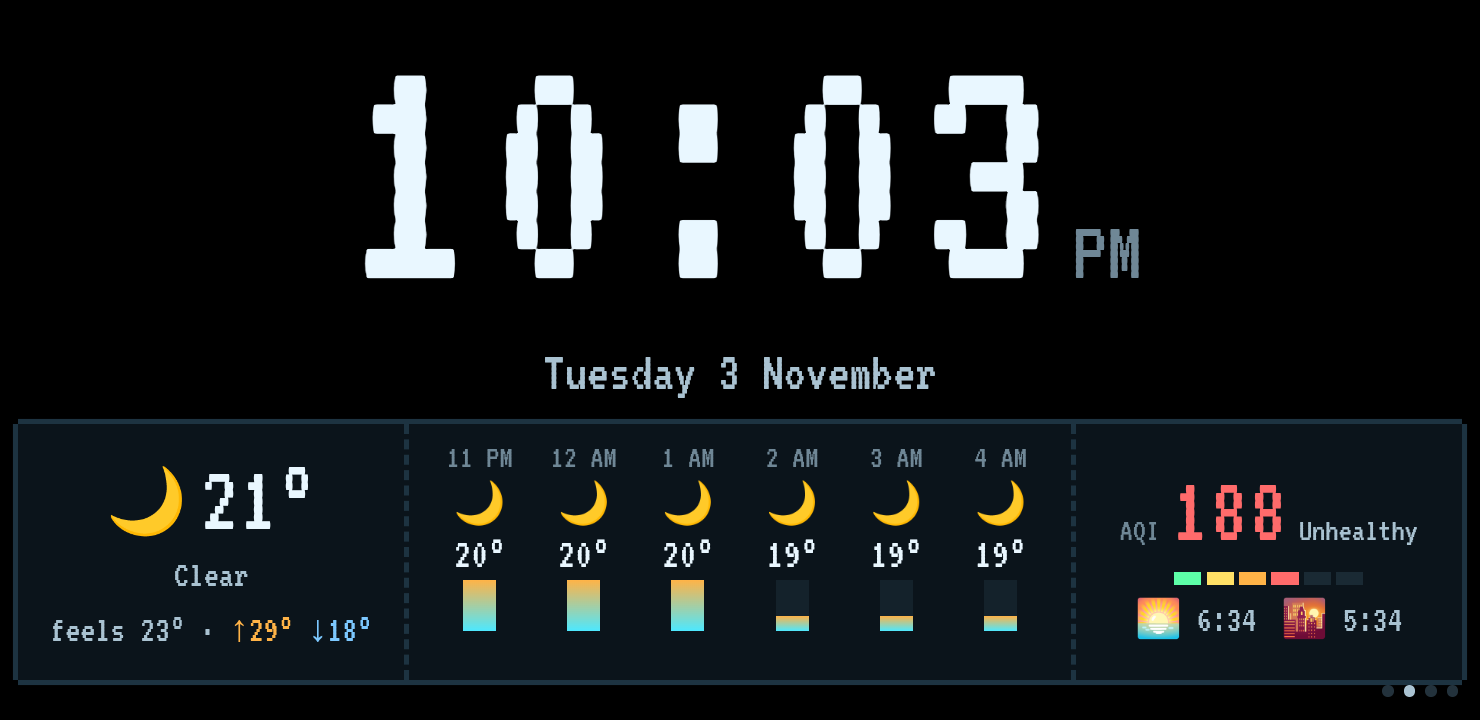
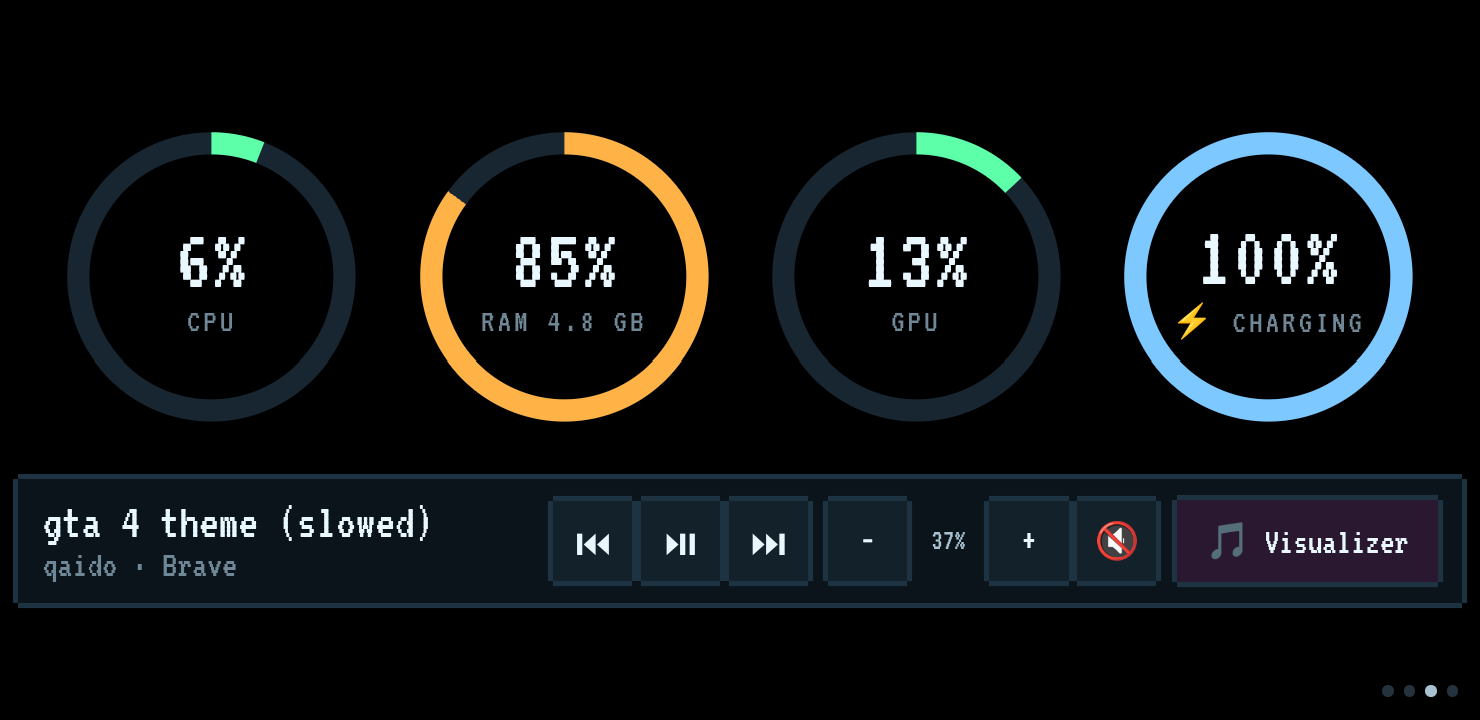
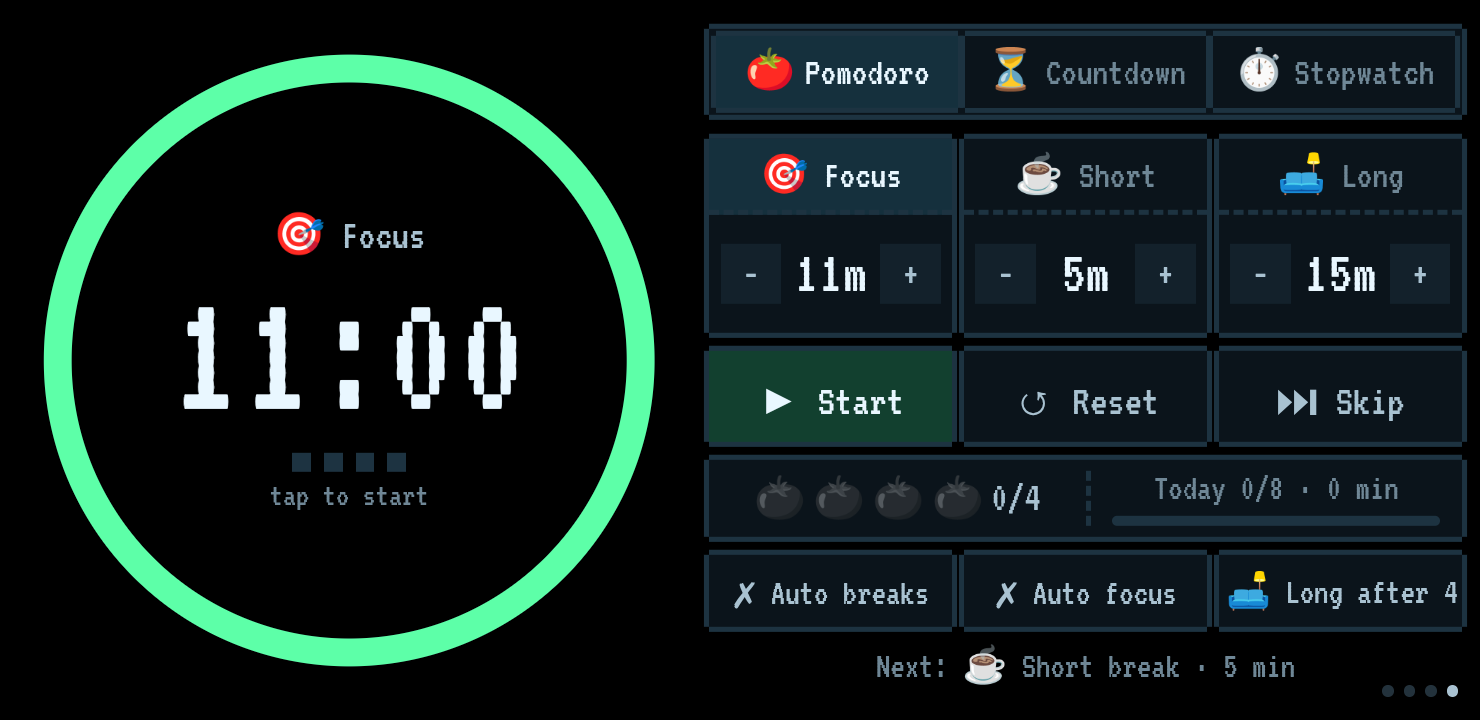
See your PC stats and what’s playing, watch Chip put on headphones, or start a Pomodoro session or countdown.
Give Chip a look of its own with custom skins.


Download ZIP · Install Chip · Gallery · Platform comparison
Contents| Jump to | |
|---|---|
| Explore Chip | Gallery · What works where |
| Setup | Installation · Linux · Windows · macOS · Pair the phone · Uninstall |
| Support | Connections and reboots · Privacy and security · Troubleshooting · Useful commands |
| Project | Updating · For developers · Credits and license |
Feature Gallery

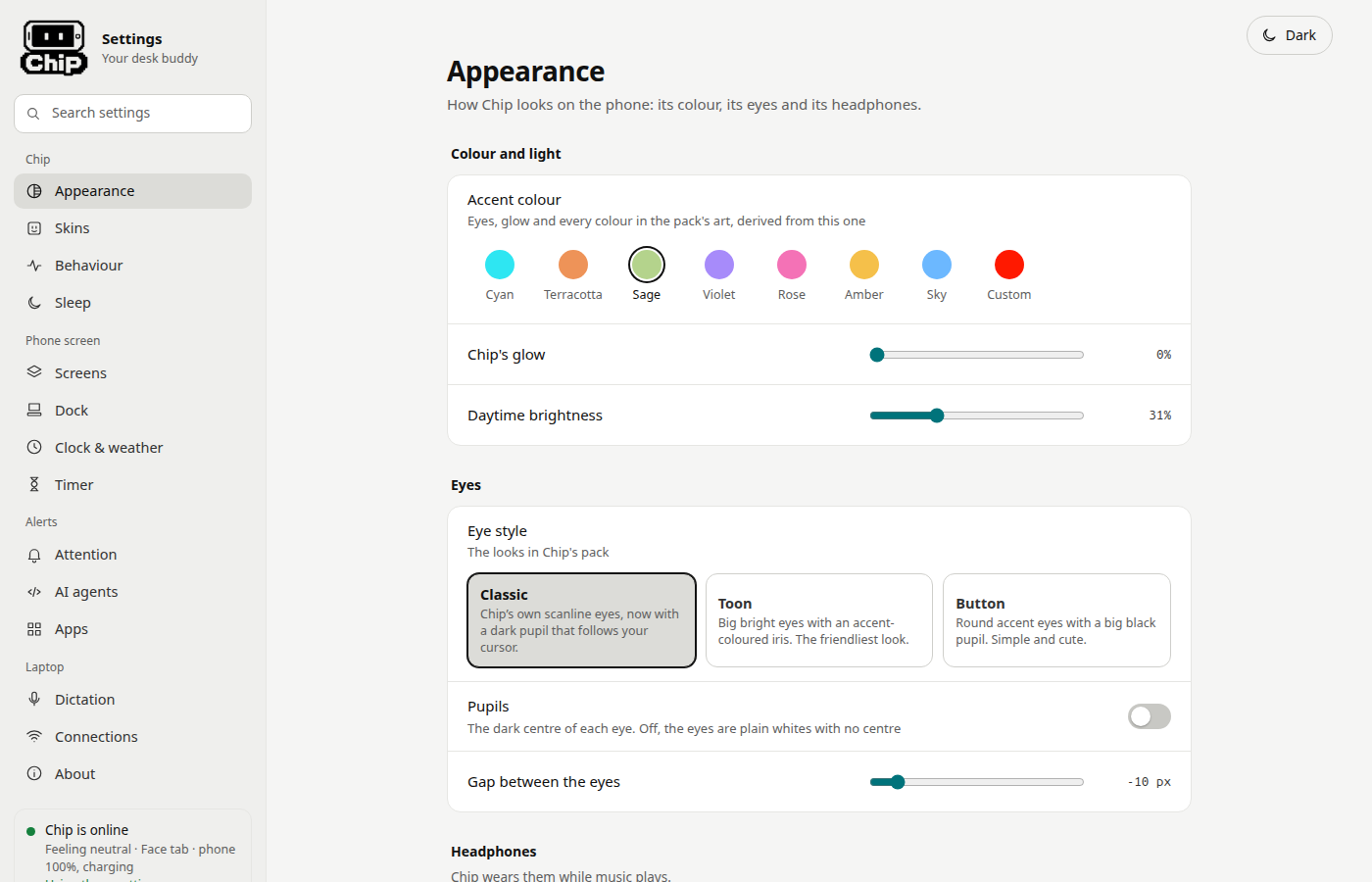
Pick any accent colour and Chip's whole look follows it:




Three eye styles: Classic (above), Toon and Button.


Custom skins
Fan-made examples created with an AI chatbot and shown here as previews.



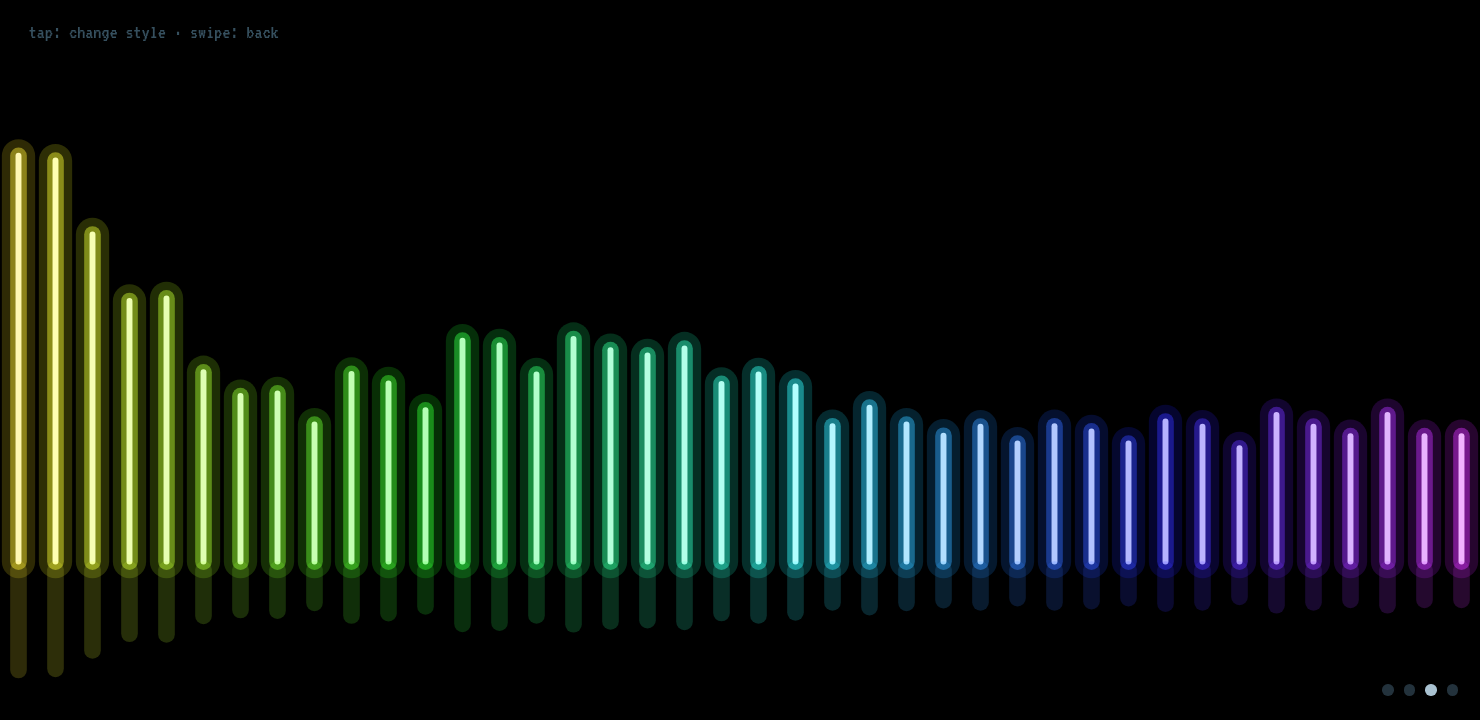
| Typing along / focus mode | Music visualizer |
|---|---|
 |
 |
| Clock & weather | Laptop stats and music |
 |
 |
| Pomodoro timer | Headphones while music plays |
 |
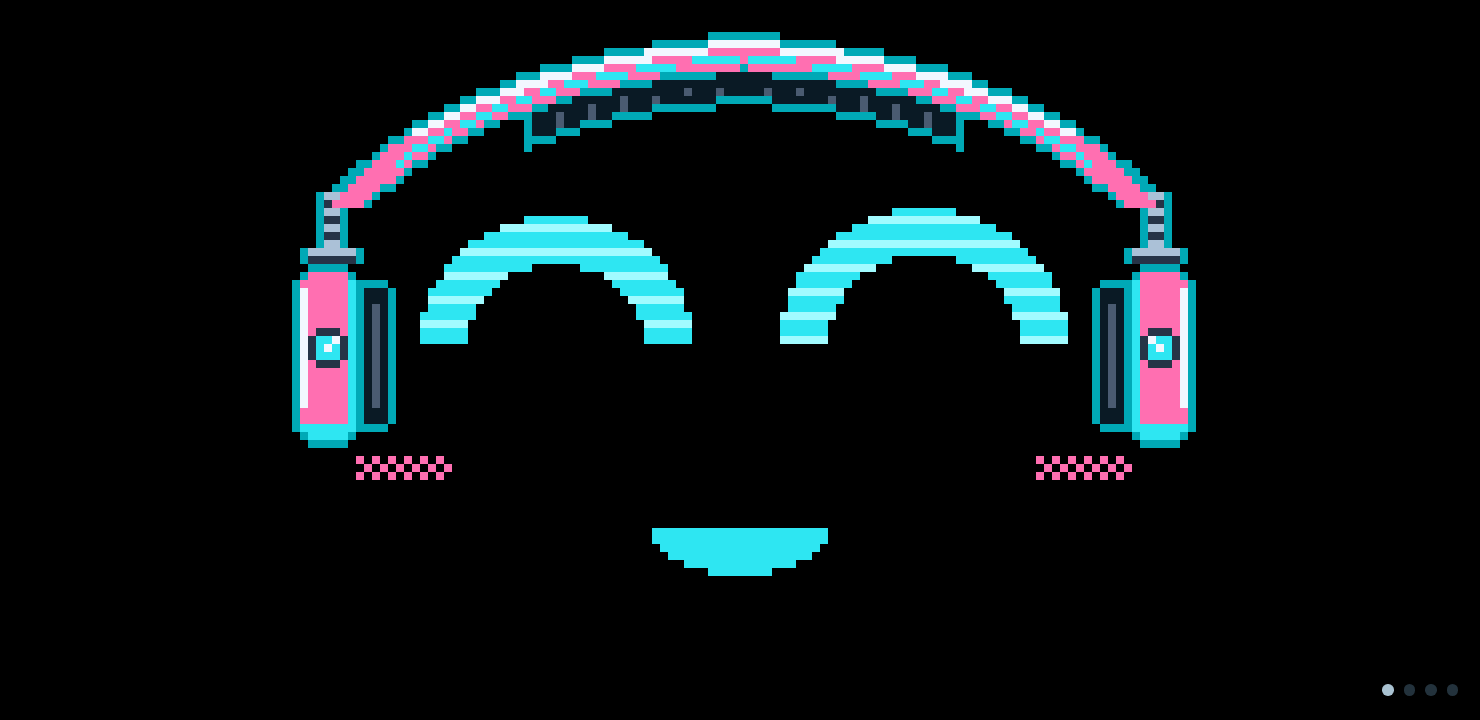 |
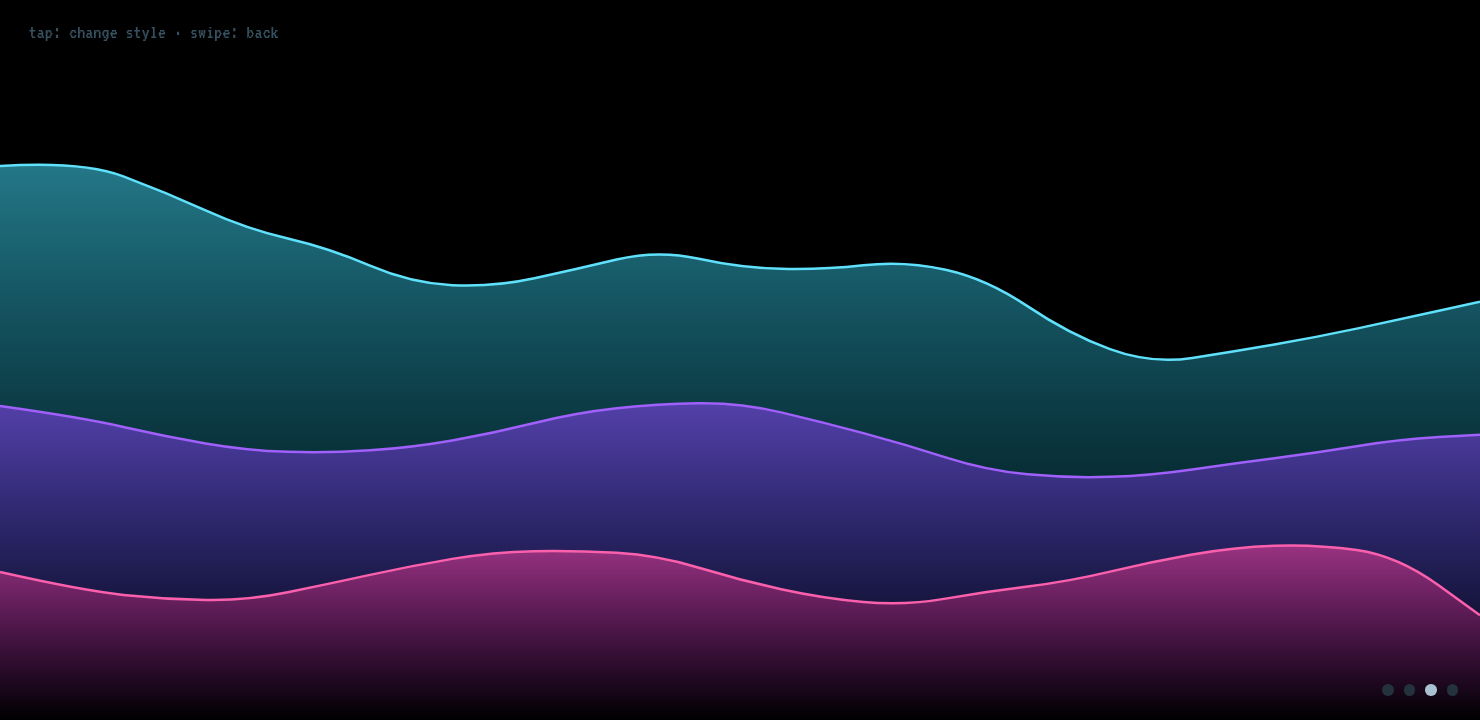
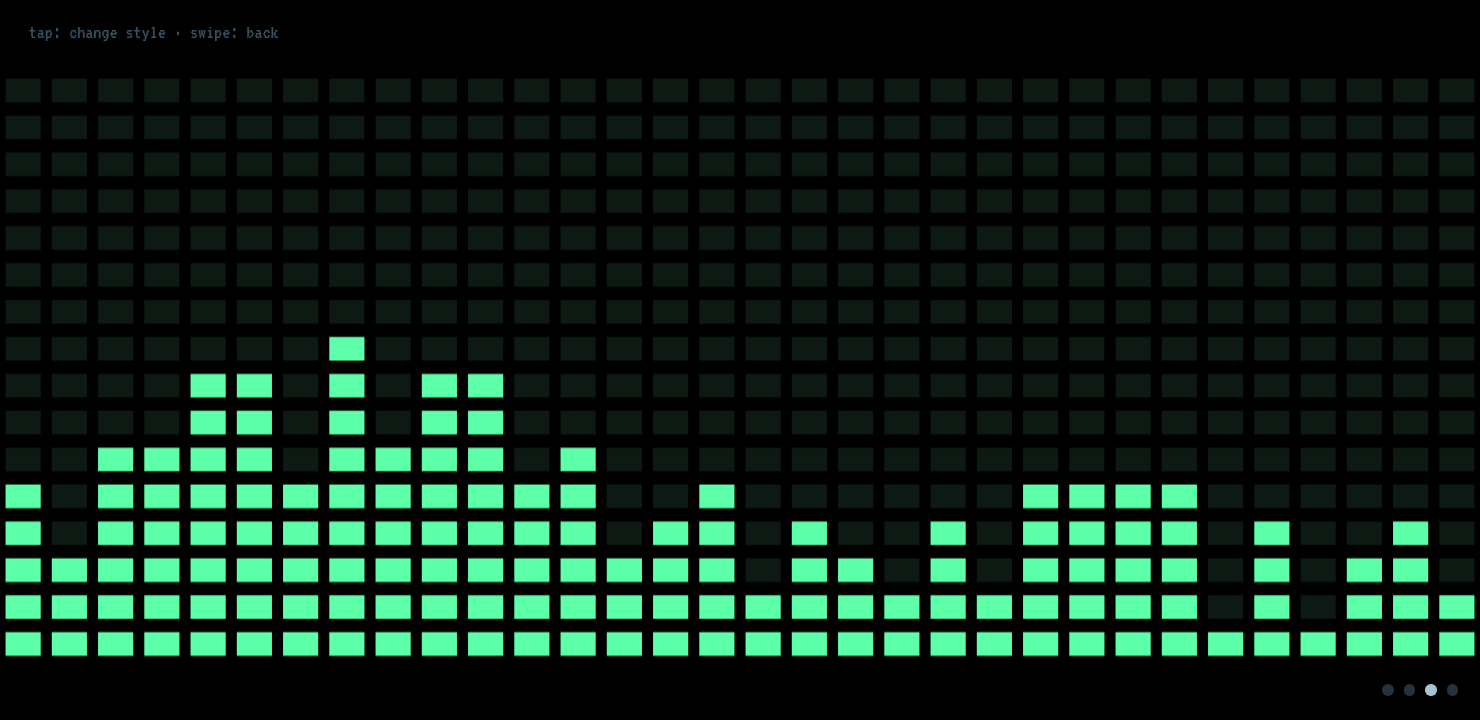
Tap the visualizer to switch between bars, mirror, radial, neon, waves, LED and silk.
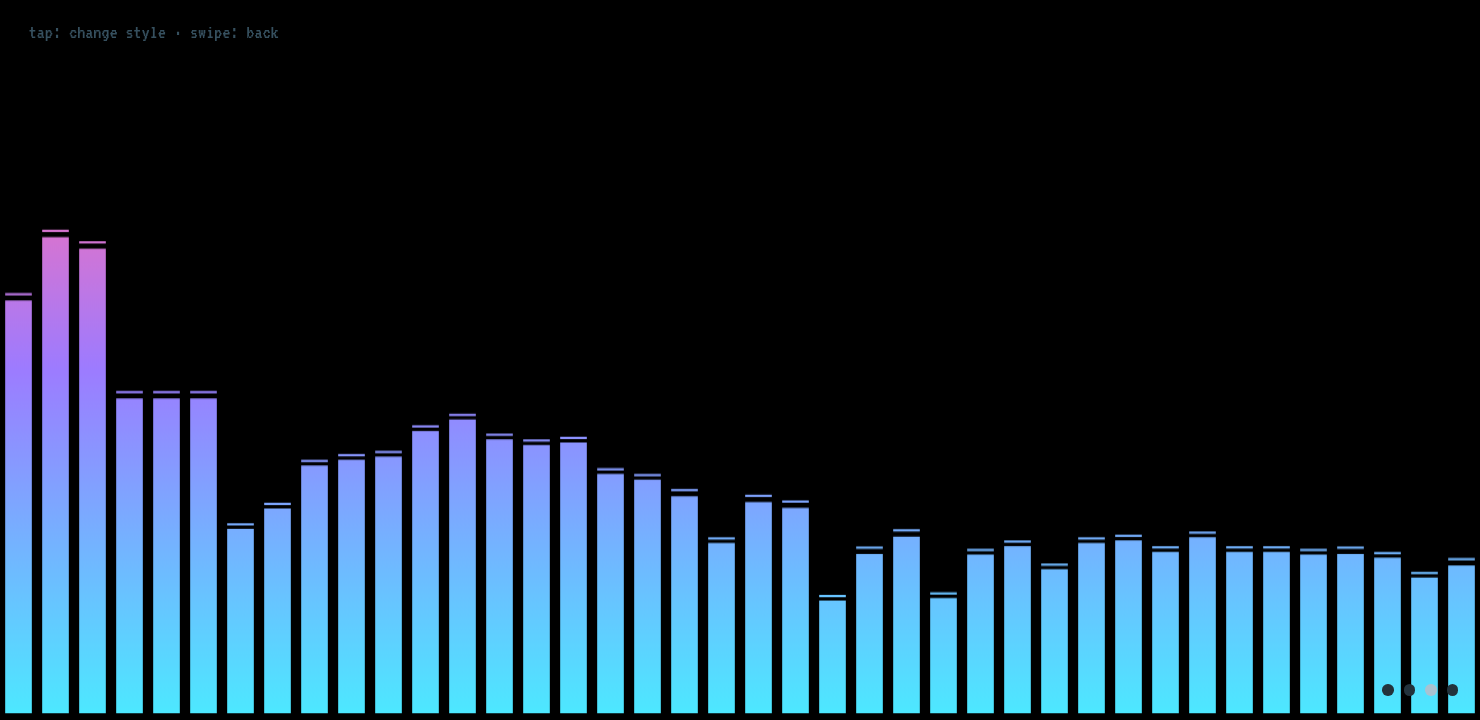
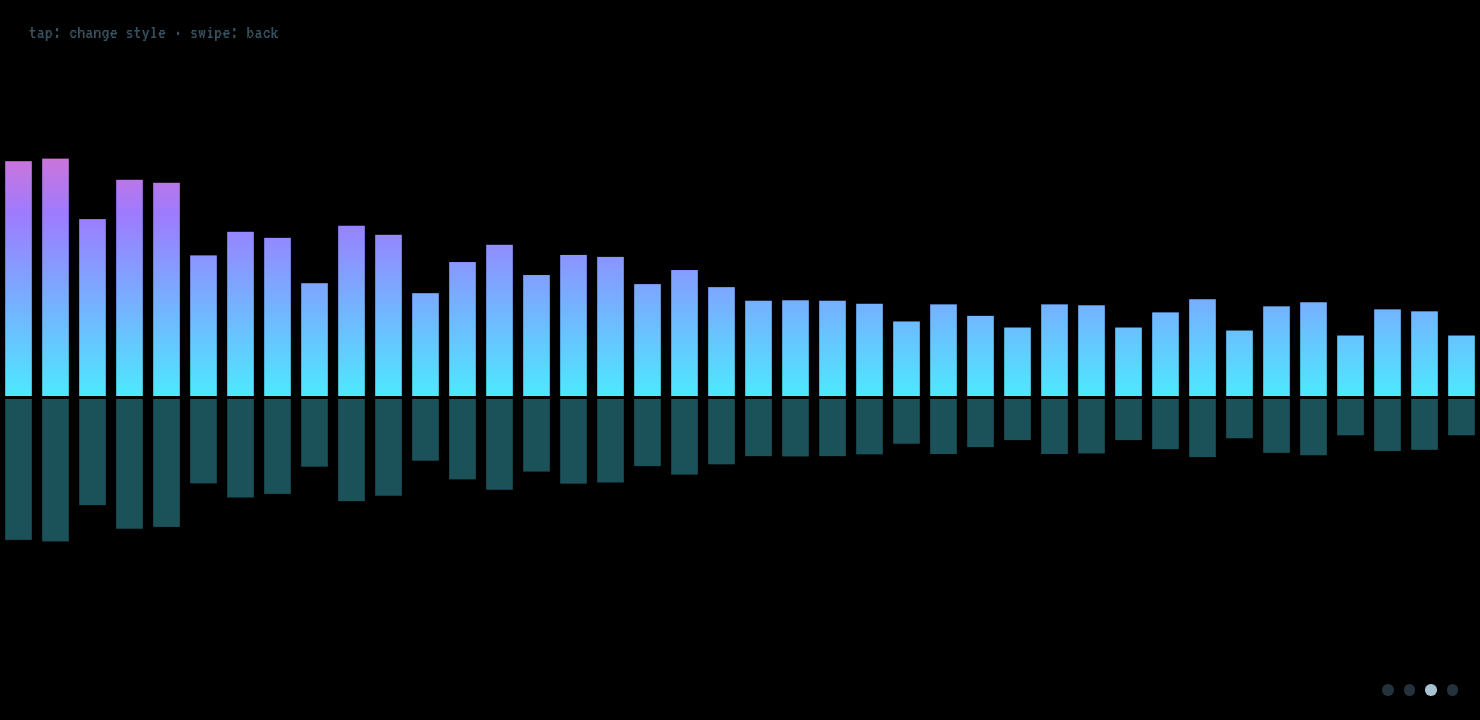
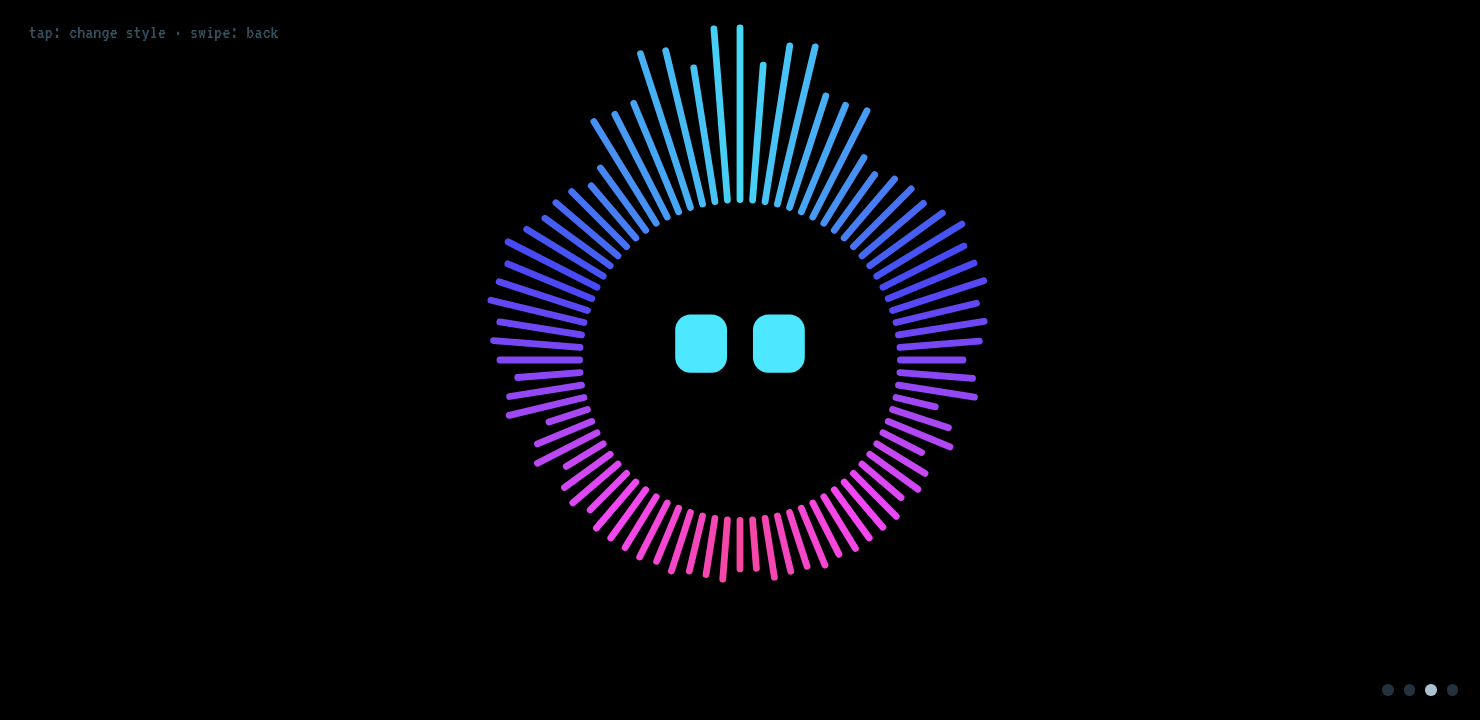

Laptop dashboard
Adjust Chip’s settings from your browser.
What works where
Status: beta. Linux (GNOME) is the main platform and has every feature. Windows 10 is tested end to end on a
real PC with a real phone (Windows 11 has the same code but no test yet). macOS support is written but not finished.
Everything on the phone itself (face, reactions, clock, weather, timers, skins, sounds, torch) works the same with
every laptop. The differences are in what the laptop can report or do:
| Feature | Linux (GNOME) | Windows 10/11 | macOS 14+ |
|---|---|---|---|
| Wi-Fi link, pairing wizard, auto-reconnect, auto-update of the phone | ✅ | ✅ | 🧪 |
| Dashboard (all settings) | ✅ | ✅ | 🧪 |
| Start automatically at login / boot | ✅ systemd (at boot) | ✅ at login | 🧪 LaunchAgent |
| CPU, RAM, uptime, network | ✅ | ✅ | 🧪 |
| Laptop battery | ✅ | ✅ (code only: the test PC had no battery) | 🧪 |
| GPU ring | ✅ (AMD) | ❌ | ❌ |
| Temperatures and fan | ✅ | ❌ | ❌ |
| Dictation typed into the focused window | ✅ | ✅ | 🧪 (needs Accessibility) |
| Dictation engine: phone (offline) | ✅ | ✅ | ✅ |
| Dictation engine: cloud | ✅ | ✅ | ✅ |
| Dictation engine: laptop (offline whisper.cpp) | ✅ | ✅ Install Chip.cmd --stt downloads it |
✅ install.py --stt (Homebrew) |
| Knows when you're idle or the screen is locked | ✅ | ✅ (Windows 10 lock screen proven) | 🧪 |
| AI-agent alerts (Claude Code, Gemini CLI, opencode) | ✅ | ✅ (Claude Code hooks tested from cmd, PowerShell and Git Bash) | 🧪 |
| Alerts for other apps' notifications | ✅ | ❌ | ❌ |
| Music card: now playing, play/pause, next | ✅ | ✅ (read from Windows' media sessions) | ❌ |
| Volume control | ✅ | ❌ | ❌ |
| Music visualizer | ✅ | ❌ | ❌ |
| Headphones on Chip while music plays | ✅ | ✅ | ❌ |
| Chip types along with you | ✅ | ✅ (counts key presses only) | ❌ |
| Eyes follow the mouse pointer | ✅ (GNOME extension) | ❌ | ❌ |
| "Only connect on my home Wi-Fi" | ✅ | ✅ | ⚠️ macOS may hide the Wi-Fi name |
| Custom skins | ✅ | ✅ (needs Node.js) | ✅ (needs Node.js) |
✅ works · ⚠️ works with an extra step · 🧪 written, not proven yet · ❌ not yet (the dashboard greys it out and says so)
Linux was built and tested on Ubuntu with GNOME on Wayland. Other desktops will get the basics (stats, link, phone
features), but idle/lock, media, notifications, typing and eye tracking use GNOME's D-Bus APIs.
Installation
1. Install on the laptop
Download the ZIP and extract it to a folder you can keep. Chip runs from that folder.
If you use Git, open a terminal and run:
git clone https://github.com/Shriaman2005/deskbuddy.git
cd deskbuddy
Choose your laptop instructions below. After installation, continue to phone setup.
Linux (GNOME)
Use Linux with GNOME (Ubuntu 24.04+ recommended), Python 3.12+, and the OpenSSH client. Git is needed if you clone the repository.
For custom skins, install Node.js 18+.
Open a terminal in the Chip folder and run:
laptop/install.sh
This installs the bridge as a systemd user service (deskbuddy-bridge) that starts at boot, even before you log in,
and links the small GNOME Shell extension that lets Chip's eyes follow your mouse. Log out and back in once so
GNOME loads the extension.
Then open the dashboard: http://127.0.0.1:8765
Optional extras:
- Music visualizer and volume need PipeWire/PulseAudio tools (
wpctl,parec), which Ubuntu has by default. - Offline dictation on the laptop: build whisper.cpp and put
whisper-cli
and a model (e.g.ggml-base-q8_0.bininmodels/) in~/.local/share/deskbuddy/stt/. The dashboard's Dictation
page shows whether it was found.
Windows 10/11
Chip uses the built-in Windows OpenSSH client. The installer handles Python 3.12+ and Node.js.
- Get the Chip folder: on GitHub click Code → Download ZIP, then right-click the ZIP in Downloads and choose
Extract All… → Extract (or git clone, see above). With a ZIP the folder isdeskbuddy-maininsidedeskbuddy-main: use the inner one, the one that hasInstall Chip.cmd. - Double-click
Install Chip.cmd. If Windows says the publisher could not be verified, click Run. - Wait about a minute. If Python 3.12+ isn't installed, it installs Python 3.14 from python.org with winget, just for
your Windows user (no admin, no UAC). Then it creates a private Python environment and Chip's own ssh key, fetches
Node.js for skins, sets Chip to start when you sign in, starts it and opens the dashboard. (The first time Edge
opens, it shows its own welcome screen first.) - In the dashboard open Connections → Add phone. If Windows asks whether to allow Python on the network, choose
Allow on private networks. If it doesn't ask and the phone can't download, the wizard shows onenetshcommand to paste into an administrator terminal (and the command that undoes it).
Running Install Chip.cmd again updates or repairs Chip; it also moves Chip to a new folder if you run it from a
newer download. From a terminal: "Install Chip.cmd" --uninstall or --repair (the same options as laptop\install.py).
Logs are in %USERPROFILE%\.local\share\deskbuddy\bridge.log.
Tested on: Windows 10 Pro 22H2 (build 19045), a desktop PC (Ryzen 5, wired network, no battery), a standard
(non-admin) account, Python 3.14 and 3.15, Microsoft Edge, a phone running Termux with OpenSSH 10.6; reboot and sign-in,
a killed bridge (back in about 8 s), pairing, auto-deploy, typing along, music, skins and dictation. CI also runs
Windows Server's windows-latest on every push.
Not tested yet: Windows 11, a laptop (battery, Wi-Fi name, sleep and resume), a Chip folder on a drive without 8.3
short names, the phone's own (offline) dictation engine, and the music card on the phone with real music.
Known limits on Windows:
- Dictation can't type into a window that runs as administrator (Windows blocks this). Chip answers "The window in
front is running as administrator" instead of typing; click a normal window first. It also won't type while the PC is
locked. - Chip runs when you are signed in (it starts at sign-in, not at boot) and only in your own Windows user.
- No GPU ring, temperatures or fan, other apps' notifications, volume control, music visualizer,
or eyes following the mouse. See the platform comparison. - Custom skins need Node.js; the installer fetches it itself (checksummed). Without it the Skins page says so.
- Offline dictation on the laptop: run
"Install Chip.cmd" --sttin a terminal in the Chip folder. It downloads
whisper-cli.exe and the small and base models (about 300 MB, checksummed, safe to repeat) into%USERPROFILE%\.local\share\deskbuddy\stt\. Short sentences take about a second. Awhisper-cli.exeon your PATH
also works. The phone and cloud engines work without it. - If the phone's Termux keeps stopping (Android kills it), give Termux, Termux:Boot and the kiosk app Unrestricted
battery use and runtermux-wake-lock. - Don't use the Microsoft Store Python: Chip skips it and installs the python.org one next to it.
macOS (experimental)
Use macOS 14+ with Python 3.12+ from python.org or Homebrew. For custom skins, install Node.js 18+.
Open Terminal in the Chip folder and run:
python3 laptop/install.py
The installer adds a
LaunchAgent so Chip starts at login, and opens System Settings → Privacy & Security → Accessibility: allow the
Python it names there, otherwise dictation can't type. It also shows that Python.app selected in Finder: drag it
into the Accessibility list and switch it on. Log: ~/Library/Logs/deskbuddy-bridge.log.
Offline dictation on the laptop: python3 laptop/install.py --stt installs Homebrew's whisper-cpp (if it isn't
there yet), links its whisper-cli into ~/.local/share/deskbuddy/stt/ and downloads the small and base models
(about 300 MB, checksummed, safe to repeat). Needs Homebrew. Chip picks it up within 30 s.
Please open an issue with what you see.
2. Set up the phone
Use an Android 7+ phone and connect both devices to the same home network. If guest Wi-Fi blocks pairing, try the phone’s hotspot. Pairing takes about five minutes.
- On the phone, install Termux and Termux:API from F-Droid and open Termux once.
- On the laptop, open the dashboard → Connections → Add phone → Start pairing.
- The dashboard shows a one-line command. Type it into Termux on the phone (it downloads the setup from your laptop,
checks it, installs what's needed and starts Chip's server). The download is open for 10 minutes and only for one phone. - When it finishes, the phone prints a PAIRING CODE (4 groups of 4 characters). Type it into the dashboard and
press Pin this phone. Nothing is trusted until you do this. - On the phone, give these permissions in Settings → Apps (the setup script lists them too):
- Termux → Microphone (for dictation)
- Termux → Notifications: allowed
- Termux → Battery: Unrestricted (otherwise Android closes the connection when the screen is off)
- Termux:API → Modify system settings — only on a phone that's dedicated to Chip, so Chip can control brightness
Check your setup. On the laptop, open http://127.0.0.1:8765 to see the dashboard.
On the phone, open http://127.0.0.1:8080 to see Chip’s face. Tap Chip and watch for a smile.
Choose how you want to open Chip day to day:
A phone you also use (personal phone)
- Open
http://127.0.0.1:8080in Chrome, then ⋮ → Install app (or Add to Home screen). Chip then opens full
screen and keeps the screen on while it's showing. - Turn on Personal phone on the dashboard's Connections page.
- Chip runs while Termux runs: open Termux (or type
chip-start) to start it; typechip-stop, or tap Exit in
Termux's notification, to stop it.chip-restartrestarts it and keeps the connection; the dashboard's Connections
page has the same as Restart Chip on the phone, Stop Chip on the phone and Start Chip when the phone starts.
A spare phone that lives on the desk (always on)
- Install Termux:Boot and open it once, so Chip starts by itself when the phone reboots.
- Install kiFOSSk, set it as the home app, and point it at
http://127.0.0.1:8080. Set its orientation to
Auto-rotate if you like; every screen has a portrait layout. - Set Termux, Termux:Boot and kiFOSSk to Battery: Unrestricted (Android Go phones kill them otherwise).
- Long-press anywhere with one finger to reach kiFOSSk's own settings ("Switch to different launcher" gives you the
normal home screen back).
Optional: offline dictation on the phone. In Termux run bash ~/deskbuddy/stt-setup.sh. It builds whisper.cpp
on the phone (about 10 minutes) and downloads a small model. Without it, use the laptop or cloud engine.
From now on everything is automatic: when the laptop or phone restarts, the link comes back by itself within a minute,
and when you update the Chip folder on the laptop, the phone gets the new files the next time it connects.
Uninstall
Remove AI-agent hooks first. If you enabled hooks, open AI agents in the laptop dashboard and remove them while Chip is running.
Stop Chip on the laptop. Open a terminal in the Chip folder and use the command for your system.
System Command Windows py -3 laptop\install.py --uninstallmacOS python3 laptop/install.py --uninstallLinux systemctl --user disable --now deskbuddy-bridgeOn Linux, also delete
~/.config/systemd/user/deskbuddy-bridge.service. To remove saved settings, keys, and data as well, delete~/.config/deskbuddy/and~/.local/share/deskbuddy/from your user folder.Remove Chip from the phone. Run
chip-stopin Termux, then delete~/deskbuddy. If you installed the Termux apps solely for Chip, you can uninstall them instead.
Connections and reboots
Everything below is on the dashboard's Connections page (http://127.0.0.1:8765/#connections). Windows commands
use py -3 instead of python3 and laptop\chip.py for the path.
Keep the manual. Press Download the manual at the top of the Connections page. It is one page, made for your
laptop's system (Windows, macOS or Linux), with the commands to copy and paste to start, stop or set up Chip again, for
when the dashboard can't open (after a reboot with start-at-login off, or after you close Chip). The dashboard offers it
again after you add a phone and when you switch start-at-login off.
Switch between phones you paired before
- Open Your phones. Every phone you paired with the code is listed.
- Get that phone ready (next section), then press Switch to this phone. No new code is needed.
- If it says "key mismatch", Termux was reset on that phone: press Pair again and follow the wizard.
- Remove... deletes a saved phone; Disconnect this phone... (under Add phone) stops the link but keeps it saved.
Get the phone ready to connect
- Same Wi-Fi as the laptop.
- Open Termux (Chip starts by itself), or type
chip-start. - Leave Termux in the background and set its battery to Unrestricted.
- Press Switch to this phone (or Reconnect).
Restart Chip on the phone
- Press Restart Chip on the phone (the connection stays up). Or, in Termux on the phone:
chip-restart. - Stop Chip on the phone... (or
chip-stop) also stops the phone's ssh server, so the laptop can't start it
again: open Termux on the phone and typechip-start.
Stop and start Chip on the laptop
- Press Stop Chip... on the This laptop card, or in a terminal:
python3 laptop/chip.py stop.
The dashboard closes with it, and the phone shows nothing until Chip runs again. - Start it again:
python3 laptop/chip.py start. Also:restart,status.
Don't start Chip by itself
- Laptop: switch off Start Chip when the laptop starts, or
python3 laptop/chip.py autostart off(onto undo).
After that, start it by hand withpython3 laptop/chip.py start. Keep the one-page manual
for your laptop (Download the manual at the top of the Connections page, ordocs/manual/for
Windows, macOS,
Linux): every command to copy and paste, for when the dashboard can't open. - Phone: switch off Start Chip when the phone starts (it needs Termux:Boot). Then Chip starts when you open
Termux, or when you typechip-start.
Set up again
- Phone (after a Termux reset, or when packages broke): press Set up again on that phone in Your phones.
It opens the Add phone wizard: run the command it shows in Termux, then type the code the phone prints. - Laptop: Windows
py -3 laptop\install.py --repair, macOSpython3 laptop/install.py --repair. It builds the venv
again and restarts Chip; your settings, Chip's ssh key, saved phones and the start-at-login choice stay. - Linux: run
laptop/install.shagain. It only rewrites the service and keeps your settings, key and phones.
Privacy and security
- Nothing leaves your home network except weather/air-quality lookups (Open-Meteo, by city coordinates), the daily
update check (one anonymous request to GitHub; switch it off on the About page) and, only if you choose the cloud
dictation engine, the audio clip to that provider. - The link is ssh with keys only: the laptop opens one tunnel to Termux's sshd (port 8022) and pins the phone's
host key, so another device can't pretend to be your phone, even if it takes over its IP address. Passwords,
agent/X11 forwarding and port forwards into the phone are switched off in the phone's sshd config. - The bridge listens only on
127.0.0.1:8765. Only the dashboard (originhttp://127.0.0.1:8765) can change link
settings or pair a phone; web pages and the phone's page can't. The only port opened to the network is the
10-minute pairing download. - Safe on your own phone. Chip only uses the battery level, the Wi-Fi signal, the torch (for alerts) and, while you
hold the face to dictate, the microphone. It never reads your photos, messages, contacts or other apps, and never uses
the camera. It runs inside Termux's own sandbox, and with Personal phone switched on it never changes your
screen brightness. - Notifications: only the sending app's name is kept, never the content. Typing along counts key presses,
never which keys. Eye tracking reads only the pointer position while it's on. No webcam, no analytics. - Your settings, keys and data live in
~/.config/deskbuddy/and~/.local/share/deskbuddy/(the same folders on
Windows and macOS, under your user folder). They're never in the repo.
Troubleshooting
Run the doctor first. It checks every link and says what to do:
python3 -I laptop/doctor.py # Windows: py -3 -I laptop\doctor.py
The dashboard's Connections page has a Doctor button too, and shows why the phone is offline.
| Problem | Fix |
|---|---|
| Pairing: the phone can't download the setup | Allow Python through the firewall (private networks). On Linux the wizard shows the exact ufw command to allow it for this pairing only. |
| Pairing: the laptop can't find the phone | Both must be on the same Wi-Fi. Guest/office networks often isolate devices: use your home Wi-Fi or the phone's hotspot. |
| Chip goes offline when the phone screen turns off | Set Termux (and Termux:Boot, kiFOSSk) to Battery: Unrestricted. |
| Torch, battery or voice don't work | Termux:API must be installed from F-Droid, like Termux, and opened once. Check with termux-battery-status in Termux. |
| Red "Termux:API Error: Connection refused" notification | Termux:API woke too slowly (common on Android 14+). Open it once, set its battery to Unrestricted, allow its permissions, run pkg upgrade termux-api. Harmless otherwise. The dashboard's Troubleshooting page lists every error with its fix. |
| "Key mismatch" on the Connections page | Something else answers at the phone's address, or Termux was reinstalled. Press Set up again (or Pair again) on that phone and type the new code. |
| Dictation types nothing (Windows) | The focused window may be running as administrator. Click a normal window. |
| Dictation types nothing (macOS) | Allow the Python the installer named in Accessibility. |
| A feature is greyed out with "Linux only for now" | It isn't available on your OS yet (see the table). |
| Eyes don't follow the mouse (Linux) | Log out and back in once after installing; doctor.py tells you if the extension is off. |
One phone pairs with one laptop at a time. Pairing a new laptop replaces the old one's key on the phone.
Useful commands
./deploy.sh                                   # push phone/ to the phone now (it also happens automatically)
systemctl --user restart deskbuddy-bridge     # after editing bridge.py (Linux)
python3 -I laptop/selftest.py                 # throwaway bridge, checks routes and capabilities
python3 -I laptop/test_skins.py               # skin checker tests
node laptop/check_pack.js                     # art pack check
CHIP_FAKE_CAPS=gpu=0,media=0 python3 -I laptop/selftest.py   # pretend a feature is missing
Preview the phone page without a phone (bridge running):http://127.0.0.1:8765/preview/index.html?screen=0&typing — also mood=focus, &accent=sage, &music,&eyes=toon, &skin=<id>, &screen=1..3.
Updating
Once a day the laptop checks GitHub for a new release of Chip. When there is one, the dashboard shows a banner and
About → Updates shows what's new; Chip also says so on the phone (switch that off with Chip mentions updates,
or the whole check with Check for updates).
- Installed with
git clone: press Update now. Chip pulls the release, restarts the bridge, and the phone
gets the new files by itself when it reconnects. It refuses if you've edited files in the Chip folder, so your
changes are never overwritten. - Installed from a ZIP: press Update now too (from 1.3.4 on). Chip downloads the release's ZIP from
GitHub, checks it, puts the new files into the same folder and restarts. Your settings, skins and paired phone are
kept (they live outside the Chip folder). Coming from 1.3.3 or older, or if the folder can't be written: press
Download, unzip the new version over the old folder and run the installer again.
For developers
How it fits together
 Phone (Termux)                                     Laptop
 ┌────────────────────────────┐   ssh -R 8765    ┌──────────────────────────────────┐
 │ face page  127.0.0.1:8080  │ ◄──────────────► │ bridge.py  127.0.0.1:8765        │
 │ server.py  (page, torch,   │  one tunnel over │  stats, typing, dictation,       │
 │   speech, dictation)       │   home Wi-Fi     │  settings, dashboard, link       │
 │ sshd :8022 (keys only)     │                  │ platforms/{linux,windows,macos}  │
 └────────────────────────────┘                  └──────────────────────────────────┘
CI (.github/workflows/ci.yml) runs the checks on Linux, Windows and macOS on every push, including a fake phone
for the tunnel and real typing into Notepad on Windows.
Contributions and bug reports are welcome: please include the output of doctor.py.
Traffic counters
The badges show cumulative repository views and full clones from the dates we’ve collected. The first run starts
with the latest 14 days available from GitHub. After that, the workflow saves daily counts in .github/traffic.json
and updates dates it has already seen. Days outside GitHub’s 14-day window can only be included if they were
previously saved. Traffic workflow
- Create a fine-grained GitHub personal access token scoped to this repository with Administration: Read-only
permission for the traffic API. - In the repository, go to Settings → Secrets and variables → Actions and add the token as a repository secret
namedTRAFFIC_READ_TOKEN. - Once the workflow is on the default branch, open Actions → Update README traffic counters → Run workflow.
The badges showpendinguntil the first successful refresh. The workflow needs permission to push its badge
updates to the default branch.
Credits and license
Chip's art and animation were designed in Claude Design. Pixel font: VT323. Weather and air quality:
Open-Meteo. Speech: whisper.cpp.
MIT License © 2026 Aman Shrivastava
Yorumlar (0)
Yorum birakmak icin giris yap.
Yorum birakSonuc bulunamadi