farol
Health Gecti
- License — License: MIT
- Description — Repository has a description
- Active repo — Last push 0 days ago
- Community trust — 16 GitHub stars
Code Basarisiz
- rm -rf — Recursive force deletion command in scripts/build-ghostty.sh
- rm -rf — Recursive force deletion command in scripts/bump-cask.sh
- rm -rf — Recursive force deletion command in scripts/bundle.sh
- rm -rf — Recursive force deletion command in scripts/dist.sh
Permissions Gecti
- Permissions — No dangerous permissions requested
Bu listing icin henuz AI raporu yok.
A fast macOS terminal for working with coding agents, built on libghostty.

Farol
A fast macOS terminal for working with coding agents.





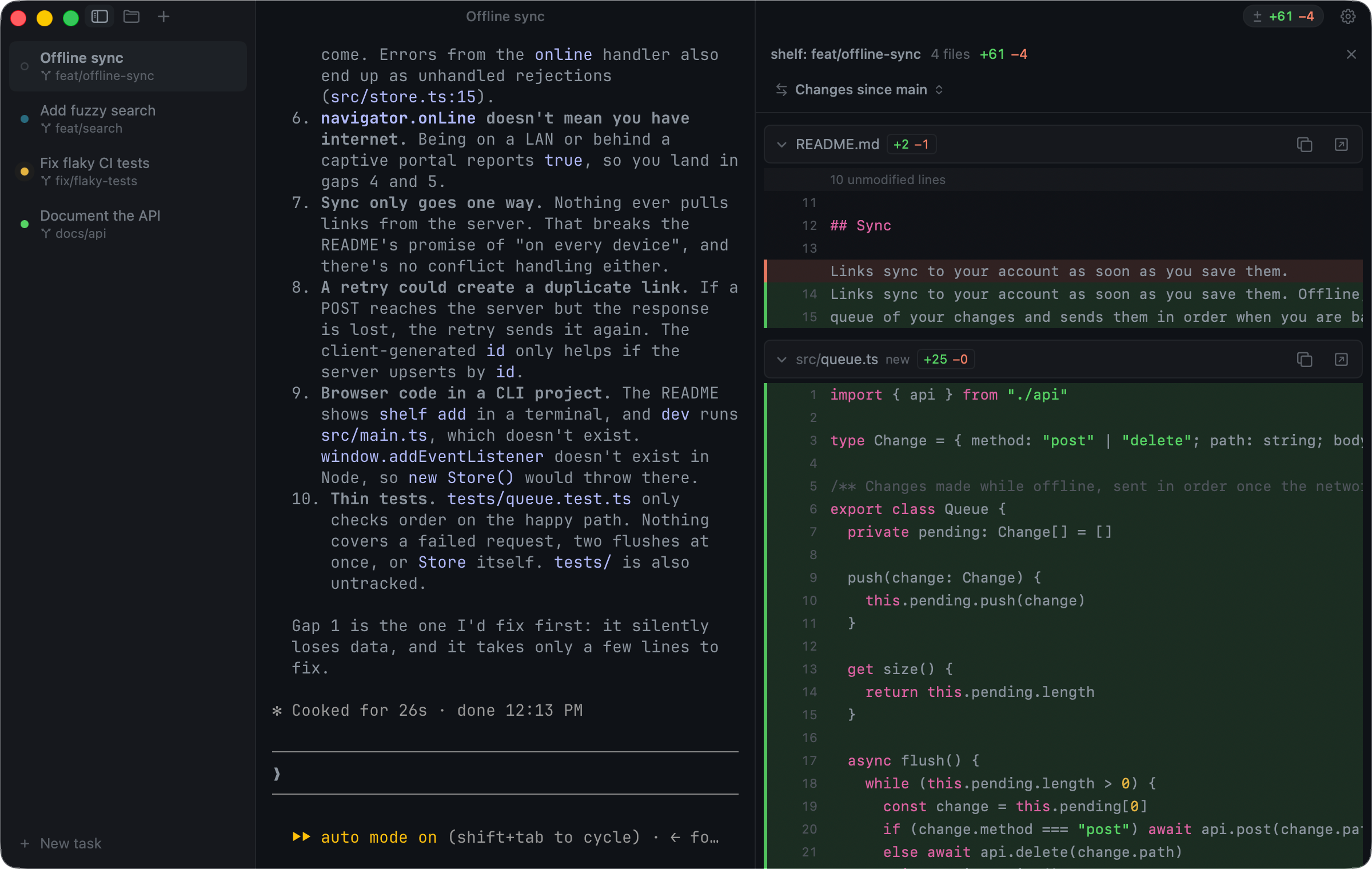
Run several coding agents side by side, each in its own session, and Farol shows you which one is working, which one is done and which one needs you. Farol is Portuguese for lighthouse.
Underneath is libghostty, the engine behind Ghostty, so it is as fast as Ghostty and reads your Ghostty config.
Farol is early. It works as a daily terminal, but expect rough edges. Questions and ideas are welcome on Discord.
Install
- Download Farol.dmg, the latest release.
- Open it and drag Farol to Applications.
- Open Farol from Applications or Spotlight.
Or with Homebrew:
brew install --cask snowztech/tap/farol
It needs a Mac with Apple Silicon and macOS 14 or later. Releases are signed and notarized, so macOS opens Farol without warnings. To build from source instead, see Build from source.
Features
- New task. ⇧⌘N asks what to do, then starts Claude Code or Codex on it in a new worktree, with the task as its first prompt. Or pick one of your open Jira tickets or the repo's GitHub issues, and the branch is named after it and the agent gets the ticket in full. With more than one Claude Code or Codex account, each one is a choice.
- Agent status. Each session shows whether its agent is working, waiting for you or done, with a notification when it waits in the background. See Agent status.
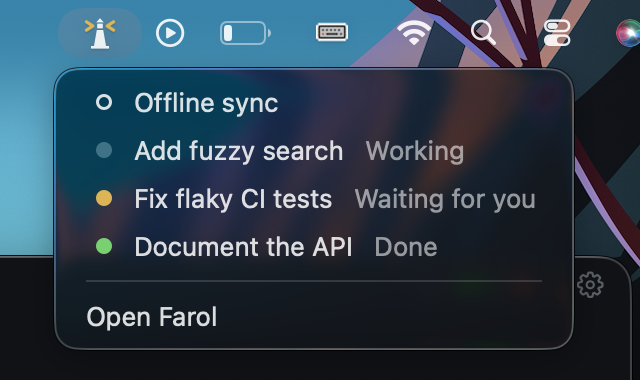
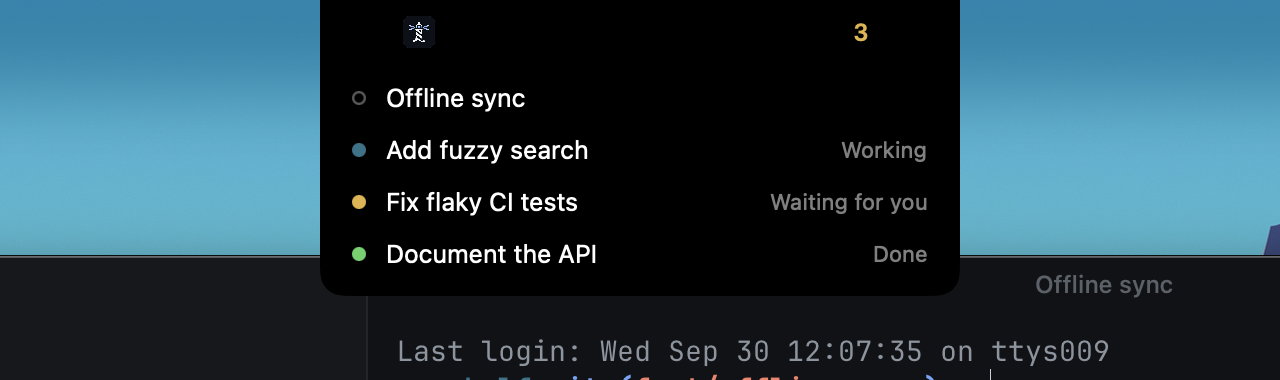
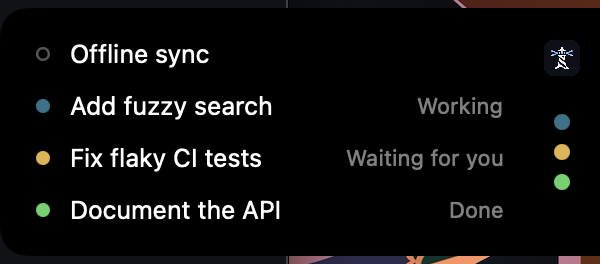
- Agents from any app. Farol's lighthouse in the menu bar lights up while agents work, wait or finish, and its menu opens any session. Or pick a small status panel at the notch or on the screen edge, which you can drag anywhere along the side.
- Worktree sessions. ⇧⌘T asks for a branch and opens a session in its own git worktree, so parallel agents never touch each other's files. Closing it offers to remove the worktree and always keeps the branch.
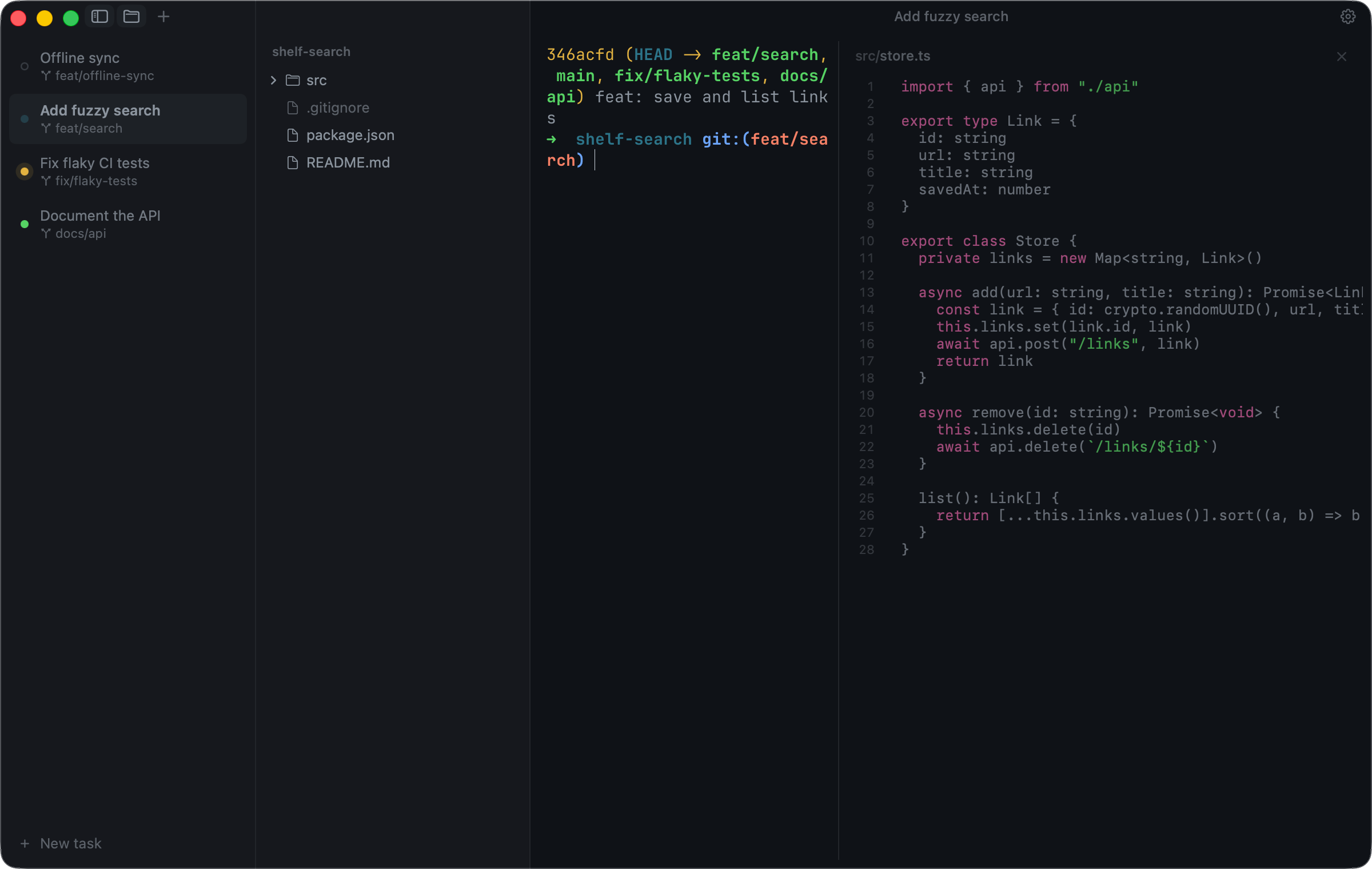
- Sessions in a sidebar. Open as many as you like. Hidden sessions keep running but stop rendering, so twenty background agents cost no GPU time. Each row shows its git branch, and Settings → Appearance can group sessions under each project's name. Double-click to rename, drag to reorder. Click the window title or press ⌘P to search every session and switch, even with the sidebar closed. Keep typing to find a file or a folder around you: a file opens next to the terminal, a folder opens as a new session.
- Files next to the terminal. ⇧⌘E opens the session's project as a tree, with ignored files dimmed. Click a file to open it in a pane beside the terminal, with syntax colors from your theme, line numbers and ⌘F, and make a quick fix with ⌘S to save. When an agent changes the file you have open, it reloads, or asks first if you have unsaved edits. The tree updates as agents add files, and costs nothing while it is closed.
- Review what the agent did. The title bar shows what the session changed, like
± +821 −61, and only while there is something to see. Click it, or ⌥⌘R, for every changed file as one scrolling diff, uncommitted work or everything since the branch left main or any other branch. Open a file from there to land on its first change and fix it. Then commit, push and open a pull request on GitHub or a merge request on GitLab, without leaving the panel. - Git graph. ⌥⌘G, or the icon next to the change count, shows the session's branches and commits as a colored graph. Click a branch to check it out. Right-click to create, rebase or delete a branch, or to cherry-pick or revert a commit. Fetch, update and push branches from there too.
- Resolve conflicts. When a merge, rebase, cherry-pick or revert stops on conflicts, the title bar and the session's row say so, even when an agent started it in the background. ⌥⌘M shows the files in three columns: your version, the result and the incoming one. Each change has an arrow to take it and a cross to leave it out, changes only one side made are taken from the start and folded away, and the result can be edited by hand. Mark each file resolved with ⌘S, run the tests, then continue, skip or abort from the same place.
- Split panes. ⌘D splits a session, and the new pane opens in the same folder. ⇧⌘R gives a pane a name, like "back" or "tunnel". Layouts and names come back after a relaunch.
- Find in scrollback. ⌘F searches the focused pane and shows the match count.
- Ghostty inside. Same rendering, speed and escape sequence support, and your Ghostty config is loaded.
- Themes and settings. Farol's own four themes, in the colors of the app icons and with Farol Beam as the default, plus Ghostty's 600+ themes with live previews, and settings inside the window. Settings → Appearance → Style can put each panel in a rounded card, with or without your theme's color.
- Copy and paste, accents and input methods. Pasting text that could run commands asks first, files and text can be dropped on the terminal, dead keys compose as you type, and input methods for other languages work at the cursor.
Coming next: pipeline status and review comments in the sidebar, tasks from GitLab issues, and sessions that show their ticket. See ROADMAP.md.
Agent status
The dot next to each session shows what its agent is doing:
| State | Dot | Meaning |
|---|---|---|
| Idle | Hollow gray | No active agent state |
| Working | Breathing cyan | The agent is processing the prompt or using tools |
| Waiting | Yellow | The agent needs approval or an answer |
| Done | Solid green | The turn finished while you were elsewhere |
The colors come from your theme's own cyan, yellow and green, so they always match it.
When an agent waits or finishes while Farol is in the background, you get a notification, and the Dock icon counts the sessions that are waiting. To see agents working from any app too, turn on the menu bar item or the status panel, at the notch or on the screen edge, in Settings → Agents → Outside Farol.
Claude Code: open Settings → Agents and click Connect. Farol adds its hooks to ~/.claude/settings.json, leaves everything else in the file alone and keeps a backup. It also adds a skill in ~/.claude/skills/farol, so you can ask Claude Code to change a Farol setting, like the theme or the font, and it edits ~/.config/farol/config for you. If you have more than one account, in folders like ~/.claude-work, each one gets its own row. Disconnect removes only Farol's hooks and its skill, and Claude Code keeps working as before.
Codex: interactive sessions work automatically through Codex's terminal titles. Keep Codex's terminal-title setting enabled. To cover non-interactive runs and background agents too, click Connect. Farol adds hooks to ~/.codex/hooks.json, leaves other hooks alone and keeps a backup. Restart open Codex sessions, then review and trust the hooks with /hooks. Connecting adds the same skill in ~/.codex/skills/farol. Disconnect removes only Farol's hooks and its skill. Interactive status keeps working.
Other agents can report with "$FAROL_CLI" status working|waiting|done|clear, which Farol makes available in every session. Agents that ring the terminal bell show as waiting without any setup.
{
  "hooks": {
    "UserPromptSubmit": [{ "hooks": [{ "type": "command", "command": "[ -z \"$FAROL_CLI\" ] || \"$FAROL_CLI\" status working" }] }],
    "PostToolUse": [{ "hooks": [{ "type": "command", "command": "[ -z \"$FAROL_CLI\" ] || \"$FAROL_CLI\" status working" }] }],
    "Notification": [{ "matcher": "permission_prompt|elicitation_dialog", "hooks": [{ "type": "command", "command": "[ -z \"$FAROL_CLI\" ] || \"$FAROL_CLI\" status waiting" }] }],
    "Stop": [{ "hooks": [{ "type": "command", "command": "[ -z \"$FAROL_CLI\" ] || \"$FAROL_CLI\" status done" }] }],
    "SessionEnd": [{ "hooks": [{ "type": "command", "command": "[ -z \"$FAROL_CLI\" ] || \"$FAROL_CLI\" status clear" }] }],
    "SubagentStart": [{ "hooks": [{ "type": "command", "command": "[ -z \"$FAROL_CLI\" ] || \"$FAROL_CLI\" status subagent-start" }] }],
    "SubagentStop": [{ "hooks": [{ "type": "command", "command": "[ -z \"$FAROL_CLI\" ] || \"$FAROL_CLI\" status subagent-stop" }] }]
  }
}
Outside Farol $FAROL_CLI is unset, so the hooks do nothing. The Notification matcher leaves out Claude's idle reminder, which would otherwise mark a finished session as waiting. The Subagent hooks keep a session working while a background agent runs after Claude's turn ends.
In ~/.codex/hooks.json:
{
  "hooks": {
    "SessionStart": [{ "matcher": "startup|resume|clear", "hooks": [{ "type": "command", "command": "[ -z \"$FAROL_CLI\" ] || \"$FAROL_CLI\" status clear" }] }],
    "UserPromptSubmit": [{ "hooks": [{ "type": "command", "command": "[ -z \"$FAROL_CLI\" ] || \"$FAROL_CLI\" status working" }] }],
    "PostToolUse": [{ "hooks": [{ "type": "command", "command": "[ -z \"$FAROL_CLI\" ] || \"$FAROL_CLI\" status working" }] }],
    "PermissionRequest": [{ "hooks": [{ "type": "command", "command": "[ -z \"$FAROL_CLI\" ] || \"$FAROL_CLI\" status waiting" }] }],
    "PreToolUse": [{ "matcher": "^request_user_input$", "hooks": [{ "type": "command", "command": "[ -z \"$FAROL_CLI\" ] || \"$FAROL_CLI\" status waiting" }] }],
    "Stop": [{ "hooks": [{ "type": "command", "command": "[ -z \"$FAROL_CLI\" ] || \"$FAROL_CLI\" status done" }] }],
    "Interrupt": [{ "hooks": [{ "type": "command", "command": "[ -z \"$FAROL_CLI\" ] || \"$FAROL_CLI\" status clear" }] }],
    "SessionEnd": [{ "hooks": [{ "type": "command", "command": "[ -z \"$FAROL_CLI\" ] || \"$FAROL_CLI\" status clear" }] }],
    "SubagentStart": [{ "hooks": [{ "type": "command", "command": "[ -z \"$FAROL_CLI\" ] || \"$FAROL_CLI\" status subagent-start" }] }],
    "SubagentStop": [{ "hooks": [{ "type": "command", "command": "[ -z \"$FAROL_CLI\" ] || \"$FAROL_CLI\" status subagent-stop" }] }]
  }
}
These hooks complement the terminal-title status used by interactive Codex sessions. Outside Farol $FAROL_CLI is unset, so the hooks do nothing. Codex 0.159.2 or later is required because earlier versions did not pass Farol's pane environment to hooks.
Shortcuts
| Action | Keys |
|---|---|
| New task | ⇧⌘N |
| New session | ⌘T or ⌘N |
| New worktree session | ⇧⌘T |
| Close pane or session | ⌘W |
| Next or previous session | ⇧⌘] and ⇧⌘[ |
| Go to session 1 to 9 | ⌘1 to ⌘9 |
| Search sessions, files and folders | ⌘P |
| Split right or down | ⌘D and ⇧⌘D |
| Move between panes | ⌘[ and ⌘], or ⌘⌥ with arrows |
| Resize the focused pane | ⌘⌃ with arrows |
| Equal pane sizes | ⌘⌃= |
| Zoom the focused pane | ⇧⌘↩ |
| Name the focused pane | ⇧⌘R |
| Find, next, previous | ⌘F, ⌘G, ⇧⌘G |
| Find the selected text | ⌘E |
| Toggle sidebar | ⌘B |
| Toggle files | ⇧⌘E |
| Save the open file | ⌘S |
| Review changes | ⌥⌘R |
| Commit | ⌥⌘C |
| Push | ⌥⌘P |
| Git graph | ⌥⌘G |
| Resolve conflicts | ⌥⌘M |
| Next or previous change to decide | ⌥↓ and ⌥↑ |
| Mark the file resolved | ⌘S |
| Accept yours or the incoming side, for the whole file | ⌃⌘← and ⌃⌘→ |
| Continue once every file is resolved | ⌘↩ |
| Back to the terminal from the conflicts | Esc |
| Full screen | ⌃⌘F |
| Settings | ⌘, |
| Reload configuration | ⇧⌘, |
Closing the last session quits Farol. Closing a session or quitting asks first when a program is still running. Ghostty's other default shortcuts, such as ⌘K to clear and ⌘+ to zoom, work as in Ghostty.
Configuration
Use the settings page (⌘,) or edit ~/.config/farol/config directly. They are the same thing: the page writes to that file, and saving the file updates the page and every session right away. Settings → Terminal has a button that opens it.
theme = Catppuccin Mocha
font-family = JetBrains Mono
font-size = 14
The file uses Ghostty's format, so every terminal option in the Ghostty docs works: fonts, colors, cursor, padding, keybinds. Options for Ghostty's own window, tabs and quick terminal do nothing, since Farol draws its own window. If you also use Ghostty, your Ghostty config loads first and Farol's file wins.
When you save a key or a value Farol cannot read, it tells you which one, and Settings → Terminal keeps the list until it is fixed.
Custom themes
Drop a theme file in ~/.config/farol/themes and it shows up in Settings → Appearance, right after Farol's own. Settings has a Themes folder button that opens it. A theme file is a few lines of Ghostty config:
background = #1e1e2e
foreground = #cdd6f4
cursor-color = #f5e0dc
palette = 0=#45475a
palette = 1=#f38ba8
Build from source
You need macOS 14 or later and Xcode 26.
make install # builds Farol into /Applications
The first build downloads a prebuilt libghostty for the pinned Ghostty commit. After that, make run gives you a quick debug build and make help lists everything else. Farol Dev, the make run build, is signed only locally, so macOS doesn't show its notifications. Status dots and the Dock badge still work.
To compile libghostty yourself, install Zig 0.16 and the Metal toolchain (xcodebuild -downloadComponent MetalToolchain), then run FROM_SOURCE=1 ./scripts/build-ghostty.sh.
How it's built
Sources/
  GhosttyTerminal/   the only code that touches Ghostty's C API
  FarolCore/         git and worktree logic, no UI, tested
  Farol/             the app: sessions, sidebar, window, settings
Tests/               FarolCore tests, run with `make test`
scripts/
  build-ghostty.sh   fetches or builds libghostty for a pinned commit
  bundle.sh          assembles build/Farol.app
  make-icon.swift    builds the app icons from assets/icons/source
  check-style.py     keeps comments and docs plain
Farol embeds Ghostty through its internal API (ghostty.h). Ghostty makes no stability promise for it, so the commit is pinned in scripts/build-ghostty.sh. Keeping every call in GhosttyTerminal means an upgrade only touches that folder.
Contributing
Issues and pull requests are welcome. See CONTRIBUTING.md to get started.
License
MIT. Farol includes libghostty, which is also MIT licensed. See THIRD_PARTY_NOTICES.
Yorumlar (0)
Yorum birakmak icin giris yap.
Yorum birakSonuc bulunamadi