microNeo
Health Gecti
- License — License: MIT
- Description — Repository has a description
- Active repo — Last push 0 days ago
- Community trust — 10 GitHub stars
Code Basarisiz
- rm -rf — Recursive force deletion command in .github/workflows/release.yaml
- rm -rf — Recursive force deletion command in install.sh
Permissions Gecti
- Permissions — No dangerous permissions requested
Bu listing icin henuz AI raporu yok.
Terminal Markdown editor that renders and edits in the same window. Single Go binary with syntax highlighting for 100+ languages, works as $EDITOR for Claude Code and any CLI tool.
 microNeo - Terminal Markdown Editor




The only terminal Markdown editor that renders and edits in the same window.
Every Markdown editor splits your screen — source left, preview right.
Terminal screens aren't wide to begin with. microNeo renders and edits in the same window.
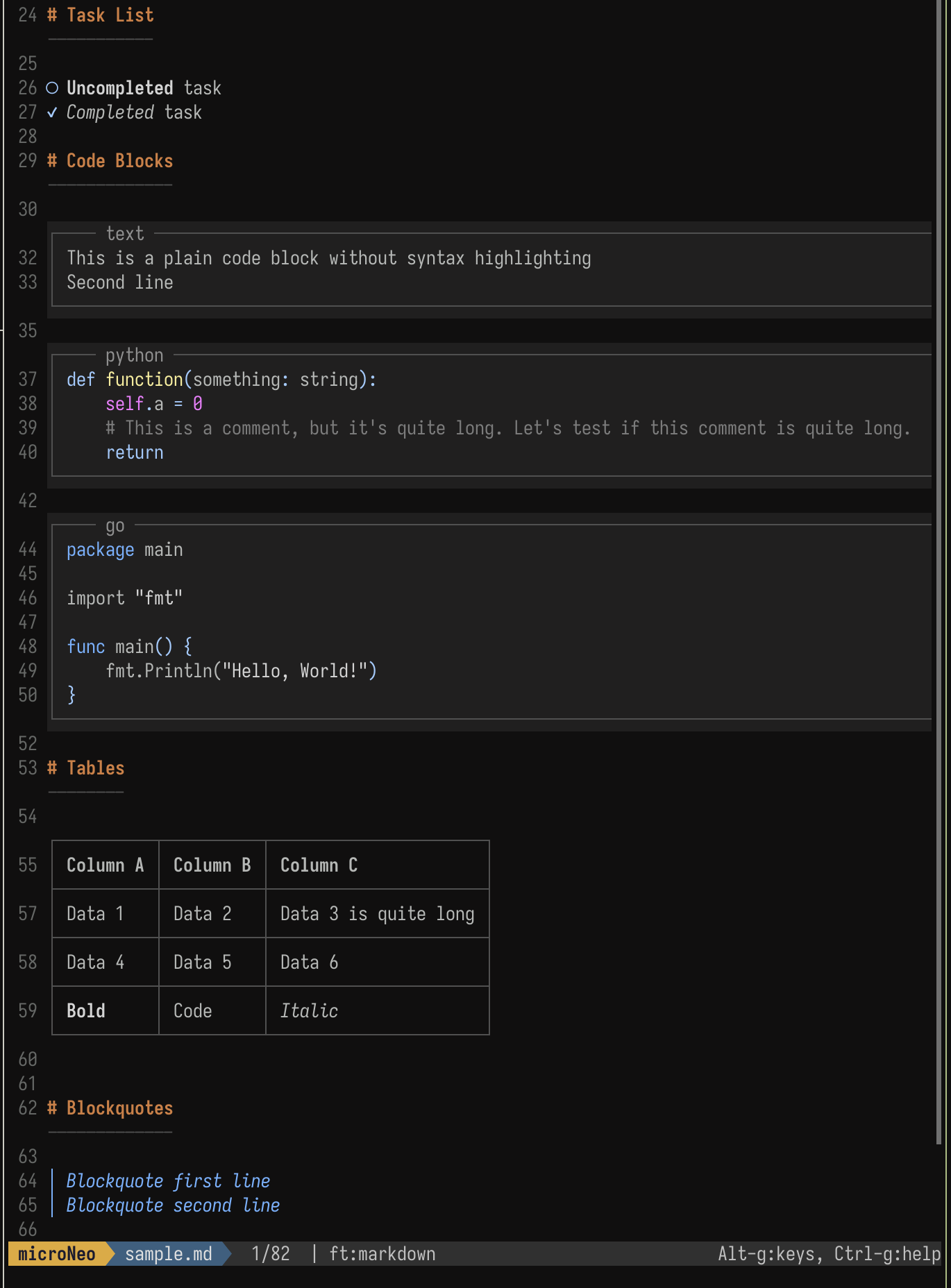
- Click anywhere to edit the source
- See the result instantly, no split panes
- Works great as
$EDITORforClaude Code,Yazi, etc.
Also a full text editor. Like other editors, microNeo supports syntax highlighting for 100+ languages (Python, Go, Rust, JavaScript, C, HTML, JSON, YAML, etc.), mouse support, multiple cursors, and Lua plugins. Use it as your daily driver for any file type. Markdown rendering is the bonus on top, automatically applied to .md/.markdown files.
One-line Install
curl -fsSL https://raw.githubusercontent.com/sollawen/microNeo/master/install.sh | sh
Why microNeo
| microNeo | Micro / nano | glow / leaf | vim + plugins | GUI Editors | |
|---|---|---|---|---|---|
| Editable | ✓ | ✓ | ✗ | ✓ | ✓ |
| Markdown Rendering | ✓ | ✗ | ✓ | ✓ | ✓ |
| Same Interface | ✓ | - | - | ✗ (split) | ✗ (split) |
| Low Learning Curve | ✓ | ✓ | ✓ | ✗ | ✓ |
microNeo = Micro's editing + Glow's rendering, in one window.
FAQ
What is the best Markdown editor for the terminal?
microNeo is a terminal Markdown editor that renders and edits in the same window — no split panes, no plugin setup, single Go binary. Unlike Glow (read-only) or vim with markdown plugins (steep learning curve), microNeo combines live Markdown rendering with full editing in one TUI window.
Is there a Markdown editor with live preview that doesn't split the screen?
Yes — microNeo is the only terminal Markdown editor that renders and edits in the same window. You see the formatted Markdown by default; click anywhere to edit the source, and the preview updates instantly. No source/preview split, no tab switching, no detached preview window.
Can I use microNeo to edit code and config files, or only Markdown?
Yes — microNeo is a full terminal text editor, not just a Markdown viewer. Like Micro, it supports syntax highlighting for 100+ languages (Python, Go, Rust, JavaScript, C, HTML, JSON, YAML, TOML, and more), mouse support, multiple cursors, and Lua plugins. Use it as your daily $EDITOR for any file type. Markdown rendering is the bonus that activates automatically for .md/.markdown files.
How do I preview Markdown in the terminal?
Install microNeo, open any .md file with microneo README.md. Headings, tables, code blocks, lists, and links are rendered inline. Click to edit, save with Ctrl-S.
microNeo vs Glow — what's the difference?
Glow is a read-only Markdown viewer (think $PAGER) — you can scroll and search but not edit. microNeo is a full editor: it renders formatted output AND lets you click anywhere to edit the source. If you want Glow's rendering plus the ability to write, microNeo is the combined solution.
How is microNeo different from Micro?
Micro is a general-purpose terminal text editor with syntax highlighting and mouse support. microNeo keeps all of that and adds automatic Markdown rendering: opening a .md file shows formatted headings, tables, and code blocks inline instead of raw markup. The same window is used for both viewing and editing — click to switch.
How do I use microNeo as the editor for Claude Code or opencode?
microNeo works with any tool that respects $EDITOR — including Claude Code and opencode. Set it as your default:
export EDITOR=microneo
Add this to your shell profile (~/.bashrc, ~/.zshrc, etc.) and reload. Claude Code and opencode will then spawn microNeo for any text input — prompts, commit messages, file edits. For per-project config, set it in .env or the tool's own settings.
Does microNeo support custom themes and configuration?
Yes. microNeo uses $XDG_CONFIG_HOME/microNeo/ (default ~/.config/microNeo/) for configuration. You can:
- Customize Markdown rendering colors via your color scheme (built-in: darcula, gruvbox-tc, …)
- Set clipboard mode in
settings.json(fixes garbled click on Linux) - Change the status separator for non-Nerd-Font terminals
- Bind custom hotkeys via
bindings.json
See Configuration below for details.
Usage
# Open any file
microneo README.md
Set as Default Editor
export EDITOR=microneo
Works seamlessly with Claude Code, Yazi, and other tools that use $EDITOR.
Configuration
microNeo uses $XDG_CONFIG_HOME/microNeo/ for config (defaults to ~/.config/microNeo/)
colorscheme: Markdown rendering colors can be customized via your color scheme file. Built-in color schemes (darcula, gruvbox-tc, etc.) include these definitions. Custom color schemes go in~/.config/microNeo/colorschemes/.settings.json: If you see garbled text on mouse click (common on Linux), set clipboard mode toterminalin~/.config/microNeo/settings.json:
{
  "clipboard": "terminal"
}
Font:
- A Nerd Font or similar powerline-compatible font is recommended.
- If the status separator
looks broken, changestatus-separatorin~/.config/microNeo/settings.json(e.g., to│).
Hotkeys
| Action | Shortcut | Action | Shortcut |
|---|---|---|---|
| Save | Ctrl-S |
Undo | Ctrl-Z |
| Quit | Ctrl-Q |
Search | Ctrl-F |
| Command Mode | Ctrl-E |
Press Ctrl-E and type help for more commands.
Relationship with Micro
microNeo originated from a fork of Micro and is no longer a fork — the GitHub relationship was officially severed. The codebase still inherits from Micro's editor architecture (zero dependencies, intuitive operation, Lua plugins, mouse support) and adds a Markdown rendering layer on top.
microNeo is now developed independently, with the goal of becoming the best Markdown experience in the terminal.
Reach me via [email protected]
License
Yorumlar (0)
Yorum birakmak icin giris yap.
Yorum birakSonuc bulunamadi