orca-pitwall
Health Warn
- License — License: MIT
- Description — Repository has a description
- Active repo — Last push 0 days ago
- Low visibility — Only 5 GitHub stars
Code Fail
- exec() — Shell command execution in src/panel/render.test.ts
- exec() — Shell command execution in src/panel/render.ts
- exec() — Shell command execution in src/shared/format.ts
Permissions Pass
- Permissions — No dangerous permissions requested
No AI report is available for this listing yet.
A live pit wall for your coding agents in Orca's sidebar: needs-you alerts, context, cost, subagents and every tool call. Read-only, local.
Pitwall
A live pit wall for your coding agents, in Orca's right sidebar.
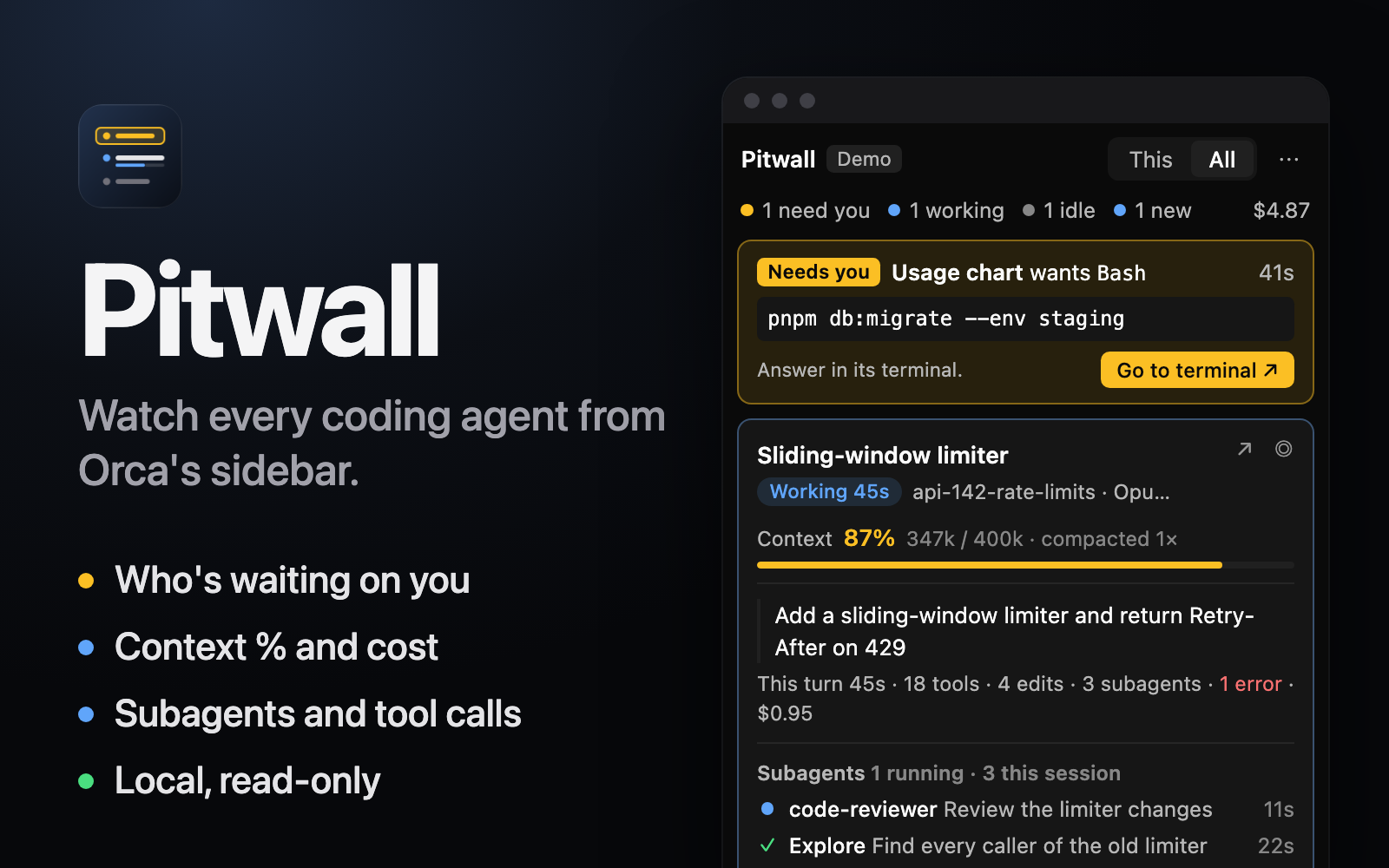
Every agent you run in an Orca terminal gets a card: what it is doing, how full its context is, what it
costs, which subagents it spawned, and every tool call it makes, as it happens. When an agent stops to ask
you for permission, Pitwall puts it at the top so it never sits waiting unseen.
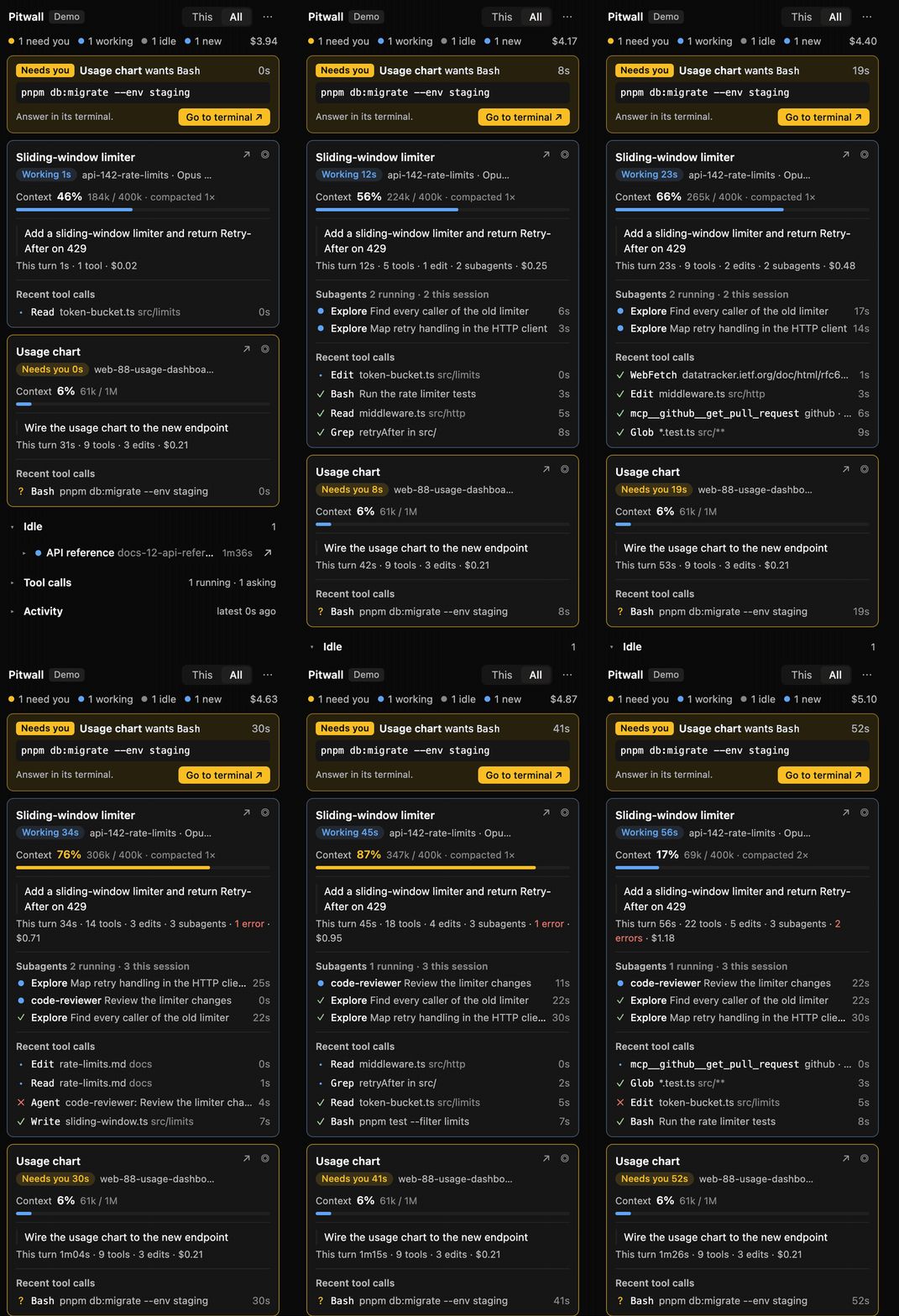
Pitwall stays out of your terminal. It lives in the right sidebar, which you toggle with ⌘⌥P
(Ctrl+Alt+P on Windows and Linux) or by clicking its status bar item.
What you get
- Needs-you alerts. An agent waiting on a permission prompt shows at the top with the exact command it wants to run, and a Go to terminal button.
- New since you looked. An agent that finishes while you are elsewhere gets a dot, moves to the top of Idle and counts in the header (
1 new) until you open its row or jump to it. Orca's plugin API does not say which tab you are watching, so an agent finishing in front of you gets the dot too; it clears on your next prompt. - Context heads-up. A working agent past 90% of its context window shows at the top with a hint to
/compactbefore it compacts on its own. - Jump to any agent. Click ↗ on any agent to bring its terminal to the front.
- Details in place. Click an idle agent's row to open its card right there; ▾ or × closes it.
- Context bar. Tokens in context against the window that matters: your auto-compact window when you set one, else the model's. It turns amber at 75% and red at 90%, and counts compactions.
- Cost and cache. The API list price of the session's tokens and how much of each prompt came from cache.
- Subagents. The running ones and the latest finished, with type, task and time; hover for steps, context and last tools.
- Tool calls. The latest calls with their outcome (done, running, asking you, failed, denied) and a count of each. Filter by family: file, shell, web, MCP, agent.
- Turn receipt. What the current turn has done so far, and what the last one did: tools, edits, agents, errors, cost, duration.
- Activity. Prompts, subagents starting and finishing, edits, failures, denials and compactions.
- Status bar.
1 asking · 2 working · ctx 64% · $3.18at a glance, amber when an agent needs you. - This workspace or all. Follow the workspace you are in, or every agent in every workspace.
- One agent only. Click ◎ on an agent to see just its card, tool calls and activity; asks from other agents still show. Show all brings the rest back.
- Demo mode. A synthetic session that loops, for trying Pitwall before your agents run (menu ⋯ → Demo mode).
Working agents get a card; idle ones fold into one line each with their context. Every row works from the keyboard (Tab, Enter). Tool calls and activity start folded. The panel uses Orca's theme colours and scrollbars, so it follows light and dark.
Install
Pitwall needs Orca 1.4.259 or later. Find it in Orca under Settings → Plugins (community plugins), or install it
straight from GitHub:
orca plugin install https://github.com/sonthh/orca-pitwall
Orca shows what Pitwall can access and asks you to approve it. Then open the right sidebar and pick Pitwall.
What Pitwall reads, and what it never does
Pitwall reads; the one thing it changes is which terminal is in front, and only when you click.
| Access | Why |
|---|---|
agent:read |
Which agents run in which terminal, and their state (working, needs you, idle). |
workspace:read |
Workspace names, branches and terminal titles, to label each card. |
workspace:write |
Only to bring an agent's terminal to the front when you click Go to terminal or an agent row. Pitwall never creates, closes or types into a terminal. |
storage:own |
Remembers whether demo mode is on. |
settings:own |
Its own settings below. |
Tool hooks (agent.tool.before / after) |
Sees each tool call as it starts and ends. It always lets the call through unchanged and never makes it wait. |
Files under ~/.claude |
Claude Code's session transcripts and settings.json, for model, tokens, cost, subagents and the auto-compact window. |
It never sends anything over the network, never starts a process, never types into a terminal and never
writes outside its own storage. Tokens, keys, passwords and connection strings in tool summaries are masked
before they reach the screen, so a screenshot of Pitwall does not leak them.
Settings
| Setting | Default | |
|---|---|---|
| Scope | Focused workspace | Or all workspaces. Also the This / All switch in the panel. |
| Show cost | On | Turn off to hide every dollar figure. |
| Context window | Auto | Auto uses your auto-compact window, else the model's. Or force 200k, 400k or 1M. |
| Status bar | On | Show the summary in Orca's status bar. |
| Claude config folder | empty | Where Claude Code keeps its data. Empty means $CLAUDE_CONFIG_DIR, else ~/.claude. |
Agents
Pitwall reads Claude Code transcripts today. Any other agent Orca knows about still gets a card with its
state and its tool calls; the transcript-based numbers (context, cost, subagents) come as adapters for more
agents are added. The worker keeps agent-specific code in src/worker/claude/, so an adapter for another
agent is a sibling folder.
About the numbers
- Cost is what the session's tokens would cost at Anthropic's API list prices, including cache reads and
5-minute and 1-hour cache writes. On a Pro or Max plan you do not pay this; read it as a size.
A model Pitwall has no price for shows no cost rather than a wrong one. - Context is the size of the last request: its prompt (input, cache reads and cache writes) plus its output. After a compaction it starts from the compacted size.
Its percentage is of your auto-compact window when you set one, so it shows how close the next compaction is. Claude
Code's own status line divides by the model's window, so with a 400k auto-compact window on a 1M model, 212k shows
as 53% in Pitwall and 21% there. The tooltip names the window used. - No partial numbers. A long transcript takes a few seconds to read after Orca or Pitwall starts. Until it is read to the end, its card says so and shows no context, cost or turn, and the totals wait too.
- Turns start at a prompt, or at a slash command the model answers. Commands that run locally (
/model,/reload-plugins) leave the last turn as it was. - Format changes. Claude Code's transcript format is not documented. When a transcript has many rows and none Pitwall understands, its card says so instead of showing zeros.
- Needs you comes from Orca: the agent waits on you (Orca reports a permission prompt as waiting) while a tool call is still open; that call is the one it asks about. Once you answer, the transcript tells Pitwall whether you allowed or denied it.
Develop
git clone https://github.com/sonthh/orca-pitwall && cd orca-pitwall
npm install                   # TypeScript and Node types, for the type check only
orca plugin types .
npx tsc -p .                  # type check
orca plugin test .            # unit tests, synthetic data only
orca plugin dev load .        # then --approve <fingerprint> as printed
There is no build step: Orca runs the TypeScript in src/ directly. After an edit, run orca plugin dev load .
again and approve the new fingerprint. orca plugin shot <key> --panel pitwall saves a PNG of the panel.
src/
  shared/      snapshot types, panel/worker protocol, formatting
  worker/      Orca events and hooks, tool call tracking, pricing, masking, demo
    claude/    Claude Code transcripts: locate, tail, parse, subagents
  panel/       the sidebar page: pure render functions, styles, bootstrap
test/          builders for synthetic transcript rows
Contributing
Bug reports, ideas and pull requests are welcome: see CONTRIBUTING.md.
License
MIT
Reviews (0)
Sign in to leave a review.
Leave a reviewNo results found