c9s
Health Uyari
- License — License: MIT
- Description — Repository has a description
- Active repo — Last push 0 days ago
- Low visibility — Only 5 GitHub stars
Code Gecti
- Code scan — Scanned 3 files during light audit, no dangerous patterns found
Permissions Gecti
- Permissions — No dangerous permissions requested
Bu listing icin henuz AI raporu yok.
Terminal dashboard for Claude Code — zero config, track all sessions, switch context instantly, never lose track of what's running
c9s
Terminal dashboard for Claude Code.



Beta -- c9s is in early development and still needs validation. Feel free to use it! It reads local files and optionally fetches your usage percentage via Claude Code's OAuth token. It never stores credentials and adds zero cost to your Claude usage. Feedback and contributions are welcome!
Why c9s?
If you use Claude Code daily, you know the problem: dozens of sessions scattered across projects, no easy way to see what's running, what's waiting for input, or what you left off yesterday. Context switching between sessions means hunting through terminals, remembering session IDs, and losing track of what's where.
I tried agent-deck, ntm, and other tools for managing Claude Code sessions. They're powerful, but way more complex than what my workflow needed. I wanted something like k9s -- simple, keyboard-driven, zero setup. Launch one command, see all your sessions, jump between them instantly. That's it.
c9s gives you a single dashboard for every session on your machine. See at a glance which ones are actively processing, which need your attention, and which are ready to resume. Switch between sessions in a keystroke. No more lost context, no more forgotten sessions.
It reads directly from ~/.claude/. No API calls, no network, no daemon. One binary + tmux.
Features
- Zero setup -- reads directly from
~/.claude/, no configuration needed - All sessions in one view -- across every project directory
- tmux integration -- open/resume sessions in tmux windows, switch seamlessly
- Live status -- see which sessions are processing, waiting for input, or done
- Session backup & restore -- back up session JSONL files, auto-restore archived sessions
- Effort picker -- choose effort level (low/medium/high/max) when creating new sessions
- Preview panel -- toggle a detail panel showing tokens, messages, first prompt, and more
- In-app config editor -- press
cto customize keybindings, colors, and refresh interval - Search & filter -- find sessions by name, project, or ID
- Group by project or status -- cycle grouping modes with
Tab - Token usage -- see total tokens per session
- Rename sessions -- give sessions meaningful names
- Git worktrees -- group sessions by worktree, add/delete worktrees from the dashboard, see dirty / ahead / behind at a glance
- API usage tracking -- see your 5-hour and 7-day utilization in the status bar and a dedicated history screen
- Mouse scroll -- scroll through Claude conversation history, hold Shift/Option to copy text
- Persistent dashboard state -- toggles (tokens, preview, grouping, worktrees) survive restarts
- Fully configurable -- colors, keybindings, refresh interval via
~/.c9s/config.json
Install
Homebrew
brew install stefanoguerrini/tap/c9s
Go install
go install github.com/stefanoguerrini/c9s@latest
From source
git clone https://github.com/stefanoguerrini/c9s
cd c9s
go build -o c9s .
Quick start
c9s
That's it. c9s auto-creates a tmux session, launches the dashboard, and you're ready to go. If a c9s session already exists, it re-attaches to it.
Want to try it without real sessions? Run c9s --demo to see the dashboard with sample data.
Keybindings
Dashboard
| Key | Action |
|---|---|
j/k or Up/Down |
Navigate sessions |
Enter |
Open/resume selected session |
n |
New Claude session (in selected project dir) |
N |
New session with effort picker (low/medium/high/max) |
x |
Close managed tmux window |
R |
Rename session |
b |
Back up session JSONL file |
/ |
Search sessions |
Esc |
Clear search filter |
Tab |
Cycle grouping: none / project / status |
p |
Toggle preview panel |
t |
Toggle token column |
w |
Toggle worktrees for the selected project (when worktrees: on) |
a |
Add a worktree on the selected project (prompts for branch name) |
d |
Delete the worktree under the cursor (confirms; force-prompts if dirty) |
u |
Usage history screen |
c |
Open config editor |
q / Ctrl+c |
Quit (or detach if keep_alive is on) |
Inside a Claude session window
| Key | Action |
|---|---|
Ctrl+d |
Return to dashboard |
Ctrl+n |
Next session window |
Ctrl+p |
Previous session window |
These navigation keys are configurable via the config editor or ~/.c9s/config.json.
When Claude exits, the window automatically returns to the dashboard.
Session status
c9s shows the lifecycle state of each session:
| Status | Meaning |
|---|---|
| active | Session JSONL modified in the last 5 minutes |
| idle | Claude process running but not recently active |
| resumable | Session file exists on disk, can be resumed |
| archived | Only in history, no file on disk |
For sessions opened through c9s, you also see real-time pane status:
| Pane status | Meaning |
|---|---|
| processing | Claude is actively generating output |
| waiting | Claude needs your input (tool approval, question) |
| done | Task completed, at the main prompt |
| unknown | Hooks not installed for this session -- run c9s install |
Live pane status is sourced from Claude Code's official extension points
(statusLine + SessionStart/UserPromptSubmit/Stop/Notification/SessionEnd
hooks). Run c9s install once to merge these into ~/.claude/settings.json
and c9s uninstall to remove them. Install is idempotent and preserves any
other hooks or statusLine entries you already have.
Git worktrees
If you use git worktrees for parallel development, c9s can group sessions by their worktree. The feature is off by default -- enable it in the config editor (c → Worktrees → Mode) or set "worktrees": "on" in ~/.c9s/config.json.
When worktrees are on and you're grouping by project (Tab), each project group unfolds into a two-level hierarchy: the project header, then one row per worktree, with the sessions living in each worktree nested underneath. Worktree rows show branch, dirty state (⚠), and ahead/behind counts (↑N / ↓N) against upstream. Worktrees with no sessions still appear with a dim placeholder you can Enter on to start a session there.
Managing worktrees from the dashboard (only when the cursor is inside a project group):
| Key | Action |
|---|---|
w |
Collapse/expand the selected worktree (or all worktrees, when the cursor is on a project header) |
a |
Add a new worktree (prompts for branch name; created at <repo>-<branch>) |
d |
Delete the worktree under the cursor (confirms; force-prompts if dirty; refuses the main worktree) |
Enter |
On a worktree row: start a new Claude session in that worktree's directory |
Discovery is live -- running git worktree add/remove in another terminal shows up within one dashboard tick.
API usage tracking
c9s can show your Anthropic API utilization directly in the tmux status bar and in a dedicated history screen. It reads from Claude Code's OAuth token (stored locally) -- no API keys or extra setup needed.
Status bar
The status bar shows your current 5-hour utilization percentage. A ? suffix indicates the data is stale (cached after a failed refresh). Configure what to show via the status_usage setting:
| Value | What's shown |
|---|---|
percent |
5-hour utilization % (default) |
tokens |
Total tokens across sessions |
tokens,percent |
Both, separated by · |
off |
Nothing |
Usage history
Press u on the dashboard to open the usage history screen. It shows your utilization over time with visual bars:
- 5h peak -- highest 5-hour utilization seen in that period
- 7d last -- last recorded 7-day utilization
- Tokens -- net token delta for the period (max minus min snapshot)
Switch between views:
| Key | View |
|---|---|
d |
Daily (default) |
w |
Weekly |
m |
Monthly |
7 / 1 / 3 |
Last 7 / 14 / 30 days |
q / Esc |
Back to dashboard |
Usage data is recorded to ~/.c9s/usage-history.jsonl every 5 minutes while c9s is running. You can disable recording or reset history in the config editor (c → Usage history).
Configuration
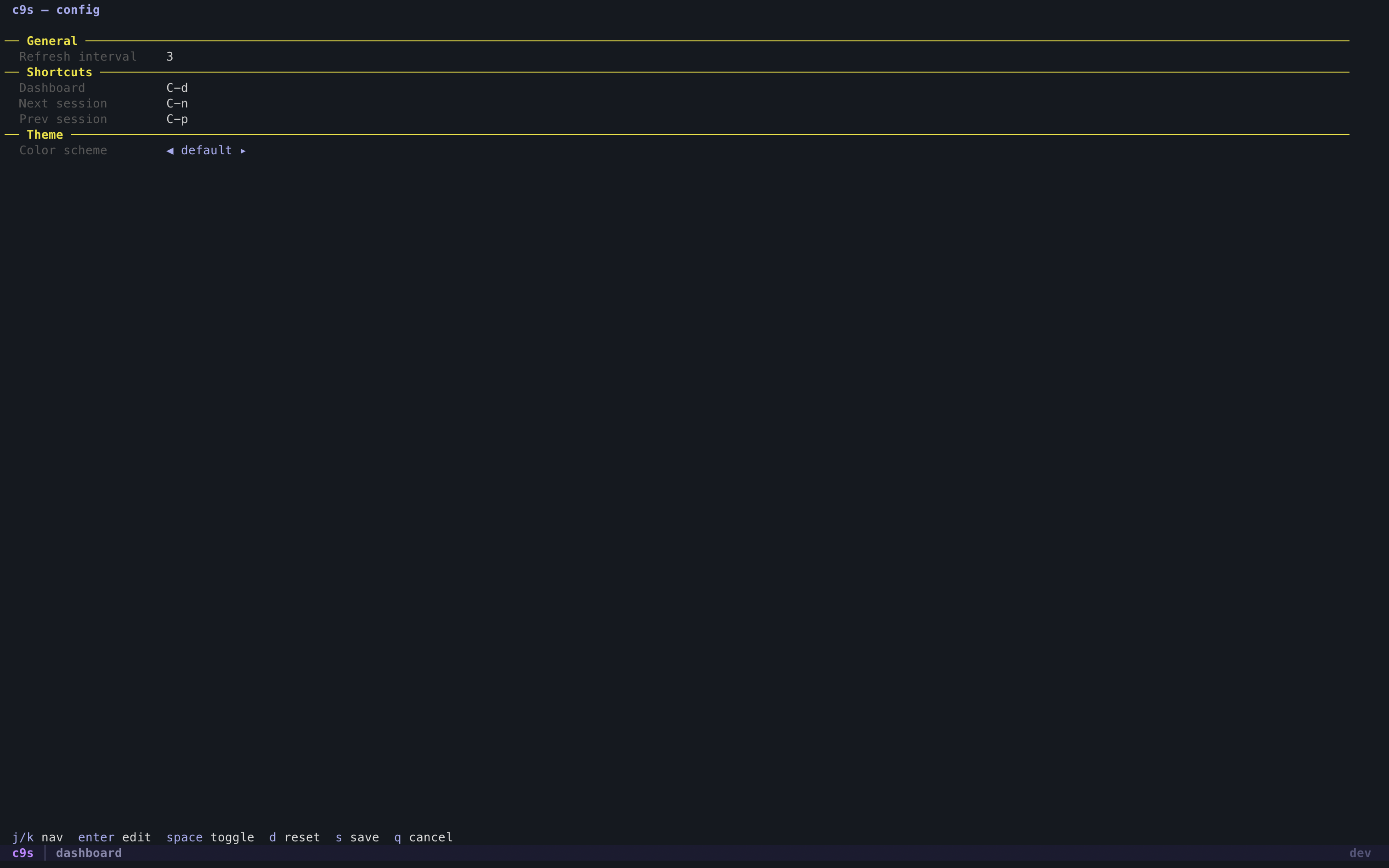
c9s stores its config at ~/.c9s/config.json. You can edit it directly or use the built-in config editor (press c on the dashboard).
Configurable settings:
- Refresh interval -- how often the dashboard polls for updates (1-10 seconds)
- Scroll speed -- lines per mouse scroll event in session windows (1-10)
- Work directory -- default directory for new sessions (empty = current directory)
- Keep alive -- when on, quitting c9s detaches instead of killing sessions. Claude keeps running in the background, re-run
c9sto re-attach - Hide archived -- when on, sessions with no JSONL on disk are omitted from the dashboard
- Status bar usage -- what metrics to show in the tmux status bar (
percent/tokens/tokens,percent/off) - Desktop notifications -- attention alerts when Claude needs input (requires
c9s install) - Phone notifications -- optionally forward alerts to your phone via ntfy.sh
- Usage history -- enable/disable recording, reset history
- Worktrees -- toggle off/on. When on and you group by project (
Tab), sessions nest under their worktree - Navigation keys -- tmux keybindings for dashboard/next/prev session (default:
Ctrl+d,Ctrl+n,Ctrl+p) - Color theme -- switch between
defaultandcustom, then tweak individual colors - All colors -- title, header, status indicators, preview panel, tmux status bar
Press ? in the config editor to see descriptions for each setting.
Example config:
{
  "theme": "default",
  "refresh_seconds": 3,
  "keys": {
    "dashboard": "C-d",
    "next_session": "C-n",
    "prev_session": "C-p"
  }
}
How it works
c9s reads Claude Code's local data files:
~/.claude/history.jsonl-- discovers all sessions and projects~/.claude/projects/<path>/sessions-index.json-- session titles, summaries~/.claude/projects/<path>/<session>.jsonl-- token usage, file mtime for status
No API keys needed. Session data is entirely local. The only network call is an optional usage API request (using Claude Code's existing OAuth token) to show your utilization percentage.
Process detection uses ps + lsof to find running Claude processes and match them to sessions. File mtimes are cached to keep the dashboard fast.
Requirements
- macOS or Linux (tmux doesn't run natively on Windows)
- tmux -- installed automatically when using Homebrew, otherwise
brew install tmuxorapt install tmux - Go 1.24+ (only needed to build from source)
Known limitations
Flickering in large sessions -- Claude Code generates thousands of scroll events per second when streaming output, which can cause visible flickering in tmux. This is a known Claude Code + tmux issue, not specific to c9s.
c9s applies performance optimizations automatically (escape-time 0, monitor-activity off, increased scrollback buffer). When tmux 3.7 is released with synchronized output (DEC mode 2026), c9s will auto-enable it — this eliminates flickering entirely.
Workarounds for tmux 3.6:
- claude-chill -- a PTY proxy that wraps Claude's output in synchronized frames
- Ghostty -- terminal with native synchronized output support
- Build tmux from git master for early mode 2026 support
Related projects
- agent-deck -- a more feature-rich multi-agent dashboard
- ntm -- tmux session manager for orchestrating multiple AI coding agents in parallel
License
Yorumlar (0)
Yorum birakmak icin giris yap.
Yorum birakSonuc bulunamadi