claude-code-mods
Health Uyari
- License — License: MIT
- Description — Repository has a description
- Active repo — Last push 0 days ago
- Low visibility — Only 5 GitHub stars
Code Gecti
- Code scan — Scanned 12 files during light audit, no dangerous patterns found
Permissions Gecti
- Permissions — No dangerous permissions requested
Bu listing icin henuz AI raporu yok.
A collection of useful Claude Code mods.
Claude Code Mods
Context, prompt-cache and usage-limit meters right above the Claude Code prompt, a row of dropdowns for agents, skills and commands, a pane that lists everything your setup provides, and one that adds up your token usage.


Why
Claude Code shows little of what costs you: how full the context is, whether the prompt cache is still warm, and how much of your usage limits is left. These mods put those figures in a band right above the prompt, at no token cost.
- Hit the 5-hour limit mid-task? usage-limits shows the 5-hour and weekly windows and when each resets, shared across all open sessions.
- Auto-compaction at the worst moment? context-meter shows the fill against the threshold and compacts at the point you pick.
- Back from a break to a cold cache? Writing 200k tokens of context again costs about $1.00 on Claude Opus 5.5. cache-meter shows when the cache goes cold and can keep it warm at about $0.04 a refresh.
- Can't remember the name of that agent or skill? command-center lists your agents, skills and commands in dropdowns above the prompt, filtered by where they come from, and inserts or runs the pick.
- Lost track of what your setup loads? catalog-pane lists every skill, plugin, hook and MCP server with its usage and the tokens it adds to every session.
- Where did this week's tokens go? usage-pane adds up tokens, cache hit rate and API price by day, model and project, and shows which prompts cost the most and why.
Installation
Add the marketplace once, then install the mods you want with the first command in their row of the Mods table. To update, run the second lines: the marketplace first, then each mod. The commands work in any shell, or inside Claude Code with /plugin in place of claude plugin. New sessions load the changes.
claude plugin marketplace add T-AI-Labs/claude-code-mods
claude plugin marketplace update T-AI-Labs
Mods
context-meter and usage-limits are the two rows of context-usage as separate mods: install either context-usage or those two, not both.
| Mod | Description | Preview |
|---|---|---|
| context‑usage |
Start here. Context fill and usage limits. |  |
| cache‑meter |
Prompt-cache hits and when the cache goes cold. |  |
| catalog‑pane |
Every skill, plugin, hook and MCP server you have. | 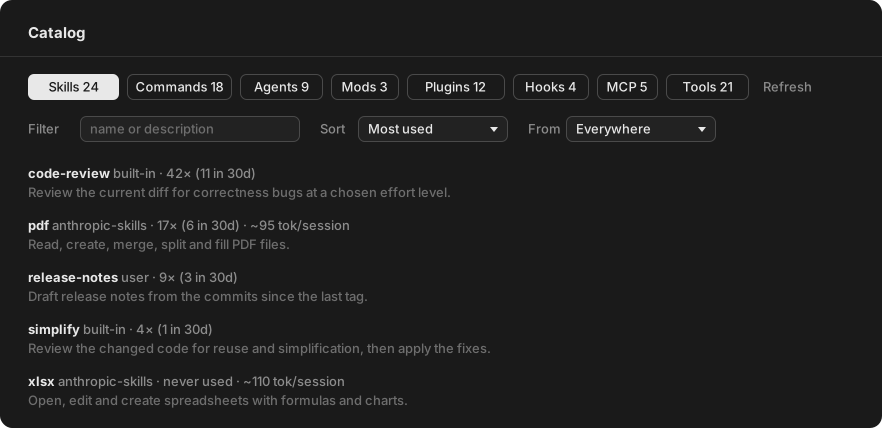 |
| usage‑pane |
Tokens and API price by day, session and prompt. | 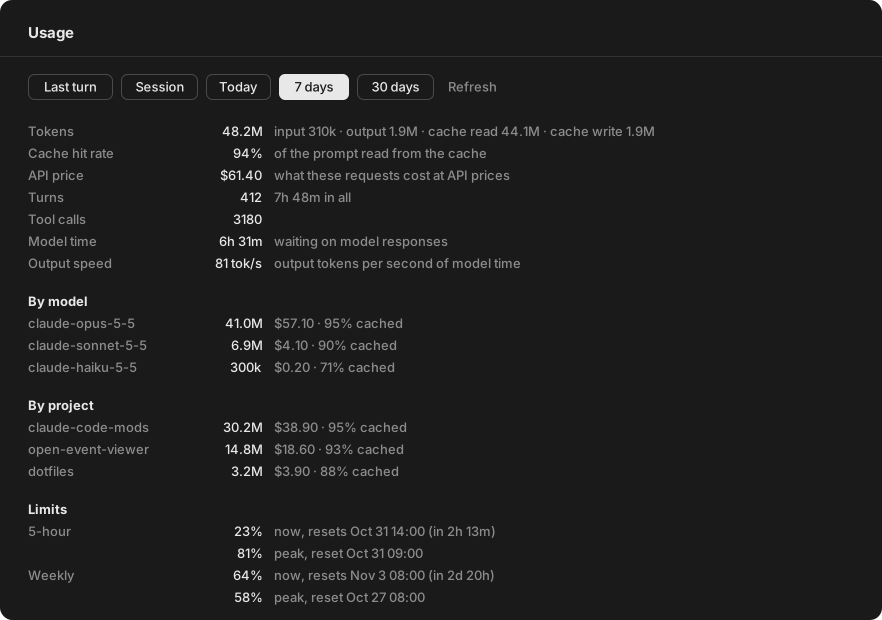 |
| command‑center |
Agents, skills and commands in dropdowns. |  |
| context‑meter |
The context row of context-usage on its own. |  |
| usage‑limits |
The usage row of context-usage on its own. |  |
context-usage 
context-meter and usage-limits in one mod: the context row and the usage row beneath it. Both work as described under context-meter and usage-limits. To switch from the two separate mods, install context-usage, uninstall context-meter and usage-limits, and pick the threshold again.
Usage
The rows sit in the band above the prompt and cost no tokens: they only read figures Claude Code already has. In the terminal, ctrl+x tab moves into the band: Tab walks the controls, Enter presses a button, the arrow keys pick a threshold. ctrl+x ctrl+a or the band's [-] mark collapses it.
Options
| Option | Values | Default | Effect |
|---|---|---|---|
display |
gauge, text |
gauge |
gauge draws a five-segment gauge before each percentage; text leaves it out. |
details |
true, false |
true |
Shows the figures in parentheses. |
usagePosition |
below, above |
below |
Puts the usage row under or on top of the context row. |
'{"display":"text","usagePosition":"above"}' | claude plugin configure context-usage@T-AI-Labs --values-stdin
That is PowerShell; in cmd, use echo {"display":"text"} | …. Options you leave out keep their value, the command without --values-stdin shows what is set, and a new session picks up the change. --config display=text sets an option while installing, and in a terminal session the options are rows of the /config menu.
context-meter 
| Element | What it shows |
|---|---|
| Context | Fill of the context window, with tokens used and window size. Yellow within 15 points of the threshold, red at it; with Auto off, the same against 100 %. |
| Auto | The fill at which the mod compacts on its own: Off, 97, 90, 70, 60 or 50 %. Off leaves it to you and to Claude Code's built-in auto-compaction. Kept across sessions. |
| Compact | Runs /compact now. |
| Clear | Runs /clear. |
Usage
The row sits in the band above the prompt and costs no tokens: it only reads figures Claude Code already has. In the desktop app it is two lines high so the app's taller buttons fit. In the terminal, ctrl+x tab moves into the band: Tab walks the controls, Enter presses a button, the arrow keys pick a threshold. ctrl+x ctrl+a or the band's [-] mark collapses it.
Until the first response of a session, and again after a clear, the fill reads 0%: the engine counts the system prompt and tools only once a response arrives.
Options
| Option | Values | Default | Effect |
|---|---|---|---|
display |
gauge, text |
gauge |
gauge draws a five-segment gauge before the percentage; text leaves it out. |
details |
true, false |
true |
Shows the figures in parentheses. |
'{"display":"text","details":"false"}' | claude plugin configure context-meter@T-AI-Labs --values-stdin
Set them as for context-usage. The row needs about 62 columns with the defaults; on a narrower window the buttons wrap to a second line. details off saves about 11 columns, display set to text about 6:

How auto-compact works
After each turn the mod compares the fill with the threshold and runs /compact once it is reached. It fires again only after the fill has dropped below the threshold, so a compaction that lands above it does not loop. Claude Code's built-in auto-compaction still runs at its own limit, so a threshold above that limit never fires.
Every compaction costs tokens, whether you press Compact or the threshold triggers it: /compact is a model request that summarizes the conversation, and the next turn starts on a cold cache. To keep usage down, leave the threshold high and compact by hand when it suits you.
usage-limits 
A gauge for each rate-limit window, with the percentage used and the time until it resets: 5h for the 5-hour limit, Week for the weekly one. Yellow from 75 %, red from 90 %.
Usage
The row sits in the band above the prompt and costs no tokens. ctrl+x ctrl+a or the band's [-] mark collapses it in the terminal.
Claude Code reports the limits only on a subscription plan, with each response. Until the first one, and right after a /clear, the row shows the last reading, with a window that has reset since at 0 %. A window that never had a reading shows –.
Sessions running side by side share their readings through a file on your machine, once a minute and at no token cost, so an idle session still shows what the others used. context-usage and usage-limits keep separate stores and do not share with each other.
Options
| Option | Values | Default | Effect |
|---|---|---|---|
display |
gauge, text |
gauge |
gauge draws a five-segment gauge before each percentage; text leaves it out. |
details |
true, false |
true |
Shows the reset times in parentheses. |
'{"display":"text"}' | claude plugin configure usage-limits@T-AI-Labs --values-stdin
Set them as for context-usage. Give the row mods the same display and details to keep their columns aligned.
cache-meter 
| Element | What it shows |
|---|---|
| Cache | Share of the last turn's input tokens served from the prompt cache, with tokens read and total input. Yellow below 40 %; – until the first response and after a clear. |
| warm / cold | How long the cache stays valid: five minutes after the last request starts, or an hour once the session has used the hour-long cache. cold means the next turn writes the whole context again at full price, the cheapest moment to compact or clear. |
| Keep warm | Off by default. Refreshes the cache shortly before it lapses, for up to keepWarmMinutes after the last turn, and counts the refreshes. Stops when a refresh finds the cache already gone. |
Usage
The row sits in the band above the prompt and costs no tokens; only Keep warm's refreshes are model requests. Keep warm is a text link in the desktop app and a button elsewhere. In the terminal, ctrl+x tab moves into the band, Tab walks the controls and Enter presses one. ctrl+x ctrl+a or the band's [-] mark collapses it.
Before 0.4.0 cache-meter also showed the context fill, threshold, Compact and Clear. They moved to context-meter, which an update does not install: install it and pick the threshold again.
Options
| Option | Values | Default | Effect |
|---|---|---|---|
display |
gauge, text |
gauge |
gauge draws a five-segment gauge before the percentage; text leaves it out. |
details |
true, false |
true |
Shows the figures in parentheses. |
keepWarmMinutes |
15, 30, 60, 120 |
60 |
How long after the last turn Keep warm goes on refreshing. |
'{"keepWarmMinutes":"120"}' | claude plugin configure cache-meter@T-AI-Labs --values-stdin
Set them as for context-usage.
Why the hit rate matters
Every turn sends the whole conversation again. Cached tokens cost about a tenth of the input price, a twentieth on Claude Opus 5.5; writing them to the cache costs 1.25 times the input price. The cache lapses after a pause, on a model switch, and when something early in the context changes, such as CLAUDE.md or the tools.
What Keep warm costs
Each refresh reads the cached context once at the cache price, plus a one-word reply. With 200k tokens on Claude Opus 5.5 that is about $0.04, against about $1.00 for writing the context again after it went cold. At one refresh every four and a half minutes, an hour costs about half a rewrite: worth it if you come back, lost if you don't. On a subscription the refreshes count against the usage limits.
catalog-pane 
A pane with one tab per category: Skills, Commands, Agents, Mods, Plugins, Hooks (from the settings files), MCP servers and built-in Tools.
Usage
/catalog opens the pane, in the desktop app and in the terminal; /catalog mods opens a category, /catalog <text> a search. Each row shows the entry's origin, how often it was used in total and in the last 30 days, and for plugin parts the tokens it adds to every session. Usage is counted from the install of the mod on. On the desktop you can filter by text and origin and sort:
| Sort | Order |
|---|---|
| Most used, Recently used, Name | By usage, or alphabetically. |
| Clean-up | Costly and unused entries first. |
| GitHub stars, Trending, GitHub forks, Latest GitHub push | By the plugin's repository; Trending is stars gained per month. |
| Installs, Newest installed | By the official directory's install count, or by install date. |
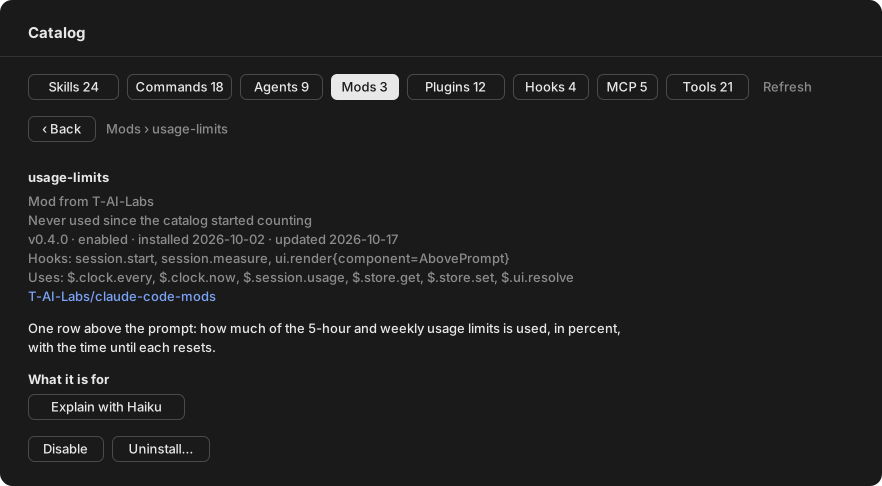
Pressing an entry opens its detail: usage over 7 and 30 days, token cost, version and install dates, what a mod hooks and calls, the repository and the full description. Explain with Haiku sums up in three sentences what the entry is for. The buttons depend on the kind: insert or run a skill or command, insert an agent, MCP server or tool into the prompt, update, disable or uninstall a plugin or mod, remove a local MCP server. Uninstalling and removing ask first.
Options
| Option | Values | Default | Effect |
|---|---|---|---|
language |
any language name | English |
The language Explain with Haiku answers in. |
githubStats |
true, false |
true |
Fetches the GitHub stats of each plugin's repository once a day. |
'{"language":"German"}' | claude plugin configure catalog-pane@T-AI-Labs --values-stdin
Set them as for context-usage.
Network and model requests
- GitHub: once a day, the public API for each plugin repository's stars, forks, open issues and last push. Off with
githubStats. - Haiku: one request of at most 400 output tokens per Explain with Haiku. The answer is kept, so each entry is explained once.
- Claude Code CLI:
claude plugin detailsonce per plugin version for its token cost,claude plugin validateonce per mod version, andupdate,disable,enableoruninstallwhen you press those buttons.
Everything else comes from Claude Code and the configuration files, and is kept in the mod's own store.
usage-pane 
A pane with one tab per period: Last turn, Session, Today, 7 days and 30 days, and two that show where the cost came from: Sessions and Prompts.
Usage
/tokens opens the pane, in the desktop app and in the terminal; /tokens today, /tokens month or /tokens prompts opens that tab. It costs no tokens and makes no model requests.
| Row | What it shows |
|---|---|
| Tokens | All tokens of the period, split into uncached input, output, cache reads and cache writes. |
| Cache hit rate | Share of the prompt read from the prompt cache. |
| API price | What the requests cost at API prices, as /cost totals them. On a subscription that is what the same usage would cost on the API. |
| Turns | Your prompts that ran a turn, with the time they took. Subagents' tokens count, their turns do not. |
| Tool calls | Every tool call, subagents' included. |
| Model time | How long model requests took, from sending to the last piece of the response. Subagents' requests count, so parallel ones can add up to more than the turns took. |
| Output speed | Output tokens per second of model time, the wait for the first token included. |
| By model, By project | Tokens, price and cache hit rate of each model and each project. By project is left out for the last turn and the session. |
| Limits | The current 5-hour and weekly windows with when each resets, and the peak each earlier window reached in the last 8 days. |
Sessions and prompts
Sessions lists the sessions of the last 30 days, newest first, with their price, project, number of prompts and first prompt. Pressing one opens its prompts.
Prompts lists the prompts of a session, most expensive first; pressing one shows it in full:
| Part | What it shows |
|---|---|
| API price, Tokens | What the prompt cost, subagents included. |
| Model calls | How many requests the prompt took, the largest context one of them sent, and how long it ran. |
| Subagent runs | How many subagent turns the prompt started, and their tokens. |
| Tool output | The tools whose results were largest, with their calls and about how many tokens they returned. |
| Where the cost went | The price split into re-reading the context, writing the cache, output and subagents, weighted by Claude's API price ratios. |
| Next time | Up to three hints when the prompt crossed a mark: a context over 100k tokens, 25 or more model calls, a cold cache that wrote 50k tokens or more, a tool that returned 50k characters or more, subagents or output over 40% of the cost, or an interrupted turn. |
Usage is counted from the install of the mod on, in every session that runs it, and kept for 31 days; the details of each prompt are kept for 7 days. Model time and output speed are counted from version 0.3.0 on. The limits fill in once Claude Code reports them, on a subscription plan with each response.
command-center 
| Element | What it shows |
|---|---|
| Source | Where an entry comes from: Built-in, User, Project, MCP or a plugin's name. Narrows the three dropdowns after it; a pick that does not come from the new source is dropped. |
| Agent | The agent types Claude Code offers, the recently used first. |
| Skill | Your skills, the project's and those of installed plugins. |
| Command | The other slash commands. |
| Insert | With a command picked, puts /command into the prompt. Otherwise puts /skill and @agent-name before what you typed. |
| Run | Runs the picked command. A skill alone runs with what you typed as its arguments. An agent starts in the background on what you typed, told to use the skill if one is picked. |
Usage
The row sits in the band above the prompt, in the terminal and the desktop app, and costs no tokens; only what Run starts does. In the desktop app it is two lines high so the app's taller controls fit. The mobile app has no dropdowns, so the row stays out of it there. In the terminal, ctrl+x tab moves into the band: Tab walks the controls, Enter presses a button, the arrow keys pick an entry.
The agent list fills from the agent types Claude Code offers the model, so in the first session after the install it is empty until the first prompt; the mod keeps them for the sessions after. Skills are told from commands by their folders, so skills that ship with Claude Code itself are listed under Command. A dropdown holds at most 63 entries: the recently used come first, and Source brings back the ones cut off.
License
Yorumlar (0)
Yorum birakmak icin giris yap.
Yorum birakSonuc bulunamadi