tabhand
Health Warn
- License — License: MIT
- Description — Repository has a description
- Active repo — Last push 0 days ago
- Low visibility — Only 5 GitHub stars
Code Fail
- process.env — Environment variable access in bin/tabhand.mjs
- exec() — Shell command execution in extension/glyph-svg.js
- exec() — Shell command execution in extension/snapshot.js
Permissions Pass
- Permissions — No dangerous permissions requested
No AI report is available for this listing yet.
Let your AI agents use your own signed-in Chrome, in background tabs that never steal focus. Works with Claude Code, Codex, Cursor, OpenCode and more.

Tabhand
Let your AI agents use your own Chrome, signed in to your accounts,
in background tabs that never steal your focus.
tabhand.dev · Docs · Chrome Web Store



https://github.com/user-attachments/assets/d5fe5c5a-c012-471f-bf3b-10fa754c382d
Video not playing? Watch it on tabhand.dev
npx tabhand setup
Works with Claude Code, Codex, Cursor, OpenCode, Gemini CLI, Copilot and more: 19 agents in all, plus anything else that speaks MCP.
Then add the extension from the Chrome Web Store. Setup opens the page for you. It works in Brave, Edge and Dia too.
Why Tabhand
- Your logins, not a blank browser. Agents work in the Chrome you already use, so email, dashboards and admin panels just work. You never hand over a password.
- You keep working. Every agent gets tabs of its own in the background, grouped under its name and muted. Chrome never jumps to the front.
- Your tabs stay yours. An agent can only reach the tabs it opened, never yours and never another agent's.
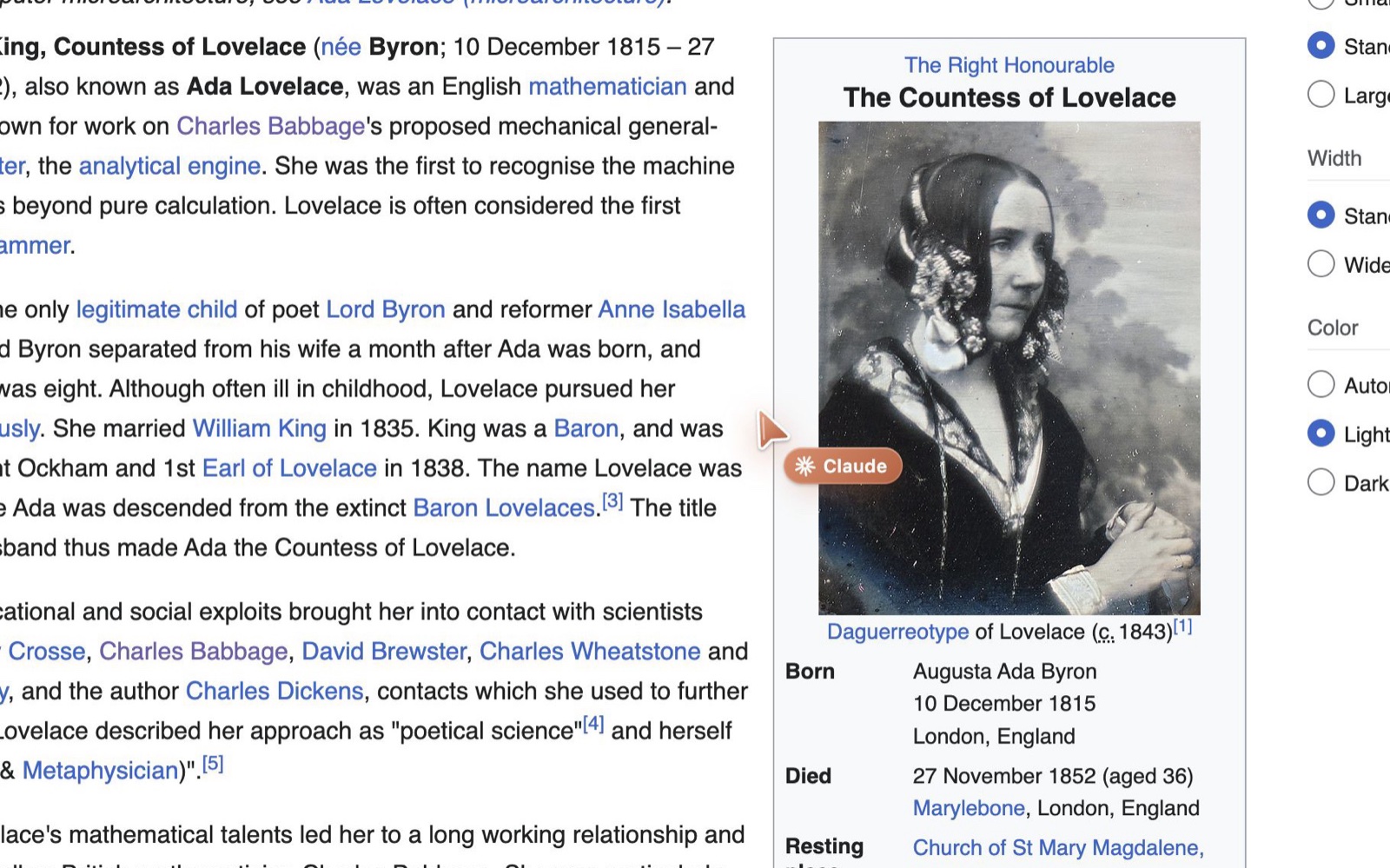
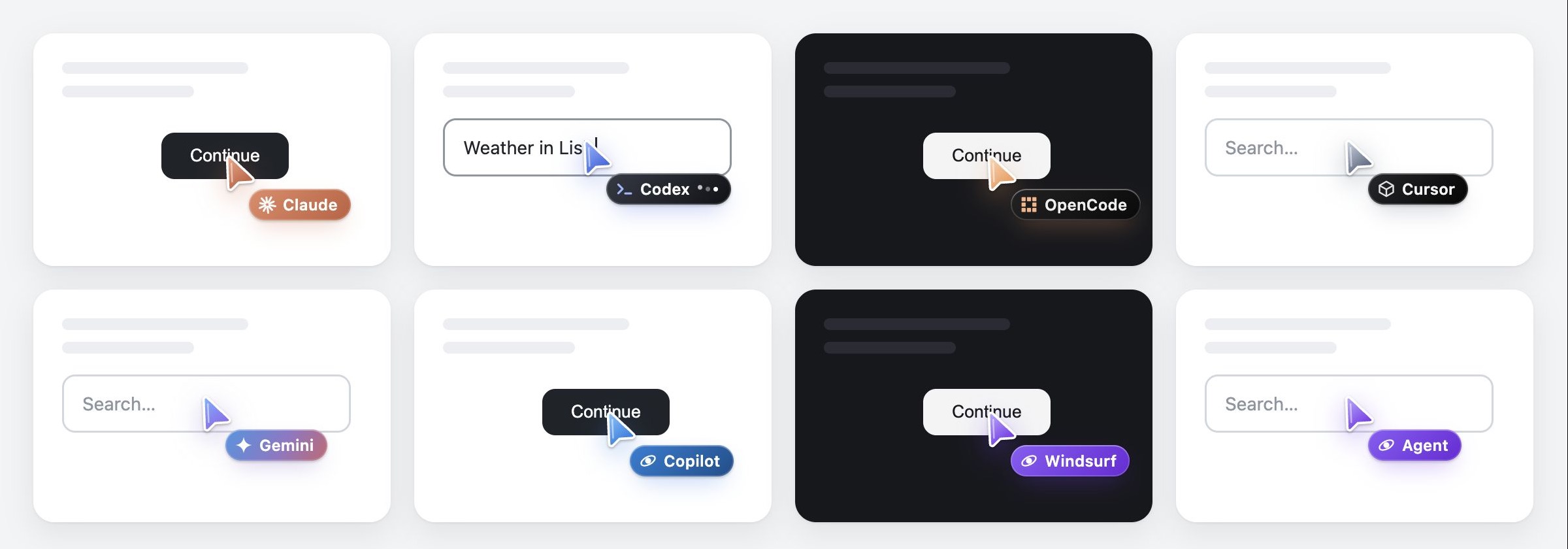
- You can watch. Each agent has its own cursor that glides, clicks and types, and its tabs wear its icon. The Tabhand button in Chrome's toolbar shows who's working and pauses every agent at once.
- No servers. Tabhand runs entirely on your computer, with no analytics. Pages only go to the agent you're running. Read the privacy policy.
How it works
agent ──stdio──▶ tabhand mcp ──Unix socket──▶ native host ──native messaging──▶ extension ──chrome.debugger──▶ agent's tabs
- Background by default. Each agent session opens its own tabs with
active: false, inside a tab group named after the agent. Focus emulation keeps those tabs rendering, so clicks, typing and screenshots work without bringing anything to the front. Agent tabs are muted, and the agent moves on once a page is usable instead of waiting for every video to load. - Agents stay in their lane. The extension only lets a session reach tabs that session opened, plus any tabs and popups those pages open. Your tabs, and other agents' tabs, are invisible to it.
- Gets along with password managers. Chrome won't let Tabhand control a page while it shows another extension's frame, such as iCloud Passwords' autofill menu. Tabhand takes those frames out of agent tabs and carries on with the step it was on.
- No network port. The bridge talks over a Unix socket in a directory only you can read, with a fresh token each run. Web pages and other machines can't reach it.
- Nothing sensitive logged, no telemetry. The bridge logs connect and disconnect events only: no URLs, page content or typed text.
- You can watch. While an agent works in a tab, its cursor sits on the page, even across page loads. It glides to whatever the agent clicks, ripples on each click, shows typing dots while it types, waves when you switch to the tab, and fades out once the agent is done. It only animates while you're looking, and it's hidden from the agent's own screenshots.
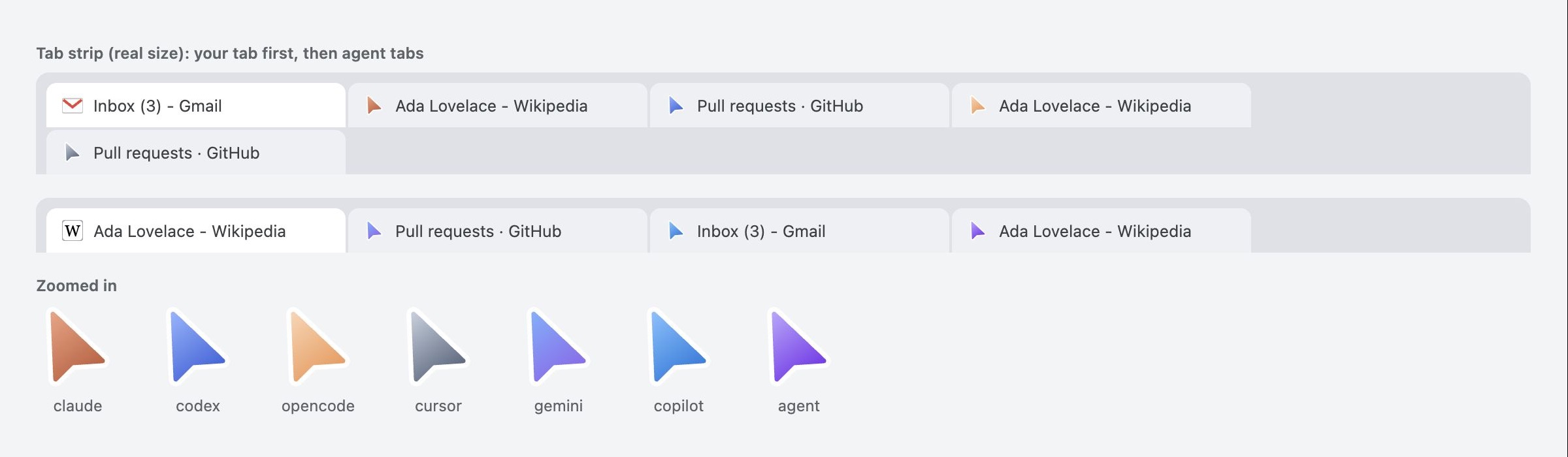
- Agent tabs stand out. While an agent works in a tab, the tab's icon becomes the agent's arrow. The site's own icon comes back when the agent is done.
- Each agent wears its own colors, or yours. Claude, Codex, OpenCode, Cursor, Gemini and Copilot each get their own cursor and tab group color; anything else gets a violet cursor with its own name. To give every agent your team's name, color and icon instead, click the Tabhand icon in Chrome's toolbar, then the gear, and choose Custom. The tag's icon can be the name's first letter, one of ten marks, none, or your own: an SVG of up to 8 KB, with the + tile, drawn either in one color like the marks or in the colors the file has. To set it for every agent on the computer, run
tabhand cursor --name Acme --color '#FF5A1F' --icon initial, ortabhand cursor --icon-file logo.svg --keep-colors. - Stop button. Click the Tabhand icon in Chrome's toolbar and press "Pause every agent" to pause every agent at once. Cancel on Chrome's "started debugging" bar only makes Tabhand let go of its tabs, and an agent may pick them up again on its next step.
- Several Chrome profiles. If Tabhand is in more than one profile (say, work and personal), agents see each one and can ask for it: "use my Work profile". Click the Tabhand icon in a profile, then its name at the top of the panel, to give it a name agents know it by, or fill in that profile's Google email. Without a choice, agents use the profile that connected first. Pause Tabhand in one profile and new work goes to a profile where it's on. An agent that asked for a profile stays in it: if you pause that one, the agent hears so rather than signing in somewhere else.
Setup (macOS and Windows)
npx tabhand setup
That's all:
- It installs Tabhand in
~/.tabhandand connects it to Chrome, Brave, Edge and Dia (macOS), whether you have them yet or not, so the extension works in a browser you install later too. - It adds Tabhand to every agent it finds, for all your projects. Each new session gets the browser tools, and the server's instructions tell the agent when to reach for them.
- It asks before changing anything. Where an agent has its own
mcp addcommand, setup uses it. Otherwise it edits the agent's settings file in place, keeping comments, and backs up the original to~/.tabhand/backups. - It opens Tabhand in the Chrome Web Store, so you can add the extension (once), and waits for Chrome to connect.
Agents it knows:
- Claude Code, Codex, OpenCode, Cursor, Gemini CLI, Qwen Code, VS Code (Copilot), Copilot CLI, Kiro, Amp, Factory Droid, Warp, Junie, Antigravity
- Devin Desktop (Windsurf), Claude Desktop, Cline, Zed
To add it to only some of them, run npx tabhand setup --harness claude,codex.
Using Brave, Edge or Dia? Add the extension there from the same Chrome Web Store page. Edge asks you to allow extensions from other stores first. Each browser shows up to agents as one more profile: click the Tabhand icon in it and give it a name, such as "Brave", so agents can ask for it. Arc isn't supported: tab groups and screenshots never finish there, so Tabhand stays out of Arc even if you add the extension. Arc shuts down on December 22, 2026; Dia works.
tabhand status checks the install, the Chrome connection and each agent. tabhand remove undoes it all. Run npx tabhand@latest setup again to update.
Any other MCP client can run ~/.tabhand/bin/tabhand mcp itself (on Windows, %USERPROFILE%\.tabhand\bin\tabhand.cmd mcp).
On Windows
- You need Node.js 20 or later, from nodejs.org or
winget install OpenJS.NodeJS.LTS. - In PowerShell, if
npxsays running scripts is disabled on this system, runnpx.cmd tabhand setupinstead, or use Command Prompt. - Setup registers Tabhand with Chrome, Edge and Brave, under
HKEY_CURRENT_USERin the registry, including a browser you haven't installed yet. Nothing needs an administrator. - Agents reach the bridge over a named pipe, not a network port, and each has to show a token kept in your own AppData, new each time Chrome starts the bridge.
- Tested on Windows 11 with Chrome, and with Claude Code as the agent.
Working on Tabhand
npm install
node bin/tabhand.mjs setup    # builds dist/tabhand.mjs and installs it from this checkout
node bin/tabhand.mjs reload   # after changing the extension's code
From a checkout, setup has you load the extension unpacked (Developer mode, then "Load unpacked") instead of adding it from the Chrome Web Store.
Setup copies a single bundled file (dist/tabhand.mjs, built by npm run build), because macOS doesn't let Chrome's child processes read Documents, Desktop or Downloads. Agents and Chrome both start it through ~/.tabhand/bin/tabhand. That launcher remembers which Node.js ran setup, since agent apps don't get your shell's PATH. If that Node.js is removed later, it finds another one. If Chrome never connects, the bridge's log at ~/Library/Application Support/tabhand/host.log says why.
On Windows, Chrome starts the bridge through ~\.tabhand\bin\tabhand-host.cmd, which the registry points it to, and agents run the Node.js that ran setup with ~\.tabhand\app\tabhand.mjs directly, since they start programs without a shell. The log is in %LOCALAPPDATA%\tabhand\host.log, and anything the bridge printed while failing to start is in host-errors.log next to it.
Windows-only code lives in src/windows.mjs and extension/windows.js. The shared files call into them only behind a Windows check, and keep their macOS code as it is.
Tools
| Tool | What it does |
|---|---|
browser_open_tab |
Open a background tab in the agent's tab group, optionally loading a URL, in the Chrome profile it asks for |
browser_navigate |
Load a URL in one of the session's tabs |
browser_reload |
Reload a tab for fresh data, optionally skipping the cache |
browser_snapshot |
Read the page as an accessibility outline; actionable elements, including ones a page made clickable or draggable out of plain elements, get refs like e123. A ref only works on the page its snapshot came from, so take a new snapshot after the page changes. On long pages, find reads just the part with some text and interactiveOnly just what can be acted on |
browser_click |
Click an element by ref, or by the text it shows |
browser_hover |
Move the pointer over an element (by ref or text) to reveal controls that only show on hover, and get a fresh snapshot with refs for them |
browser_drag |
Drag one element onto another, by ref or text: reorder lists, move cards between columns. Works with the browser's own drag and drop and with pages that follow the mouse |
browser_type |
Type into a field, optionally clearing it first and pressing Enter after, or choose a dropdown option by its text |
browser_press_key |
Press a key or combination such as Shift+Tab |
browser_scroll |
Scroll up or down |
browser_upload_file |
Attach files from your computer to a file field, or through the button that opens a file picker (no system dialog appears) |
browser_handle_dialog |
Accept or dismiss a confirm or prompt dialog the page opened (alerts are closed for you) |
browser_screenshot |
Screenshot a tab, even in the background |
browser_list_tabs |
List the session's tabs, in every Chrome profile |
browser_list_profiles |
List the Chrome profiles that have Tabhand, by name, and whether each is on or paused |
browser_close_tab |
Close one of the session's tabs |
Tests
npm testruns all of these except the smoke test.node test/setup.mjsruns setup, status and remove in a throwaway home folder holding existing agent configs. It checks that Tabhand gets added, that comments and other settings survive, that a second run changes nothing, and that the launcher serves the MCP server.node test/setup-windows.mjsdoes the same on Windows, with the registry entries under a key of the test's own, and checks that agents' ownmcp addcommands get called through cmd.exe.- On Windows the tests that start a browser need
TABHAND_TEST_BROWSERset to Chrome for Testing'schrome.exe. node test/package.mjspacks the npm package, installs the tarball, and runs setup from it.node test/activator.mjschecks, on macOS, that the helper the bridge starts to hand the front back to your app goes away with the bridge, even when the bridge is killed, and that a new bridge stops helpers an older Tabhand left running and nothing else.node test/arc.mjschecks, on macOS, that a bridge Arc starts stays connected but out of agents' way.node test/profiles.mjsruns two bridges against stand-in extensions, "Work" and "Personal". It checks that agents see both by name and can choose one, that a chosen profile stays chosen, and that pausing one profile sends new work to the other.node test/profile-name.mjsnames a throwaway Chrome for Testing profile in the toolbar panel and checks that agents see the name, and that the panel pauses and resumes agents.node test/debugger-bar.mjsruns two Chrome profiles in one Chrome, like Work and Personal, and checks that one agent session can work in both without the second being paused: a tab in the first, then a tab in the second, then the next step there.node test/cancel.mjscloses Chrome's debugging bar on an agent's tab, with the extension's test-onlysimulate_detachcommand, because Chrome for Testing never takes the bar away by itself. It checks that the profile stays on and the tab's next step works, that a step cut short by the close says so, and that a tab which keeps losing the bar is left alone instead of looping.npm run test:e2elaunches a throwaway Chrome for Testing profile, runs two agents in parallel, and checks they can't reach each other's tabs and that the browser never comes to the front.node test/new-tabs.mjschecks that links,window.open()and popups from an agent's tab never take over your tab, and that the agent gets the new tab.node test/stale-refs.mjschecks that a ref only works on the page its snapshot came from: one from another tab's snapshot, or from before a navigation, is refused without touching the page, while refs keep working across a same-document route change and a narrowed (find) snapshot.node test/drag-hover.mjschecks, in a background tab, that hover-only buttons (shown by CSS:hoveror by amouseenterhandler) can be reached, and that lists reorder by dragging, with the browser's own HTML5 drag and drop and with mouse events alone, including lists that want a press delay and ones that have to be scrolled while an item is held.node test/upload.mjschecks that files reach a page byte for byte, through a file field or a button's file picker, including files over Chrome's 1 MB message cap.node test/foreign-frames.mjschecks that an agent gets through pages where a password manager's autofill menu pops up, using a stand-in extension.npm run test:smokeruns a short check against the Chrome you have open.node test/live.mjs --profile Dia --app Diaruns every tool in a real browser profile you have Tabhand in (Dia, Brave, Edge or a Chrome profile), through your install: two agents at once on a local test page, checking that their tabs stay apart and that the browser never comes to the front.node test/cursor-presence.mjschecks the cursor and tab badge show before the first action, survive page loads, and leave when the agent is done.node test/load-speed.mjs [--real]compares how long the agent waits for pages with a plain tab.node test/cursor-look.mjssets the cursor look withtabhand cursorand in the toolbar panel, and checks the tab group, the tab icon and each agent's cursor follow it.node test/cursor-icon.mjsuploads an SVG through the toolbar panel in a throwaway Chrome for Testing profile: the + tile opens the cursor view in a window of its own (a native file chooser closes a toolbar popup), Save puts the icon on every agent in the profile, and the agent's name tag on a real page draws it, in one color or its own. It also checks that a look stored with a hostile drawing, bypassing the panel, is cleaned before it reaches a page. SetTABHAND_SHOTSto keep the screenshots somewhere other than/tmp.node test/custom-icon.mjschecks the SVG sanitiser without a browser: a logo becomes icon data that fits the 16 by 16 tag, and scripts, event handlers,foreignObject, hrefs,url()paints, oversized files and oversized trees are left out of the tree pages draw.node test/cursor-gallery.mjsrenders every cursor theme side by side, andnode test/badge-preview.mjsevery tab badge.
Roadmap
- Per-site approval: agents ask before using a site for the first time
- Confirmation before sending, buying or deleting
- Logins filled from your password manager without the AI seeing the password
- Downloads and iframes
- Linux
License
MIT
Reviews (0)
Sign in to leave a review.
Leave a reviewNo results found