gemihub-desktop
Health Uyari
- No license — Repository has no license file
- Description — Repository has a description
- Active repo — Last push 0 days ago
- Low visibility — Only 5 GitHub stars
Code Gecti
- Code scan — Scanned 12 files during light audit, no dangerous patterns found
Permissions Gecti
- Permissions — No dangerous permissions requested
Bu listing icin henuz AI raporu yok.
A local-first desktop workspace that turns your notes, documents, and workflows into context for AI.

GemiHub Desktop
Chat supports one-click normal/wide sidebar layouts, compact manual Markdown exports, and automatic history retention. Manual notes use YYYYMMDD-HHmmss_Chat title.md; the default history limit is 100 and 0 is unlimited.
As AI gets smarter, the value of your data keeps growing.
GemiHub
Desktop is the IDE for ideas—an open workspace that gathers thoughts, notes,
reference materials, activity records, and even secret tokens on your own
computer, then turns them into context for AI.
Get it from the Microsoft Store ·
Privacy Policy
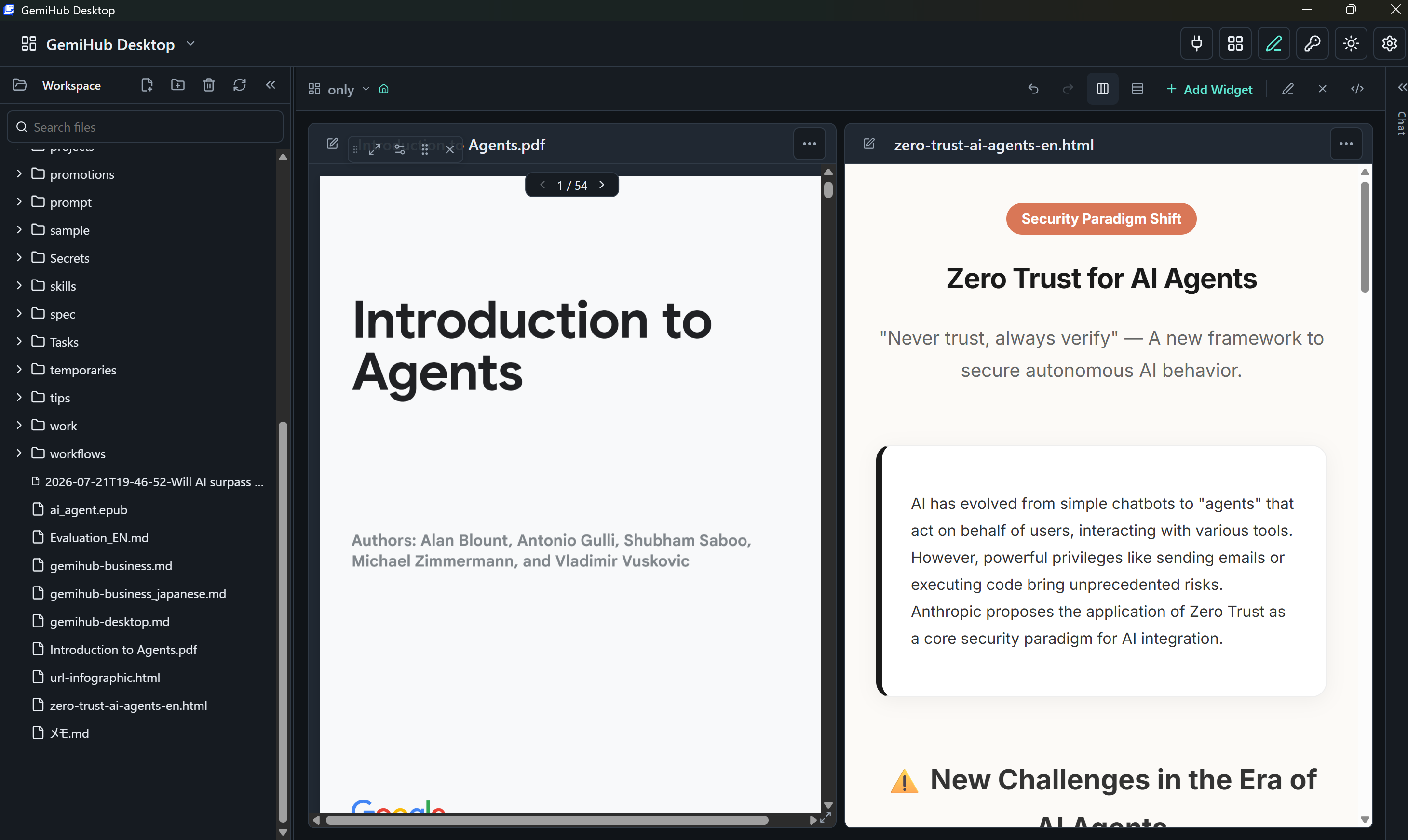
Start with the work, not the prompt
Most AI tools start with a chat box. GemiHub starts with what you're
reading. Open a document, select the passage that matters, and turn the
surrounding work into grounded context for Chat, memos, or a Workflow. You do
not have to leave the source and reconstruct its meaning in a prompt.
The best interface to an AI isn't syntax. It's intent. GemiHub treats
actions such as “ask about this selection,” “memo this,” “organize these
notes,” and “run this Workflow” as the interface. Files, selections, and the
current Workspace carry the context; the user supplies the intent.
Why this app exists
GemiHub Desktop brings together three ideas developed in earlier projects:
- the fast document viewing, editing, and source-linked memo experience of
mdwys; - the RAG, OKF, AI Chat, Dashboard, and Workflow features of
GemiHub; - the LLM CLI and local-model integrations explored in
obsidian-llm-hub.
The goal is a compact everyday Markdown application that can use AI deeply
without making an online service mandatory. It is distributed as a single
executable with no runtime dependency; the current Windows amd64 build is under
20 MB.
Files remain ordinary local files. Reading, editing, memos, Dashboards, Canvas,
Base, Kanban, history, and Trash work without AI. When needed, the same
Workspace can connect to OpenAI, Gemini, Vertex AI, Anthropic, Codex,
Antigravity CLI, or a local LLM.
No single model is the product. Whichever provider is configured—a hosted
API, a coding CLI already installed on the machine, or a model running
locally—it reads the same Workspace and reaches the same tools. A configured CLI
can power Chat, draft and revise Workflows, and run the LLM steps inside a
Workflow, so changing providers is a settings change rather than a migration.
GemiHub provides a complete environment for using AI together with MCP servers,
Agent Skills, OKF bundles, and Plugins.
What you can do
- Use it as your default Markdown app. Associate
.mdfiles with GemiHub,
open them quickly from Explorer or Finder, and switch between Preview,
WYSIWYG, and Raw editing. - Find notes by meaning. Build a local RAG index over Markdown, text, PDF,
and supported media instead of relying on filenames or remembering where a
note was written. - Let AI clean up the rough work. Ask Chat to rewrite, summarize, classify,
or reorganize notes, then review file changes before applying them. - Keep questions and impressions connected to their sources. Add
source-linked memos while reading Markdown, PDF, EPUB, HTML, or technical
books, and return from a memo to the original passage. - Automate information gathering. For example, a Workflow can take an
English technical article, translate it, and create a readable infographic
note. - Run daily work from one screen. Use Kanban and Calendar for tasks and
schedules, record miscellaneous activity in Timeline, and quickly access
frequently used files. Password-protect account details and retrieve them
only when needed. - Turn conversations into a daily record. Ask Chat or the Discord bot to
“memo this” and it can save the answer or key points directly to the Workspace
system Timeline. - Give AI accurate product knowledge. Publish your own app documentation as
an OKF bundle so Chat can answer quickly from a curated LLM wiki. - Connect work systems. Use an MCP server to turn Git history into a daily
report, or a Plugin to back up and synchronize files with services such as
Google Drive.
A workspace that grows with plugins
GemiHub Desktop is not limited to built-in document and AI tools. Install
plugins from Settings → Plugins to add complete, task-focused applications
to the same local Workspace:
The same screen also supports portable Agent Plugins v1.0.0.
Preview and install a public GitHub package to add its Agent Skills and stdio or
Streamable HTTP MCP servers. Packages are pinned to a commit and can be disabled,
updated, or removed independently from GemiHub UI plugins. Updates are previewed
before installation, and an MCP server must be tested before it can be enabled;
approval is cleared automatically if an update changes its connection details.
- Audio Score turns audio into
playable sheet music with ML pitch detection, source separation, MIDI import
and export, PDF export, and optional AI chord analysis. - Accounting adds
Beancount-compatible double-entry bookkeeping, transaction entry,
validation, and financial reports while keeping the ledger in plain text. - Ronginus runs structured,
role-based debates between multiple configured AI or local models, then
collects conclusions and votes. - Google Drive Sync connects an
entire Desktop Workspace to a GemiHub Google Drive root with previewable
pull/push operations and per-file conflict resolution.
AI is optional. Without an API key, cloud account, or network connection,
GemiHub remains a local document and knowledge workspace.
Screenshots
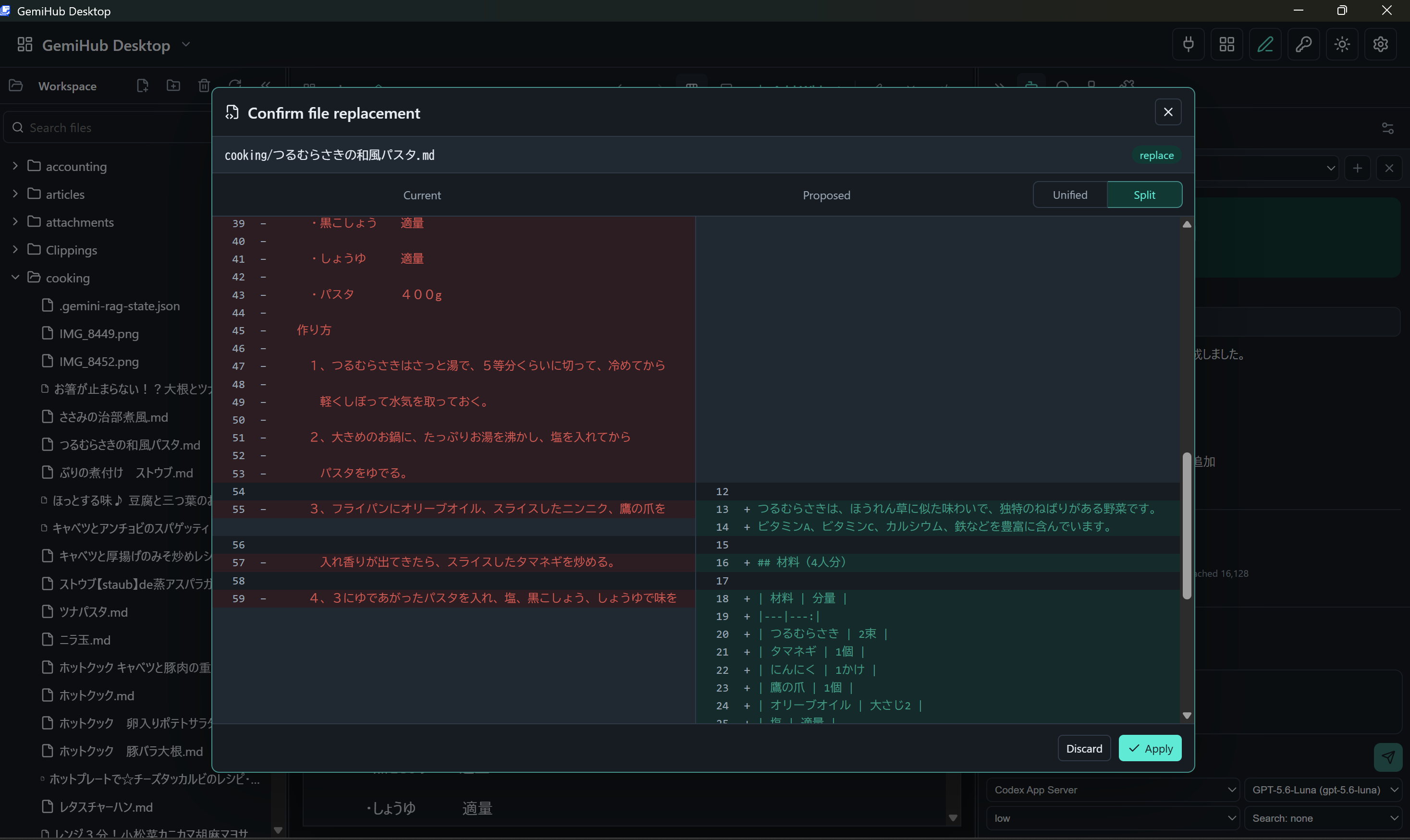
Review AI changes before they touch your files
Chat can propose edits across Workspace files. Inspect the exact diff, choose
individual hunks when needed, and apply only the changes you approve.
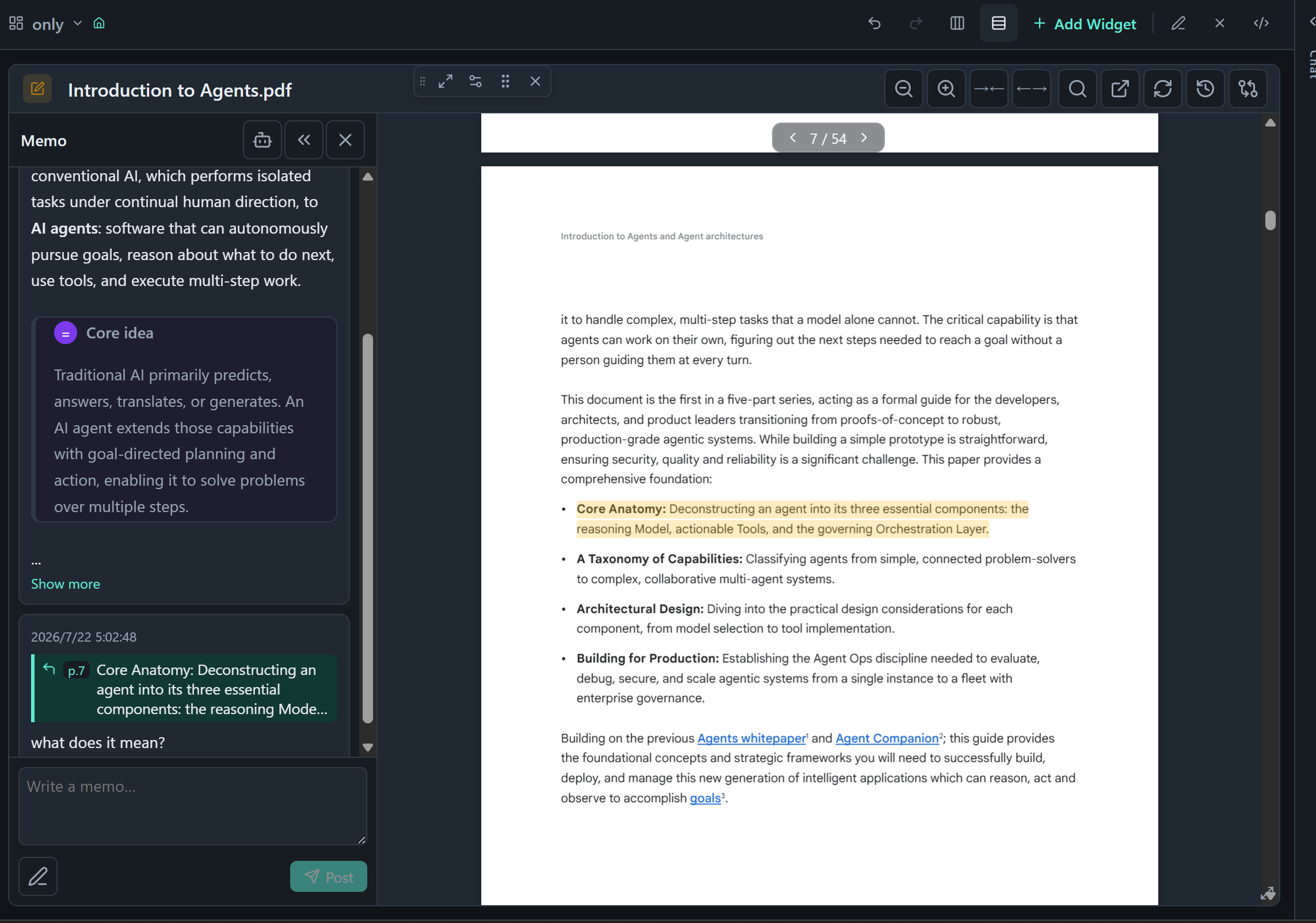
Ideas stay linked to their sources
Select text in Markdown, PDF, or EPUB and create an anchored memo alongside the
document. Highlights navigate to memos, and memo quotes navigate back to the
source.
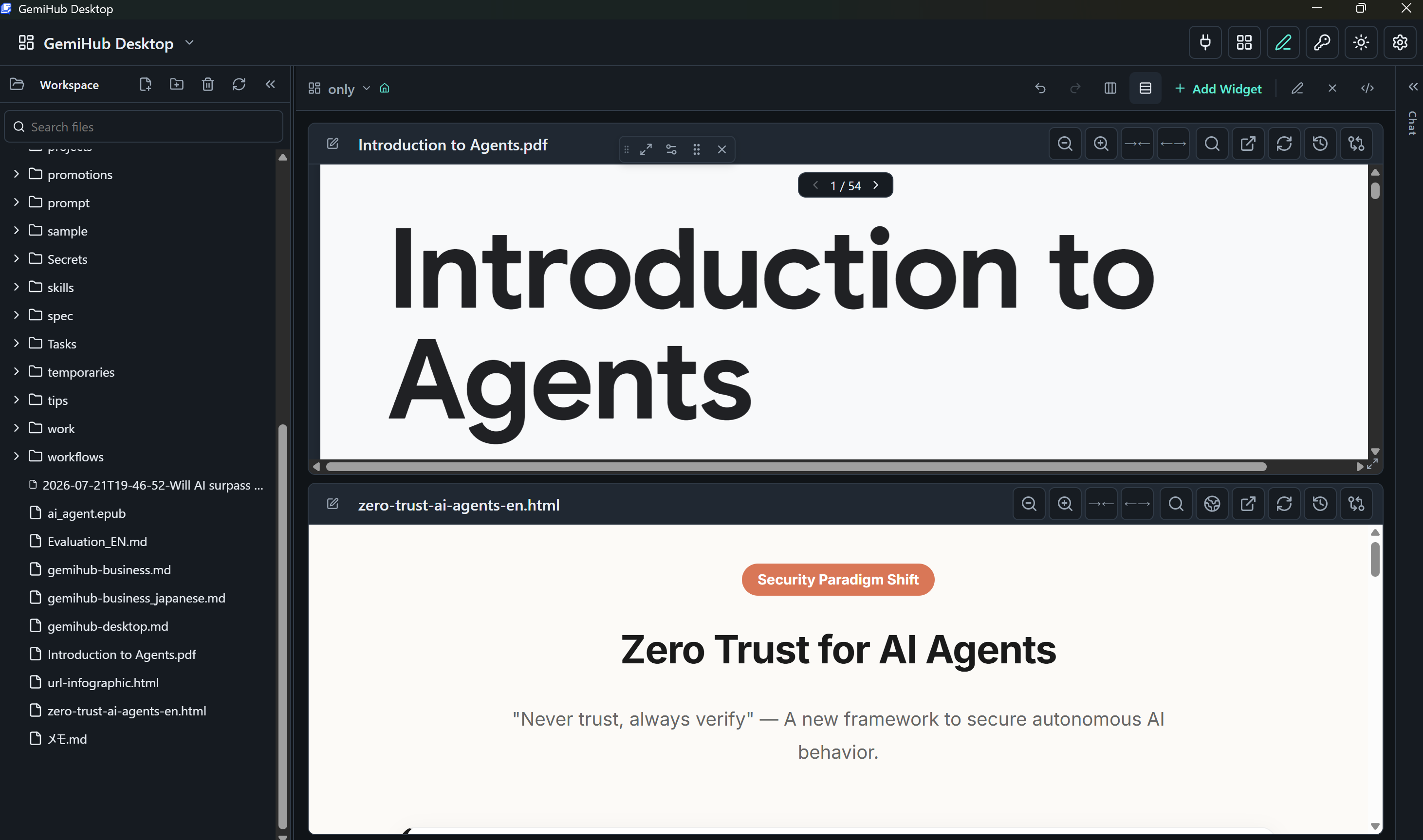
A workspace shaped around the project
Arrange PDFs, HTML research notes, Markdown documents, and tools in rows or
columns, then save dashboards as portable YAML files.
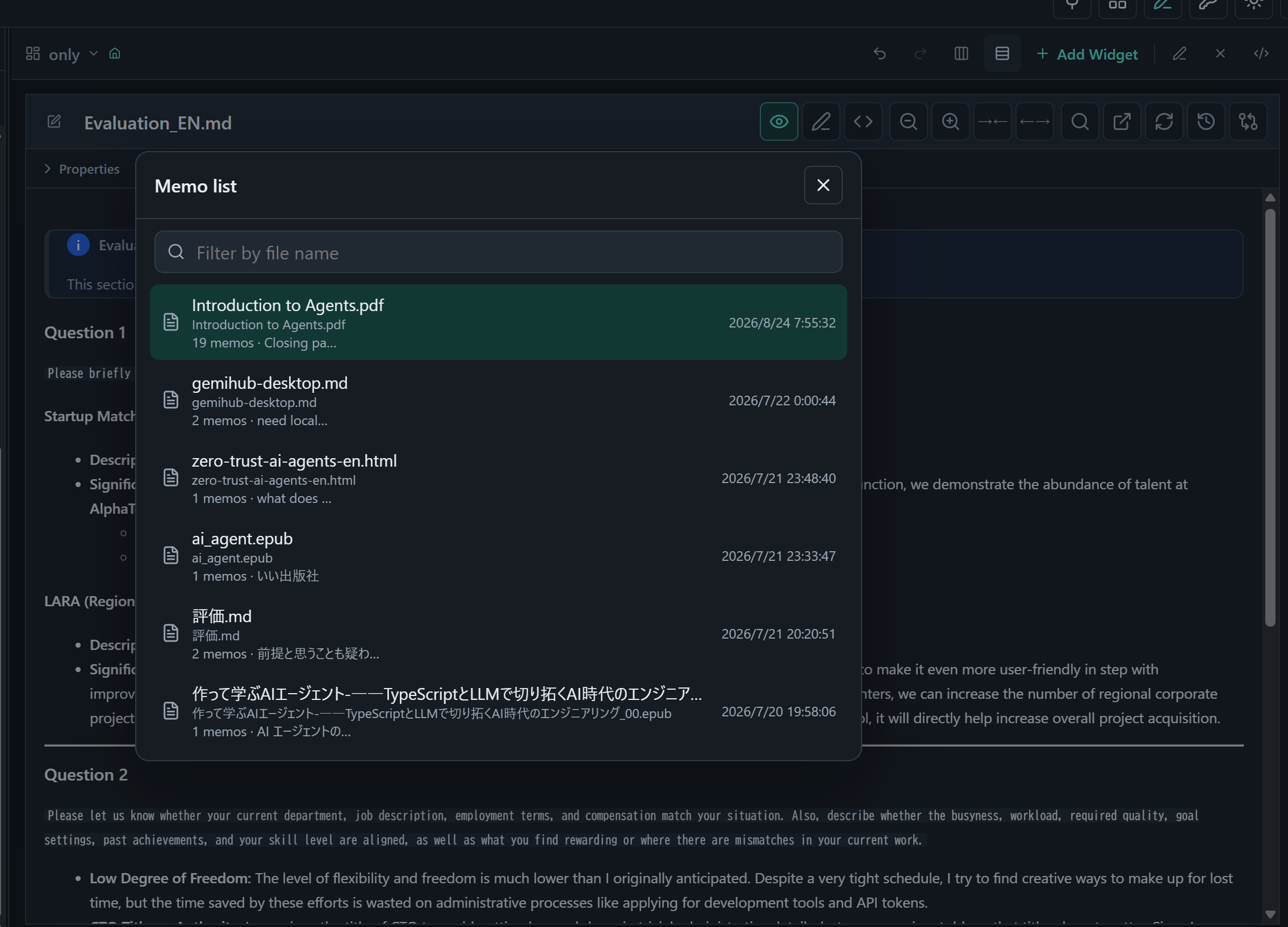
Knowledge remains discoverable
Browse every document with memos, ordered by recent activity.
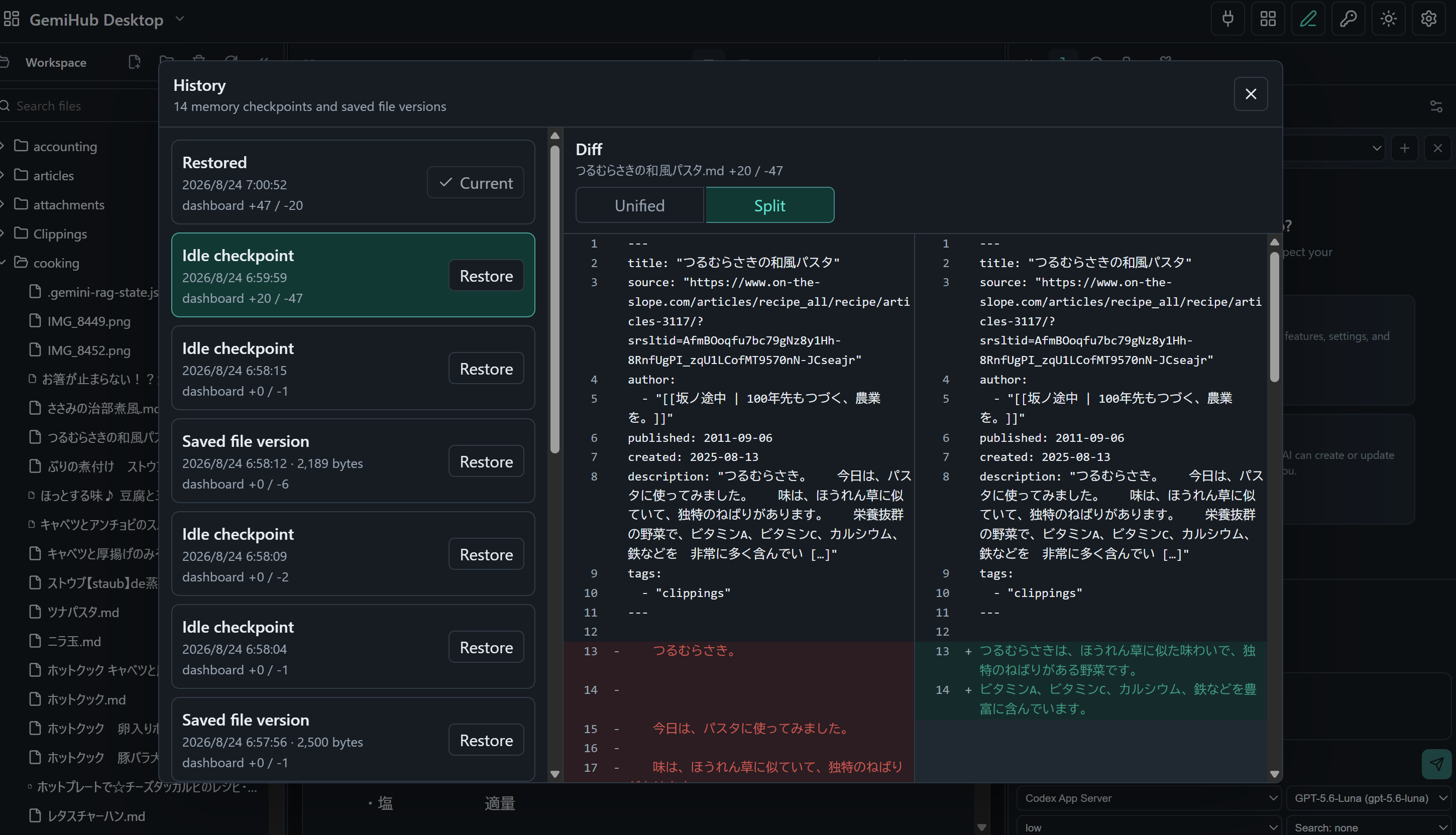
Every edit has a way back
Review saved file versions and idle checkpoints, compare them with the current
file, and restore an earlier state when needed.
Architecture
GemiHub Desktop is built with Go, Wails, Deno, Vite, React, Wysimark-lite, and
pdf.js.
The desktop shell provides local filesystem access within a user-selected
workspace. The React frontend renders documents and workspace tools, while AI
providers, local CLIs, MCP servers, skills, plugins, and YAML workflows form an
extensible intelligence layer.
Supported formats
- Documents: Markdown, plain text, HTML, PDF, EPUB, and images
- Workspace files: Dashboard, Base, Kanban, JSON Canvas, and Workflow YAML
- Encrypted files: self-contained
.encryptedfiles that retain the original
format
Safety model
- Workspace APIs and AI file tools are limited to the selected Workspace
directory. Files opened from elsewhere are limited to their explicitly opened
Files directory; traversal through..or symlinks is rejected in both
scopes. - Up to 50 versions are saved before a file is overwritten, and deleted files
can be restored from Trash. - AI-proposed edits and renames require confirmation.
- Plugins declare permissions such as
files,storage,network, andllm. - File Widget text auto-saves after editing pauses. Encrypted text is
re-encrypted with the session password and auto-saved; binary previews remain
read-only.
Install
On Windows, install it from the
Microsoft Store, which keeps
the app updated automatically.
Everywhere else, download a binary from the GitHub Releases page. Deno and Go
are not required at runtime.
Available release artifacts:
gemihub-desktop-linux-amd64(WebKitGTK 4.1)gemihub-desktop-linux-arm64(WebKitGTK 4.1)gemihub-desktop-darwin-arm64gemihub-desktop-windows-amd64.exegemihub-desktop-windows-arm64.exegemihub-desktop-windows-amd64.msix(the Microsoft Store package, also
installable directly)gemihub-desktop-windows-arm64.msix(the Microsoft Store package, also
installable directly)
The Linux binaries use WebKitGTK 4.1 and support distributions such as Debian
12/13 and Ubuntu 24.04 or newer. Install the runtime library if it is
not already present:
sudo apt install libwebkit2gtk-4.1-0
Each release also includes THIRD_PARTY_NOTICES.md. The same notices are
available in the app under Settings → General → Third-party notices.
On Linux and macOS, make the downloaded file executable:
chmod +x gemihub-desktop-linux-amd64
The macOS binary is currently unsigned, so clear its quarantine attribute before
first launch:
xattr -d com.apple.quarantine gemihub-desktop-darwin-arm64
Quick start
- Launch GemiHub Desktop and choose a local workspace directory.
- Click
+ Add Widgetor drag files into the window. - Arrange sources in rows or columns.
- Enable AI in Settings and configure a provider if you want AI features.
- Add a file with
@file, or select text in a document and choose Ask AI
from the context menu, to give Chat grounded context.
Files can also be opened through the operating system's Open with action or
as startup arguments:
gemihub-desktop note.md research.pdf book.epub
Development
Requirements:
- Deno 2.9 or newer
- Go 1.25 or newer
- Wails v3.0.0-beta.12 (
go install github.com/wailsapp/wails/v3/cmd/[email protected]) - Wails platform dependencies for your OS
Install dependencies and run the web UI:
deno install --allow-scripts
deno task dev
Run the desktop app in development mode:
deno task desktop
Type-check and build:
deno task check
deno task build
deno task desktop:build
Developer Tools are enabled in desktop builds. Press Ctrl+Shift+I
(Cmd+Option+I on macOS) to open the WebView inspector.
Build Microsoft Store MSIX packages on Windows with the Windows SDK installed:
wails3 task windows:msix ARCH=amd64
wails3 task windows:msix ARCH=arm64
Before Partner Center submission, replace the Identity name and publisher inbuild/windows/msix/AppxManifest.xml with the exact values assigned to the
reserved Store product.
Acknowledgments
GemiHub's built-in Markdown, Base, and Canvas Agent Skills include documentation
adapted from
kepano/obsidian-skills. The
corresponding file-format support in GemiHub was independently implemented from
the publicly described formats and behavior; it does not incorporate Obsidian
source code. Canvas support follows the open
JSON Canvas specification.
We are grateful to Steph Ango (@kepano), the project contributors, and the
maintainers of JSON Canvas for making their work available to the community. See
Third-Party Notices for copyright and license details.
GemiHub's WYSIWYG Markdown editor uses
takeshy/wysimark-lite, a lightweight
fork of portive/wysimark. We thank the
Wysimark authors and contributors for the foundation they made available under
the MIT License.
GemiHub Desktop is built with Wails
(wailsapp/wails). We thank Lea Anthony and
the Wails contributors for making the framework available under the MIT License.
GemiHub is an independent project and is not affiliated with or endorsed by
Obsidian.
MCP permissions and read-only tools
MCP tool calls require approval by default. The dialog shows the server name, tool name and execution arguments. Choose Allow once, Always allow this tool, or Deny; dismissing the dialog denies execution. Server settings provide an Always approve option (off by default) and a removable allowed-tool list. Workflow command and mcp nodes can use confirm: "false" to skip MCP approval for that node, including automatic runs. Later MCP App interactions follow the server settings again. Read-only mode allows built-in reading, listing and searching, and blocks built-in writes (including timeline append). External MCP and skill/workflow operations retain their own permissions. Connection tests disable editing while running and display errors for correction.
Yorumlar (0)
Yorum birakmak icin giris yap.
Yorum birakSonuc bulunamadi