tokyo-notes
mcp
Uyari
Health Uyari
- License — License: MIT
- Description — Repository has a description
- Active repo — Last push 0 days ago
- Low visibility — Only 6 GitHub stars
Code Gecti
- Code scan — Scanned 12 files during light audit, no dangerous patterns found
Permissions Gecti
- Permissions — No dangerous permissions requested
Purpose
This is a minimal GTK4 Markdown note-taking application that can also function as an MCP server. It allows local AI agents to connect via an SSE endpoint to read, search, and manage your notes.
Security Assessment
Overall Risk: Medium. The static code scan is completely clean, finding no dangerous patterns, hardcoded secrets, or requests for dangerous system permissions. However, the MCP/AI Bridge feature poses a significant local security consideration. Because it opens a local HTTP server (defaulting on port 8999) to interact with your notes, a compromised or misconfigured AI agent could read your Markdown files or modify their contents. Outside of this local bridge, the tool requires no external network access and does not appear to execute arbitrary shell commands.
Quality Assessment
The project uses the highly permissive MIT license, which is great for open-source adoption. It also appears to be actively developed, with the latest repository push occurring just today. However, the project currently has very low community visibility with only 6 GitHub stars. This indicates that the codebase has not been widely peer-reviewed or battle-tested by a large audience, so you may encounter undocumented bugs.
Verdict
Use with caution: the underlying application appears safe, but because it has low community visibility and grants local AI agents the ability to read and modify your notes over a local server, ensure your AI clients are properly configured and trusted before enabling the AI Bridge.
This is a minimal GTK4 Markdown note-taking application that can also function as an MCP server. It allows local AI agents to connect via an SSE endpoint to read, search, and manage your notes.
Security Assessment
Overall Risk: Medium. The static code scan is completely clean, finding no dangerous patterns, hardcoded secrets, or requests for dangerous system permissions. However, the MCP/AI Bridge feature poses a significant local security consideration. Because it opens a local HTTP server (defaulting on port 8999) to interact with your notes, a compromised or misconfigured AI agent could read your Markdown files or modify their contents. Outside of this local bridge, the tool requires no external network access and does not appear to execute arbitrary shell commands.
Quality Assessment
The project uses the highly permissive MIT license, which is great for open-source adoption. It also appears to be actively developed, with the latest repository push occurring just today. However, the project currently has very low community visibility with only 6 GitHub stars. This indicates that the codebase has not been widely peer-reviewed or battle-tested by a large audience, so you may encounter undocumented bugs.
Verdict
Use with caution: the underlying application appears safe, but because it has low community visibility and grants local AI agents the ability to read and modify your notes over a local server, ensure your AI clients are properly configured and trusted before enabling the AI Bridge.
A minimal GTK4 Markdown note-taking app.
README.md
Tokyo Notes
A minimal GTK4 Markdown note-taking app.
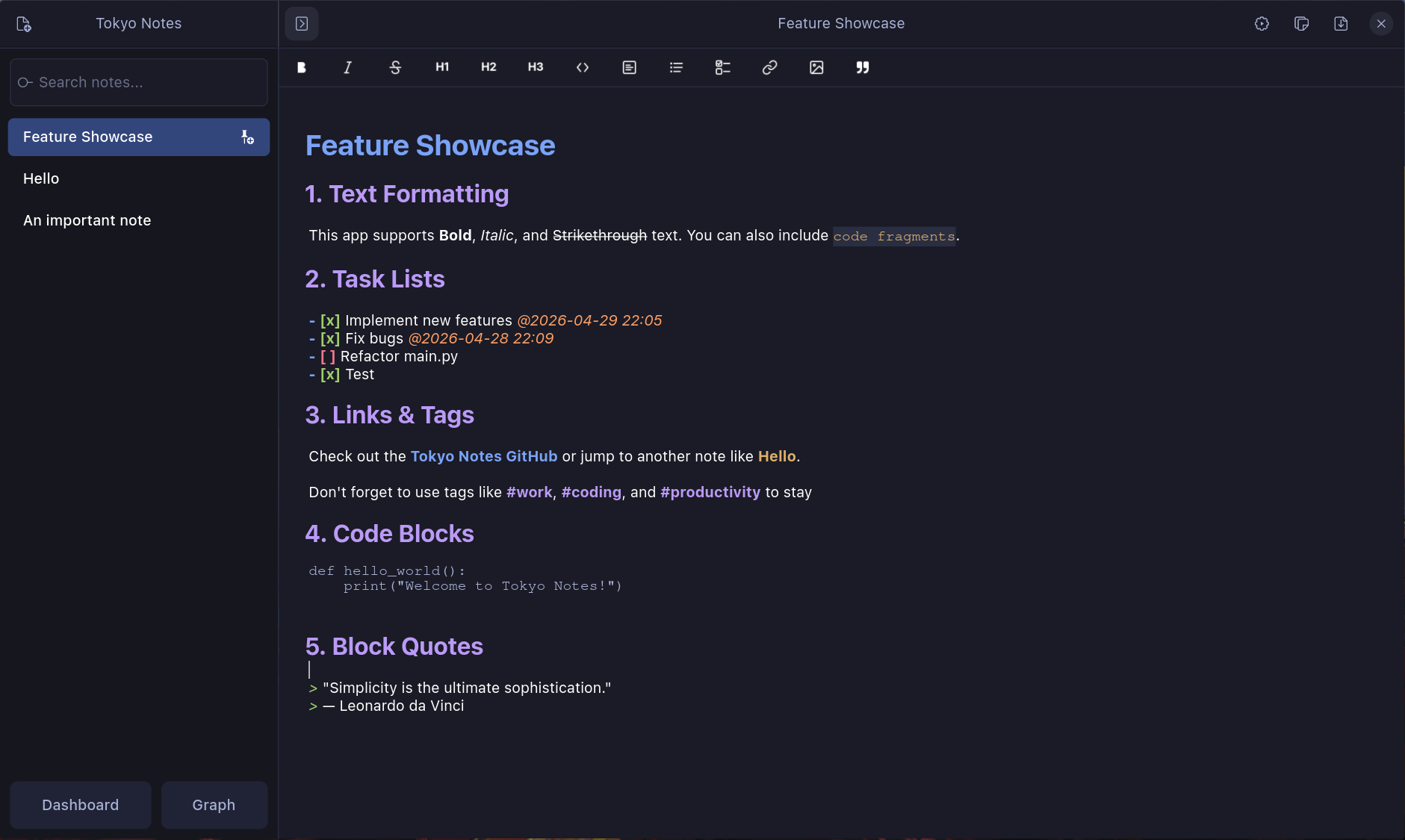
Features
- Task Management: Dashboard with Today, Week, and All views, featuring deadline tracking and jump-to-line navigation.
- Thematic Animations: "Sakura Celebration" particle effect when completing tasks in Dashboard.
- Archive System: Keep your workspace clean by archiving finished notes.
- Knowledge Graph: Visualize and navigate connections between your notes.
- Exporting: Save notes as PDF or copy raw Markdown to the clipboard instantly.
- Themes: Multiple themes including Tokyo Night, Nord, and Cyberpunk 2077.
- Full-Text Search: Find notes by title or keyword content.
Installation
Requires Python 3, PyGObject, GTK4, Libadwaita, and Libadwaita Icons.
# Arch Linux
yay -S tokyo-notes-git

# macOS (using Homebrew to install dependencies)
brew install gtk4 libadwaita pygobject3 adwaita-icon-theme
git clone https://github.com/tanay1337/tokyo-notes.git
cd tokyo-notes
python3 main.py

# Others (after installing dependencies)
git clone https://github.com/tanay1337/tokyo-notes.git
cd tokyo-notes
python3 main.py
Keyboard Shortcuts
| Shortcut | Action |
|---|---|
Ctrl/Cmd + N |
New Note |
Ctrl/Cmd + D |
Toggle Dashboard |
Ctrl/Cmd + F |
Focus Search |
Ctrl/Cmd + G |
Knowledge Graph |
Ctrl/Cmd + Shift + T |
Insert Timestamp |
Ctrl/Cmd + Shift + Z |
Zen Mode |
Delete |
Delete selected note (with confirmation) |
Escape |
Close Dashboard / Clear Search / Return to Editor |
Ctrl/Cmd + Q |
Quit |
Smart Syntax
- Deadlines: Type
@to open a date/time picker for task deadlines. - Note Links: Type
[[to pick a note to link to. - Lists: Press
Enteron a list item to automatically continue the list. PressEntertwice to discontinue the lists. - Task Markers: Press
Enteron a task- [ ]to create a new unchecked task.
AI Integration (MCP Bridge)
Tokyo Notes can act as a "knowledge base" for local AI agents, allowing them to search, read, and manage your notes directly.
Enabling the AI Bridge
- Open Settings within the Tokyo Notes application.
- Scroll to the AI & Automation section.
- Toggle AI Bridge (MCP) to ON.
- (Optional) Set your preferred port (default is
8999). - Restart Tokyo Notes to initialize the bridge.
Connecting to your AI Agent
Once enabled, your notes are accessible at: http://127.0.0.1:8999/sse
- For AnythingLLM / Open WebUI: Use the OpenAI-compatible tool URL:
http://127.0.0.1:8999/v1/tools - For MCP-native clients (e.g., Claude Desktop): Use the SSE endpoint:
http://127.0.0.1:8999/sse
What your AI can do
- Query: "What are the action items in my 'Project X' note?"
- Manage Tasks: "Mark the task on line 5 as done in my 'Groceries' note."
- Append: "Add a summary to the end of my 'Daily Log' note."
- Create: "Create a new note titled 'Meeting Notes' with the content: [summary]."
License
Yorumlar (0)
Yorum birakmak icin giris yap.
Yorum birakSonuc bulunamadi