outbound-os
Health Uyari
- License — License: AGPL-3.0
- Description — Repository has a description
- Active repo — Last push 0 days ago
- Low visibility — Only 5 GitHub stars
Code Uyari
- network request — Outbound network request in cloudflare/email-ingress/kv-worker.js
Permissions Gecti
- Permissions — No dangerous permissions requested
Bu listing icin henuz AI raporu yok.
Open-source, self-hosted WhatsApp CRM with direct Meta Cloud API, email, a shared inbox, focused mobile sales workspace, automation and an MCP server for AI agents.

Outbound OS
The open-source WhatsApp CRM for conversations,
follow-ups and a focused mobile sales workspace.
Self-hosted · Meta's official WhatsApp Cloud API · Email, Telegram and iMessage · An MCP server for AI agents





Website · Live demo · Install with Docker · Docs · MCP for AI agents · Discussions
Leads come in from your website, marketplaces, ad forms and spreadsheets.
Outbound OS keeps conversations and customer context together, supports configured
first contact and scheduled follow-ups, and stops automation on a reply or opt-out.
It runs on your own server. Connected providers receive the data needed to deliver
messages; your CRM database and backups stay under your control.
Why it exists. It was built to run a real export sales desk: enquiries
from external marketplaces and the web at all hours, buyers in dozens of time zones, and
follow-ups that kept slipping. It still runs that desk in production. Now it
is open source, so any team can run their own.
|
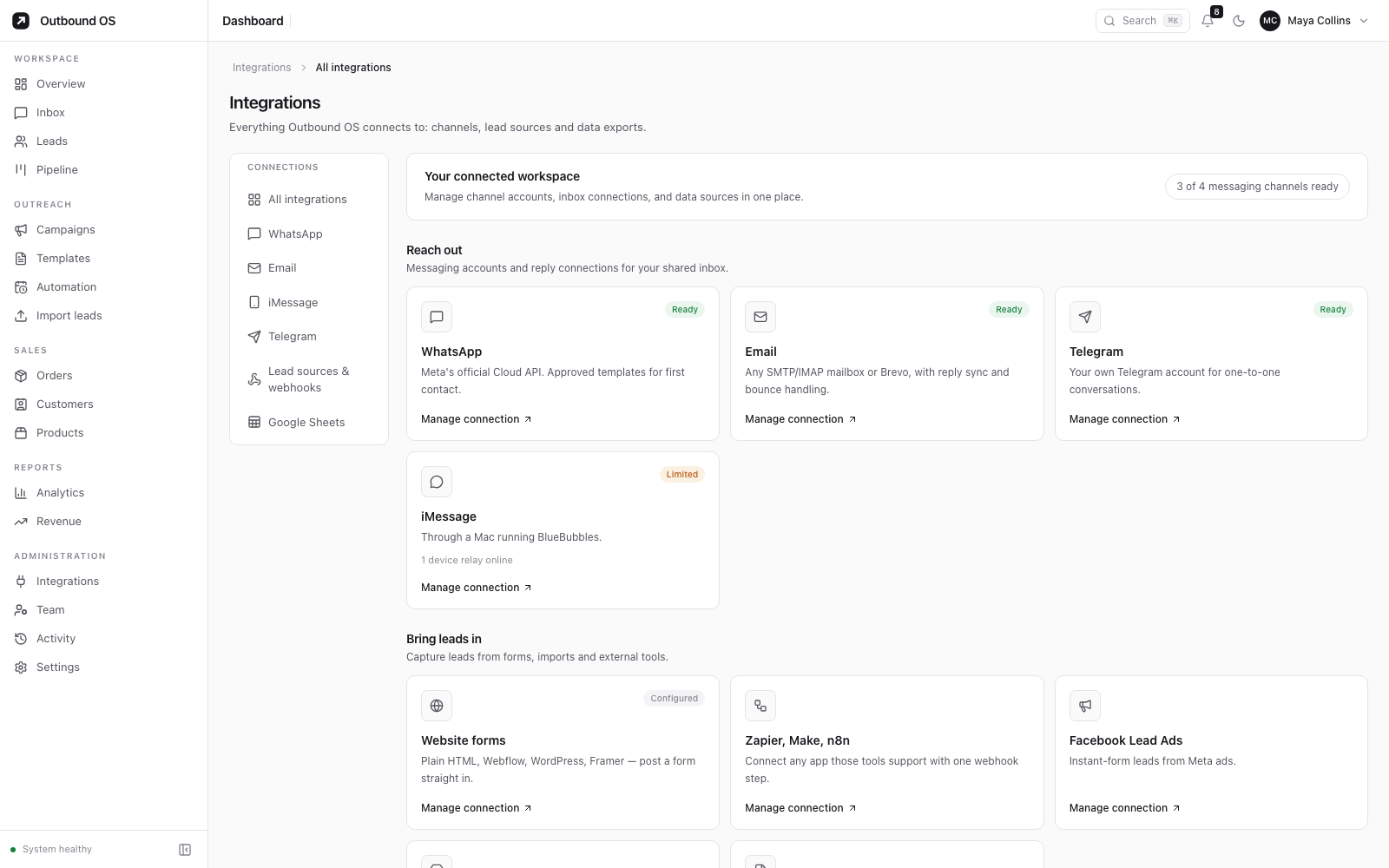 |
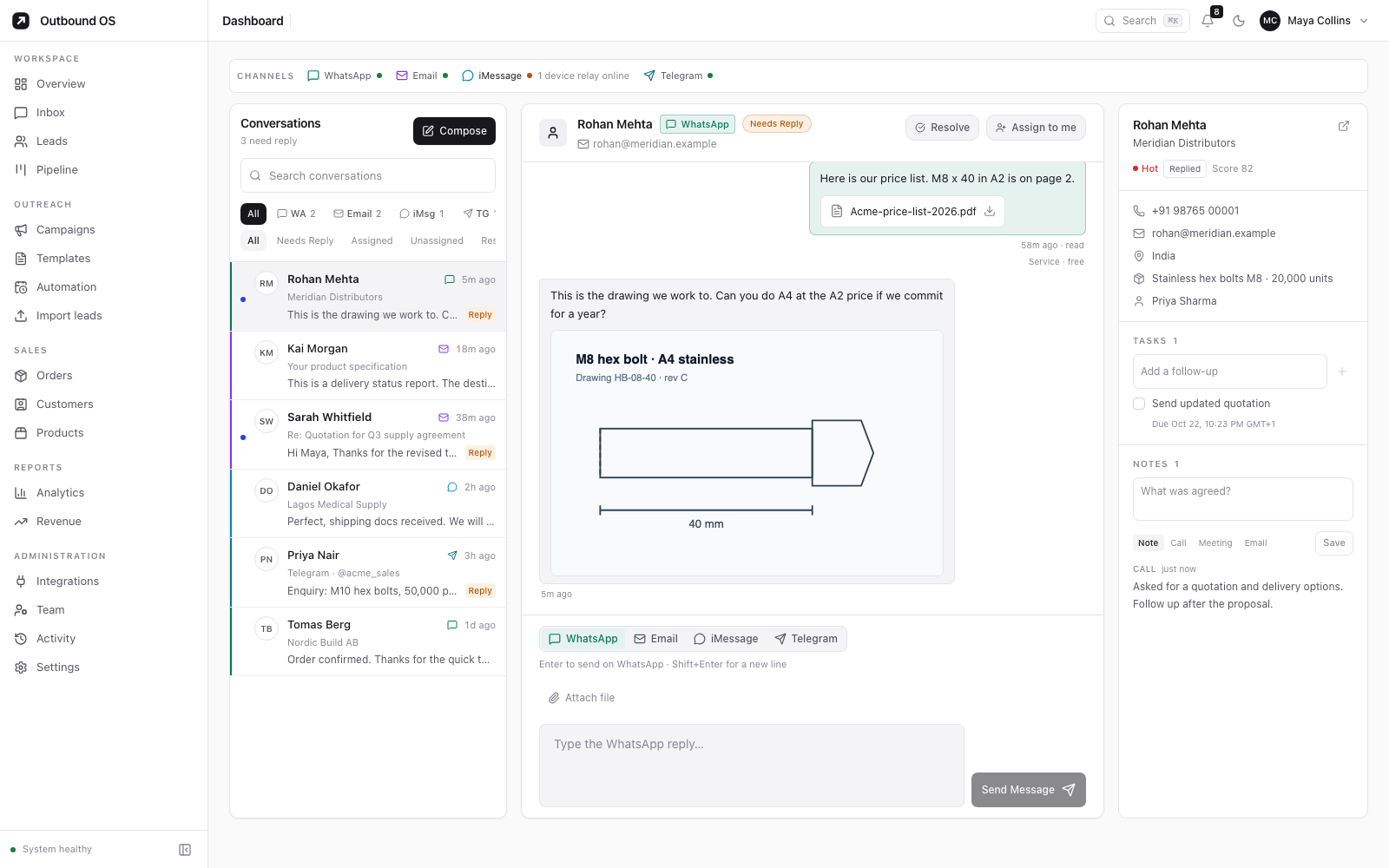
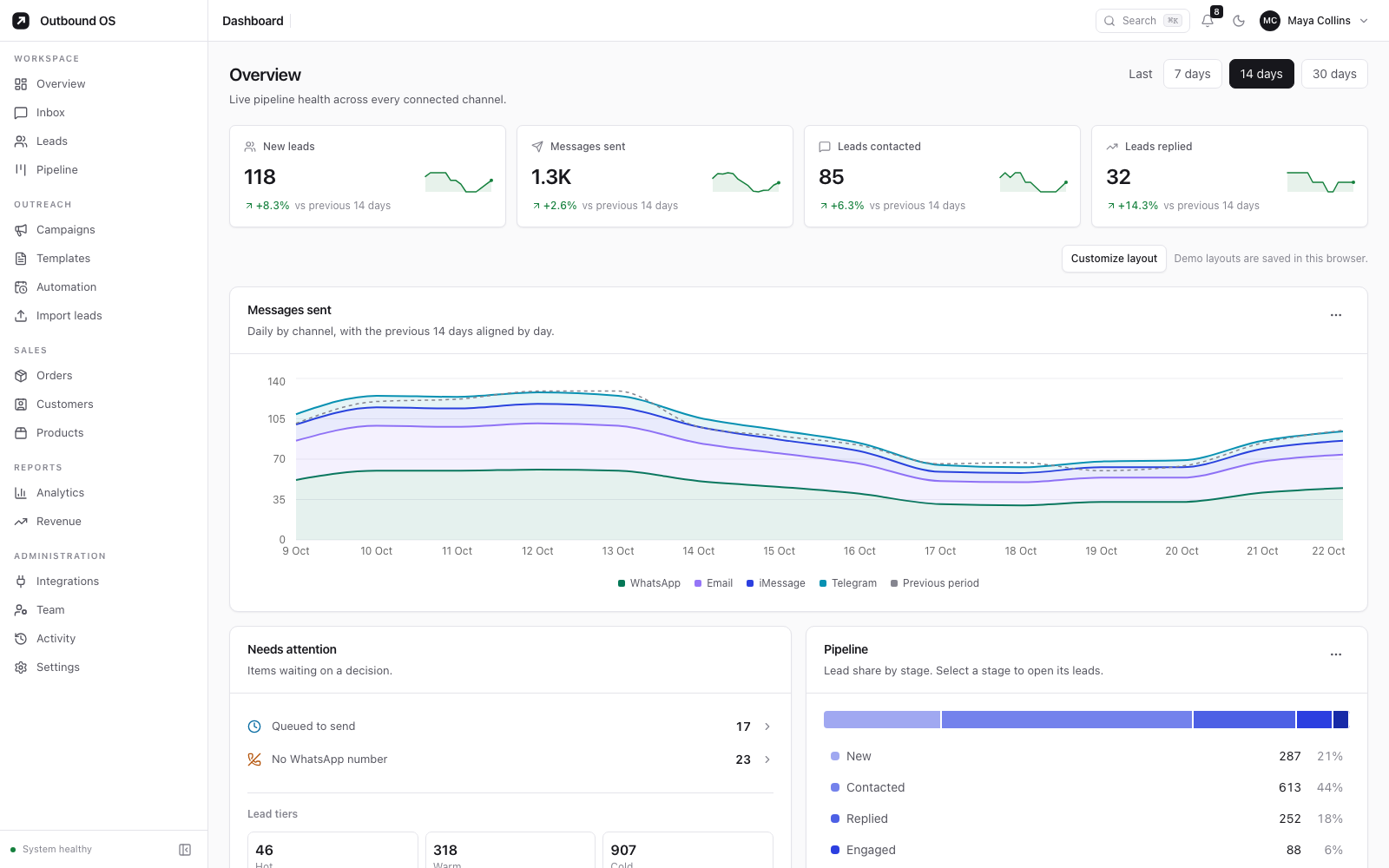
| One inbox for every channel | Everything it connects to |
 |
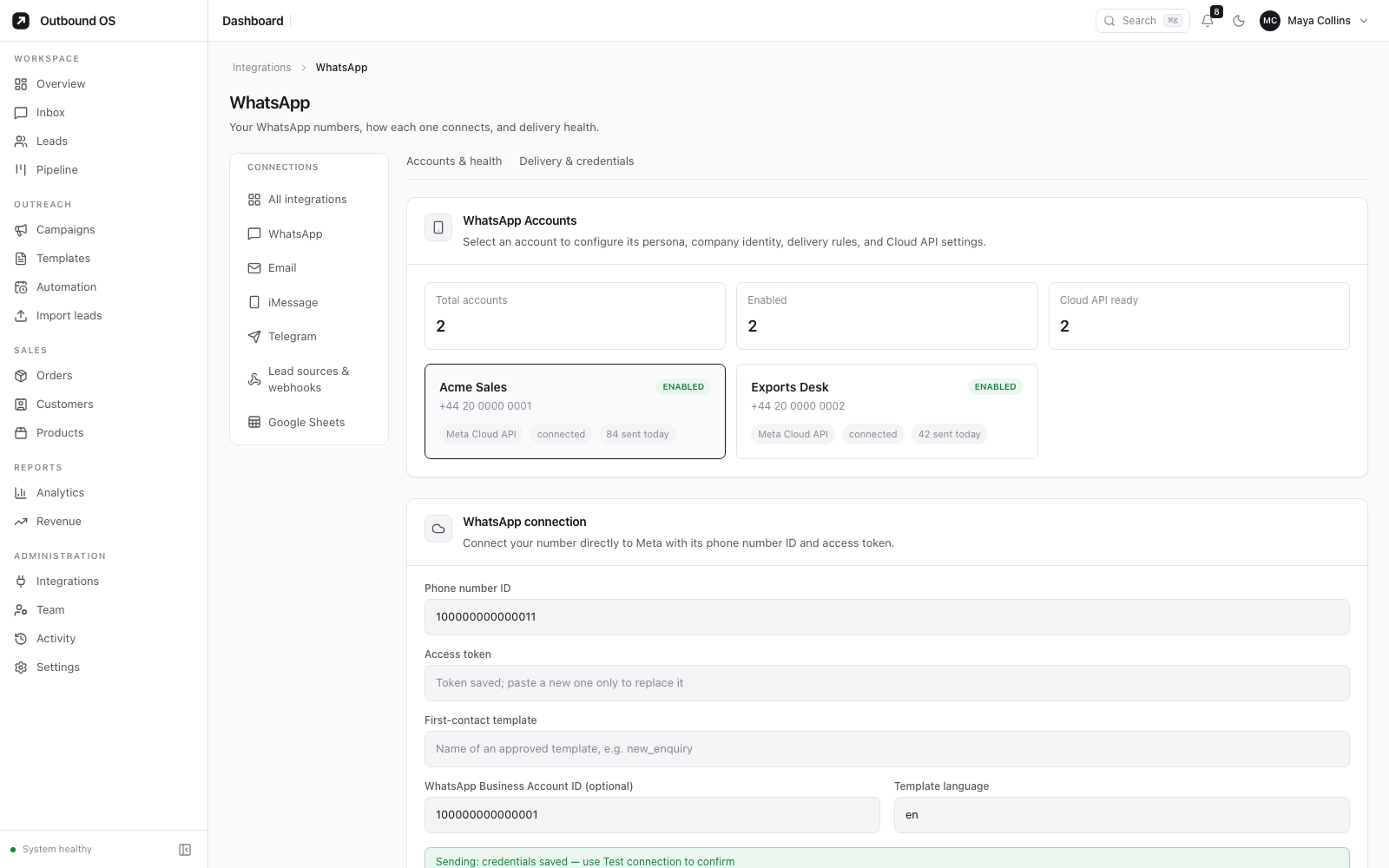 |
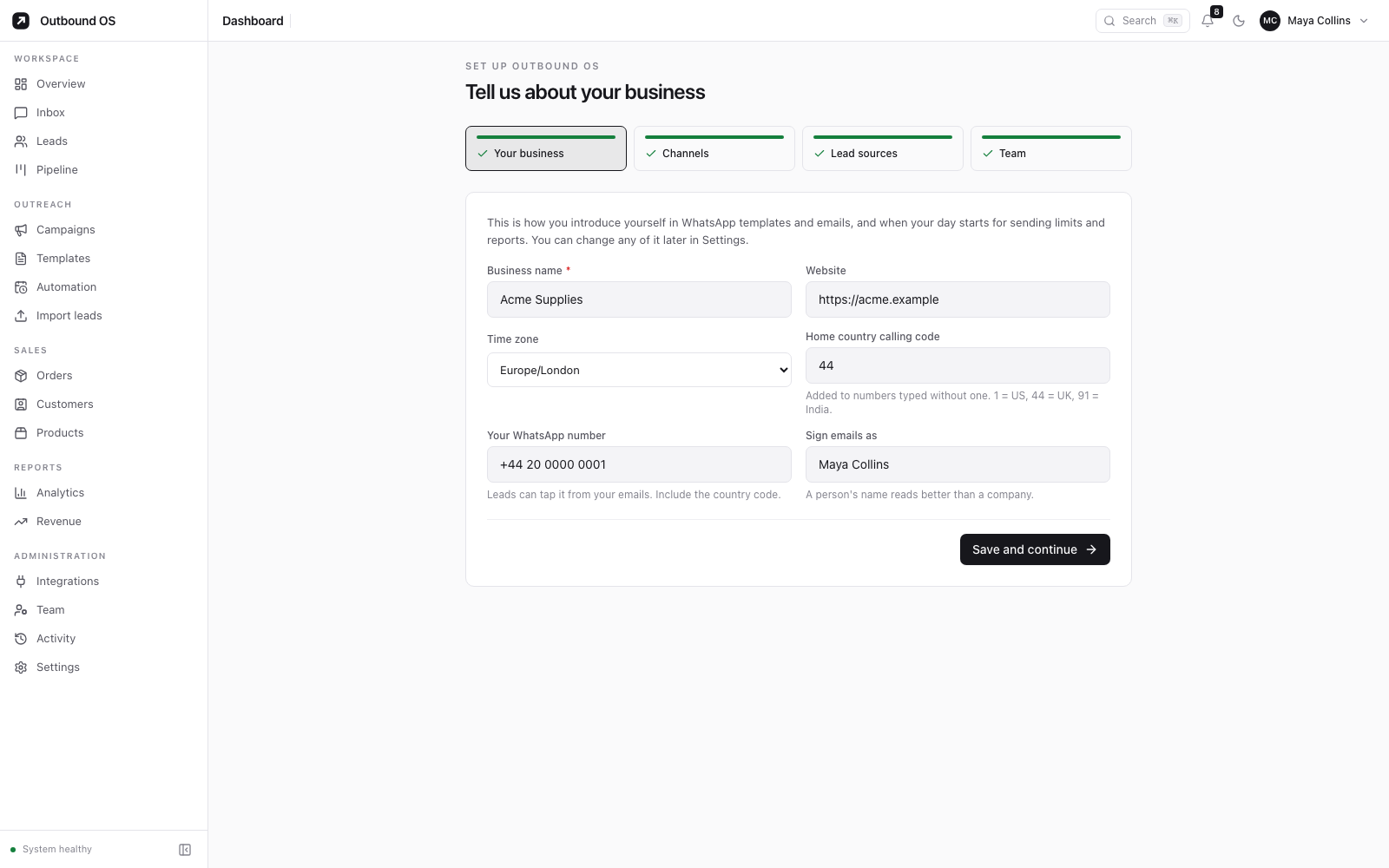
| Guided setup on first sign-in | Connect directly to Meta Cloud API |
Screenshots use made-up sample data.
What it does
- Instant first touch. Configured live sources can queue first contact on eligible
connected channels. Sending respects the lead state, channel settings,
approved templates and account limits. - One inbox for every channel. WhatsApp, email, Telegram and iMessage
threads sit side by side on the lead they belong to. - A focused phone workspace. Add the web app to your Home Screen for
Inbox, Tasks, Leads and More. iPhone notifications require a supported iOS
version, Home Screen installation and permission on that device. - Reliable manual WhatsApp replies. Failed and uncertain attempts stay
visible. The composer checks the sending number’s 24-hour reply window;
outside it, choose an approved template to re-engage. - Follow-ups that know when to stop. Sequences run in the lead's working
hours and end on a reply, an opt-out, or a closed deal. - Campaigns to any slice of your leads (by tag, status, country, score),
with approved WhatsApp templates for anyone outside the 24-hour window. - A pipeline, not just messages. Status, owner, score, notes, tasks,
orders and shipment updates live on the same record as the conversation. - Dashboard layouts for each account. Reorder, resize and hide Overview
and Analytics widgets, then save the layout across devices.
Dashboard guide. - Built for AI agents. An MCP server lets Claude or any MCP client search
leads, import lists, launch campaigns and read replies on your live data.
What it deliberately doesn't do
- Bypass channel rules. WhatsApp goes through Meta's official Cloud API.
Template approval, opt-in and the 24-hour window apply.
Anything that promises otherwise is asking you to get your number banned. - Blast. Sending limits and warm-up are built in. The design assumes you
want replies, not volume.
Integrations
| Bring leads in | Reach out | Send data out |
|---|---|---|
| Any website form (HTML, Formspree-style POST, Webflow, WordPress) | WhatsApp — Meta Cloud API | Outgoing webhooks on lead and message events |
| Facebook Lead Ads | Email — any SMTP/IMAP inbox, Brevo | Google Sheets (live row sync) |
| Authenticated webhooks from forms and external systems | Telegram — your own account | CSV export |
| Authenticated connector imports with supplier attribution | iMessage — via a Mac running BlueBubbles | MCP server for AI clients |
| Zapier, Make, n8n, or your own code (source-key webhook) | ||
| CSV / JSON import |
Incoming sources use their own API key and field map. Outgoing events use
a separate HMAC signing secret. Historical connector imports retain source IDs
and supplier attribution, hold conflicts for review, and never launch outreach.
Website forms
Point any HTML form at a lead source — the setup wizard gives you a ready-made
one — and it works like a hosted form backend:
<form action="https://your-host/api/webhooks/inbound/<source>?apiKey=<key>" method="post">
  <input name="name" required>
  <input name="email" type="email">
  <input name="phone">
  <textarea name="message"></textarea>
  <label><input type="checkbox" name="email_consent" value="yes"> Email me updates</label>
  <input type="text" name="_gotcha" style="display:none" tabindex="-1" autocomplete="off">
  <input type="hidden" name="_next" value="https://your-site.com/thanks">
  <button>Send</button>
</form>
_gotchais a spam trap: bots fill it, people never see it, and those
submissions are dropped._nextsends the visitor back to a page on your own site; without it they
see a short thank-you page.- A ticked
email_consent(ormarketing_consent,newsletter) records
marketing consent with its time and source. Unticked means no consent. - JSON posts from Zapier, Make, n8n or your own code use the same address, with
the key in anx-api-keyheader.
Quick start (Docker)
Use Docker Engine with Compose v2. On Windows, run the installer in WSL2.
git clone https://github.com/thatsarpit/outbound-os.git
cd outbound-os
bash setup/install.sh
The installer builds the checkout, asks for the first admin password without
echoing it, and prints the sign-in address. Run the same command to resume.
The installation guide covers published images, HTTPS,
existing installs and verified backups.
Deploy on Render

The included render.yaml pulls the published image and mounts a persistent
disk at /app/data. This requires a paid service and disk. EnterADMIN_EMAIL and ADMIN_PASSWORD when Render prompts, then sign in at the
service's HTTPS URL. Keep the disk attached when redeploying because it
contains the database and instance keys. Pin a
released image tag in your fork's Blueprint when you want controlled upgrades.
The install guide has the steps.
Your data
Everything is in the outboundos-data Docker volume: the SQLite database andinstance-secrets.json, the generated keys that sign sessions and encrypt
saved credentials. Back up both together — the database's stored
credentials cannot be decrypted without that file.
docker compose exec app bash scripts/backup.sh
docker compose cp app:/app/data/backups ./backups
Updating
Verify a recovery set before updating. Use the upgrade steps for your
installation. The app applies
database migrations when it starts.
Connecting WhatsApp (Meta Cloud API)
- Create an app at developers.facebook.com
and add the WhatsApp product. Add your number under API Setup. - Create a System User in Meta Business Settings, give it the
app/WhatsApp asset permissions, and generate a long-lived token withwhatsapp_business_messagingandwhatsapp_business_managementas needed
for messaging and template management. Keep it private. - In Outbound OS: Settings → WhatsApp → Meta Cloud API, paste the
Phone number ID and the token, then Test connection. - To receive replies, set
META_APP_SECRETandMETA_WEBHOOK_VERIFY_TOKEN
in.env, then in Meta: WhatsApp → Configuration → Webhook, callbackhttps://your-host/webhook/meta, the same verify token, and subscribe to
messages.
First contact must use an approved template. Put its name on a campaign
(or as a number's default) and Outbound OS fills {{1}} with the lead's first
name and {{2}} with their country.
Configuration
Only these matter to boot; everything else is a channel you opt into. The full
list, with explanations, is in .env.example.
| Setting | Default | What it does |
|---|---|---|
ADMIN_EMAIL / ADMIN_PASSWORD |
[email protected] / blank |
First admin sign-in. With a blank password, set it from the server terminal. |
AUTH_PROVIDER |
local |
local = email + password; clerk = Clerk-hosted sign-in |
BUSINESS_NAME, BUSINESS_WEBSITE, … |
— | Your identity in outgoing messages and emails |
BUSINESS_TIMEZONE |
UTC |
When "today" starts; daily limits and reports use it |
DEFAULT_COUNTRY_CODE |
— | Calling code added to numbers typed without one (1, 44, 91…) |
BUSINESS_CURRENCY |
USD |
Currency for supplier costs, profit and reports |
META_APP_SECRET, META_WEBHOOK_VERIFY_TOKEN |
— | Receiving WhatsApp replies from Meta |
CORS_ORIGIN |
— | Only if the dashboard is served from another origin |
JWT_SECRET and LEAD_SYNC_ENCRYPTION_KEY are generated on first boot if you
leave them blank. Business details, time zone, country code and currency can
also be set in the setup wizard or Settings → Workspace; values saved there
win over .env.
Development
cp .env.example .env
npm ci && npm ci --prefix web
npx prisma migrate deploy      # creates data/outboundos.db
npm run dev --prefix web       # dashboard on :5173, proxies /api
npm start                      # API on :3001
npm test                       # unit tests
npm run test:integration       # API tests against a throwaway database
npm run lint --prefix web && npm run build --prefix web
The live demo is the same dashboard on sample data with no server behind
it: npm run build:demo --prefix web builds it into web/dist-demo, and
the sample data lives in web/src/demo/. In development, /dev/shell
shows the same data.
| Path | What lives there |
|---|---|
src/ |
Node/Express API, services, scheduled jobs |
src/services/whatsappProviders.js |
Direct Meta account credential readiness |
web/ |
React + Vite dashboard |
prisma/ |
Schema and migrations (SQLite) |
mcp-outboundos/ |
MCP server (docker compose --profile mcp up -d) |
android/ |
Native Android companion app |
test/ |
Unit and integration tests |
Adding a lead source or a channel? Readdocs/integrations.md first.
AI agents (MCP)
Open Integrations → AI agents & MCP for the public server address, server
checks, ChatGPT/Codex instructions and a read-only verification prompt. Server
reachability is separate from authorizing your AI client.
Outbound OS ships an MCP server, so Claude
and other AI clients can search leads, import lists, build and start
campaigns, and read analytics on your live data. Configure your AI client to require approval
for sends and other consequential actions.
# .env: MCP_SERVICE_TOKEN and MCP_BEARER_TOKEN (openssl rand -hex 32 each)
docker compose --profile mcp up -d
claude mcp add --transport http outbound-os https://mcp.your-host.com/mcp \
  --header "Authorization: Bearer <MCP_BEARER_TOKEN>"
claude.ai and the Claude apps connect as a custom connector through OAuth.
Manual text/file sends use a caller-known client_message_id. If omitted,
the tool prepares an ID without sending; reuse it for the send and any retry.
Provider acceptance is distinct from delivery.
Full guide and the list of tools: outboundos.space/mcp.
Contributing
Contributions are welcome — code, docs, translations, bug reports.
- Start with an issue labelled
good first issue. - Read
CONTRIBUTING.md; coding agents and their users,AGENTS.md. - Questions and ideas go to Discussions.
- Comparing options? How Outbound OS compares
with hosted WhatsApp platforms, stated fairly.
Security
Please do not open a public issue for a vulnerability. SeeSECURITY.md for private disclosure.
Self-hosting means the obligations that come with contact data and messaging
are yours: keep .env and backups private, rotate credentials, and follow the
consent and record-keeping rules where you operate.
License
AGPL-3.0. Use, modify and self-host it freely, including
commercially. If you run a modified version as a network service, you must
make your changes available under the same license.
Yorumlar (0)
Yorum birakmak icin giris yap.
Yorum birakSonuc bulunamadi