super-cli
Health Uyari
- License — License: MIT
- Description — Repository has a description
- Active repo — Last push 0 days ago
- Low visibility — Only 5 GitHub stars
Code Basarisiz
- exec() — Shell command execution in src/doctor.ts
- process.env — Environment variable access in src/extension.ts
Permissions Gecti
- Permissions — No dangerous permissions requested
Bu listing icin henuz AI raporu yok.
Launch any AI coding-agent CLI — Claude Code, Codex, GitHub Copilot, Cursor, Crush, OpenCode and more — from one VS Code sidebar. Works in VS Code, Cursor, Antigravity & Windsurf on Windows, macOS & Linux.
Super CLI — AI Coding Agent CLI Launcher for VS Code
Visual Studio Marketplace
· Open VSX
· CI
· Sponsor

One launcher. Every coding agent.
Launch Claude Code, OpenAI Codex CLI, GitHub Copilot CLI, Google Antigravity, OpenCode, Kiro CLI,
OpenClaw CLI, Qoder CLI, Cursor Agent, and other AI coding agents inside VS Code from one sidebar and the native
integrated terminal. Super CLI keeps every supported agent one click away without replacing its
official command-line experience.
It works on Windows, macOS, Linux, and WSL, and across the VS Code family: VS Code, Cursor,
Antigravity, and Windsurf. It is free, open source, and has no telemetry or automatic CLI installers.
Install Super CLI in VS Code
Install Super CLI from the Visual Studio Marketplace,
or run:
code --install-extension mikesoft.vscode-super-cli
You can also open the Extensions view in VS Code, Cursor, Antigravity, or Windsurf, search for
Super CLI, and select Install.
This extension is unofficial and is not affiliated with, endorsed by, or sponsored by Anthropic,
OpenAI, GitHub, Google, or any other vendor. See the third-party
notices.
Interface
Agent sidebar and editor launcher
The activity bar opens a status-aware list with vendor-specific agent icons. Ready agents stay at the
top; CLIs not found on the active PATH are grouped under Setup required. The favorite is pinned
above the groups with an always-visible star, while the remaining agents are sorted alphabetically
within each status group. The colored Router S in the editor toolbar opens the same launcher without
leaving the current file.
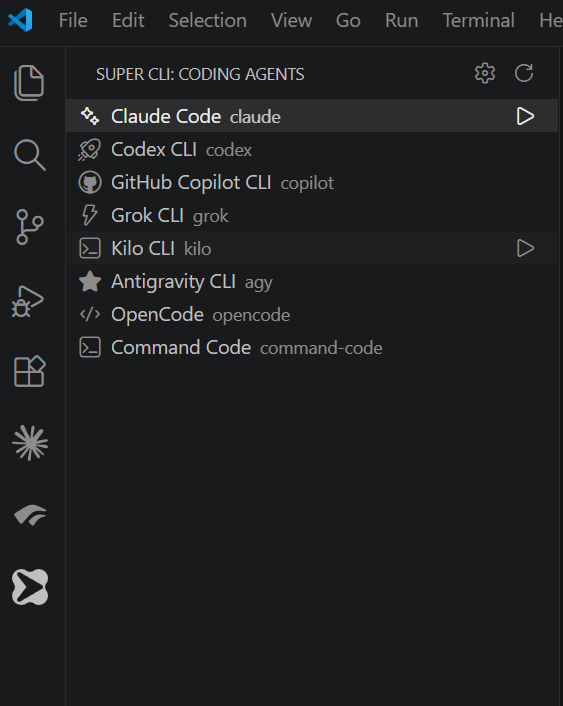
Focused configuration
All settings are available in one filtered view. Commands can be shared across platforms or
defined explicitly for Windows, macOS, and Linux; WSL deliberately selects the Linux command.
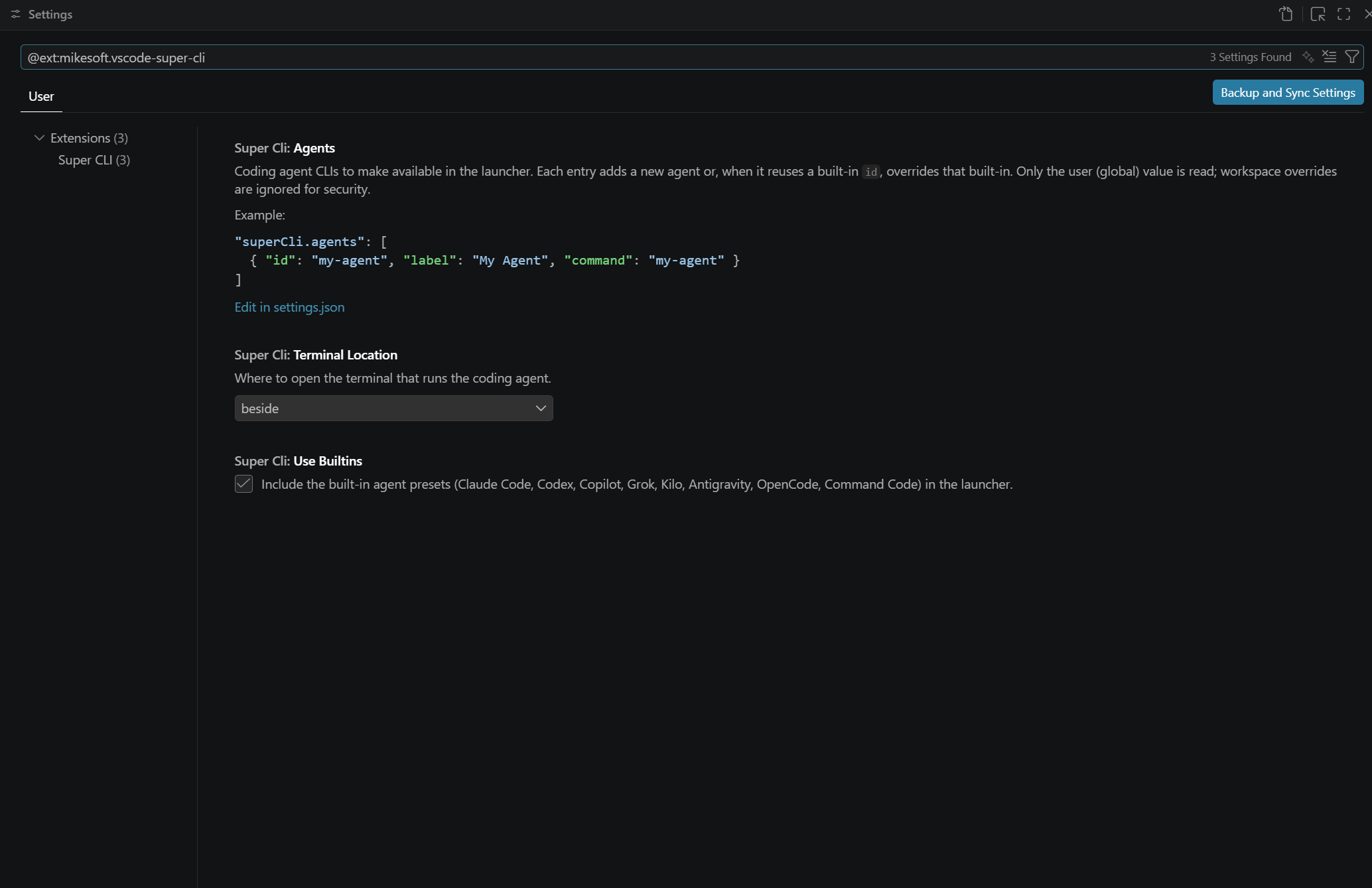
Features
- One launcher for every agent. A Super CLI view in the activity bar lists all configured
agents; click one to open it in a terminal beside your editor. A toolbar button and the
Super CLI: Launch Coding Agent command open a quick pick of the same list. - Favorite agent, one keystroke. Set or remove the favorite from either the sidebar or launcher,
then launch it anywhere withCtrl+Alt+A(Cmd+Alt+Aon macOS; remap it in Keyboard
Shortcuts). The favorite stays pinned above the sidebar groups with a visible ★. With no favorite
set the shortcut opens the picker and offers to remember your choice. - Ready and setup states. The sidebar groups ready agents, unknown WSL states, and CLIs that need
setup. Agents are alphabetical within each section, while the launcher keeps the favorite in its
own section. - Agent Manager. Choose exactly which built-in CLIs appear from the sidebar toolbar or with
Super CLI: Manage Built-in Agents. Hiding a favorite safely clears the favorite selection. - Agent Doctor. Run an explicit, bounded local diagnostic to see detected CLI versions and
missing or failing version checks. It does not perform network update checks and its report omits
environment variables,PATHcontents, launch commands, and raw diagnostic output. The report is
a single read-only virtual document that is replaced on every run and is never written to disk. - Agent-specific artwork. Built-ins use vendor-sourced CLI marks where suitable SVGs are
available, with a documented compact fallback for Kimi and a ThemeIcon fallback for custom agents. - Built-in presets. Claude Code, Codex, GitHub Copilot CLI, Cursor, Droid, Grok, Kilo, Kiro,
OpenClaw, Antigravity, OpenCode, Command Code, Crush, Hermes, MiMo Code, Pi, Kimi Code CLI,
Qoder CLI, and Qwen Code CLI are available out of the box. - Add your own, no code required. Define new agents in
settings.json. The sidebar updates
automatically. - Update from the sidebar. Agents with a known update command show an update button next to
Launch, which runs the CLI's official update (e.g.codex update,kilo upgrade,cursor-agent update,opencode upgrade,droid update,openclaw update,kimi upgrade). CLIs that update themselves don't
show one. With terminal shell integration available, Super CLI reports whether the update completed
or failed and can bring the update terminal back into focus. - Official installation docs. If a supported CLI isn't found, Super CLI opens that agent's verified
official installation documentation in your browser. It never installs a CLI, runs an installer, or
changes your shell profile. - Native integrated terminal. Each agent runs in a real VS Code terminal, inheriting your
shell,PATH, and environment. No bundled emulator, no runtime dependencies.
Adding or overriding an agent
Add agents through the superCli.agents setting. Each entry creates a new agent, or — when it
reuses a built-in id — overrides that built-in (for example to point at a custom binary path).
"superCli.agents": [
  {
    "id": "my-agent",
    "label": "My Agent",
    "command": "my-agent",
    "icon": "rocket"
  },
  {
    "id": "claude",
    "label": "Claude Code",
    "command": "\"C:\\Tools\\claude\\claude.exe\""
  },
  {
    "id": "adaptive-agent",
    "label": "Adaptive Agent",
    "command": {
      "windows": "adaptive-agent.exe",
      "macos": "adaptive-agent-macos",
      "linux": "adaptive-agent-linux"
    }
  }
]
id— unique identifier; reuse a built-in id to override it.label— name shown in the sidebar and quick pick.command— the command that starts the CLI. Use one string when it is cross-platform, or an object
withwindows,macos, andlinuxstrings for OS-specific commands. On Windows, quote executable
paths that contain spaces.icon— optional ThemeIcon id,
e.g.sparkleorrocket.installationDocumentationUrl— optional verified official installation documentation URL. When
the command is missing, Super CLI offers to open this URL in your external browser; it does not run
any installation command.env— optional environment variables set for the agent's terminal, e.g. to opt out of a CLI's
IDE-extension auto-install via its own variable:{ "CLAUDE_CODE_IDE_SKIP_AUTO_INSTALL": "1" }.updateCommand— optional command to update the CLI. It accepts the same cross-platform string orwindows/macos/linuxobject ascommand, and adds an update button next to the agent.versionCommand— optional command used only when you explicitly run Agent Doctor. It accepts the
same cross-platform forms and should print a short version string without requiring authentication.
Every built-in preset defines its launch and update commands through the same platform-aware model.
When superCli.useWsl is enabled on Windows, Super CLI selects the linux command variant because
the command runs inside WSL.
Only the user (global) value of superCli.agents is used; workspace overrides are ignored so that
an untrusted repository cannot inject commands.
Configuration
| Setting | Default | Description |
|---|---|---|
superCli.agents |
[] |
Your agents (added to or overriding the built-ins). |
superCli.useBuiltins |
true |
Include the built-in agent presets. |
superCli.hiddenBuiltins |
[] |
Built-in ids hidden by Manage Built-in Agents. Prefer the manager over editing this list. |
superCli.favoriteAgent |
"" |
Id of the agent launched by Ctrl+Alt+A. Set it with the ★ button in the sidebar rather than by hand. |
superCli.terminalLocation |
beside |
Open the terminal beside the editor or in the panel. |
superCli.useWsl |
false |
On Windows, open agents in WSL and use their Linux command variants. Ignored on macOS/Linux. |
Run Super CLI: Open Settings from the sidebar or the command palette to jump straight to these
settings.
Troubleshooting
- "… was not found." The configured
commandwas not found. Open the official documentation
offered by Super CLI, or fix the command in settings. The launcher uses the active editor's
workspace folder as the working directory. - Nothing happens on launch. Make sure the workspace is trusted — the launcher is disabled in
untrusted workspaces because it runs terminal commands. - "Setup required" looks wrong. The indicator is a best-effort check of your
PATHand doesn't
spawn the CLI. WSL agents stay in the neutral Agents group because the WindowsPATHdoesn't
reflect what's installed inside WSL. Use Refresh Agents after installing a CLI. - The wrong OS command runs. Platform-specific custom commands must define all three keys:
windows,macos, andlinux. Super CLI selects the host OS automatically; WSL deliberately uses
thelinuxvariant because the command runs inside the WSL terminal. - A version is unavailable. Run Super CLI: Run Agent Doctor. A custom agent needs a verified
versionCommand; untrusted workspaces skip version commands, and each check is limited to five
seconds and 4 KB of output. - Companion editor extensions. Super CLI does not modify agent configuration files or shell
profiles. It launches Claude Code with the officialCLAUDE_CODE_IDE_SKIP_AUTO_INSTALL=1
environment variable so its companion extension is not installed automatically.
FAQ
How do I launch Claude Code in VS Code?
Install Super CLI, open the Super CLI view in the activity bar, and select Claude Code. The
official claude CLI opens in a native integrated terminal beside your editor. You can also set it as
your favorite and launch it with Ctrl+Alt+A (Cmd+Alt+A on macOS).
How do I run Codex CLI or GitHub Copilot CLI in VS Code?
Select Codex CLI or GitHub Copilot CLI from the Super CLI sidebar or run Super CLI: Launch
Coding Agent from the Command Palette. Super CLI starts the official codex or copilot command
in the current workspace.
Can I use Google Antigravity, Kiro CLI, and OpenClaw CLI in VS Code?
Yes. Google Antigravity, Kiro CLI, and OpenClaw CLI are built-in presets. Super CLI detects their
commands, links to official setup documentation when available, and launches them with the correct
Windows, macOS, Linux, or WSL command variant.
Which AI coding agents are supported?
Claude Code, Codex, GitHub Copilot CLI, Grok, Kilo, Kiro, OpenClaw, Antigravity, OpenCode, Command
Code, Cursor, Droid, Crush, Hermes, MiMo Code, Pi, Kimi Code CLI, Qoder CLI, and Qwen Code CLI out of
the box — plus any CLI you add in settings.json.
Does Super CLI work on Windows, macOS, Linux, and WSL?
Yes. On Windows you can also launch agents inside WSL with superCli.useWsl.
Is Super CLI free, and does it collect data?
Free and open-source (MIT), with no telemetry. It only runs the commands you configure, in your own
integrated terminal.
Support
If Super CLI is useful to you, consider sponsoring its development.
Bug reports, feature requests, and contributions are welcome on
GitHub.
Privacy
This extension does not collect telemetry, analytics, or personal data. It never installs CLIs or
modifies shell profiles; it only runs launch and user-requested update commands in your integrated
terminal, plus bounded version commands when you explicitly run Agent Doctor.
Keep credentials in each CLI's supported credential store or environment configuration rather than
embedding them directly in launch, update, or version command strings.
Building
npm ci
npm run check     # compile + unit tests + VS Code integration smoke test
npm run package   # produce the .vsix
Yorumlar (0)
Yorum birakmak icin giris yap.
Yorum birakSonuc bulunamadi