loomwatch
Health Warn
- License — License: Apache-2.0
- Description — Repository has a description
- Active repo — Last push 0 days ago
- Low visibility — Only 5 GitHub stars
Code Fail
- rm -rf — Recursive force deletion command in .github/workflows/pages.yml
Permissions Pass
- Permissions — No dangerous permissions requested
No AI report is available for this listing yet.
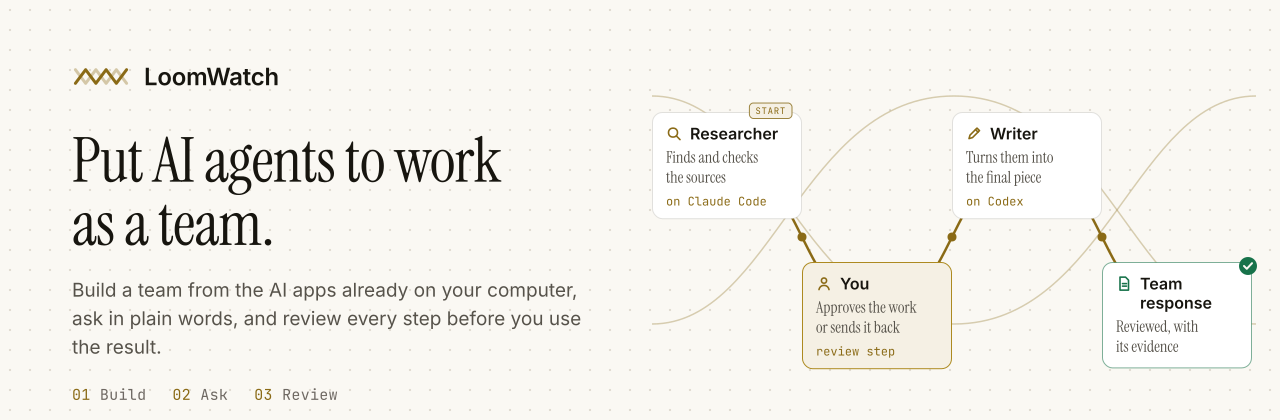
Put your AI apps to work as a team. Connect Claude Code, Codex and OpenCode on one canvas, ask in plain words, watch every step, and approve the work before the next agent builds on it. Free, open source, runs on your Mac.
Quickstart · How it works · Features · Recipes · First run · FAQ · Guides





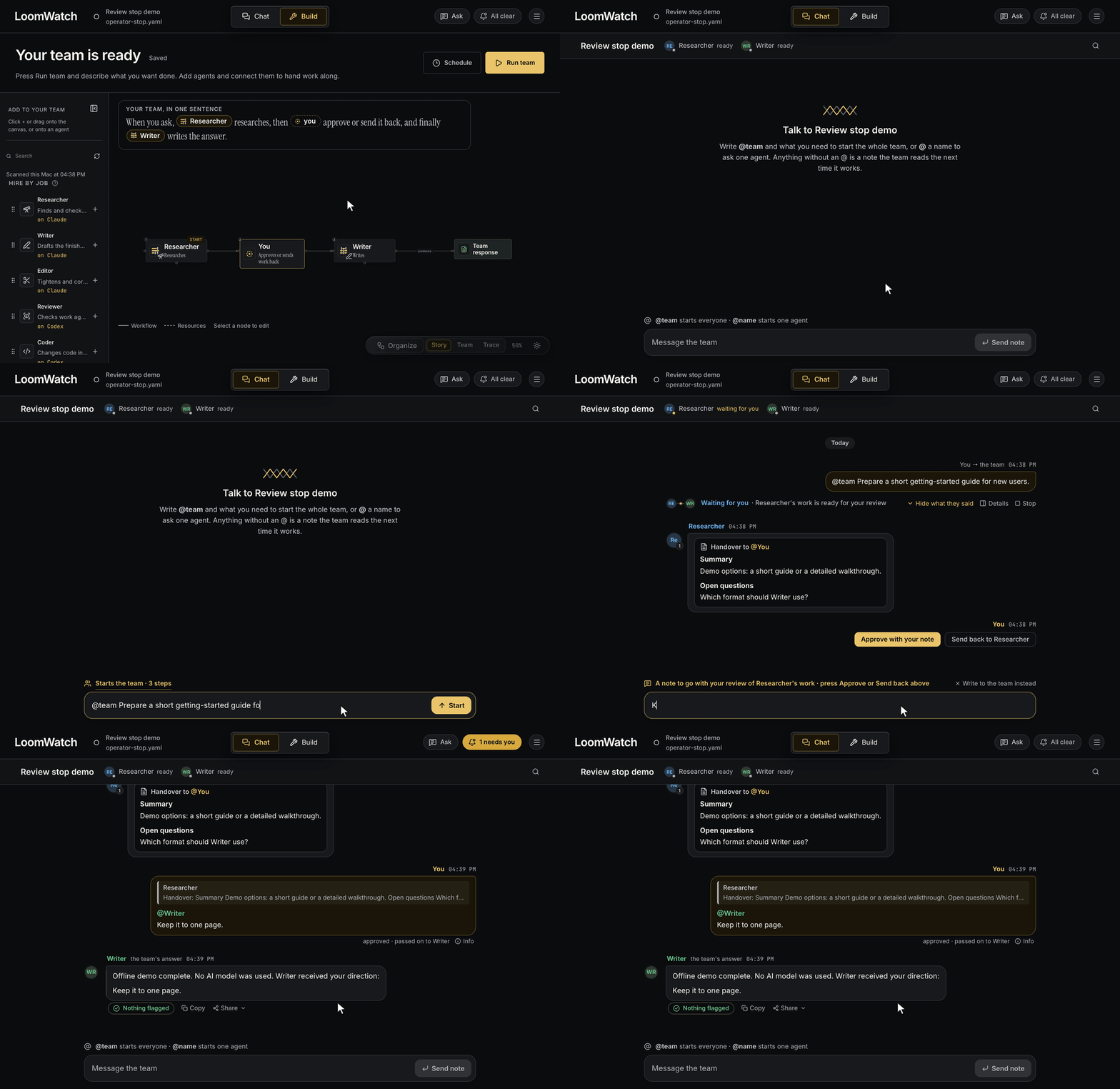
The bundled offline demo: build a team, ask in plain words, approve at the review step, read the result.
Install on a Mac (macOS 11 or newer, with Docker Desktop
or OrbStack), then follow Try your first run:
curl -fsSL https://loomwatch.github.io/install.sh | bash
Your AI apps are the threads. LoomWatch is the loom.
LoomWatch runs on your computer and opens in your browser. Arrange agents on a canvas, connect them
into a workflow, and watch their progress, tool calls, handovers and final answer in one place. Run a
single agent, a step-by-step pipeline, or a team that delegates work as it goes. When the team needs
you, it stops and asks.
WORKS WITH THE AI APPS YOU ALREADY USE
Claude Code · Codex · OpenCode ·
Hermes · OpenClaw
and, through OpenCode, models such as DeepSeek, Kimi, GLM, Qwen and Mistral
How it works
|
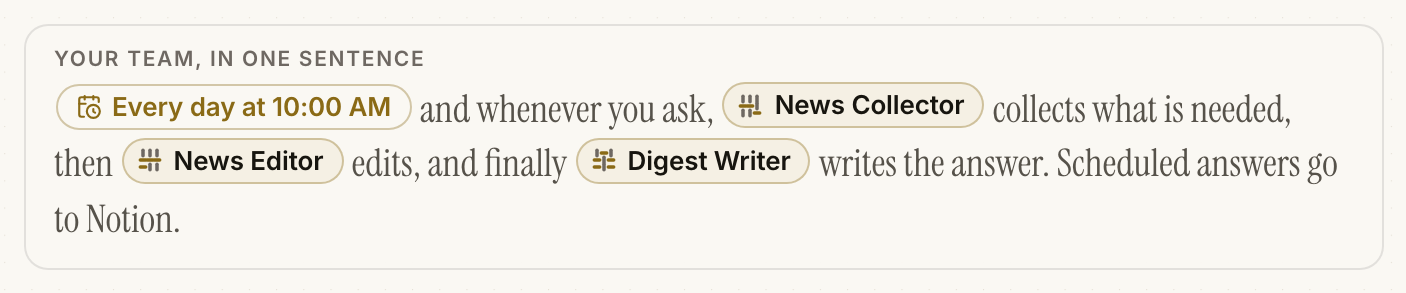
01 BuildPick agents from the AI apps on this computer and connect them on a canvas. LoomWatch reads the |
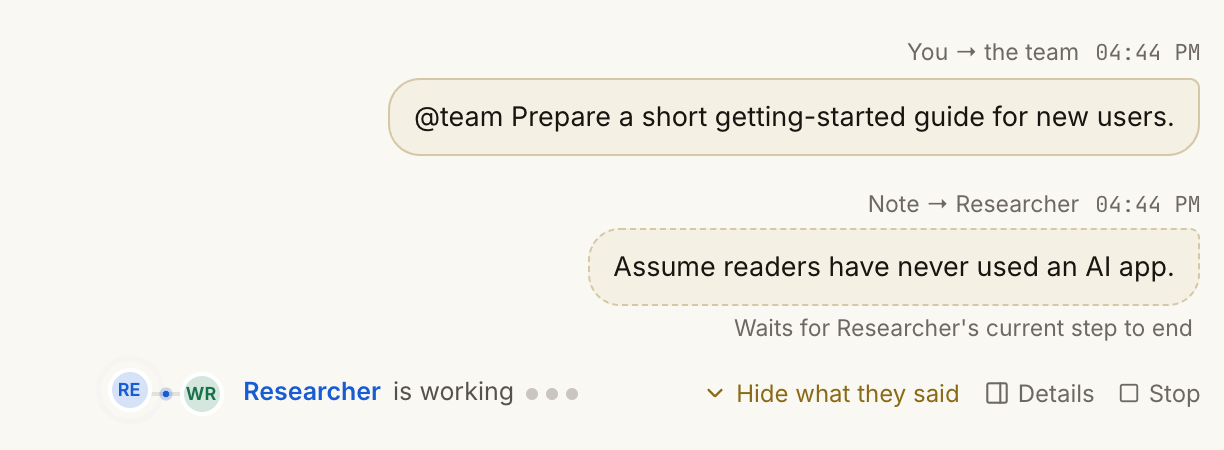
02 Ask, and watchDescribe the job in plain words: "Prepare today's AI and tech news digest, and link every claim." |
|
|
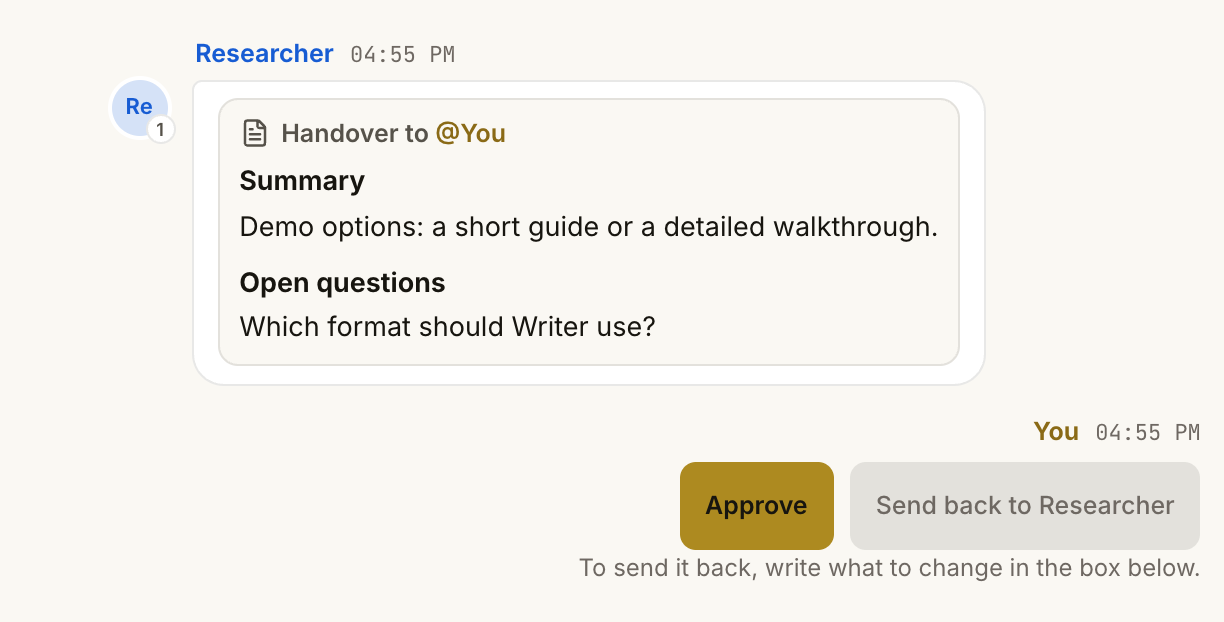
03 ReviewA You step pauses the team and shows what was handed over. Approve it, or type what should |
LoomWatch is right for you if
- ✅ You use one or more AI apps, such as Claude Code, Codex or OpenCode, and want them to work on
one job together. - ✅ You want to see what each agent did, not just read a final answer: every tool call, file and
handover is recorded. - ✅ You want to approve or redirect work before the next agent builds on it.
- ✅ You want it on your own computer, with the skills and MCP tools you already have.
- ✅ You run the same kind of job again and again, such as a daily digest or a research brief, and
want it repeatable, or scheduled.
What changes when your apps work as a team
| Without LoomWatch | With LoomWatch |
|---|---|
| You copy one app's answer into the next app's prompt. | Agents hand work to each other, and every handover is on the timeline. |
| You find out what an agent did by scrolling back through its terminal. | Every message, tool call and file it touched is recorded, and you can replay it. |
| A weak first step quietly shapes everything after it. | A review step stops the team until you approve, or send the work back. |
| Each app has its own skills, tools and folders. | Skills, MCP tools and the folders and files you choose are delivered to the agents that need them. |
| Doing the job again means retyping the prompt. | One chat per team that remembers the conversation, @ an agent to redo one step, and daily schedules. |
How a run works
flowchart LR
    ask(["You ask, in plain words"]) --> researcher["Researcher<br/>on Claude Code"]
    researcher -- "hands over" --> review{{"You review"}}
    review -- "approve" --> writer["Writer<br/>on Codex"]
    review -. "send back" .-> researcher
    writer --> response[["Team response<br/>with its evidence"]]
    classDef stop stroke:#AD8A20,stroke-width:2px
    class review stop
Each agent is its own AI app, started by LoomWatch on your computer and driven over
ACP (the Agent Client Protocol). Agents can hand work to each
other, or ask each other questions, through LoomWatch's Team Bus. Every message, tool call and
handover is recorded in a local database, so you can watch a run live, replay it later, and follow
up from any step.
Three ways to run a team
flowchart LR
    subgraph single["One assistant"]
        solo["Assistant<br/>does the whole job"]
    end
    subgraph pipeline["A pipeline"]
        direction LR
        step1["Researcher"] --> step2{{"You"}} --> step3["Writer"]
    end
    subgraph delegating["A team that delegates"]
        direction LR
        lead["Lead"] -- "dispatch" --> worker["Worker"]
        lead -- "ask" --> expert["Expert"]
    end
    single ~~~ pipeline ~~~ delegating
    classDef stop stroke:#AD8A20,stroke-width:2px
    class step2 stop
One assistant does the whole job. A pipeline runs its stages in order, each one receiving
the last one's handover, with review stops wherever you put them. A team that delegates starts
with a lead that hands out work and asks its teammates questions as it goes.
Features
🧵 One team, many appsEach agent runs on its own app and model: Claude Code researches, Codex reviews, OpenCode writes on |
🗺️ Build on a canvasHire agents by job, or from your own saved jobs, connect them in order, and read your team back as |
👀 Watch every stepLive stages, tool calls, a team chat of what the agents said to each other, and a run receipt. Drag |
✋ You stay in the loopAdd a You step to approve the work or send it back with changes. Agents can also stop and ask you |
🧾 Evidence you can checkA skill shows as loaded only when it was actually sent, and as opened only when the agent's own |
🧰 Your skills, tools and filesWire in the skills and MCP tools already on your computer, and give an agent any folder or file, |
🧠 Team memoryA Brief of shared instructions and files, and a Notebook of reusable notes and checkpoints |
💬 One chat per teamWrite @team to start everyone, @Writer to ask one agent, or a note the team reads next time. |
⏰ Schedules and NotionRun a team every morning and send the answer to Notion. A review stop still waits for you. Give an agent a Notion page to read by dragging Notion onto it. |
💬 Ask LoomWatchDescribe the team you want in a sentence. One of your own AI apps sets it up on the canvas, and |
🎓 Guided first runAn offline demo team and a three-minute guide. You can learn the whole app before you connect an AI |
🔒 Runs on your computerThe app, your teams and your run history stay on this computer. Agents' apps still talk to their own |
Teams you can build
Every team below is made from the jobs in Build's library, each on the AI app it suits. Start from
New team, then add, connect and rename agents to match. To run a team on a schedule, ask
Ask LoomWatch to add one, or see Routines.
| Team | The steps | Good for |
|---|---|---|
| Morning briefing | ⏰ Every day at 10:00 → Collector → Editor → Writer → Notion | A digest that is waiting when you start work |
| Research and review | Researcher (OpenCode) → Reviewer (Claude Code) | Answers whose sources a second agent has checked |
| Approve before writing | Researcher → ✋ You → Writer | Anything where a wrong first step is costly |
| Code with a second opinion | Coder (Codex) → Reviewer (Claude Code) → ✋ You | Changes in a folder, checked before you keep them |
| From numbers to slides | Analyst (Codex) → Designer (Claude Code) | A deck or page built from real data |
See it
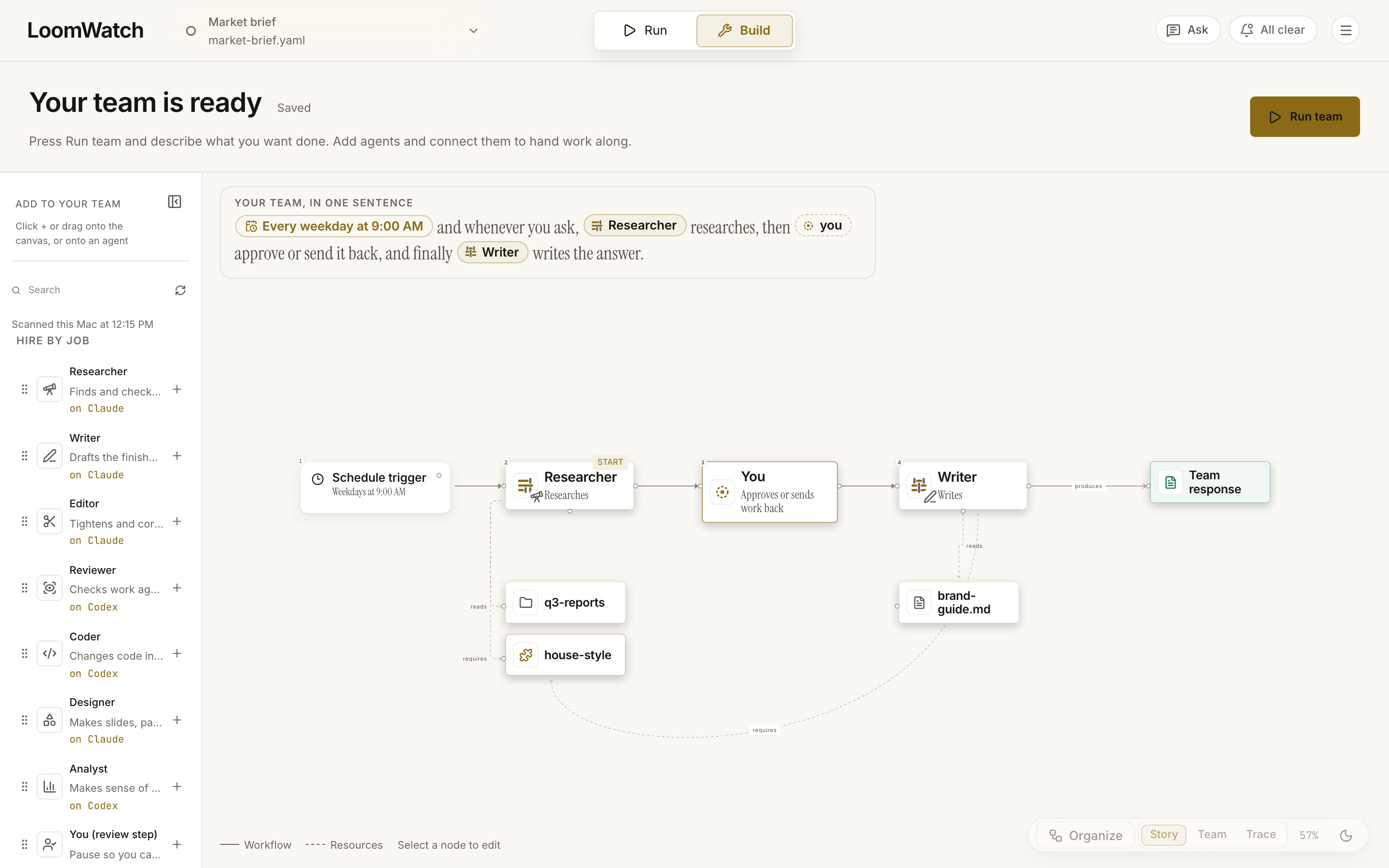
Build. A team that runs every weekday, summed up in one sentence, with the folder, file and skill each agent was handed wired in beneath it. |
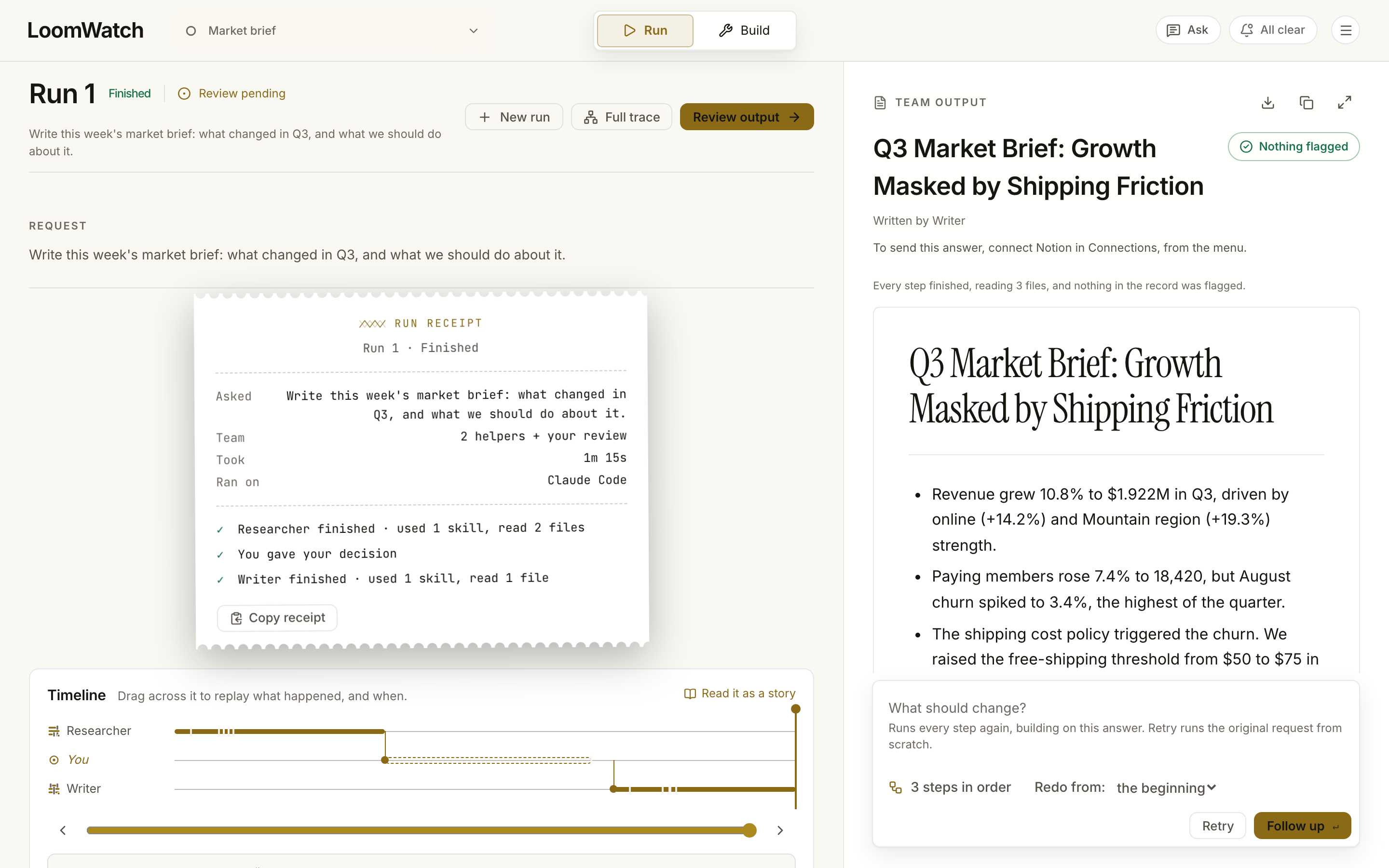
Run. The receipt says who did what, the timeline replays it, and the answer sits beside it, ready for review. |
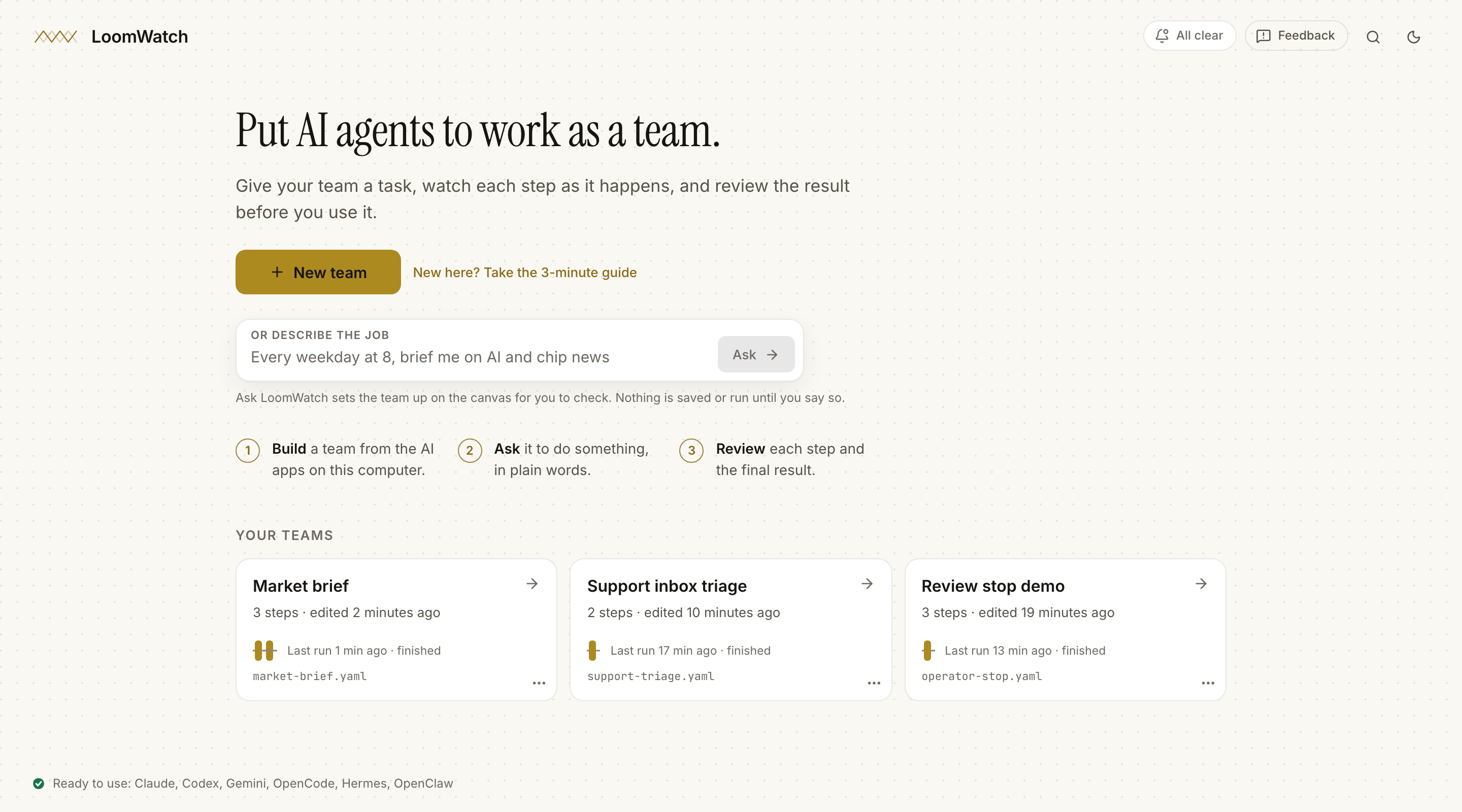
Home. Your teams at a glance, each with a woven mark of how its recent runs went. |
What LoomWatch is not
- Not a chatbot. It runs teams of the AI apps you already have, one app per agent.
- Not a cloud service. It runs on your computer and keeps your run history there.
- Not a model provider. Your agents use your own AI apps and accounts.
- Not autopilot. You choose where the team stops for your review, and it waits for you.
Quickstart
On a Mac, paste this into Terminal:
curl -fsSL https://loomwatch.github.io/install.sh | bash
It downloads LoomWatch (about 21 MB, one program for Apple silicon and Intel Macs), checks it
against the release's checksum, puts it in ~/LoomWatch/app, and opens
http://127.0.0.1:3000 with an offline demo team ready to run. Nothing is compiled and no
administrator password is needed. Then follow Try your first run.
Rather read the installer before running it?[!TIP]
No AI account yet? The offline demo needs no API key and no model usage, so you can learn the whole
app first.
curl -fsSLO https://loomwatch.github.io/install.sh
less install.sh
bash install.sh
It is scripts/install.sh in this repository. It downloadsloomwatch-macos-universal.tar.gz and its .sha256 from the
newest release, and changes nothing
outside ~/LoomWatch apart from a loomwatch shortcut in ~/.local/bin when that folder is
already on your PATH.
LoomWatch itself runs on your computer and keeps only its database (PostgreSQL) in Docker. That way
it can use the AI apps, skills, MCP tools, sign-ins and folders already set up for your user account.
What you need
- A Mac with macOS 11 or newer. Linux downloads exist for x86_64 and arm64 but are untested.
Windows is not supported yet. - Docker Desktop (or OrbStack),
which runs the database that keeps your run history. With Homebrew:brew install --cask docker-desktop, then open it once. If it is missing, LoomWatch says so. - For real runs, one AI app installed and signed in: Claude Code, Codex or OpenCode, for
example. OpenCode has free models and needs no account. You don't need any for the demo, and the
home screen's Set up an AI app gives each app's install and sign-in commands.
The offline demo runs on Python 3. On a Mac without Apple's Command Line Tools, macOS offers to
install them the first time the demo runs; say yes, or install them first withxcode-select --install.
[!NOTE]
Gemini CLI no longer works with a personal Google sign-in. Google now refuses it ("This client is
no longer supported"), and LoomWatch shows Gemini as not working once that happens. Gemini CLI
signed in with a Gemini API key may still work, but LoomWatch has not been tested that way.
Start LoomWatch from a terminal where your AI app's command already works, because LoomWatch finds
your apps, skills and tools through it.
What the first start does
- Creates its settings file (
~/LoomWatch/app/.env) with a random database password. - Creates your teams folder,
~/LoomWatch/teams, with an offline demo team in it, if the folder
does not exist yet. - Opens Docker Desktop if it is not running.
- Starts the database, then LoomWatch, and opens http://127.0.0.1:3000 in your browser. The
database keeps your run history, notes and checkpoints in a Docker volume, so they survive
restarts.
Keep the Terminal window open while you use LoomWatch. To stop LoomWatch, press
Ctrl+C in it.
LoomWatch looks for your skills and tools in the usual places in your home folder (.claude,.codex, .agents, .config/opencode and similar) and for AI apps on the terminal's PATH. It
reads them only on your computer; nothing is uploaded.
Every day
| To | Run |
|---|---|
| Start LoomWatch, or open it if it is already running | ~/LoomWatch/app/loomwatch |
| Stop LoomWatch | Press Ctrl+C in its window |
| Also stop the database, for example before quitting Docker Desktop | ~/LoomWatch/app/loomwatch stop |
| Update to the newest release (stop it first) | ~/LoomWatch/app/loomwatch update |
| See every option | ~/LoomWatch/app/loomwatch help |
When the installer added the loomwatch shortcut, plain loomwatch works too. Your teams and
history are kept in every case. The database starts again by itself whenever Docker Desktop does,
until you run loomwatch stop. Running the install command again also updates LoomWatch.
To stop one run, click Stop beside the request box. Closing the browser tab does not stop LoomWatch or
its runs. Scheduled teams run only while LoomWatch and its database are running and the computer is
awake. For scheduled runs and optional Notion delivery, see Routines and
Notion setup.
Remove LoomWatch
If you connected LoomWatch to other AI apps, choose Connections… from the ☰ menu and click
Disconnect beside each one. For Claude Code, Codex and Gemini CLI this also removes LoomWatch
from the app's own settings. For an app you pasted a snippet into, delete itsloomwatchentry
yourself.Stop LoomWatch and delete its database. This erases your run history, Notebook entries and Ask
conversations:~/LoomWatch/app/loomwatch stop cd ~/LoomWatch/app && docker compose down -v && cd ~Delete the program:
rm -rf ~/LoomWatch/app, andrm ~/.local/bin/loomwatchif the installer
made that shortcut.Your teams are kept in
~/LoomWatch/teamsuntil you delete~/LoomWatchtoo. It also holds your
saved jobs, deleted teams and the agents' working folders.LoomWatch remembers which teams you approved to run in
~/Library/Application Support/LoomWatch
(~/.local/state/loomwatchon Linux). Delete that folder too to leave nothing behind.
For a copy built from source, run ./loomwatch stop and docker compose down -v in its folder,
then delete the folder.
Change the defaults
| Setting | Default | For example |
|---|---|---|
| Browser port | 3000 (or LOOMWATCH_PORT in .env) |
LOOMWATCH_PORT=3001 ~/LoomWatch/app/loomwatch |
| Teams folder | ~/LoomWatch/teams |
LOOMWATCH_TEAMS_ROOT=~/Work/teams ~/LoomWatch/app/loomwatch |
| Database | PostgreSQL in Docker | LOOMWATCH_DATABASE_URL=postgres://… ~/LoomWatch/app/loomwatch uses your own PostgreSQL, and Docker is not needed |
| Install folder | ~/LoomWatch/app |
curl -fsSL https://loomwatch.github.io/install.sh | LOOMWATCH_APP_DIR=~/Apps/LoomWatch bash |
| Version | The newest release | curl -fsSL https://loomwatch.github.io/install.sh | LOOMWATCH_VERSION=v0.1.0 bash |
loomwatch --no-open starts without opening the browser, and loomwatch help lists everything.
Build from source
To change LoomWatch, or to run the newest code on main, build it yourself. That needs Git,
Node.js 22.12 or newer and Rust besides Docker; the
exact Rust version downloads on its own during the first build. With Homebrew:
brew install --cask docker-desktop && brew install node
curl --proto '=https' --tlsv1.2 -sSf https://sh.rustup.rs | sh -s -- -y
Open a new terminal window so it finds the new tools, then:
git clone https://github.com/tnghia903/loomwatch.git
cd loomwatch
./loomwatch
The first start builds the browser app and the program, which takes a few minutes, then does what
the installed copy does. Use ./loomwatch from that folder wherever this guide says~/LoomWatch/app/loomwatch. In a copy of the source, ./loomwatch update pulls the newest main
and rebuilds, and ./loomwatch --rebuild builds again even when nothing changed. main moves
faster than the releases, so expect rough edges. If you installed LoomWatch from source before,./loomwatch keeps using your existing settings, teams folder and database.
./loomwatch runs, if you prefer to do it by hand
cp .env.example .env   # then replace both replace-with-… values with long random letters and numbers
docker compose up -d --wait postgres
(cd ui && npx --yes pnpm@12 install --frozen-lockfile && npx --yes pnpm@12 run build)
cargo build --release --locked --bin loomwatchd
mkdir -p "$HOME/LoomWatch/teams"
cp -n examples/operator-stop.yaml examples/operator-stop-harness.py "$HOME/LoomWatch/teams/"
set -a; . ./.env; set +a
export DATABASE_URL="postgres://${POSTGRES_USER}:${POSTGRES_PASSWORD}@127.0.0.1:${POSTGRES_PORT}/${POSTGRES_DB}"
unset LOOMWATCH_CAPABILITY_HOME LOOMWATCH_HOST_RUNNER_ADDR LOOMWATCH_HOST_RUNNER_TOKEN
./target/release/loomwatchd serve --teams-root "$HOME/LoomWatch/teams" --listen 127.0.0.1:3000
The browser app is built before the program because it is packed into it. The unset line keeps
settings meant for the Docker Compose mode below out of a local run.
Try your first run
The first time you open LoomWatch, a short guide offers to walk you through creating a team and
running it with one of your own AI apps. Reopen it any time with New here? Take the 3-minute
guide on Home, from the menu in a team, or by pressing ⌘K and choosing
Getting started guide.
To try a team without calling a model provider, pick Review stop demo under Your teams. The
demo is a three-step workflow: Researcher → You → Writer. Its agents produce fixed responses so
you can learn the interface without calling a model provider.
- Click Run team to open the team's chat, type
@team Prepare a short getting-started guide for new users.in the message box at the bottom,
and press Enter (Shift+Enter adds a new line). Only a message
with an @ starts work; the box says where each message goes before you send it. - When the team pauses for you, the chat shows what Researcher handed over, with Approve and
Send back to Researcher under it. - To ask for changes, type
Use the short guide and remove the detailed walkthrough.in the box
and click Send back to Researcher. The researcher revises its work and asks again. - Click Approve to let the team continue. To pass on a note, type it first; the button then
says Approve with your note, and your note goes on as your direction. - Read the team's answer in the chat. The demo writer echoes the direction it received.
Everything the team has done stays in its chat: scroll up, or search it with the magnifier at the
top. Details on any piece opens its stages, timeline and record beside the chat, and Full
trace there has the replay slider. To change one step's work, write @ and that agent's name
with what should change; under its new version, Continue with the team runs the steps after it.
Run your own agents
Install and sign in to the AI app you want to use (Claude Code, Codex or OpenCode, for example)
in Terminal, and confirm it works on its own.Start LoomWatch from a terminal where that app is available. The bottom of the home screen
lists the AI apps it found. If none can run, Set up an AI app opens on the home screen. It
checks each app's sign-in, not just that it is installed, and says when LoomWatch needs a
restart to use an app installed after it started.Click New team, give it a name and choose how it should start:
- One assistant — a single agent that does the whole task (recommended to begin with).
- Researcher and writer — one agent gathers facts, a second writes the result.
- Research, your approval, then writing — the team pauses so you can approve the research.
- Empty team — build it yourself from the library on the left.
Ready-made teams are saved straight away with your AI app's own default model, so you can
run them immediately.Click Run team, describe what you want in plain words, and press Enter.
To customise, open Build. Add an agent by job under Hire by job, such as Researcher or
Writer: click it or drag it onto the canvas, and it is set up on the best AI app you have. For a
blank agent on one app, pick that app under AI apps. Select a card to edit its name,
instructions and app, or click Model and more settings to change its model. Drag from the
dot on a card's right edge to the next card to make them work in order, and add You (review
step) wherever you want to approve work before the team continues.
LoomWatch connects to agent apps through ACP, a protocol for exchanging tasks and results.
The Library recognizes these integrations:
| Agent app | Connection used by LoomWatch |
|---|---|
| Claude | claude-agent-acp, with an npx bridge fallback |
| Codex | codex-acp, with an npx bridge fallback |
| Gemini | gemini --acp (API key sign-in only; untested) |
| OpenCode | opencode acp |
| Hermes | hermes-acp |
| OpenClaw | openclaw acp |
LoomWatch also recognizes pi, but cannot run it: pi has no ACP connection. Use its models through
OpenCode instead.
Bridge fallbacks may download a package on first use. Availability in the Library means
the required commands were found; it does not confirm that your account is signed in or
has model access. Delegation and session-resume support vary by integration.
Keep the pipeline easy to follow[!IMPORTANT]
Provider authentication stays with your agent app. Real runs use your existing provider account
and its usage limits or billing. Check each provider's terms for using its app through other
tools. The offline demo does not consume that usage. Agent apps may send
prompts and files to their configured model providers; running LoomWatch locally does not make
cloud models offline.
Choose Organize from the ☰ menu at the top right (or press ⌥⌘L,
or choose Organize pipeline in ⌘K) to arrange stages from left to right
and group skills and sources below their agents. The view then fits the arranged team. Undo
organize, in the same menu, restores the previous arrangement. Positions are saved with the canvas
layout; organizing does not change the workflow or start a run.
The library on the left of Build lists the skills and MCP tools found on your computer, and
the teams whose memory you can share. Add one to the canvas, then drag from an agent to it, or open
the card's Details & connections and tick the agents that should use it. To give an agent a
folder or a file, select the agent and use Add folder… or Add file… under Context. Save
the team, and the next run delivers it:
- A skill is copied into the agent's working folder and its instructions are given to the agent.
- A folder or file is given to the agent as reference material: a folder's listing and README,
or a file's text. A PDF's text is read whenpdftotextis installed (brew install poppler).
The agent can also read the folder or file itself. An added file can be up to 25 MB; link a
folder for anything bigger. - A tool is your own MCP server, handed to that agent's app with the settings you already gave it
in Claude Code, Codex or OpenCode.
If something cannot be delivered (for example, a tool that is turned off in your app's settings),
the run stops before it starts and says what to change. If an older team shows "drawn but not
delivered to agents yet" at the top of Build, click Deliver on the next run, then save.
Choose Team memory from the ☰ menu to add shared instructions or reference files to the
Brief. Use the Notebook to review reusable notes and checkpoints.
Select an agent in Build to see its Context: its place in the team (for example "Step 2 of 3 ·
after Researcher · hands its work to Writer"), the team Brief, and every skill, folder, file and
tool connected to it, each with an × to disconnect it. In a team of two or more, each agent is told
its place at the start of every run. In the Run view, an agent's What this agent received link
(What it was given on its card in Full trace) shows what it was supplied when its session
started.
For a review checkpoint in a pipeline, add a You step between two agents and say what to look
at in its What to check box. Approve passes the work on (it says Continue once you
type a note, and your note goes with it). Send back to the agent asks for a revision while its
session is still open. An agent can also ask you a question mid-run: type your answer in the
request box and click Reply.
Ask LoomWatch to set up a team
Click Ask at the top of any screen (or press ⌘J), or type in Or describe
the job on Home. Say what you want in plain words, such as "Every weekday at 8, brief me on AI
news". One of your own AI apps sets the team up on the canvas. New and changed agents are marked,
and nothing is saved until you click Apply; Discard drops the proposal, and Undo takes
an applied one back.
- It asks before it runs. When it wants to start a run, it waits for you to click Start run,
unless you turn off Ask me before starting a run. - It never answers a review step. It can put a drafted note in the review box; only you click
Approve or Send back. - You choose the app. The panel says which app it is using ("Using Claude on this computer").
Click the app's name to pick another, and a model under it. Ask can use Claude Code, Codex,
OpenCode or Hermes. Each conversation counts toward that app's account, like a run.
Choose Connections… from the ☰ menu (or from ⌘K). Under Use LoomWatch
from your AI apps, Connect registers LoomWatch with Claude Code, Codex, Gemini CLI or VS Code
using that app's own command, which you can read under What LoomWatch runs first. OpenCode and
Claude Desktop get a snippet to paste instead; it holds a private key, so don't share it. What a
connected app proposes or starts appears in the Ask panel under From your connected apps.
Disconnect stops it at once.
FAQ
Do I need an account or an API key?Not for LoomWatch itself: it is free, has no account and never sees your sign-ins. Each agent runs
one of your AI apps, signed in the way you set that app up, and its usage counts toward your own
account with that provider. Providers set their own rules for using their apps through other
programs: Anthropic, for example, asks products built on its Agent SDK, which LoomWatch uses to
run Claude Code, to use an API key (see
Authentication and credential use).
To run Claude agents on an API key, start LoomWatch from a terminal where ANTHROPIC_API_KEY is
set.
The offline demo needs no AI account at all, and OpenCode runs real agents on its free models
without one. Free models change often, and some let their maker learn from what you send, so keep
private work for a model you pay for.
Real runs use your AI apps' own accounts, so they count toward those accounts' usage limits or API
billing, under each provider's terms. The offline demo uses none.
LoomWatch serves everything on 127.0.0.1 and keeps your run history in a database on this
computer. It reads your skills and tools only on your computer. The agents' own apps still send
prompts and files to their model providers, as they do when you use them directly.
Yes. Each agent card has its own app and model. A team can research with Claude Code, review with
Codex and write with OpenCode. Through OpenCode, an agent can also use models such as DeepSeek, Kimi,
GLM, Qwen or Mistral.
LoomWatch decides, so every AI app follows the same rules. It puts each app in its ask-first mode and
answers every request itself. Each agent's panel in Build has three switches under Allowed
without asking: Search the web, Edit files (only in the agent's own folder) and Run
commands. They start off, except Search the web for researchers. LoomWatch always allows the
team's own handovers and the tools, folders and files you connected to the agent.
Anything else waits for you. The agent pauses, and the run shows what it wants to do, such as
"Researcher wants to use the web". You can answer Allow, Allow for this run, Always allow
(which switches it on for that agent) or Deny. The same question shows up in the Needs-you tray
from any screen. If nobody answers within 10 minutes it is declined, and scheduled runs decline it
straight away because nobody is watching.
The run records every request and who answered it. When something was declined, the run receipt says
what the agent couldn't do and offers Allow from now on. OpenCode doesn't ask before it acts, so
the switches can't hold it back.
LoomWatch starts agents without the tools that publish, post or message outside the run. An agent
you allow to run commands or use the web, an OpenCode agent, or an MCP server in Codex's own
settings can still reach the internet. Claude Code can publish to your
claude.ai account, schedule work, send notifications and message your other Claude sessions without
asking, so LoomWatch starts every agent without those tools. Your team's answer leaves through your
review and the delivery you set up, such as Send every answer to Notion. If such a tool runs anyway,
for example on an app that ignores the rule, the run receipt flags it.
Codex brings its plugins and the apps on your ChatGPT account into every session, including the
ChatGPT app's browser and computer control, and runs any of their tools that call themselves
read-only without asking. So LoomWatch starts every Codex agent with plugins and apps switched off.
The MCP servers you added to Codex's own settings (~/.codex/config.toml) still load, because
LoomWatch can't switch them off through Codex's adapter yet. If an agent uses any tool LoomWatch
didn't connect to it without asking you, the run receipt flags it.
A team file is a list of programs to start, so treat one like any script you download. LoomWatch
helps you check it. The first time you run a team that wasn't built in LoomWatch, or that changed
outside it, LoomWatch shows what it will do before anything starts:
- which app or program each agent runs, with any program LoomWatch doesn't know quoted in full;
- what each agent may do without asking;
- the folders it can read;
- whether it runs on a schedule.
Choose Trust and run only if you trust where it came from. Until then its schedule does
nothing. A team file also can't change what an app loads or where it connects, for example withNODE_OPTIONS or a proxy. See SECURITY.md for what LoomWatch does and doesn't
protect against.
Yes. See Run everything with Docker Compose. The
recommended desktop setup runs LoomWatch itself on your computer so it can use the apps, skills and
sign-ins already there.
Optional: run everything with Docker Compose
Use this mode for CI, demos, or an intentionally isolated Linux deployment. It is not the
recommended desktop setup: a container cannot automatically see host executables, skills, MCP
configuration, credentials, or arbitrary host workspace paths.
Create your settings file with cp .env.example .env and replace both replace-with-… values with
long random letters and numbers (or run ./loomwatch once, which does this for you). Then create a
repository-local teams folder, and build and start the complete stack:
mkdir -p teams
cp -n examples/operator-stop.yaml examples/operator-stop-harness.py teams/
docker compose up --build --detach --wait
Open the offline review-stop demo. The UI is
embedded in the loomwatch image, PostgreSQL holds run history, context packets, Notebook entries,
and checkpoints, and both services are published only on host loopback. To stop, finish or stop
active runs, then run docker compose stop: it preserves both named volumes, anddocker compose up --detach --wait resumes the stack.
The defaults mount these explicit roots:
| Container path | Default host path | Access | Purpose |
|---|---|---|---|
/data/teams |
./teams |
Read/write | Team YAML, Brief files, layouts, and managed .loomwatch workspaces |
/workspaces |
./container/workspaces |
Read/write | Repositories used by container-native agents |
/opt/loomwatch/capabilities |
./container/capabilities |
Read-only | Skills and plugin metadata intentionally imported for discovery |
/home/node |
loomwatch-home volume |
Read/write | Harness credentials and mutable CLI state |
A Linux container cannot execute a macOS or Windows binary, so LoomWatch uses a narrow native
runner instead of mounting your home directory or Docker socket. Set a randomLOOMWATCH_HOST_RUNNER_TOKEN in .env, then start the companion from the repository in a host
terminal:
./container/run-host-runner.sh
Keep that terminal open and start the Compose stack normally in another terminal. The Library now
shows the harnesses found on the host. Agents added from those rows use an internalloomwatchd harness-client command: model discovery and runs stream over the same authenticated
connection to the native ACP adapter. The runner accepts only LoomWatch's known ACP harnesses and
maps working directories only beneath /data/teams and /workspaces back to their configured host
bind mounts.
The runner listens on 0.0.0.0:3031 so Docker Desktop's host.docker.internal gateway can reach
it. It requires the token on every connection. If port 3031 is already used, change bothLOOMWATCH_HOST_RUNNER_LISTEN and LOOMWATCH_HOST_RUNNER_ADDR in .env.
Override the three bind-mounted host directories in .env. Do not point the capability import at
your complete home directory. Its README documents the expected .codex, .claude, .agents, and
OpenCode subdirectories.
The Library combines harness commands executable inside the container with harnesses reported by a
reachable native companion; host entries win when both environments provide the same app. The base
image includes Node.js, Python, Git, curl, and everything needed by the offline demo, but it does
not bundle third-party provider CLIs. Without the native companion, build a derived image with the
required Linux harnesses or install user-scoped CLI packages into the persistent runtime home. The
image's PATH includes /home/node/.local/bin.
Authenticate from the same runtime after installing a harness:
docker compose exec loomwatch sh
npm config set prefix "$HOME/.local"
# Install and authenticate only the provider CLIs you intend to use.
Import skill definitions through container/capabilities, preserving their conventional paths.
Imports are read-only; LoomWatch copies only a skill explicitly wired to an agent into that team's
managed workspace. Do not put provider tokens, SSH keys, or other credentials in the import.
Team files running against a mounted repository should use a path below /workspaces. Absolute
host paths such as /Users/name/project do not exist inside the Linux container.
Where your work is saved
| Data | Location in this guide |
|---|---|
| Team definitions and canvas layouts | ~/LoomWatch/teams; Compose-only deployments use LOOMWATCH_TEAMS_DIR |
| Brief files | Paths configured by the team, usually beside its YAML file |
| Deleted teams | .trash inside your teams folder, one folder per deleted team |
| Your saved jobs | .jobs inside your teams folder, one <job>.yaml per job; removed jobs move to .jobs/.removed |
| Files you add to an agent (Add file…) | <team>.files/ beside the team file |
| Agents' working folders, and Ask's | .loomwatch/ inside your teams folder |
| AI apps you connected to LoomWatch | .loomwatch/connections.json in your teams folder. It holds each app's private key. |
| Team chats (your messages and every run), recorded events, Notebook entries and Ask conversations | The local PostgreSQL Docker volume |
| Database settings | .env in the LoomWatch folder (~/LoomWatch/app, or your copy of the source) |
| Which team files you approved to run | ~/Library/Application Support/LoomWatch on macOS, ~/.local/state/loomwatch on Linux |
| Provider sign-in | Managed by each host agent app; Compose-only deployments use loomwatch-home |
Back up your teams folder and PostgreSQL database if you want to move or preserve your work.docker compose stop preserves data.
Deleting and restoring a team[!WARNING]
Avoiddocker compose down -vfor normal shutdown: it deletes the database volume, including
history and Notebook entries.
To delete a team, choose Delete team… from its … menu on Home or from the team switcher.
LoomWatch refuses while the team is running, or while another team reads its memory. Nothing is
erased. The team file, its layout, its own notes folder (<team>.brief) and the folder of files
added to its agents with Add file… (<team>.files) move to .trash/<date>-<team>/ inside your
teams folder; moved in that folder's deleted.json lists which of them the team had. Its run
history and Notebook entries stay in the database, and no new team takes its file name while it is
in the trash. To restore it, move everything in that folder except deleted.json back to the
folder where path in deleted.json says the team file was. <team>.files must go back too, or
its agents lose the files added to them. In Finder, press ⌘⇧. to show hidden folders. To remove a team for good,
delete its folder from .trash.
To reuse an agent that works, select it in Build and choose Save as job. It appears under
Your jobs at the top of the palette, with its instructions, app, model and skills, and can be
added to any team. Placing a job copies it into the team, so changing or removing the job later
leaves existing teams alone. A job is one small file, so you can share it by copying it into another
teams folder's .jobs.
Troubleshooting
Something did not work? Find what you see in this table.| What you see | What to check |
|---|---|
curl: (22) The requested URL returned error: 404 while installing |
The download is briefly unavailable while a new release is published. Wait a minute and run the install command again. |
| macOS says “loomwatchd” can't be opened because Apple cannot check it for malicious software | The archive was downloaded with a web browser, which marks it for that check. Delete ~/LoomWatch/app and install with the curl command in Quickstart instead. |
| LoomWatch says something needs to be installed first | Install what it lists, open a new terminal window so it picks up the new PATH, then run loomwatch again. |
zsh: no such file or directory: …/loomwatch or command not found: loomwatch |
The installer puts LoomWatch in ~/LoomWatch/app, so start it with ~/LoomWatch/app/loomwatch. In a copy of the source, run ./loomwatch from its folder. |
permission denied: ./loomwatch (a copy of the source) |
Run chmod +x loomwatch once, or start it with bash loomwatch. |
| Docker did not start within two minutes | Open Docker Desktop yourself, finish any first-start steps it shows, wait until it says it is running, then run loomwatch again. |
| Another program is using port 5433 | Change POSTGRES_PORT in .env (~/LoomWatch/app/.env for the installed copy) to a free port such as 5434, then run loomwatch again. |
password authentication failed for user "loomwatch" |
The database of an earlier LoomWatch copy on this computer kept its first password. loomwatch fixes this on its own when it starts; update it if it is older than that. If you set up the database by hand, editing .env does not change an existing database's password. |
| Archive disabled / Run unavailable | LoomWatch was started without its database. Stop it and start it with loomwatch. If Docker Desktop quit or restarted while LoomWatch kept running, just run loomwatch again: it starts the database. |
| Another program is using port 3000 | Start LoomWatch on another port: LOOMWATCH_PORT=3001 ~/LoomWatch/app/loomwatch. |
| LoomWatch says another copy of LoomWatch is already running, or the page says "Couldn't list your teams" and none of your AI apps can start | An earlier copy is still running, often one whose folder you deleted before downloading LoomWatch again. Stop it with the kill command the message gives, then run loomwatch again. |
| Team file not found | Confirm the file is in your teams folder (~/LoomWatch/teams unless you set LOOMWATCH_TEAMS_ROOT). The demo link uses ?path=operator-stop.yaml, relative to that folder. |
| Agent is missing or unavailable | Run command -v <agent-command> in the LoomWatch terminal. Authenticate the app, then restart LoomWatch from that same terminal. Compose-only deployments scan the container unless the native companion is running. |
| Skill or tool is missing locally | Confirm it exists below your .claude, .codex, .agents, .gemini, .hermes, .openclaw or .config/opencode folder, then click ↻ beside Search in Build to scan again. Check that LoomWatch was not started with LOOMWATCH_CAPABILITY_HOME pointing elsewhere. |
| Skill is missing in Compose | Copy its definition below LOOMWATCH_CAPABILITIES_DIR using the conventional harness path, then click ↻ beside Search in Build to scan again. Symlinks whose targets are outside that mounted root cannot be followed. |
| Ask says it needs an AI app | Install and sign in to Claude Code, Codex or OpenCode, then start LoomWatch again from that terminal. |
| Harness working directory is missing | Native teams should use a real host path accessible to the agent app. Container-run teams must use /workspaces/... and mount its host parent through LOOMWATCH_WORKSPACES_DIR. |
| Agent cannot perform a tool action | While the run is going, answer its question in the run or the Needs-you tray before it is declined after 10 minutes. Afterwards, read the run receipt: it says what the agent wasn't allowed to do. Click Allow from now on, or switch it on under Allowed without asking in the agent's panel in Build. An edit outside the agent's own folder is never allowed. |
| Build reports an unsupported Node version | Install the current Node.js from https://nodejs.org/, reopen Terminal, and check node --version. |
| UI assets are missing or look out of date | Installed copy: run ~/LoomWatch/app/loomwatch update. Copy of the source: stop LoomWatch, then start it with ./loomwatch --rebuild. |
| Cannot connect from another device | This setup serves runs and history only on your own computer at 127.0.0.1. Use the browser on that computer. |
Under the hood
| Piece | What it does |
|---|---|
loomwatchd |
One Rust program that starts each agent's app, supervises it, and serves the browser app |
| ACP | How LoomWatch talks to every agent app, over its standard input and output |
| Team Bus | A tool server the agents call back into to hand work over, ask each other questions, or report |
| LoomWatch Control | The tool server Ask LoomWatch and your connected apps use to read, propose and start teams. It answers only on this computer, with a key per app |
| Event archive | PostgreSQL, holding every message, tool call and handover, so runs can be replayed |
| Browser app | React, streamed live over a WebSocket and packed into the program |
More guides
- Team configuration — roles, models, working directories, and workflow rules.
- Team memory — Brief, Notebook, inheritance, and checkpoints.
- Watch and replay — inspecting runs, routines, and the local API.
- Architecture — technical details for developers.
- Security — how to report a problem privately, and what LoomWatch does and doesn't protect against.
- Contributing — building from source and sending a change.
License
LoomWatch is free and open source. You can use it under either the MIT License or the Apache License 2.0, whichever you prefer. Unless you say otherwise, anything you contribute is licensed the same way, with no extra terms.
The licenses cover the code, not the LoomWatch name or logo.
The fonts packed into LoomWatch (Inter, Instrument Serif and JetBrains Mono) are under the SIL Open Font License. Notices for the other open-source software inside LoomWatch are in third-party-notices.txt. The running app serves the same file at /third-party-notices.txt. After changing a dependency, regenerate it with node scripts/third-party-notices.mjs.
LoomWatch is not affiliated with, endorsed by or sponsored by Anthropic, OpenAI, Google, Notion or any other company whose apps it works with. Claude, Claude Code, Codex, Gemini and the other product names here are trademarks of their owners. They are used only to say which apps LoomWatch works with.

Woven with Rust, React and ACP. Watch every thread.
Reviews (0)
Sign in to leave a review.
Leave a reviewNo results found