screen-use
Health Gecti
- License — License: MIT
- Description — Repository has a description
- Active repo — Last push 0 days ago
- Community trust — 12 GitHub stars
Code Gecti
- Code scan — Scanned 12 files during light audit, no dangerous patterns found
Permissions Gecti
- Permissions — No dangerous permissions requested
Bu listing icin henuz AI raporu yok.
browser-use, but for the entire desktop — give any AI Agent eyes and hands on Windows. MCP + SDK, VLM-optional, with visual loop, introspection and meta-learning.
🖥️ screen-use
browser-use, but for the entire desktop.
Give any AI Agent eyes 👀 and hands 🖐️ on Windows — let Claude, Kimi, Cursor or your own agent see the screen, find UI elements, and operate any desktop app through natural language. No selectors. No scripts that break when the UI changes.




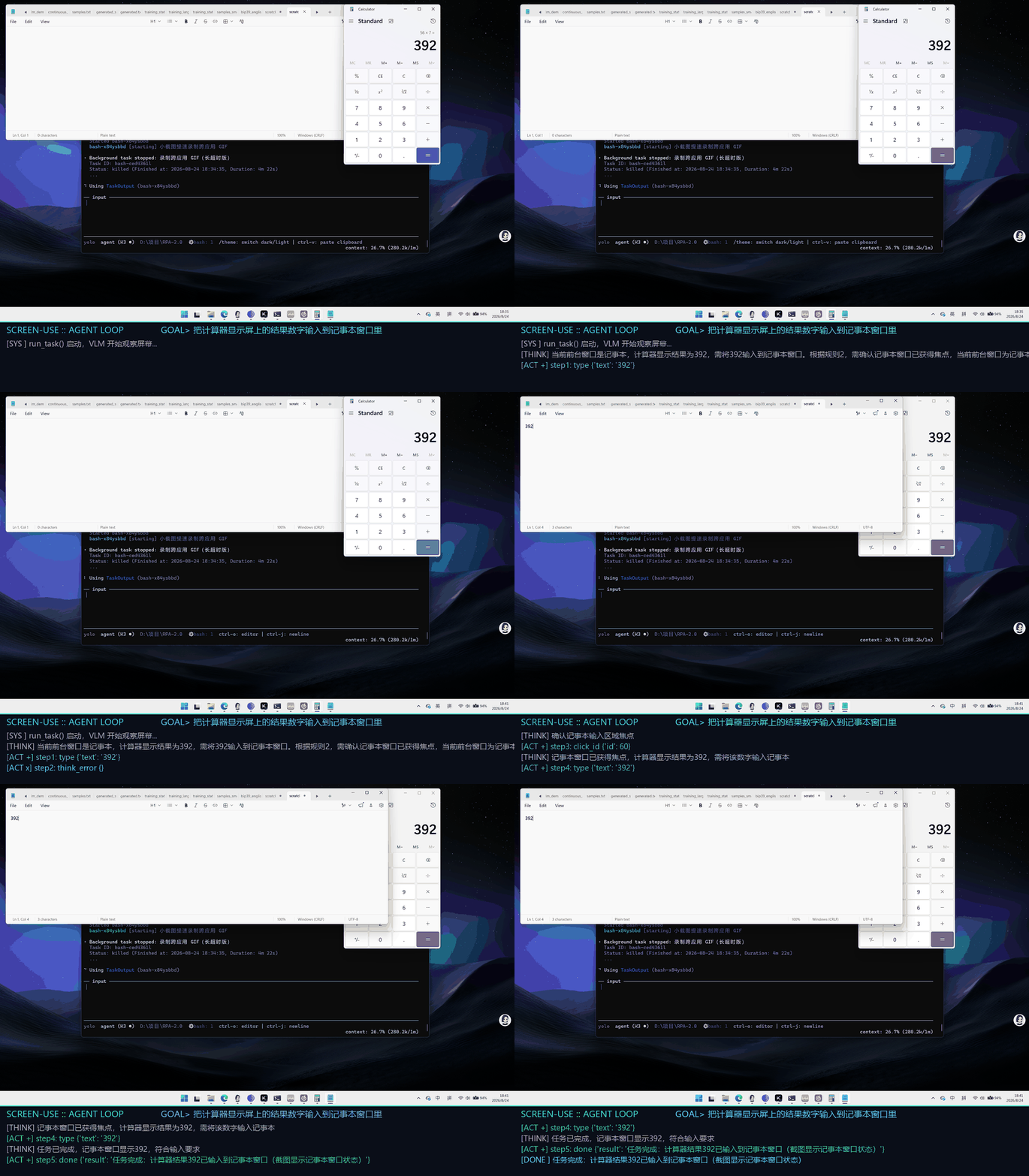
🎬 More demos👆 Cross-app autonomy: the agent reads the result from Calculator, activates Notepad, and types it in — every step decided by the VLM watching the screen (see the live thought stream at the bottom).
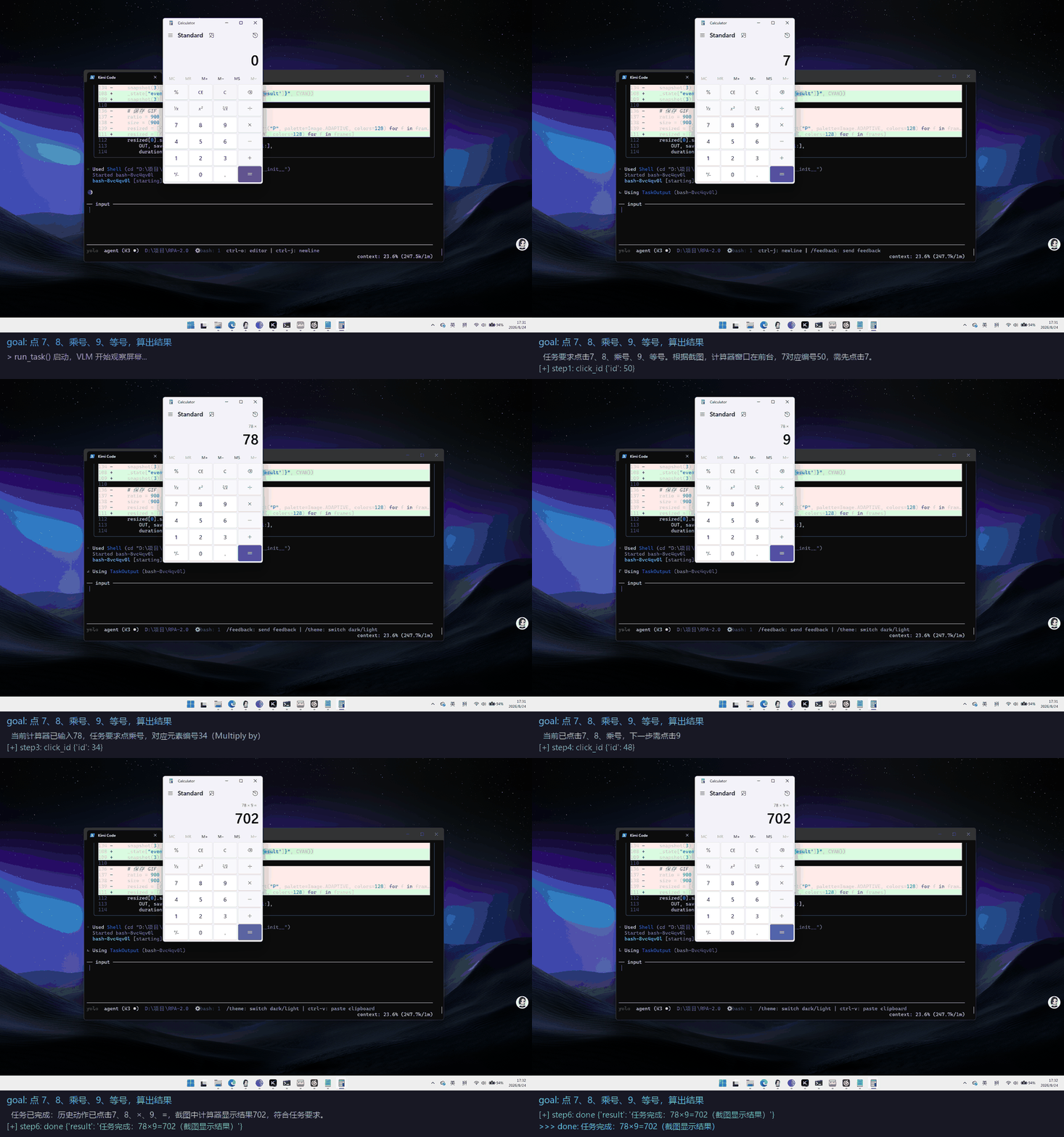
Single-app agent loop (VLM computes 78 × 9 by itself):
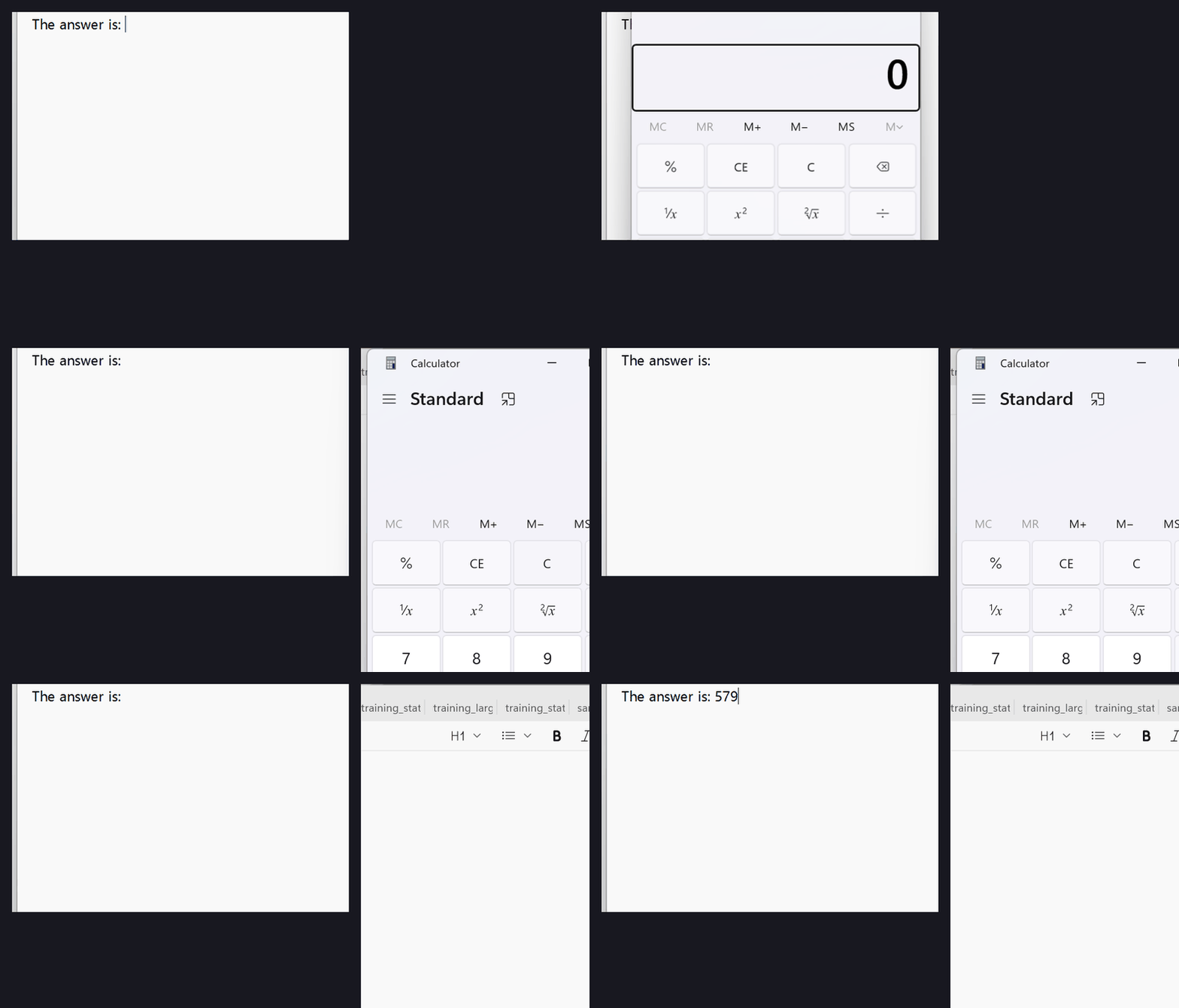
Scripted cross-app (Calculator → Notepad):
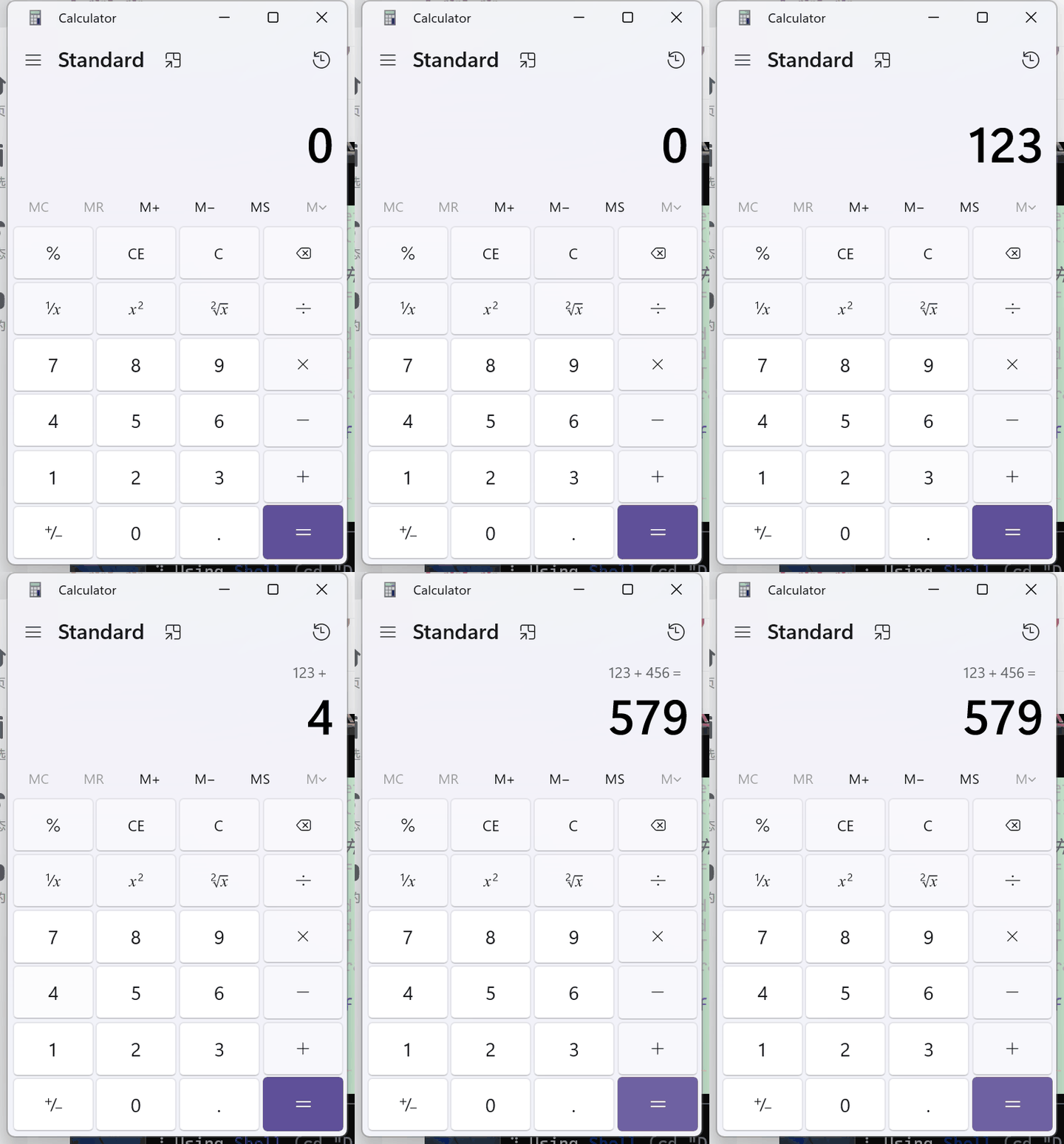
Single-app precision clicking:
Why
Traditional RPA records selectors — and breaks the moment a page changes. browser-use (32k⭐) solved this for browsers. screen-use brings the same idea to the entire desktop: Excel, SAP clients, ERP software, even legacy Win32 programs.
| Traditional RPA | screen-use | |
|---|---|---|
| Locating elements | Recorded selectors, break easily | Understands UI via Accessibility tree + Vision models |
| Scope | Browser or specific apps only | Any desktop app |
| Authoring | Professional developers | Natural language |
| Cost | Expensive enterprise software | Open source, local-model friendly |
How it works
Your Agent (Claude / Kimi / Cursor / custom)   ← does the planning
        │  MCP or Python SDK
        ▼
┌─────────────────────────────────────────────┐
│ screen-use                                  │
│  Visual Loop ──► observe→think→act→verify   │
│  Introspection──► difficulty playbook        │
│  Meta-learning──► experience & vocab memory  │
│  Perception ──► UIA tree + screenshots (SoM)│
│  Locating   ──► strategy chain:             │
│                 ⓪ learned vocab mapping     │
│                 ① UIA text match (0 cost)   │
│                 ② Set-of-Mark + VLM         │
│  Action     ──► mouse / keyboard            │
└─────────────────────────────────────────────┘
VLM is optional, not required. The locating strategy chain hits most targets with pure Accessibility-tree text matching — zero model calls, millisecond latency. A vision model (cloud or local via Ollama) only kicks in for UIA-blind UIs.
Capabilities at a glance
- 👀 Sees — full-screen screenshots with Set-of-Mark annotation, plus the live UIA accessibility tree (150 controls, foreground-window priority, ~0.1s per scan)
- 🖐️ Acts — pixel-precise mouse/keyboard, batch action sequences in one call, and direct control text read/write via UIA ValuePattern (works even where clipboard paste is blocked)
- 🧠 Thinks — autonomous observe→think→act→verify loop with an introspection playbook (classifies why it's stuck and changes strategy) and meta-learning memory that makes repeat tasks faster over time
- 🔌 Plugs in — 18 MCP tools instantly available to any MCP host (Kimi CLI, Claude Desktop, Cursor), or a 3-line Python SDK
- 💰 Model-optional — UIA-first locating means most actions need zero model calls; local Ollama VLMs keep the whole perceive→act loop on-device
- 🛡️ Safe —
dry_runsimulation, per-actionconfirm_callback, and a slam-to-corner failsafe - 🌐 Field-tested — drove a real academic journal submission end-to-end (Papercept + ORCID + OAuth binding, 30+ steps) in a live browser with zero selectors
Quickstart
git clone https://github.com/tongriyaotxt/screen-use.git
cd screen-use
pip install -r requirements.txt
As a Kimi CLI plugin (recommended)
One command — Kimi instantly gets all 18 desktop tools:
kimi mcp add --transport stdio screen-use -- <path-to-python.exe> -m screen_use.mcp_server
kimi mcp test screen-use   # verify the connection
Optionally install the bundled usage-strategy skill, which teaches Kimi the optimal tool-selection playbook:
mkdir -p ~/.kimi/skills/screen-use && cp skills/screen-use/SKILL.md ~/.kimi/skills/screen-use/
Then just tell Kimi: "Open Calculator and compute 123 × 456" or "Read what's in my Notepad".
As a generic MCP Server
Add to claude_desktop_config.json (or any MCP-compatible agent's config):
{
  "mcpServers": {
    "screen-use": {
      "command": "python",
      "args": ["-m", "screen_use.mcp_server"],
      "cwd": "path/to/screen-use"
    }
  }
}
Then just tell your agent: "Open Calculator and compute 123 × 456."
As a Python SDK
from screen_use import ScreenUse

tools = ScreenUse()

tools.click_element("Save")            # locate + click, one call
tools.type_text("Hello, 你好")          # Unicode-safe (clipboard paste)
tools.hotkey("ctrl", "s")

# Atomic tools for vision-capable agents:
elements = tools.list_ui_elements()    # id, name, type, bbox — no model needed
shot = tools.screenshot(annotate=True) # Set-of-Mark annotated screenshot
tools.click(500, 300)
Autonomous task loop
One call, full autonomy — the agent sees, decides, acts and self-corrects:
tools.run_task("打开计算器,算 25 乘以 4") # observe → think → act → verify
Introspection (困难分类反思): when the loop gets stuck, it classifies the difficulty — no effect / repeat loop / consecutive failures / missing elements / unexpected popup — and reflects with a targeted prompt playbook, then adjusts strategy.
Meta-learning (元学习): successful runs are remembered. Similar past tasks are recalled as experience hints, and learned vocabulary mappings (e.g. "乘号" → Multiply by) become the strategy chain's new first level. It literally gets better the more you use it. Memory lives in ~/.screen_use/.
Tools (18)
Atomic (zero model dependency): screenshot · list_ui_elements · click · click_scaled · double_click · right_click · click_element_id · type_text · hotkey · press · scroll · get_element_text · set_element_text
Batch: do_actions — execute a whole sequence (click → type → Tab → Enter) in one call, one screenshot at the end
High-level: find_element (strategy-chain locating) · click_element (locate + click) · read_screen (VLM screen Q&A) · run_task (autonomous visual loop)
Vision model (optional)
Only needed when your agent has no vision AND the target app is UIA-blind. Copy .env.example to .env:
| Preset | Config | Models |
|---|---|---|
| Kimi Code subscription | VISION_PROVIDER=kimi-code |
kimi-for-coding (reuses your Kimi CLI OAuth login — token auto-refreshes, zero extra cost) |
| Local (free, private) | VISION_PROVIDER=ollama |
qwen3-vl, qwen2.5vl, llama3.2-vision |
| OpenAI | VISION_PROVIDER=openai + key |
gpt-4o |
| Qwen | VISION_PROVIDER=qwen + key |
qwen-vl-max |
Without any VLM configured, atomic tools and UIA matching still work fully.
Field-tested on real websites
No toy demos here. screen-use has driven a real academic journal submission end-to-end — inside a live browser, with zero selectors:
- 📄 Papercept (Automatica's submission system): registered an author PIN, navigated the duplicate-record review list, set the password via an emailed one-time code
- 🆔 ORCID: completed the full 5-step registration — handled the cookie-consent modal, dismissed browser password popups, and when the confirm-email field blocked clipboard paste, the agent fell back to typing the address key by key
- 🔗 OAuth binding: authorized PaperCept to read the ORCID record, accepted terms, filled the multi-screen personal-info form (dropdowns included)
Every step was: screenshot → reason → click / type_text / press / scroll → verify. Web pages are UIA-blind, so this run exercised the raw-coordinate path the whole way — exactly the worst-case scenario for desktop automation.
Speed notes (2026-08 update)
A full real-world run (30+ step web-form submission) exposed the bottlenecks; this release fixes them:
- Screenshots never blow up the context: JPEG output auto-degrades quality to stay under 90KB (per-call
max_size/qualityoverrides) - Batch, don't ping-pong:
do_actionsruns a whole action sequence in one MCP call;run_taskcan plan multiple actions per VLM step - UIA does the reading:
get_element_text/set_element_textread and write control text directly (ValuePattern), bypassing paste-blocked input fields entirely — no more key-by-key fallback - No mental math:
click_scaledaccepts coordinates straight from the annotated screenshot - Faster primitives:
pyautogui.PAUSE0.05→0.02, clipboard backup/restore, paste verification, BILINEAR resize, reused mss instance, VLMtimeout=60+ smallermax_tokens
Safety
- 🚨 Failsafe: slam your mouse to the top-left corner to abort instantly
- ✅
confirm_callbackhook to approve every action (SDK) - 🧪
ScreenUse(dry_run=True)records actions without executing
Extensibility
screen-use is designed as a set of replaceable layers — every tier can be extended without touching the core:
| Layer | Extension point | How |
|---|---|---|
| Vision model | VisionProvider ABC |
Implement pick_element() + ask_about_screen() (2 methods) — any OpenAI-compatible endpoint works out of the box via .env |
| Tools | SDK facade | Add a method to ScreenUse → expose in mcp_server.py with one @mcp.tool() decorator |
| Locating | Strategy chain | Insert your own level (e.g. OpenCV template matching) in find_element() — earlier levels win |
| Actions | Executor |
Add drag, IME input, global hotkey hooks... dry_run support comes free |
| Platform | perception/ seam |
Port uia_tree.py + screen.py to macOS Accessibility API or Linux AT-SPI — the rest of the stack is platform-agnostic |
| Memory | ExperienceStore |
Swap JSONL for SQLite/vector DB; the meta-learning loop only depends on record_trace/recall/learn_mapping/recall_mapping |
| Introspection | reflect.py playbook |
Add a StuckType + prompt template; classification is pure functions, easy to unit test |
| Host agents | MCP | Any MCP-compatible host (Claude, Kimi CLI, Cursor, your own) gets all 18 tools instantly |
Safety hooks are part of the interface too: confirm_callback for human-in-the-loop approval, dry_run for simulation, PyAutoGUI failsafe for emergency stop.
Roadmap
- UIA + SoM locating strategy chain
- MCP Server (19 tools)
- Cascade protocol stage A:
get_capabilitiesmanifest + EscalationResult handoff (done/escalated envelope with observation snapshot — hosts take over without re-screenshotting) — design: research/cascade-protocol - Batch actions + UIA text read/write + context-safe screenshots (speed overhaul)
- Local VLM support (Ollama)
- Kimi Code subscription as VLM backend (OAuth, auto-refreshing token)
- Autonomous visual loop (
run_task) - Introspection playbook & meta-learning memory
-
wait_for_element/ auto-verification primitives - Experience replay: compile successful traces into parameterized skill macros (semantic anchors + checkpoints + VLM fallback) — design: research/experience-replay
- Desktop Jev: small calibrated decision model as fast path (partial VLM replacement for speed; text steps & low-confidence escalate to VLM) — design: research/desktop-jev. Stage 0 done: structured per-step trace recording (
traces_full/,RECORD_FULL_TRACE=0to disable) - Drag & drop
- VLM raw-coordinate fallback + OpenCV template matching (UIA-blind apps)
- macOS (Accessibility API) & Linux support
- PyPI release
Where it's headed
The long-term bet: GUIs were built for humans — agents shouldn't need APIs to use software. screen-use aims to be the open desktop action layer for the agent era.
- Any agent, any app. MCP is becoming the USB-C of agent tooling, and the accessibility tree is the closest thing to a universal UI protocol. Combined, any MCP-compatible agent can operate any desktop software — including the legacy line-of-business apps (SAP GUI, bank and hospital terminals, old ERPs) that will never ship an API. That's a huge, underserved surface traditional RPA monetizes at enterprise prices; screen-use makes it free and agent-native.
- From automation to delegation. The meta-learning memory turns repeated tasks into near-deterministic runs. The endgame isn't scripting steps — it's describing an outcome ("file my expense report", "reconcile this spreadsheet against the ERP export") and trusting the loop.
- Local-first privacy. Screen content is the most sensitive data there is. With local VLMs (Ollama) and the UIA-first strategy chain, the entire perceive→decide→act loop can run without a single byte leaving the machine.
- Cross-platform by design. The only Windows-specific code is the perception seam (
uia_tree.py+screen.py); macOS Accessibility API and Linux AT-SPI ports slot into the same interface.
Contributions welcome — see issues for good first tasks.
Development
pytest tests -q                        # 97 unit tests, no desktop/VLM needed
python examples/demo_calculator.py     # end-to-end demo (real clicks!)
python examples/mcp_client_demo.py     # MCP handshake + tool list
License
MIT
🇨🇳 中文说明
screen-use = 桌面版 browser-use:让任何 AI Agent 获得看屏幕、操作桌面应用的能力。
- 不是传统 RPA:不录制 selector,通过无障碍树 + 视觉模型理解 UI,界面变了也不怕
- 跨一切桌面应用:Excel、SAP、ERP 客户端、老旧 Win32 程序
- 自然语言驱动:
click_element("保存按钮")一句话搞定 - VLM 可选:策略链第一级是纯 UIA 文本匹配(零模型、毫秒级),视觉模型只在盲区兜底,支持本地 Ollama 保护隐私,也可直接复用 Kimi Code 订阅(
VISION_PROVIDER=kimi-code,OAuth 免配置) - 真实场景验证:曾在真实浏览器中驱动学术期刊投稿全流程(Papercept 注册 + ORCID 五步注册 + OAuth 绑定),遇禁粘贴表单自动降级逐键输入
- 能力一览:截图 + UIA 无障碍树双感知;鼠标键盘原子动作 + 批量动作 + 控件文本直读直写;自主观察-决策-执行-验证闭环,带困难分类反思和元学习记忆;
dry_run模拟 + 逐动作确认 + 紧急中止 - 未来方向:成为 Agent 时代的开放桌面操作层——任何 MCP 宿主操作任何桌面软件(含永远没有 API 的老旧业务系统);元学习让重复任务趋于确定性执行,从"自动化"走向"委托";本地 VLM 保证屏幕数据不出机;感知层是唯一平台相关代码,macOS / Linux 移植已在路线图上
接入方式、工具列表、安全配置与上文英文版一致。
Yorumlar (0)
Yorum birakmak icin giris yap.
Yorum birakSonuc bulunamadi