remotelab
Health Pass
- License — License: MIT
- Description — Repository has a description
- Active repo — Last push 0 days ago
- Community trust — 10 GitHub stars
Code Fail
- process.env — Environment variable access in lib/config.mjs
- execSync — Synchronous shell command execution in lib/git-diff.mjs
- process.env — Environment variable access in lib/hooks/on-image-read.mjs
- network request — Outbound network request in lib/hooks/on-image-read.mjs
Permissions Pass
- Permissions — No dangerous permissions requested
No AI report is available for this listing yet.
Self-hosted remote access to Claude Code CLI from any browser — phone, tablet, or computer
remotelab





Access any AI coding CLI tool — Claude Code, GitHub Copilot, Codex, Cline, and more — from any browser on any device via HTTPS. Works on your phone, tablet, or any machine that can open a web page.
Features
- Any CLI tool — built-in support for Claude Code, GitHub Copilot, OpenAI Codex, Cline, and Kilo Code; add any custom CLI tool from the dashboard
- Multi-session dashboard — create and manage multiple concurrent sessions, each pointing at a different project folder and tool
- Session persistence — dtach keeps your tool running through browser disconnects; reconnecting reattaches to the same session
- Secure by default — scrypt-hashed passwords, HttpOnly session cookies, localhost-only service binding, HTTPS via Cloudflare Tunnel
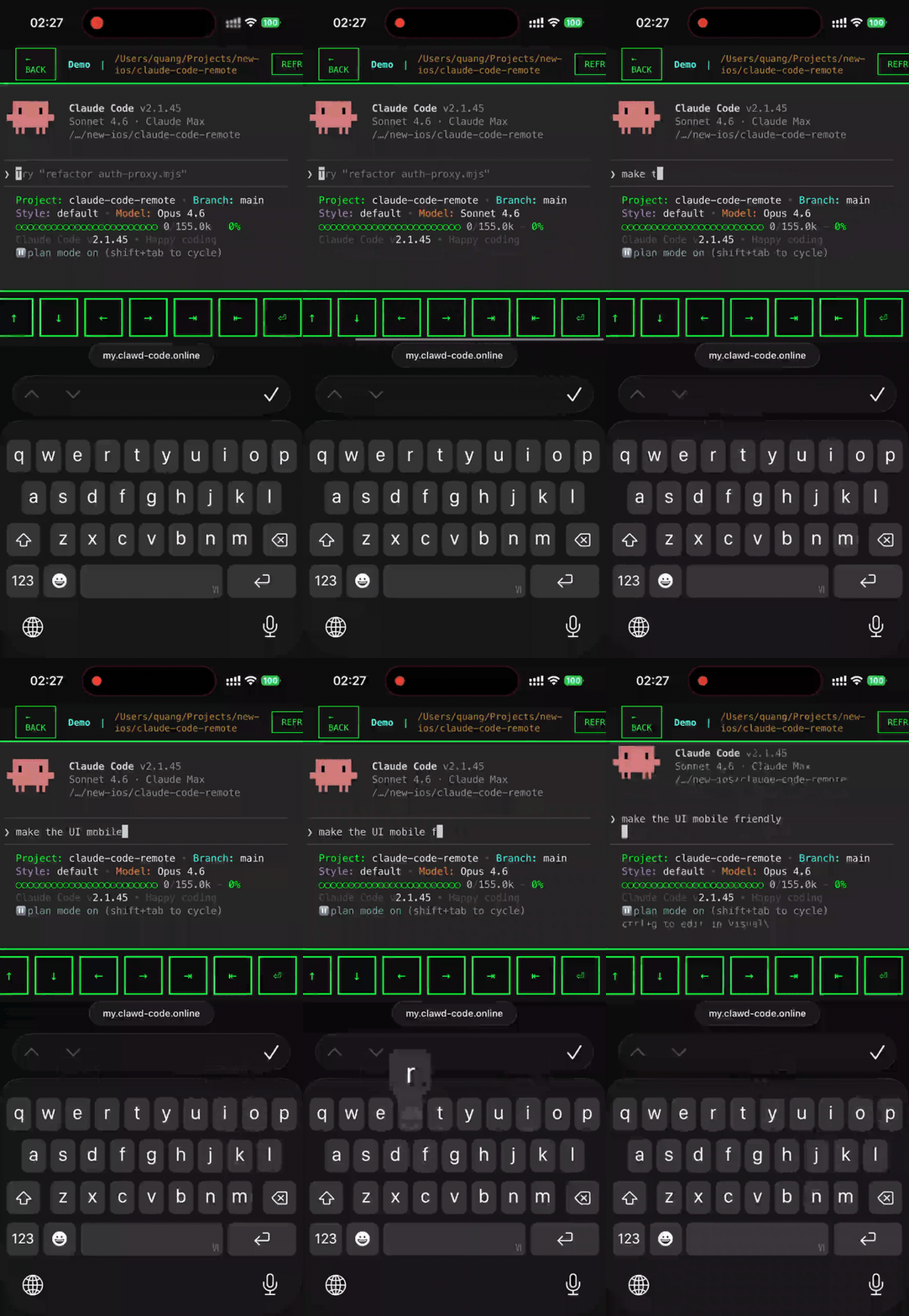
- Mobile-friendly — works in iOS Safari, Android Chrome, and any modern browser; terminal auto-resizes
Dashboard
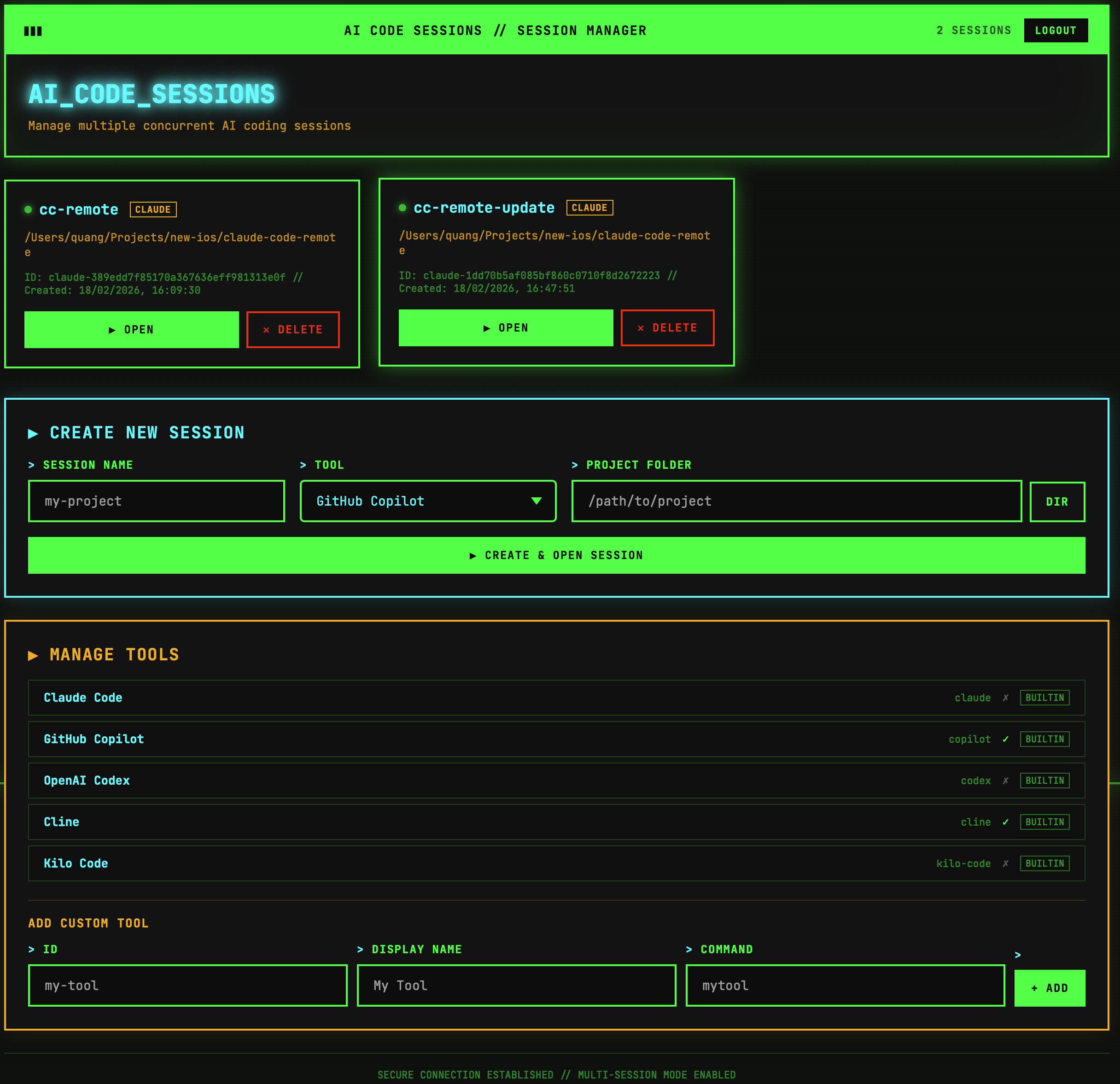
Open your HTTPS URL on any device — log in, pick a tool, create a session pointing at a project folder, and get a full terminal in the browser. Switch between Claude Code, GitHub Copilot, Cline, or any custom CLI tool per session.
Demo
Clipboard Image Paste
Paste images directly from your clipboard into the remote terminal session. Copy any image (screenshot, photo, diagram) and press Ctrl+V / Cmd+V in the browser — the image is sent to the CLI tool as if it were a local file.
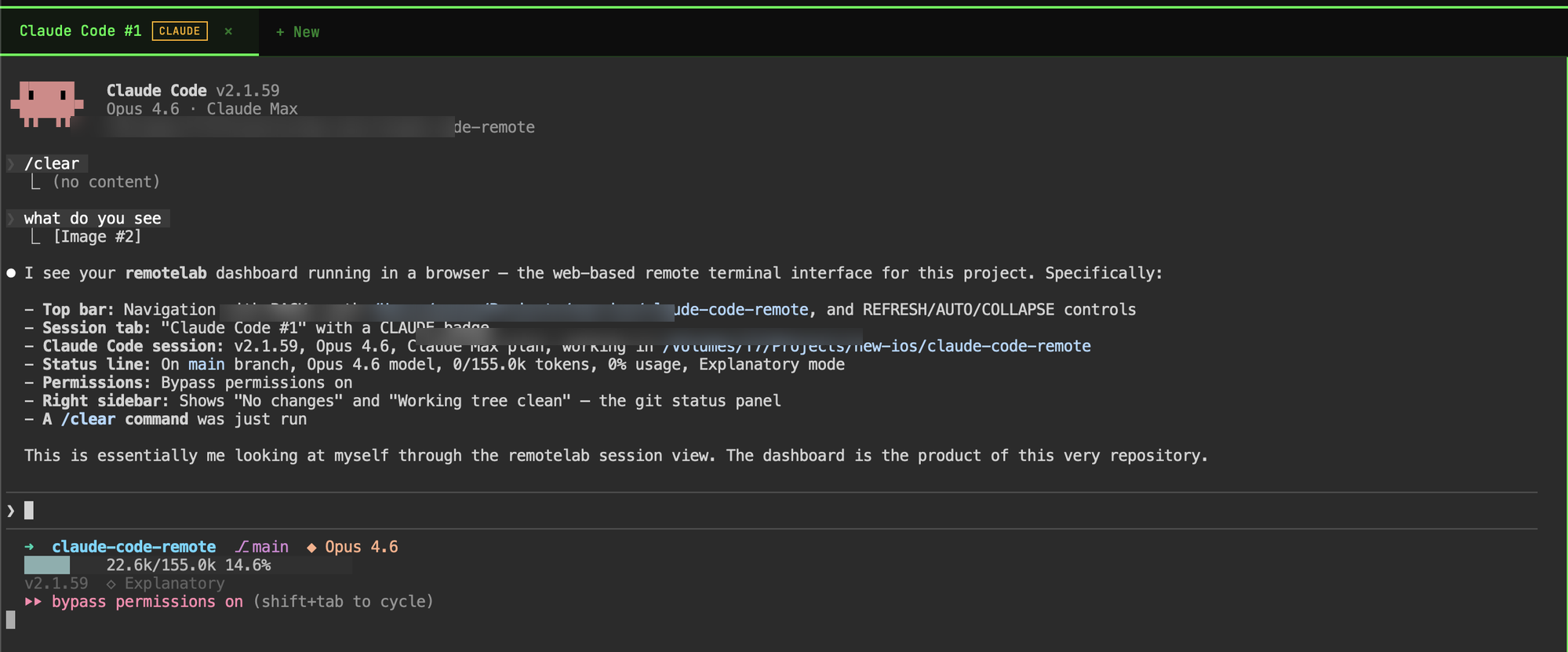
Copy an image on any device, switch to your remote terminal tab, and paste. The image appears inline in the conversation — no file upload dialog, no manual path entry.
Image Preview
When Claude Code reads an image file (via the Read tool), the image appears in real time in a floating preview panel in your browser — no need to download or open files manually.
How to use
- Open a folder view in the dashboard (click the folder path link for any session)
- Click the Img button in the toolbar to enable image preview
- Use Claude Code normally — whenever it reads an image (
.png,.jpg,.gif,.webp,.svg,.bmp,.ico), it appears in the preview panel - Click the image to expand it full-screen; click again to dismiss
- The panel is draggable (grab the header) and minimizable
- Click Img again to disable (removes the hook from the project)
How it works
Enabling image preview writes a Claude Code hook into your project's .claude/settings.json. The hook fires after every Read tool use, checks if the file is an image, and notifies the browser via Server-Sent Events (SSE).
Claude Code reads image → PostToolUse hook fires → hook script POSTs to auth-proxy → SSE broadcast → browser panel updates
The hook is async (non-blocking) and project-scoped — it only affects the project folder where you enabled it. Disabling the toggle removes the hook entry from settings.json.
Architecture
[Browser] --HTTPS--> [Cloudflare Tunnel] --localhost--> [auth-proxy:7681]
                                                              |
                                        +---------------------+---------------------+
                                        |                     |                     |
                                   GET /              GET /api/*            /terminal/*
                                   Dashboard       Session APIs          Proxy to ttyd:7682
                                                                                    |
                                                                    claude-ttyd-session <name> <folder>
                                                                                    |
                                                                    dtach -A <socket> claude
Three services:
| Service | Role |
|---|---|
Cloudflare Tunnel (cloudflared) |
Provides HTTPS from the internet to localhost; no open inbound ports needed |
auth-proxy (auth-proxy.mjs) |
Node.js server — login page, multi-session dashboard, session APIs, WebSocket proxy to ttyd |
| ttyd | Turns a PTY into a WebSocket terminal; spawns claude-ttyd-session per connection |
Prerequisites
- macOS or Linux with
systemd --user - Homebrew on macOS, or a supported Linux distro package manager/sudo environment
- Node.js 18+
- At least one supported CLI tool installed and authenticated — e.g. Claude Code (
npm install -g @anthropic-ai/claude-code && claude login), GitHub Copilot, Cline, or any custom CLI tool - A domain managed by Cloudflare — a cheap domain ($1–12/year) on the free Cloudflare plan is sufficient
Installation
Via npm (recommended):
npm install -g @trmquang93/remotelab
remotelab setup
Via npx (no install):
npx @trmquang93/remotelab setup
From source:
git clone https://github.com/trmquang93/remotelab.git
cd remotelab

# macOS
./setup.sh

# Linux
./setup-linux.sh
Quick Start
npm install -g @trmquang93/remotelab
remotelab setup
The setup script will:
- Prompt for your domain and subdomain
- Prompt for a login username (default:
claude) - Generate a secure random password
- Check platform dependencies and auto-install missing Linux tools (
node,dtach,ttyd,claude,codex, andcloudflaredin tunnel mode) - Authenticate with Cloudflare and create a tunnel
- Configure DNS in Cloudflare
- Generate LaunchAgents on macOS or systemd user units on Linux
- Display your access URL and credentials
After setup, open https://yoursubdomain.yourdomain.com in any browser.
Configuration
Port and session expiry can be overridden with environment variables:
| Variable | Default | Description |
|---|---|---|
LISTEN_PORT |
7681 |
Port auth-proxy listens on |
TTYD_PORT |
7682 |
Port ttyd listens on |
SESSION_EXPIRY |
86400000 |
Auth cookie lifetime in milliseconds (24 h) |
Copy .env.example to .env and edit as needed, then restart the auth-proxy service.
Usage
Start / stop services
remotelab start
remotelab stop
Or if installed from source:
# macOS
./start.sh
./stop.sh

# Linux
./start-linux.sh
./stop-linux.sh
Check status
# macOS
launchctl list | grep -E 'ttyd|authproxy|cloudflared'

# Linux
systemctl --user status remotelab-auth-proxy.service
systemctl --user status remotelab-cloudflared.service

lsof -i :7681   # auth-proxy
lsof -i :7682   # ttyd
View logs
# macOS
tail -f ~/Library/Logs/auth-proxy.log
tail -f ~/Library/Logs/ttyd-claude.log
tail -f ~/Library/Logs/cloudflared.log

# Linux
journalctl --user -u remotelab-auth-proxy.service -f
journalctl --user -u remotelab-cloudflared.service -f
Change password
remotelab hash-password <username> <new-password>
# Restarts auth-proxy automatically to pick up the new hash
Session dashboard
Navigate to your HTTPS URL after login. From the dashboard you can:
- Create a session — enter a name and project folder path; autocomplete helps find directories
- Open a session — click "Open" to launch the terminal in a new browser tab
- Delete a session — kills the dtach process and removes the session entry
Security
- HTTPS encryption via Cloudflare edge
- scrypt-hashed passwords (salt stored separately in
~/.config/claude-web/auth.json) - HttpOnly, Secure, SameSite=Strict session cookies with configurable expiry
- Localhost-only service binding (only
cloudflaredcan reach auth-proxy; only auth-proxy can reach ttyd) - All routes except
/loginrequire an authenticated session cookie
File Locations
| Path | Description |
|---|---|
auth-proxy.mjs |
Authentication proxy server |
claude-ttyd-session |
dtach wrapper script |
hash-password.mjs |
Password hashing utility |
setup.sh / start.sh / stop.sh |
macOS LaunchAgent management scripts |
setup-linux.sh / start-linux.sh / stop-linux.sh |
Linux systemd user-service management scripts |
~/.config/claude-web/auth.json |
Hashed credentials |
~/.config/claude-web/sessions.json |
Session metadata |
~/.config/claude-web/sockets/ |
dtach socket files |
~/Library/LaunchAgents/com.authproxy.claude.plist |
macOS auth-proxy service |
~/Library/LaunchAgents/com.cloudflared.tunnel.plist |
macOS Cloudflare tunnel service |
~/.config/systemd/user/remotelab-auth-proxy.service |
Linux auth-proxy service |
~/.config/systemd/user/remotelab-cloudflared.service |
Linux Cloudflare tunnel service |
Troubleshooting
Login page not showing — check lsof -i :7681 and tail -f ~/Library/Logs/auth-proxy.error.log
Terminal not loading — check lsof -i :7682 and tail -f ~/Library/Logs/ttyd-claude.error.log; verify which claude returns a path
Tool shows "not installed" on the dashboard — the service runs under launchd with a minimal PATH. Non-interactive login shells (zsh -l) source ~/.zprofile and ~/.zshenv but not ~/.zshrc. If your tool is installed in a directory added to PATH only in ~/.zshrc (e.g. ~/.local/bin for claude), remotelab supplements the PATH with common locations automatically. If your tool is in a non-standard location, add it to ~/.zprofile or ~/.zshenv so it is visible to login shells, then restart with remotelab restart.
Tunnel unreachable — check cloudflared tunnel info <tunnel-name> and the service logs (~/Library/Logs/cloudflared.error.log on macOS or journalctl --user -u remotelab-cloudflared.service on Linux)
Session opens but shows wrong directory — verify the folder still exists; the script falls back to $HOME if the path is missing
See INSTALL.md for the full installation guide and CONTRIBUTING.md for development setup.
Cost
- Cloudflare: free (tunnels are included in the free plan)
- Domain: $1–12/year depending on TLD
- Hosting: free (runs on your own machine)
- Claude API: pay-per-use
Contributing
Contributions are welcome — see CONTRIBUTING.md. Linux/systemd support now ships in setup-linux.sh, and distro-specific polish is especially helpful.
License
MIT — see LICENSE.
Reviews (0)
Sign in to leave a review.
Leave a reviewNo results found