Parrot
Health Pass
- License — License: GPL-3.0
- Description — Repository has a description
- Active repo — Last push 0 days ago
- Community trust — 100 GitHub stars
Code Fail
- rm -rf — Recursive force deletion command in scripts/assemble-help.sh
Permissions Pass
- Permissions — No dangerous permissions requested
No AI report is available for this listing yet.
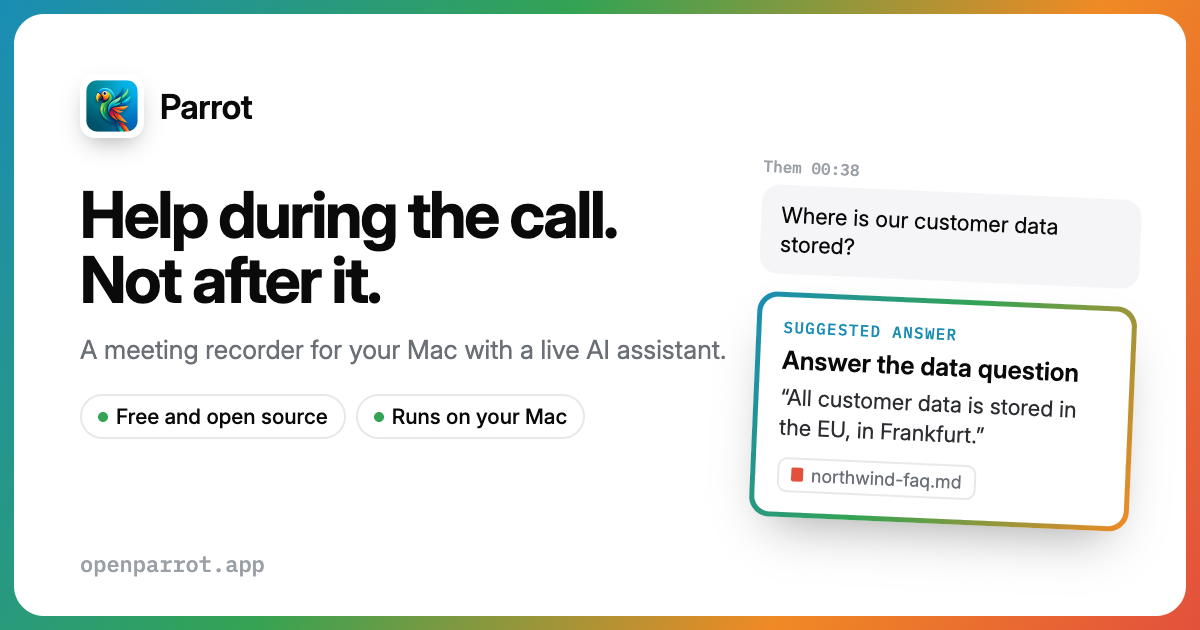
Meeting recorder for your Mac with a live AI assistant. On-device transcription, answers from your own docs mid-call. Local-first and open source.





Website · Download · User guide · Discussions
🦜 Parrot
A meeting recorder for your Mac with a live AI assistant built in. It records and transcribes every call on your machine, suggests answers from your own documents while you're still talking, and writes the report before you've hung up.
No bot joins your meeting. It works with Google Meet, Zoom, Teams, or anything else your Mac can hear. Transcription, speaker detection and your documents stay on your Mac. The Assistant's brain is your choice: Claude with your own key, any OpenAI-compatible server, or a local model through Ollama, which makes the whole thing free and offline.
https://github.com/user-attachments/assets/76dc07c7-6667-497e-b39f-8218e077c88c
Parrot in 73 seconds. Turn the sound on, or follow the captions.
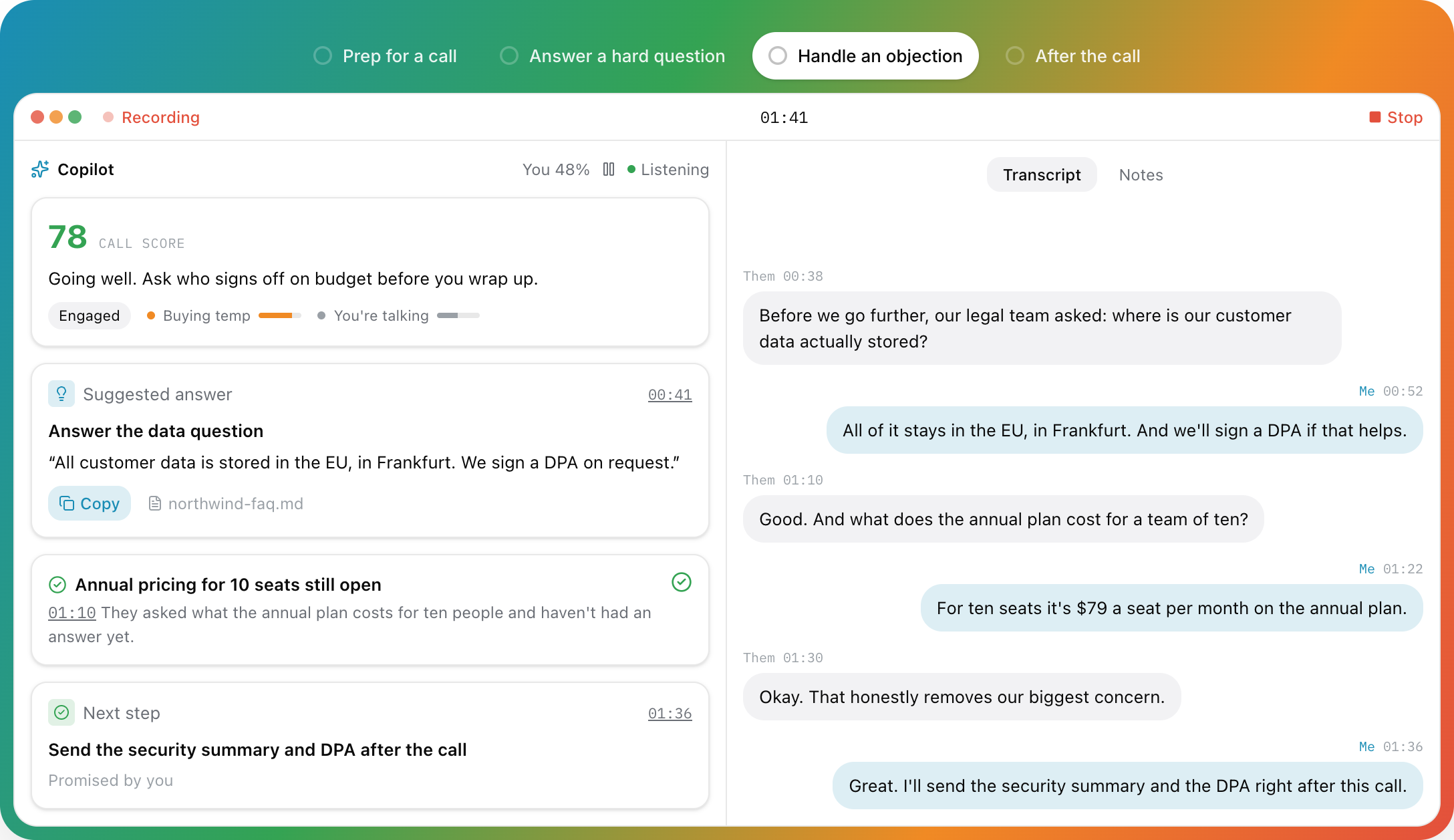
The live call screen, as drawn on openparrot.app. The other side asked about data residency, and the answer came straight from the FAQ you dropped in.
Hey! 👋
So here's the deal. I'm Uygar, and I'm trying to build my own meeting recorder from scratch. I got tired of paying for services like Otter.ai that send all my conversations to some server I don't control. I thought, "How hard can it be to do this locally on my Mac?" Turns out... it's a journey. 😄
I'm building this with the help of Claude (yes, the AI, we've had a lot of late-night coding sessions together), and honestly, it's been one of the most fun projects I've worked on. It's not perfect yet: there are still bugs I'm chasing, permissions that are being annoying, and features I haven't figured out. But the core works, and it's on every one of my client calls now.
This is a personal project. I'm learning as I go. If there are any crazy coders out there who stumble upon this and want to help improve it, I would really, truly appreciate it. Fixing a bug, improving the speaker detection, or just telling me I'm doing something wrong: all of it helps. Open a PR, open an issue, or just say hi. 🙌
If you find this useful or just think the idea is cool, give it a star. It'll make my day.
Contents
What it does · Privacy: what leaves your Mac · Getting started · Keyboard shortcuts · Tech stack · Build from source · Want to help? · Known issues · Similar projects
What it does
🎯 Live Assistant: help during the call
An always-on assistant that watches the conversation and puts the right thing on screen. No button pressing, the whole call.
- Suggested answers the moment the other side asks something, grounded in your documents, with the file named on the card and a Copy button.
- Pinned cards for objections and open questions. They stay on screen until you handle them, then resolve themselves.
- Next steps captured the moment you promise them ("Promised by you").
- A live call score from 0 to 100, a one-line coach, a mood read, and gauges like Buying temp or You're talking. Your talk share turns orange past 70%.
- Nudges when the call drifts. A short tip over whatever app the call is in, for about ten seconds: "They've gone quiet since you said 'the price goes up in January'." It catches long silences, monologues, talking over them, short answers, speeding up and repeating yourself; with the Assistant on, also a mood shift, a question you didn't answer, and a call wrapping up with no next step. At most one every two minutes, and it's kept out of screen sharing. It reads timing and words, never emotion from anyone's voice. Settings > Assistant > Live Nudges.
- Brief it before the call. A line or two on the dashboard ("Renewal call, legal wants to know where the data is stored") and it knows who you're talking to from the first second. Edit the brief mid-call from the Briefed card.
- You control what it spends. Pace (Fast, Balanced, Relaxed for free tiers), how much conversation each request carries (2, 5 or 10 minutes), and a pause button on the call screen: while paused, nothing is sent and nothing is spent.
- Answers from your docs in about half a second (optional, Claude mode): add a TypeSafe AI key and the matching excerpt shows as a From your docs card while Claude is still writing.
📚 Knowledge base: brief it like a new teammate
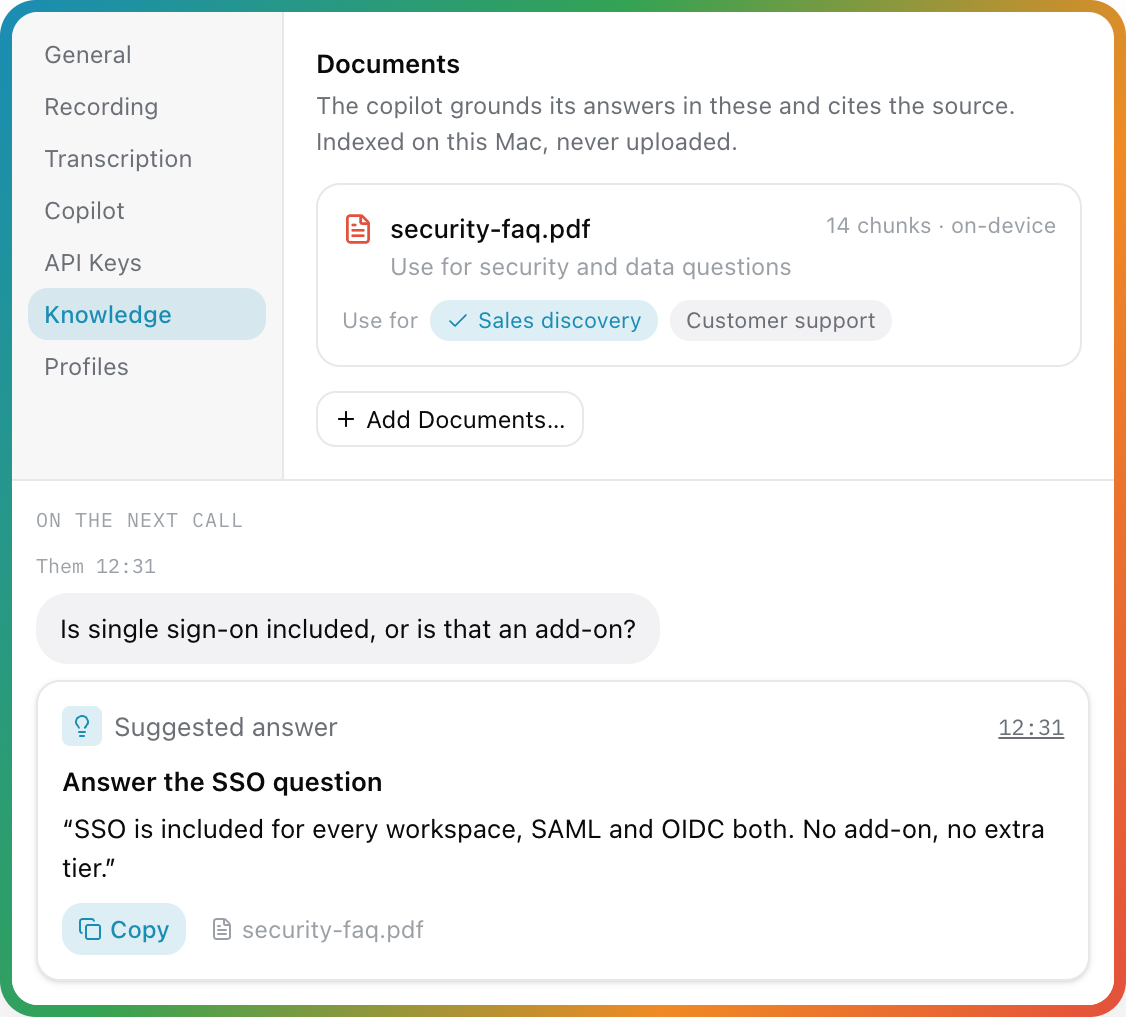
- Drop in PDFs, text or Markdown: pricing sheets, FAQs, playbooks. They're chunked and embedded on your Mac with Apple's NaturalLanguage framework, plus an exact-word (BM25) index. Nothing is uploaded; only the few passages that match a question go to the AI you picked for the Assistant.
- Sort documents into folders and set Use for once per folder: every call type, a few, or Off to pause it. One document can have its own setting, anything the Assistant can't use says so, and a one-line about tells you (and the Assistant) what's inside.
- Coaching instructions for every call ("keep answers short, always offer three price options").
- Choose whether it may answer from general knowledge when your documents don't cover it. Every card says where its answer came from.
🔎 Ask Parrot: a memory of every call
Chat with all your calls (⌘K): "What did I promise Acme?", then "and what did we offer them?". Chats are saved, follow-ups work, and every fact in the answer is a chip that opens the meeting at that second. Counts like "How many meetings did I have last week?" are worked out exactly on your Mac. Ask Parrot has its own AI choice: search always runs on your Mac, and with Ollama the answer is written there too. It works in English and Turkish, and it's in beta. When a call starts with people you've met before, the live Assistant's brief shows the open items from last time.
🤝 Use your meetings in Claude
Free, no meeting bot, no 30-day limit, and your meetings stay on your Mac until you ask. Connect Claude Desktop in one click (or Claude Code, Codex for ChatGPT plans, or Cursor) and your own plan does the thinking: "What did I promise last week?", "Brief me for my call with Acme", "Draft the follow-up for this morning's call", "Coach me across my last 10 calls". Claude gets real speaker names, long transcripts in pages, promises with their owners, talk time, and four ready-made actions in its + menu (weekly digest, follow-up email, prep for a call, PRD from calls). It can't change your meetings: you choose what it sees (transcripts, reports, notes, Assistant cards, whole call types), on-device-only meetings are never shown, and Parrot tells you how often it was read. The one thing it can send back is a suggested profile, which waits for your review. Open Claude & AI Apps in the sidebar. How it works.
🎭 Call profiles: one app, every kind of call
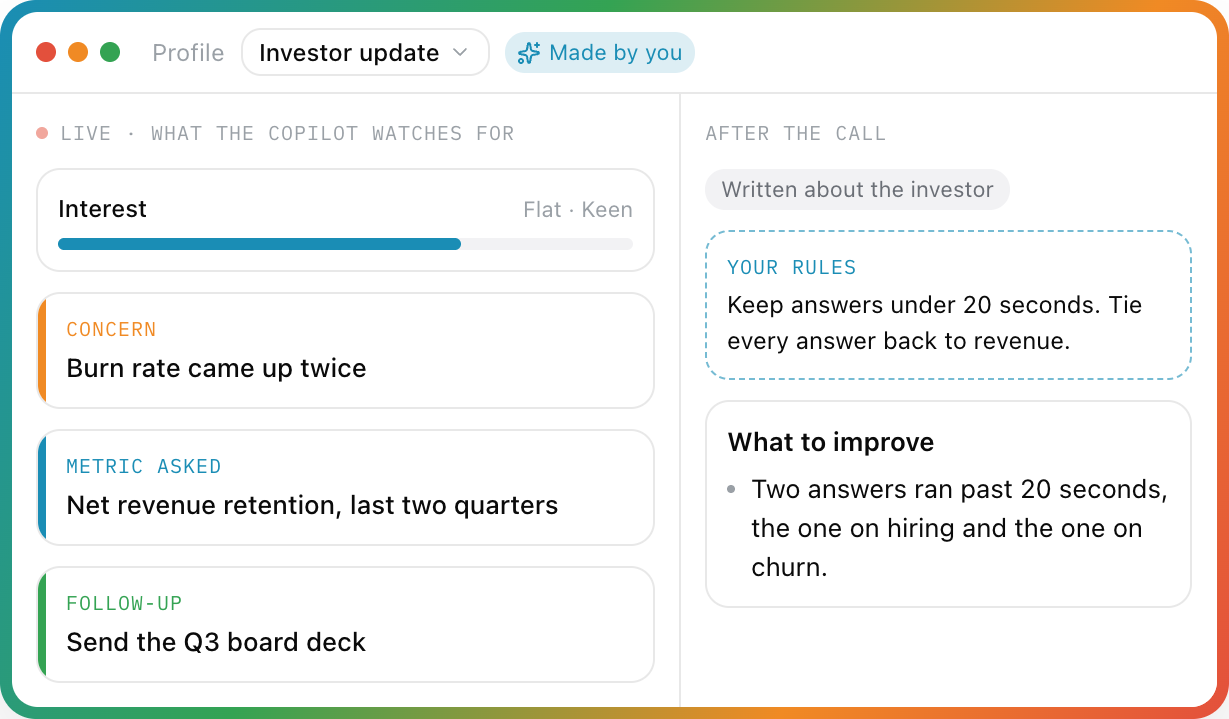
Tell Parrot what kind of call it is, and the profile decides what the Assistant watches for and how the report is written.
- Eight built-ins: Default, Sales discovery, 1:1 coaching, Interview, Customer support, Vendor call, Investor pitch, Generic. Sales looks for objections and buying signals; Interview for follow-ups and red flags; a 1:1 gets reflections and open questions.
- A report of its own: each profile shapes the report after its calls. Sections in your own words, as bullets or paragraphs; a scorecard that scores criteria from 1 to 5, each with the moment that shows it; which section holds promises; and whether to coach. A sales report asks about budget, who decides and timeline; an interview gets a scorecard.
- Make your own: name it, say who the other side is, write a persona and rules, choose which documents it uses, add your own card types (with color, icon, "keep on screen until handled") and gauges.
- Share it: export a
.parrotprofilefor a colleague, or import theirs. Parrot shows every change before it applies one, and a file can switch on-device only on, never off. The last five versions of each profile are kept, one click to restore. - Let Claude tune it: Claude can read your recent calls and suggest a better profile. It lands in Parrot for you to review: Apply, Save as new, or Discard.
🗣️ Speaker names: names, not "Speaker 2"
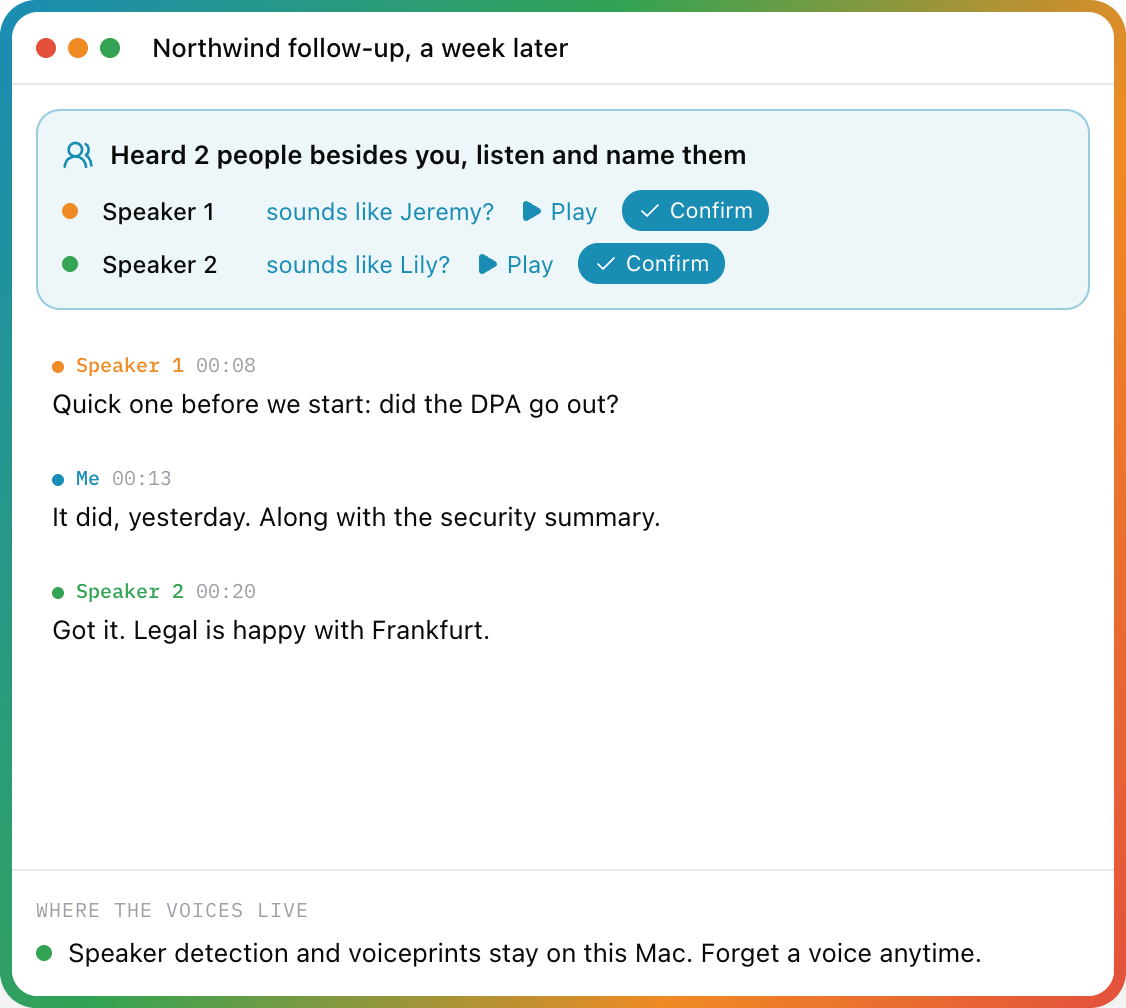
- Me vs Them is exact, live: your mic and the call audio are separate tracks.
- After the call, on-device speaker detection (FluidAudio, a 13 MB model) tells the voices on the other side apart.
- Name a voice once from short clips and every line takes the name. Reports and coaching use real names. Heard fewer people than were there? Right-click a line, This line is → New speaker….
- Remember voices (opt-in): next call, Parrot asks "sounds like Jeremy?" One click to confirm. With a calendar invite, only people on it are suggested. Voiceprints stay on the Mac; forget one anytime.
- Live speaker labels (experimental, off by default): names the other side during the call. "Them" becomes Speaker 1, Speaker 2 within seconds, you can name a voice mid-call, and the end-of-call pass keeps the same labels. It re-checks only the last minute of audio, so a long call costs no more than a short one.
- Got one line wrong? Right-click it and reassign just that line.
📝 The report writes itself, then it coaches you
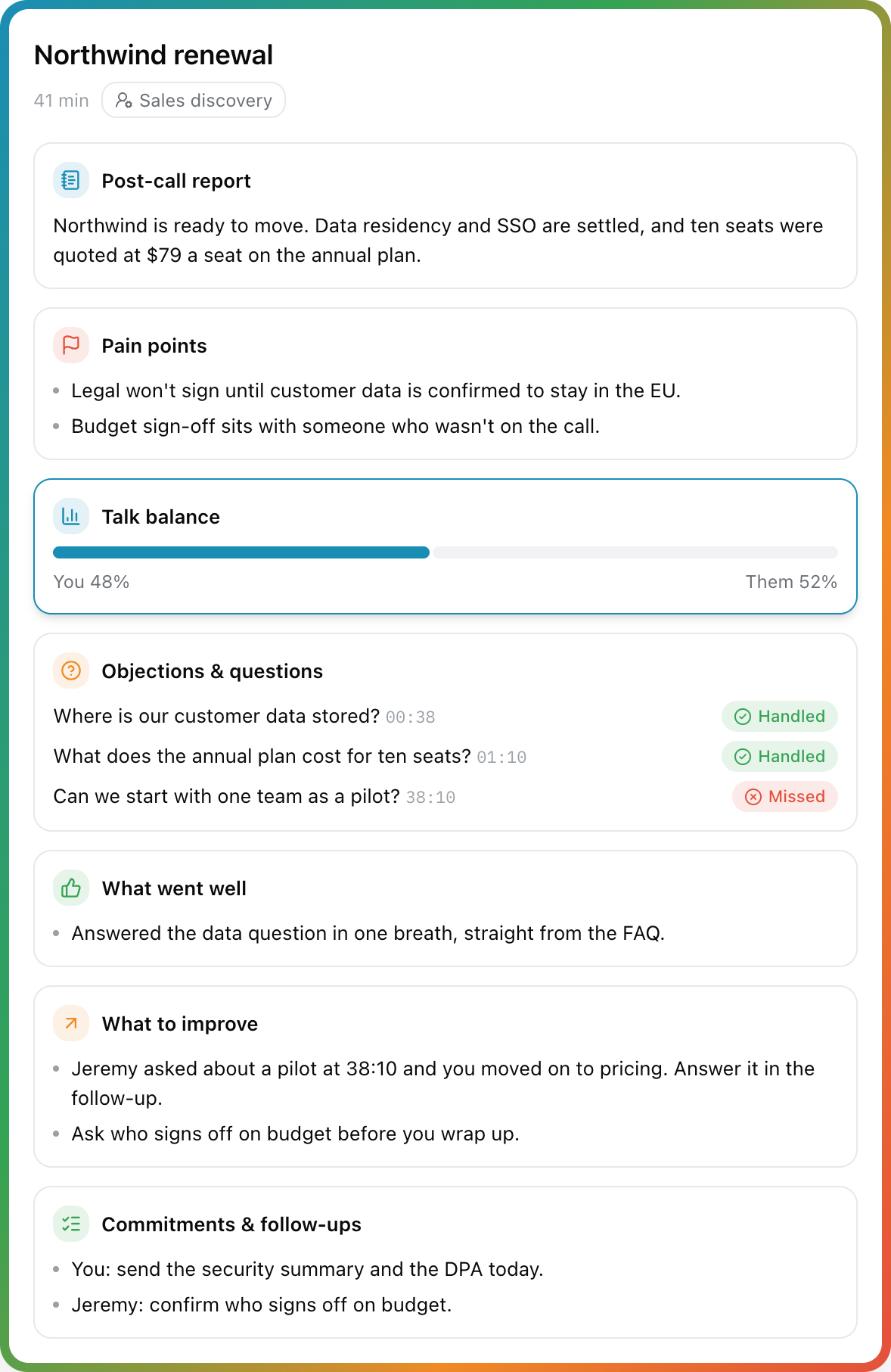
- How the call went: a timeline at the top of the report with your talk share against theirs minute by minute, the profile's main gauge over the call, and numbered moments (tips, turning points, your marks) with Play.
- Summary: shaped by the call's profile; by default overview, pain points, key points, next steps.
- Rewrite Report: recorded under the wrong profile, or changed one since? Rewrite any past report with any profile, and undo it in one click.
- Receipts on every point. Each bullet carries a time chip (
12:34): click it for the exact quote, Play from Here or Show in Transcript. Chips are checked against the transcript on your Mac, and a promise nobody actually made is marked unverified instead of stated as fact. - Moments you marked during the call (the Mark button, or ⌃⌥M from any app) get their own card, and the report is written knowing they mattered.
- Share it: a follow-up email with only the promises actually made (opens in Mail, addressed to the invitees), next steps into Apple Reminders, Markdown notes into your Obsidian vault or any folder (automatically, if you like), or a webhook to Zapier/Make/n8n for Slack, Notion and CRMs.
- Coaching: talk balance, what went well, what to improve, objections and questions marked Handled or Missed, and commitments from both sides.
- No report? Calls recorded with the Assistant off get one on demand: Write report on the meeting's Report tab.
- Per-call AI cost down to the cent: model, tokens, calls and transcription minutes, with a line-by-line breakdown. Local features show $0.00, proudly.
- Playback synced with the transcript (0.5x to 2x): click a line, hear that moment.
- Notes you type during or after the call are kept with the meeting.
🧠 You pick the brain
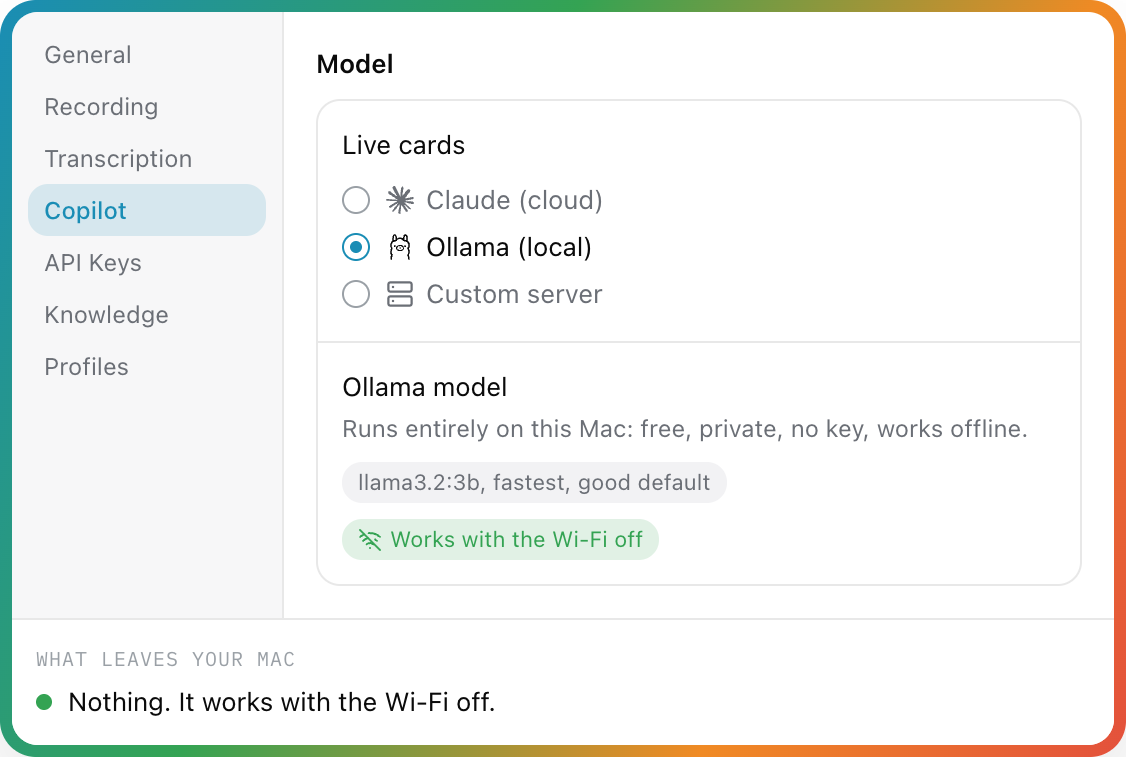
| Assistant and reports | What it is | What leaves your Mac |
|---|---|---|
Claude (claude-haiku-4-5) |
Sharpest cards. Your own key. About $0.07 per call hour. | Transcript text, to Anthropic. Never audio. |
| Ollama (local) | llama3.2:3b, gemma3:4b, or any model you like. Parrot can install Ollama and pull the model for you. Free. |
Nothing. Works with the Wi-Fi off. |
| Other AI service | Anything OpenAI-compatible: OpenRouter, OpenAI, Gemini, Groq, LM Studio. | Transcript text, to the server you picked. |
Live cards and post-call reports can use different brains (say, Ollama live and Claude for the report).
| Transcription | Why pick it | ~Cost per call hour (both sides) |
|---|---|---|
| On-device Whisper (default) | Private, offline, free. Five models from Tiny (40 MB) to Large V3 Turbo (1.6 GB). | Free |
| On-device Parakeet v3 | Private, offline, free, and the fastest. 25 European languages only (no Turkish): any other language on the call hands that side to Whisper, which loads only then. | Free |
Groq whisper-large-v3-turbo |
Big-model accuracy, same latency as local. | ~$0.08 |
| Deepgram Nova-3 | True streaming, words appear ~300 ms after they're spoken. | ~$0.70 ($0.58 with one language pinned) |
Cloud engines fall back to on-device automatically if anything fails mid-call. An optional polish pass re-transcribes the saved audio with Groq's large model after you hit Stop and rewrites the report from the cleaner text.
🌍 Your language, too
Whisper auto-detects the language of the call, or you can pin one of 14 (English, Turkish, Spanish, German, French, Italian, Portuguese, Dutch, Russian, Arabic, Hindi, Chinese, Japanese, Korean). The Assistant and the report answer in the language of the call. Documents work in most major languages, including Turkish, Dutch, Polish, Russian, Arabic, Hindi, Chinese, Japanese and Korean, and an English question can find the answer in a Turkish or Spanish document. For anything but English, pick Large V3 Turbo or Groq. Pick the call's language right under Start recording. If a call doesn't sound like the language you picked, a banner says so in the first few seconds with a one-click switch, and Parrot keeps listening every 30 seconds in case the call changes language. With Deepgram, pick Turkish, Arabic, Chinese or Korean by name: its auto-detect covers ten languages and skips those. A custom vocabulary list teaches Whisper your product and people names.
🧰 And all the everyday stuff
- Notices your calls. When Zoom, Meet, Teams or FaceTime starts using the mic, Parrot asks "Record it?" (or records on its own, if you choose) and offers to stop when the call ends. It only sees that the mic is in use, never another app's audio. Dictation apps like Wispr Flow don't count as calls.
- Knows your calendar (opt-in, read-only, local): meetings take their event's name and guest list, guests become one-click speaker names, and an event title like "Interview: Jane" picks the matching profile. Only your own events count (not invites you haven't answered), and you can untick calendars you don't want read.
- Opens at login, if you like, so it's there for the first call of the day.
- Records system audio and your mic as two tracks. On macOS 15+ it uses the audio-only System Audio permission (Core Audio taps); on macOS 14, ScreenCaptureKit. No virtual audio drivers.
- Echo cancellation (SpeexDSP) so the other side doesn't leak into your mic on speakers. On playback your side is turned down while only they talk, so a call recorded on speakers doesn't sound doubled, and lines on your side that only echo theirs are left out of the transcript, even on calls where you do most of the talking. The mic reconnects by itself when AirPods die or switch mid-call.
- Mute me. Muting in Zoom or Teams doesn't reach Parrot, so it has its own: Mute me on the call screen, or ⌃⌥⇧M from any app, and your side records as silence until you unmute.
- Sentences, not fragments. Lines land as whole sentences when the speaker pauses, with a live grey preview while they're still talking. Silence is never transcribed.
- Never loses a meeting. If Parrot crashes or gets force-quit mid-call, the recording is recovered with its transcript and report on next launch. ⌘Q mid-call finishes the recording first.
- Forgot to hit stop? After 15 minutes with nobody talking, Parrot asks Still recording? An idle room isn't turned into words, and if you want the tail gone anyway, right-click a line and choose Delete Everything After This Line. The audio is kept in full.
- Import recordings. Drop an audio file (m4a, mp3, wav, aac, aiff, caf) on the window and it's transcribed, split by speaker and summarised like a live call.
- Export a meeting as Markdown, TXT (notes, report, Assistant cards and transcript in one file) or SRT subtitles.
- Searchable history. Search titles and transcripts, meetings grouped by day, with a talk-ratio strip on each.
- A parrot in your menu bar. Start and stop from anywhere, see the call time (and whether you're muted) at a glance, switch profile, copy your last report, and with your calendar connected, join your next call and record it in one click. Home keeps a dashboard of your meetings, hours and words.
- Keeps itself up to date with signed Sparkle updates that install when you quit, never during a recording. A notification says when one is ready (Restart now if you can't wait), and Home shows what's new once you're on it.
- A real user guide inside the app (Help > Parrot Help, searchable and offline), also on the web.
- Bug reports in two clicks. The ladybug in the corner writes the boring parts (version, model, settings) and hands you a pre-filled GitHub issue to check and post yourself.
- Light and dark mode, native SwiftUI, no Electron.
Privacy: what leaves your Mac
This is a microphone-and-system-audio app, so you shouldn't have to take my word for anything. Here's everything that can leave the machine, and when:
| Feature | Sends | To | When |
|---|---|---|---|
| Recording, on-device transcription, speaker detection, voiceprints, document index | Nothing | No one | Always local |
| Model downloads | A download request | Hugging Face (Whisper, Parakeet, voice-detection and speaker-detection models); Apple (language model for Arabic, Indic and some Cyrillic documents) | Once, first use |
| Update check | The app's version | GitHub Pages (Sparkle feed) | Once a day; can switch off auto-install |
| The Assistant on Claude or a custom server | Transcript text, matched document passages, profile instructions | Anthropic, or the server you picked | Only if you turn the Assistant on |
| TypeSafe doc answers | The question, a couple of lines of context, candidate document snippets | TypeSafe AI | Only with a TypeSafe key, Claude mode |
| Groq or Deepgram transcription, polish pass | Call audio | Groq or Deepgram | Only if you pick that engine |
| Calendar | Nothing (read locally through macOS's calendar store) | No one | Only if you connect it |
| Calendar invite for the Assistant | Event title, guest names, notes (dial-in details removed) | Anthropic, or the server you picked | Only if you turn on "Brief the Assistant from the invite" |
| Call detection | Nothing (asks macOS which apps use the mic) | No one | Unless you turn it off |
| Ask Parrot | The few best-matching excerpts and the chat's recent messages (never on-device-only meetings) | The AI you pick for Ask Parrot (your reports AI by default) | Only with a cloud AI; nothing with Ollama |
| Follow-up email | The meeting's transcript | Your reports AI | Only when you draft one |
| Write report | The meeting's transcript | Your reports AI (on your Mac for on-device-only meetings) | Only when you click it |
| Webhook | Summary, next steps, notes (transcript if allowed) | The address you paste | Only if you set one; never for on-device-only meetings |
| Claude and other AI apps (MCP) | What the app reads when you ask it, only the parts you share | That app's company (Anthropic for Claude, under your account) | Only if you turn it on; never on-device-only meetings, audio or keys |
| The Assistant on Ollama | Nothing | Your own Mac | Always local |
- On-device only, one switch (or per profile, say for therapy or legal calls): Whisper and Ollama only, and the meeting stays out of every cloud path afterwards. Optional redaction hides emails, phone, card and bank numbers (and names, if you like) from cloud AI and restores them in the answer. A consent button records how people were told, and automatic clean-up deletes old audio or meetings. Each meeting shows exactly what left this Mac.
- No accounts, no telemetry, no analytics. There's no Parrot server to phone home to.
- Keys live in your macOS Keychain, never in files or logs.
- Signed and notarized. Releases are Developer ID-signed and Apple-notarized; updates are EdDSA-signed.
- Small and auditable. About 17k lines of Swift with three dependencies (WhisperKit, FluidAudio, Sparkle) plus a vendored SpeexDSP echo canceller. FILEMAP.md maps every source file, so an afternoon of reading covers the lot.
- Honest about the process. The code is written with heavy AI assistance (Claude Code) under human direction, and every change runs a 300+ check logic harness plus visual snapshot checks before it lands.
Found something that contradicts any of this? That's a security issue, see SECURITY.md.
Getting started
📖 Parrot Help walks through every feature. The same pages ship inside the app under Help > Parrot Help.
Download the notarized
.dmgfrom the Releases page (or the button on openparrot.app) and drag Parrot into Applications. Needs macOS 14 (Sonoma) or later on Apple Silicon.Allow two permissions. The welcome tour shows live status for each and deep-links to the right Settings pane:
- System Audio Recording for the other side of the call. On macOS 15+ this is the audio-only permission. On macOS 14 it's Screen Recording instead (that's how older macOS exposes system audio; Parrot only ever captures audio) and takes effect after you reopen Parrot.
- Microphone for your side.
Choose how the Assistant works. The tour shows what it does, then asks:
- Private: everything on your Mac. Parrot installs Ollama for you and downloads the model. Free.
- Balanced (recommended): audio stays on your Mac, only text goes to Claude. Paste a key from console.anthropic.com and press Check key.
- Cloud: Deepgram writes the words live, Claude runs the Assistant. Both keys are checked before they're saved.
- Or Decide later: a card on Home and Settings > Assistant > Set up the Assistant bring you back.
Speech to text. Parrot picks the model that fits your Mac's memory and the languages you use, and starts the download right away. It carries on after you close the tour:
Model Size Good for Tiny 40 MB Fastest Base 140 MB Picked on Macs under 12 GB Small 460 MB Better accuracy Large V3 Turbo Compressed 626 MB Near-best, low memory Large V3 Turbo 1.6 GB Best accuracy, and best for non-English calls. Picked on 12 GB and up Parakeet v3 0.5 GB Fastest, 25 European languages (no Turkish). Picked when all your languages are among them Use your meetings in Claude (optional). The tour's last step connects Claude Desktop in one click; Cursor, Codex and Claude Code connect from Claude & AI Apps in the sidebar. It's the one part of Parrot that isn't private like the rest: what the app reads goes to its company under your account. The tour leaves it out if you picked Private.
Hit record on your next call.
Feed it your knowledge (optional) in Settings > Knowledge, and pick or build a profile in Settings > Profiles.
Want the tour again? Help > Show Welcome Tour.
Keyboard shortcuts
| Shortcut | Does |
|---|---|
| ⌘R | Start recording |
| ⌘. | Stop recording |
| ⌘O | Import an audio file |
| ⌘E | Export transcript (TXT) |
| ⌘F | Search meetings |
| ⌘K | Ask Parrot |
| ⌃⌥M | Mark a moment (from any app, while recording) |
| ⌃⌥⇧M | Mute or unmute your side (from any app, while recording) |
| ⌘, | Settings |
Tech stack
| What | How |
|---|---|
| UI | SwiftUI, native macOS, Inter |
| Speech-to-text (default) | WhisperKit, on-device on the Neural Engine · Parakeet v3 via FluidAudio, on-device |
| Speech-to-text (optional, your key) | Groq whisper-large-v3-turbo (HTTP chunks) · Deepgram Nova-3 (websocket streaming) |
| Voice detection | Silero VAD (MIT) via FluidAudio, on-device: only clips with a voice in them reach Whisper, so an idle room stays blank |
| Speaker detection | FluidAudio (Apache-2.0), on-device pyannote-derived models (CC-BY-4.0) |
| Assistant and reports | Claude API (Haiku 4.5, structured outputs) · Ollama · any OpenAI-compatible server |
| Instant document answers (optional) | TypeSafe AI jev-latest |
| Knowledge base | Apple NaturalLanguage contextual embeddings + BM25, all on-device |
| System audio | Core Audio process taps (macOS 15+) · ScreenCaptureKit (macOS 14) |
| Microphone | AVAudioEngine + vendored SpeexDSP echo canceller |
| Storage | SwiftData; API keys in the Keychain |
| Updates | Sparkle, EdDSA-signed appcast |
| Project | XcodeGen: project.yml is the source of truth |
Build from source
Prerequisites: macOS 14.0+, Apple Silicon recommended, and an Xcode / Swift toolchain.
git clone https://github.com/turantekin/Parrot.git
cd Parrot
make run
make run compiles with swift build, assembles dist/Parrot.app, signs it with whatever identity you already have (ad-hoc if none), and launches it. make help lists the rest (make test, make install, make clean...).
- Build with
make, not Xcode's UI. Xcode's explicit-modules build intermittently races on WhisperKit's dependencies.make xcoderegenerates the project fromproject.ymlif you want the IDE; keep the actual builds onmake. - Permissions and rebuilds. macOS ties the audio and microphone grants to the signing identity, so ad-hoc builds re-ask after every rebuild.
make signing-helpshows two free ways to make them stick. - Finding your way: FILEMAP.md has one line per source file; AGENTS.md has the layout and conventions; CONTRIBUTING.md is the human orientation.
What's next (my wishlist)
- Real speaker diarization. Done, on-device, with naming and remembered voices
- Local LLM for summaries and the Assistant. Done, through Ollama (an in-process MLX model may still come one day)
- Notarize and distribute. Done, notarized DMG plus Sparkle auto-updates
- Pre-call brief and per-call profiles. Done
- Live speaker names during the call. Built as an experiment (Settings → Transcription → Live speaker labels), off by default until it has survived more real calls
- Calendar integration. Done: meetings take their event's name and guests
- Bookmarks. Done: mark moments mid-call (⌃⌥M from any app), and every report point links to its source
- Better waveform visualization. The current one is... functional
If any of these excite you, jump in!
Want to help? 🙏
Seriously, if you're into Swift/macOS development, audio processing, or on-device ML, I'd love your help. I'm one person building this in my spare time with Claude as my coding buddy, and there's a lot I don't know yet.
- Speaker detection. Overlapping speech and very similar voices can still fool it, and live labels during the call are still cooking.
- Permission edge cases. Core Audio taps have no permission-status API (an unauthorized tap just delivers silence). If you know TCC quirks around
kTCCServiceAudioCapture, I want to hear from you. - Bug fixes. Found something broken? Open a PR, I'll review it quickly.
- Feature ideas. Open an idea or start a discussion.
- Just vibes. Even "cool project" or "this is dumb, do it this way instead". I'm all ears.
The easiest way to report anything: click the little ladybug in the bottom right corner of the app (or Help > Report a Bug...). Start with CONTRIBUTING.md, and please be kind (Code of Conduct). Stuck? See SUPPORT.md.
Known issues (I'm working on it)
- Audio permissions reset on ad-hoc source builds. Identity-less builds look like a new app every time.
make signing-helpshows two fixes. Downloaded release builds keep the grant across updates. - Models need internet once. Whisper, Parakeet, voice-detection and speaker-detection models download on first use, and macOS fetches a language model the first time you add an Arabic, Indic or (on some Macs) Cyrillic document. After that, everything runs offline.
- Speaker detection isn't perfect. Me vs Them is exact (separate tracks). Similar voices or heavy crosstalk on the other side can still get a line wrong; right-click it to reassign.
- Ask Parrot on a small local model. With a small Ollama model (like gemma3:4b), answers that span many meetings can skip sources or mix up details. Answers about one meeting are fine, and Claude handles the broad ones well.
- Mic bleed on speakers. Without headphones, Parrot leaves out lines that only echo the other side, but the first echo of a call, and echo mixed into your own words, can still get through. The call screen says when headphones would help, and they fix it.
Similar projects
Parrot isn't alone in the "no cloud, no bots, just transcribe my meeting" corner. If you're evaluating approaches, read all of these:
- Meetily: local Whisper/Parakeet transcription with Ollama summaries (Rust)
- Hyprnote: privacy-first meeting notepad, mic + system audio, on-device models
- Recap: native macOS meeting summaries, WhisperKit transcription with Ollama summaries (Swift)
- screenpipe: continuous local screen and audio capture with local Whisper
Parrot's angle: fully native SwiftUI + WhisperKit, and a live in-call assistant grounded in your own documents, rather than only post-call notes.
License
GPL-3.0. Use it, learn from it, improve it. If you ship a modified version, it has to stay open source under the same license.
Releases up to and including v0.11.3 were published under MIT and remain MIT.

Built with SwiftUI, WhisperKit, and way too many late-night Claude Code sessions. 🌙
If you've also tried to build something stupid-ambitious as a personal project: I see you. Keep going. 🦜
Reviews (0)
Sign in to leave a review.
Leave a reviewNo results found