vmbridge
Health Gecti
- License — License: MIT
- Description — Repository has a description
- Active repo — Last push 0 days ago
- Community trust — 47 GitHub stars
Code Basarisiz
- process.env — Environment variable access in apps/cli/src/index.ts
- spawnSync — Synchronous process spawning in apps/cli/src/process.ts
- exec() — Shell command execution in apps/cli/src/service.ts
- process.env — Environment variable access in apps/cli/src/service.ts
- spawnSync — Synchronous process spawning in apps/cli/src/update.ts
- network request — Outbound network request in apps/cli/src/update.ts
- process.env — Environment variable access in apps/cli/test/run.test.ts
- network request — Outbound network request in apps/cli/test/run.test.ts
Permissions Gecti
- Permissions — No dangerous permissions requested
Bu listing icin henuz AI raporu yok.
Run T3 Code agents on cloud VMs. One VM per project, asleep when idle, awake on your next message. Self-hosted.
VM Bridge
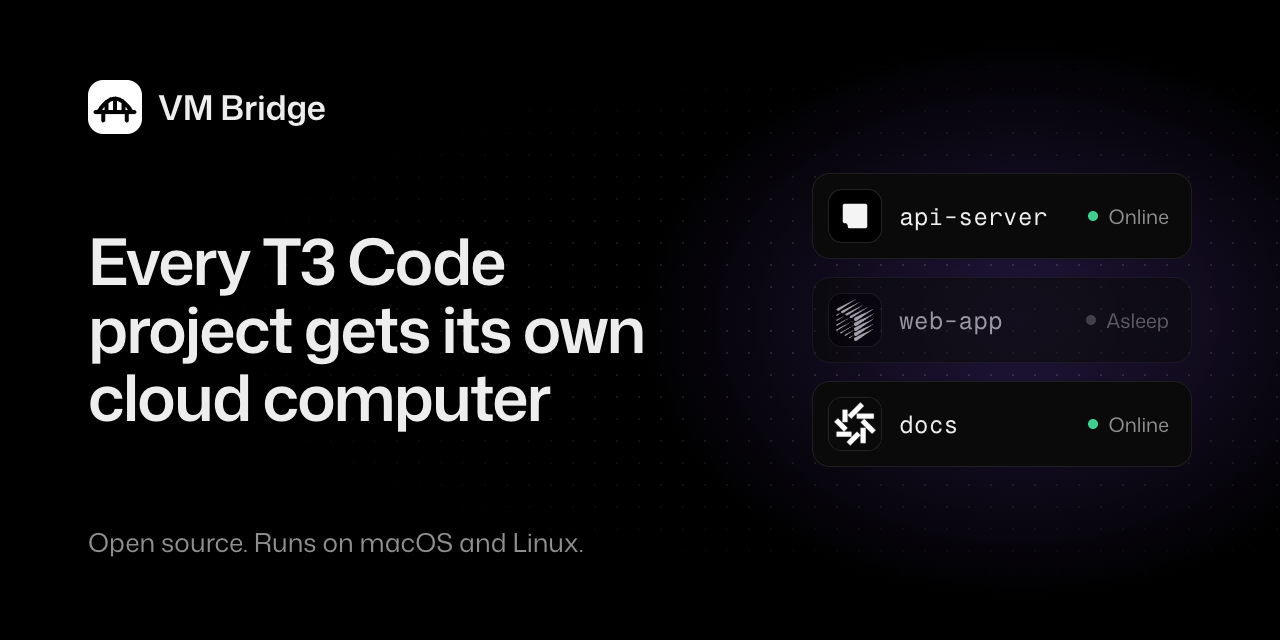
VM Bridge is a free, open source server that runs T3 Code
agents on cloud VMs. Pair T3 Code with it once, and it gives each project its own VM (and more when
the project gets busy), puts idle VMs to sleep and wakes them when you send a message. It runs on macOS and Linux, and you pay only your
cloud provider for the VMs.
Website and docs: vmbridge.ordinity.com
- Use several providers at once: boxd, Instabox, Daytona, Boat, Railway, E2B, Freestyle,
Superserve and Kubi. New VMs go to your default provider, or to the one you pick for a repository. - A VM sleeps when it sits idle and wakes when you send a message. Opening a thread, typing in it,
searching files with @ or attaching a file starts waking its VM, so it is up by the time you send. - Small VMs by default. When a project runs more threads than its VM can take, new threads go to
another VM for that project. - One dashboard, behind a password, for providers, GitHub, agent sign-ins, pairing devices and a
live view of your VMs. - Environment variables you set once reach every VM, for agents and shells.
- Agent skills from skills.sh, from this machine or uploaded in the dashboard
reach every VM, for Claude Code and Codex. - Your global
AGENTS.mdandCLAUDE.md, pasted in the dashboard or read from this machine, can
follow you to every VM. - Attach images and files to a message in T3 Code, as on a local T3 server. VM Bridge hands them
to the thread's VM. - Thread search and the pull requests list work across your VMs, without waking sleeping ones. The
@ file menu lists a sleeping VM's files while the VM wakes, untracked and unpushed ones included. - Threads on a sleeping VM open, scroll back and copy from their saved history without waking it.
A thread that does wake its VM says so, with how long a wake usually takes. - Set a monthly spending budget: VM Bridge warns at 80% and can pause new VMs and wakes at 100%.
- The dashboard warns when a device keeps failing to connect, logs why, and can test each address
the way T3 Code connects. - Opening, renaming, settling, snoozing, pinning, archiving and deleting a thread show at once, and
so do the model and access pickers. None of them waits for a sleeping VM: it gets them when it next
wakes. - Answer an agent's cards in T3 Code: a request for a secret, or an offer to send feedback to the T3
team. Feedback cards are off until you turn them on under Settings, VMs. - Works over Tailscale, Cloudflare Tunnel and, once you turn it on, your local network. Or deploy it
to Cloudflare Workers with one button.
Install
macOS and Linux:
curl -fsSL https://raw.githubusercontent.com/vkpdeveloper/vmbridge/main/install.sh | sh
This installs one vmbridge file in ~/.local/bin (set VMBRIDGE_INSTALL_DIR to change it).
To update, run vmbridge update. It downloads the latest release for this machine, checks it against
the release's SHA256SUMS (and its build attestation too, when the GitHub CLI is installed and signed
in), replaces the installed file and restarts the background service, and devices reconnect on their
own. vmbridge update --check only says whether there is a newer release. The dashboard shows when
one is out. When VM Bridge runs as the background service, its Update button does the same asvmbridge update and reloads the page on the new version. Running the install command again also
updates.
Or run it on Cloudflare, with no machine of your own: see Cloudflare Workers.
Each release file is signed with a build attestation that ties it to the GitHub Actions run and commit that built it. To check an installed file with the GitHub CLI:
gh attestation verify "${VMBRIDGE_INSTALL_DIR:-$HOME/.local/bin}/vmbridge" --repo vkpdeveloper/vmbridge
Get started
- Run
vmbridgeand open one of the setup links it prints. - Choose a dashboard password, add a provider, sign in your agents and choose whether to bring your
skills and instructions. GitHub is under Accounts in the dashboard. - Under Settings, Devices, create a pairing link and paste it into T3 Code as a remote environment.
Start a thread in T3 Code and VM Bridge brings up a VM for it.
Busy projects
New VMs get about 2 vCPU and 8 GB (the closest size each provider has) unless you pick a size in
Settings or for a repository. A project starts on one VM. When you start a new thread, VM Bridge
picks one of the project's VMs that has room: fewer than 2 running turns per vCPU, under 80% of its
memory used and at least 3 GB of disk free. In our tests, 2 turns per vCPU took 1.5x to 2x as long as
one turn alone, 3 per vCPU took 2x, and 4 per vCPU took over 3x, with tests starting to fail.
- An awake VM with room comes first (the least loaded), then a sleeping one, which is woken.
- With no room anywhere, VM Bridge adds a VM like the project's first one, up to 4 per project.
- If the provider refuses a new VM (quota, billing), the thread goes to the least loaded VM, and
its setup shows why it may be slow. VM Bridge tries adding a VM again after 10 minutes. - Threads never move. A thread's worktree, branch and unpushed changes stay on the VM it started on.
Subagents an agent starts run on its VM too. - Extra VMs sleep when idle like any other, and are never deleted on their own, since they may hold
unpushed work. Delete one from the dashboard when you no longer need it. - The project's branch list shows branches from all its VMs, without pushing. A new thread started
from a branch only some VMs have goes to one of those, even a busy one, since a new VM would not have
it. If those VMs are gone, the usual rules apply.
Kubi VMs
A Kubi VM is a whole desktop, and VM Bridge lets you and its agents use it:
- Watch link: every Kubi VM gets a private link that shows its screen live, view-only, in any
browser, with no dashboard login. Copy it, make a new one or turn it off in the VM's details.
Opening it never wakes the VM. - In T3 Code: ask the agent to show its screen and it opens the watch link in T3 Code's browser.
- Browser and desktop tools: Claude Code, Codex and OpenCode get a browser tool attached to the
VM's Chromium and a desktop tool for screenshots, mouse and keyboard, so every step shows on the
screen. - Kubi screen control: add an optional second Kubi key, with only
readandcontrol, in the
provider's settings and agents also get Kubi's own screen-control tools.
How it works: docs/PROVIDERS.md.
Environment variables
Under Settings, Environment, add variables such as NPM_TOKEN or API_URL. Every VM gets
them: T3, the agents and the commands they run, and login or interactive shells such as SSH. Awake
VMs restart T3 to apply a change once nothing runs on them, so a running turn is never cut off.
Sleeping VMs apply it when they wake, before serving anything. Values are stored with your other
secrets and never shown again. To add many at once, paste a .env file or a block ofexport NAME=value lines into the name field, check the list, and save them together. Names VM
Bridge sets itself, such as PATH, HOME, CLAUDE_CONFIG_DIR or GH_TOKEN, are refused.
Skills
Under Skills, press Add skill to install one from skills.sh, or use the This machine tab
to pick ones found in ~/.claude/skills, ~/.agents/skills or ~/.codex/skills. Every VM gets
them for Claude Code and Codex: awake VMs right away, without restarting anything, and sleeping VMs
before they serve anything when they wake. Edits to a local skill reach the VMs within a few
seconds. Removing a skill takes it off every VM, and skills put on a VM some other way are left
alone.
To add a skill that is not on this machine, drop its folder, its SKILL.md or a .zip of it on
the Installed tab, or use Choose folder or Choose file. It needs a SKILL.md at its top,
at most 100 files and 1 MB, and no links. Upload it again to update it.
Switch on Sync all to install every skill on this machine without picking them one by one. New
skills in those folders follow within a few seconds, and a skill deleted here comes off the VMs. When
two folders hold a skill with the same name, the first in the order above wins. Skills over 5 MB are
skipped. Turning it off keeps what it installed until you remove it.
The Instructions tab on the same page takes a pasted AGENTS.md (read by Codex and OpenCode)
and CLAUDE.md (read by Claude Code), and every VM gets them where those agents read them. A pasted
file wins over the agent's file on this machine. Below them it lists each agent's global file found
on this machine,~/.claude/CLAUDE.md for Claude Code, ~/.codex/AGENTS.md for Codex and~/.config/opencode/AGENTS.md for OpenCode ($CLAUDE_CONFIG_DIR, $CODEX_HOME and$XDG_CONFIG_HOME move them). Switch one on and every VM gets it where that agent reads it, the
same way as skills, and edits follow within a few seconds.
Switching it off, or deleting it here, takes it off the VMs. VM Bridge only replaces or removes a
file it wrote: if a VM already has its own, or the file was edited on the VM, it is left alone.
Encryption
VM Bridge encrypts the secrets it saves, by default, with AES-256-GCM: provider keys, the GitHub
token, environment variables for VMs, each VM's T3 token, installed skill files, pasted AGENTS.md
and CLAUDE.md, agent sign-ins and the dashboard password's hash (argon2id).
These are not encrypted, and stay in files only your user can read:
- Chat history: thread transcripts and the copies of them kept while a VM sleeps.
- Messages waiting for a VM to wake.
- What each VM's T3 server last reported, such as its configuration.
- Error messages, the activity log and
vmbridge.log. - Settings, projects, paired devices and usage history.
On first start VM Bridge makes a random key in ~/.vmbridge/encryption.key, readable only by your
user. That file sits next to the database, so anyone with a copy of the whole folder, such as a
backup, can decrypt everything in it. To keep the key apart from your data, setVMBRIDGE_ENCRYPTION_KEY to the key (the file's contents) and move the file out of the folder. On a
new install you can instead set the variable to 32 random bytes in base64
(openssl rand -base64 32), or to a passphrase of at least 32 characters, before the first start.
VM Bridge turns a passphrase into a key the same way every time, here and on Cloudflare.
Back up the key somewhere apart from your data, such as a password manager. VM Bridge will not start
with the wrong key or without its key, so it never overwrites what you saved. If the key is lost, no
one can read those values again: start with a new data folder and add your provider keys, agent
sign-ins, environment variables and GitHub token again.
Updating from a version without encryption encrypts your saved data on first start, so make that
first start without VMBRIDGE_ENCRYPTION_KEY set. After that, older versions can't read it, so
don't go back to one. VM Bridge never saves a secret unencrypted after that start, so it removes any
it finds, with an error in its log.
Addresses
VM Bridge answers on this machine and on Tailscale, whose traffic is already encrypted. It does not
answer on your local network unless you turn that on under Settings, Addresses. The local
network is plain HTTP, so anyone else on the same Wi-Fi could read your password and session as they
pass. The switch takes effect right away, and turning it off also disconnects devices using it.
Tailscale works as soon as it is connected, even if it starts after VM Bridge.
--host (or VMBRIDGE_HOST) makes VM Bridge listen on that one address instead, and the switch
then has no effect. --host 0.0.0.0 listens on every network, like versions before this switch;--host 127.0.0.1 keeps VM Bridge to this machine. A background service installed by an older
version passes --host 0.0.0.0, so run vmbridge service install again to use the switch.
The addresses in Settings, in the links vmbridge run prints and in pairing links are the ones VM
Bridge answers on right now.
Cloudflare Tunnel
Cloudflare Tunnel gives VM Bridge an HTTPS address on the public internet, without opening a port.
Install Cloudflare's free cloudflared tool (brew install cloudflared) and a switch shows up under
Settings, Addresses. It is off until you turn it on, because anyone on the internet can then
reach your login page. Your dashboard password, pairing links and the one-time setup link still
protect everything behind it. Its address then shows with the others: in Settings, in the linksvmbridge run prints and in pairing links.
- Free address: leave the domain empty. You get a random trycloudflare.com address, no account
needed, and it changes every time VM Bridge restarts. - Your own domain: run
cloudflared tunnel loginonce, then type a hostname such asbridge.example.comon a domain in your Cloudflare account. VM Bridge makes a tunnel namedvmbridge-plus the first 8 characters of its ID and adds the DNS record. It never replaces a
record you already have. - Dashboard tunnel: make a tunnel in the Cloudflare dashboard, paste its token and type the
hostname you gave it there. The token is kept with your other secrets.
cloudflared connects to VM Bridge on a port of its own on this machine, picked the first time you
turn the tunnel on and kept after that. Settings shows it: point a dashboard tunnel's hostname athttp://localhost: plus that port. If another app takes the port, VM Bridge picks a new one, and you
update the dashboard tunnel to match. The tunnel's config and credentials live in~/.vmbridge/cloudflared.
- Free addresses cannot stream live updates, so the dashboard refreshes every 5 seconds there.
- VM Bridge only believes the visitor address and HTTPS details Cloudflare adds when they arrive on
the tunnel's port from this machine, so failed logins are counted per visitor. - While it is on, the tunnel starts and stops with VM Bridge, including when you close its terminal.
If cloudflared stops on its own, VM Bridge starts it again after a second, waiting longer after
each failure, up to a minute. Its warnings and errors go to the VM Bridge log with tokens hidden.
Cloudflare Workers
The button copies VM Bridge to your GitHub account and runs it on your Cloudflare account. The free
Workers plan is usually enough: VM Bridge uses most of its daily Durable Object time, so an account
with other busy Durable Objects needs Workers Paid ($5 a month). It asks for two secrets:
VMBRIDGE_PASSWORD: the dashboard password, at least 12 characters.VMBRIDGE_ENCRYPTION_KEY: the output ofopenssl rand -base64 32, or a passphrase of at least 32
characters. Keep a copy. Without it no one can read your saved keys and sign-ins.
Then open the Worker's address and log in. Pair T3 Code with the same address. There is no setup
link, local network, Tailscale or tunnel to set up: the Worker's workers.dev address (or a domain
you add to it) is the only one. To change the password, change the secret under the Worker's
Settings in Cloudflare; that also logs everyone out.
There is no machine to read skills or AGENTS.md from, so upload skills and paste instructions under
Skills. How it works, limits and costs: docs/cloudflare.md.
The Worker deploys from your copy on GitHub, so it updates when that copy gets a new release. The
dashboard shows when one is out, with the commands under How to update. See
Updating.
Commands
vmbridge [run] [--host <address>] [--port 3774]   Start in this terminal
vmbridge stop                                     Stop, including the background service
vmbridge update [--check]                         Install the latest release and restart
vmbridge service install [--host] [--port]        Run in the background at login
vmbridge service uninstall                        Remove the background service
vmbridge password                                 Set a new dashboard password
Starting VM Bridge while another one is running stops the old one first, so a restart never leaves
old code serving. The background service is the exception: vmbridge then shows its addresses and
leaves it running, so closing the terminal never stops VM Bridge.
Your data lives in ~/.vmbridge. Set VMBRIDGE_HOME to keep it somewhere else. On a machine with
no terminal, set VMBRIDGE_PASSWORD for the first start, or run vmbridge password.
The dashboard only answers on this machine's own addresses: IP addresses, localhost, its hostname,
its Tailscale names and the Cloudflare Tunnel's hostname, so another website can't point a name of
its own at VM Bridge and talk to it from your browser. To open the dashboard on another name, such as
a reverse proxy's domain, list it in VMBRIDGE_ALLOWED_HOSTS, separated by commas. T3 apps connect
on any name.
Sizes, sleep behaviour and notes for each provider: docs/PROVIDERS.md.
License
Yorumlar (0)
Yorum birakmak icin giris yap.
Yorum birakSonuc bulunamadi