Codeep
Health Pass
- License — License: Apache-2.0
- Description — Repository has a description
- Active repo — Last push 0 days ago
- Community trust — 17 GitHub stars
Code Fail
- process.env — Environment variable access in bin/codeep.js
- fs module — File system access in scripts/fix-imports.js
- execSync — Synchronous shell command execution in scripts/release.js
- spawnSync — Synchronous process spawning in src/acp/commands.ts
- process.env — Environment variable access in src/acp/commands.ts
- process.env — Environment variable access in src/acp/server.ts
Permissions Pass
- Permissions — No dangerous permissions requested
No AI report is available for this listing yet.
An autonomous AI agent that reads your whole project, runs commands, and writes & verifies code on its own — going deeper than autocomplete. Bring any model, hosted or local.
Codeep

Deep into Code.
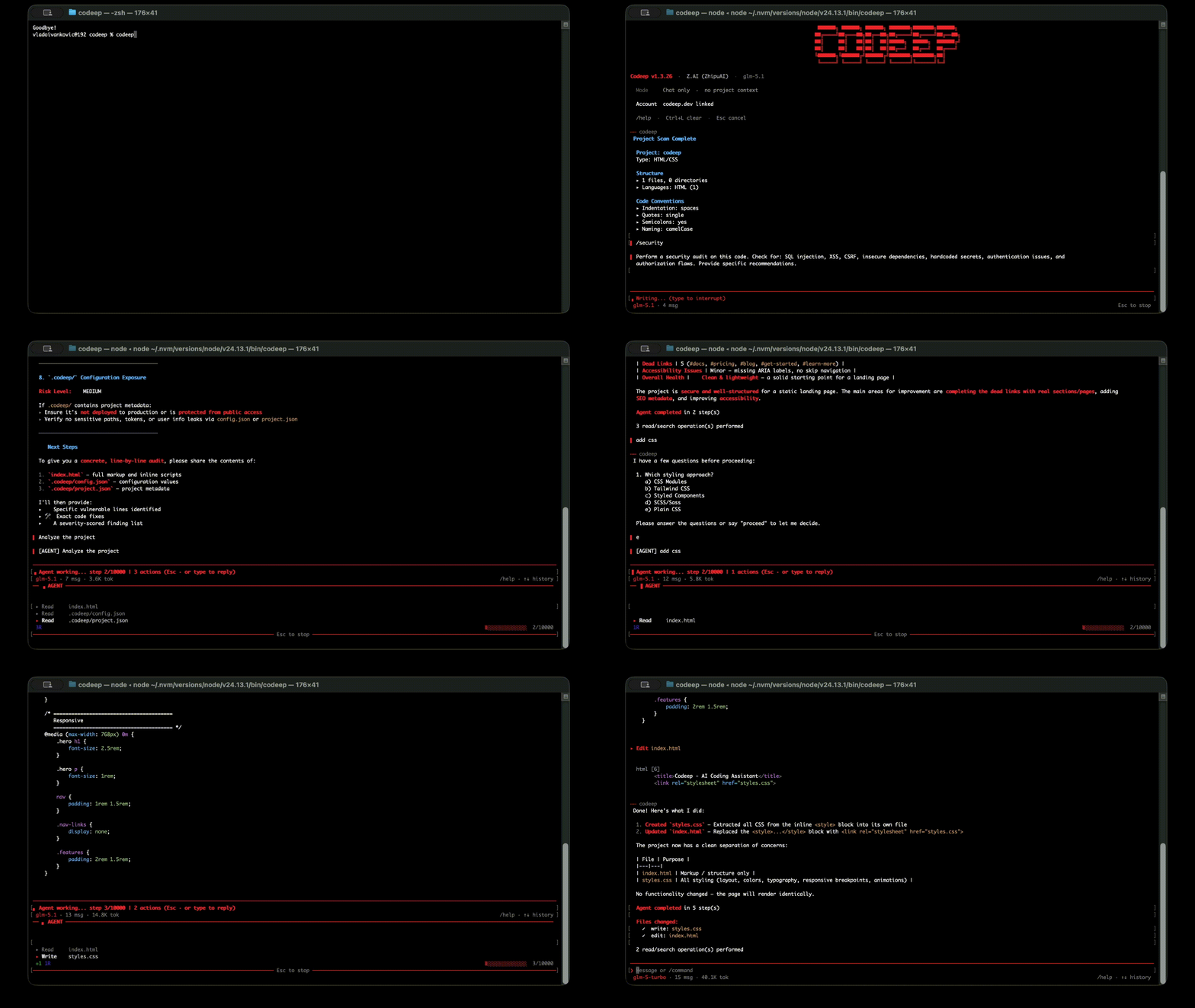
Autonomous AI coding agent that reads your project, runs commands, and writes & verifies code — deeper than autocomplete. Any model (Claude, Gemini, DeepSeek, GLM, OpenAI, or your own local/custom), in the terminal and your editor.




Upgrading from 1.x to 2.0
Most users do not need to do anything — npm install -g codeep@latest
picks up the new version and everything carries over (config, saved
profiles, project memory, MCP servers, skill bundles).
Two breaking changes only affect a small audience:
- MCP
clientInfoversion bumped from1.4.0→2.0.0. If you
maintain a custom MCP server that allowlists Codeep by version
string, update your check. McpServerprotocol shape in ACP now hascommand?,args?,url?,headers?(transport-agnostic for stdio + Streamable HTTP).
The old required-commandshape is still accepted — parser handles
both — but new clients should emit the optional shape.
See CHANGELOG.md for the full list of
additions (full MCP support, OpenRouter provider with authoritative
per-call cost, Claude-Code-compatible skill bundles + web marketplace,
custom slash commands, lifecycle hooks, checkpoints, /cost,/compact, and more).
Features
Multi-Provider Support
- Z.AI (ZhipuAI) — GLM-5.1, GLM-5, GLM-5 Turbo, GLM-4.5 Air — Coding Plan & pay-per-use API (international & China)
- OpenAI — GPT-5.5, GPT-5.4, GPT-5.4 Mini, GPT-5.4 Nano
- Anthropic — Claude Opus 4.7, Claude Opus 4.6, Claude Sonnet 4.6, Claude Haiku 4.5
- DeepSeek — DeepSeek V4 Pro, DeepSeek V4 Flash
- Google AI — Gemini 3.1 Pro Preview, Gemini 3 Flash Preview, Gemini 2.5 Pro, Gemini 2.5 Flash
- MiniMax — MiniMax M2.7, M2.5, M2.1, M2 — Coding Plan & pay-per-use API (international & China)
- Ollama — Run any model locally or on a remote server, no API key required. Models are fetched dynamically from your Ollama instance.
- OpenRouter — One key, 100+ models from Anthropic, OpenAI, Google, Meta, Mistral, DeepSeek, Qwen, xAI and more. Per-call cost reported directly by OpenRouter (matches their dashboard exactly). Use
openrouter/autoto let OpenRouter pick the best model. Tune routing with/openrouter prefer|ignore|fallbacks|privacy. - Custom (OpenAI-compatible) — Point Codeep at any self-hosted or proxied OpenAI-compatible endpoint (vLLM, LiteLLM, LM Studio, text-generation-webui). Set the base URL in
/settings→ Custom Base URL (config keycustomBaseUrl, e.g.http://host:8000/v1), then pick your model with/model(fetched from the server's/models). No API key required unless your endpoint enforces one. Theopenaiprovider also honors theOPENAI_BASE_URLenv var for proxies that servegpt-*model names. - Switch between providers with
/provider - Configure different API keys per provider
- Both OpenAI-compatible and Anthropic API protocols supported
Project Context Awareness
When started in a project directory, Codeep automatically:
- Detects project type (Node.js, Python, etc.)
- Reads file paths mentioned in your messages
- Attaches file contents to conversations
- Understands your project structure
- Can suggest and apply code changes (with write permission)
Session Management
- Auto-save - Conversations are automatically saved
- Session picker - Choose which session to continue on startup
- Per-project sessions - Sessions stored in
.codeep/sessions/ - Rename sessions - Give meaningful names with
/rename - AI session titles - Sessions auto-title themselves with an LLM one-liner ("OAuth2 migration for auth module") instead of a truncated first message. This makes one small background API call per session; turn it off with the
autoSessionTitlesetting (/settings) if you prefer zero unsolicited calls - Search current session - Find text in the open conversation with
/search - Cross-session recall -
/recall <query>searches across all saved sessions, ranked by relevance + recency. Add--resumeto load the top match, or--summarizefor an LLM recap of what you accomplished across matches - Export - Save to Markdown, JSON, or plain text
/cost- Per-session token usage and estimated cost (per provider/model)/compact [keepN]- AI-summarize older messages to free up context (keeps last N, default 4)/checkpoint [name]- Snapshot the current session (conversation + provider/model + agent-touched files + git HEAD)/checkpoints- List saved checkpoints for this workspace/rewind <id>- Restore a checkpoint; file rollback is handled via git (hint printed after rewind)
Git Integration
/diff- Review unstaged changes with AI assistance/diff --staged- Review staged changes/commit- Generate conventional commit messages
Code Block Management
- Automatic syntax highlighting for 12+ languages
- Copy code blocks to clipboard with
/copy [n] - Code blocks are numbered for easy reference
Clipboard Paste
/pastecommand - Paste content from clipboard into chat- Type
/pasteand press Enter to read clipboard content - Shows preview with character/line count before sending
- Press Enter to send, Escape to cancel
- Works reliably in all terminals (no Ctrl+V issues)
File Context (/add, /drop)
Explicitly add files to the conversation context:
/add <path>- Add one or more files to context/add(no args) - Show currently added files/drop <path>- Remove a specific file from context/drop(no args) - Remove all files from context
Added files are automatically attached to every message (both chat and agent mode) until dropped. Useful for giving the AI specific files to work with.
> /add src/utils/api.ts src/types/index.ts
Added 2 file(s) to context (2 total)

> refactor the API client to use async/await
# AI sees both files attached to your message

> /drop
Dropped all 2 file(s) from context
Multi-line Input
Write multi-line messages using backslash continuation or /multiline mode:
- Backslash continuation — end a line with
\and press Enter to continue on the next line /multiline— toggle multi-line mode where Enter adds a new line and Esc sends the message
> Write a function that\
  takes two arguments and\
  returns their sum
# Sent as a single 3-line message

> /multiline
Multi-line mode ON — Enter adds line, Esc sends
M> (type freely, Enter = newline, Esc = send)
Autonomous Agent Mode
Codeep works as a full AI coding agent that autonomously:
- Creates, edits, and deletes files
- Executes shell commands (npm, git, build, test, etc.)
- Reads and analyzes your codebase
- Loops until the task is complete
- Reports all actions taken
- Live code display - Shows syntax-highlighted code in chat as it writes/edits files
Auto mode (default): Just describe what you want - no special commands needed:
> add error handling to src/api/index.ts
> run tests and fix any failures
> create a new React component for user settings
Manual mode: Use /agent <task> when you want explicit control.
Note for Ollama users: Agent mode requires a capable model — at least 7B parameters (e.g.
qwen2.5-coder:7b,llama3.1:8b). Smaller models (1–3B) lack the instruction-following capacity for reliable tool use and may produce incorrect output. For small models, set Agent Mode to Manual or Off in/settings.
Agent Tools:
| Tool | Description |
|---|---|
read_file |
Read file contents |
write_file |
Create or overwrite files |
edit_file |
Edit specific text in files |
delete_file |
Delete files or directories |
create_directory |
Create folders |
list_files |
List directory contents |
execute_command |
Run shell commands |
search_code |
Search for patterns in code |
fetch_url |
Fetch content from URLs |
Undo & History
- Undo actions - Revert any file change the agent made
- Session history - View and restore from previous agent sessions
- Action tracking - All file operations are logged for review
Context Persistence
- Save conversations - Continue where you left off
- Per-project context - Each project maintains its own history
- Automatic summarization - When prior history overflows the agent's context budget, the dropped (oldest) messages are condensed into a short recap (decisions, constraints, unfinished threads) instead of being silently truncated — so long sessions don't forget how they started. One cheap LLM call, made only on overflow and cached per session; opt out with
autoSummarizeHistory: false(/settings)
Web & MCP Tools
- Agent can fetch documentation and web content
- Automatic HTML-to-text conversion
- MCP-powered tools (for Z.AI and Z.AI China providers):
web_search— Search the web for current informationweb_reader— Fetch and read any web pagezai_analyze_image— Analyze images via Z.AI Vision (GLM-4V)minimax_understand_image— Analyze images via MiniMax vision
- Image paste — Ctrl+V an image directly into the terminal to send it to a vision model
- MCP tools run as secure sub-processes with structured I/O
Smart Context
Agent automatically gathers relevant files before making changes:
- Analyzes imports and dependencies
- Reads related type definitions
- Understands project structure
- Prevents duplicate code and inconsistencies
Code Review Mode
AI-powered review of your git diff with /review:
- Bugs — logic errors, off-by-one, null/undefined issues
- Security — injection, auth issues, exposed secrets
- Performance — unnecessary loops, memory leaks
- Edge cases — unhandled inputs, missing error handling
- References file names and line numbers from the diff
> /review            # AI review of unstaged changes
> /review --staged   # AI review of staged changes
> /review --static   # Static regex analysis with score (0-100)
If there are no git changes, falls back to static analysis automatically.
Interactive Mode
Agent asks clarifying questions when tasks are ambiguous:
You: "add authentication"
Agent: "What type of authentication do you want?
        a) JWT tokens
        b) Session-based
        c) OAuth (Google/GitHub)"
Diff Preview
See exactly what will change before applying:
- const user = getUser();
+ const user = await getUser();
Learning Mode
Agent learns your coding preferences:
- Indentation style (tabs/spaces)
- Quote style (single/double)
- Naming conventions
- Preferred libraries
- Custom rules you define
Project Rules
Define project-specific instructions that the AI always follows. Create a rules file in your project root:
.codeep/rules.md- Primary location (inside.codeep/folder)CODEEP.md- Alternative location (project root, similar toCLAUDE.mdor.cursorrules)
The rules file content is automatically included in every system prompt — both chat and agent mode. Use it to define:
- Coding standards and conventions
- Preferred libraries and frameworks
- Architecture guidelines
- Language-specific instructions
- Any custom rules for AI behavior in your project
Example .codeep/rules.md:
## Code Style
- Use 2 spaces for indentation
- Prefer arrow functions
- Always use TypeScript strict mode

## Architecture
- Follow MVC pattern
- Keep controllers thin, logic in services
- All API responses use the ApiResponse wrapper

## Libraries
- Use Zod for validation
- Use date-fns instead of moment.js
Rules are loaded automatically when Codeep starts — no commands needed.
Skills System
Predefined workflows for common development tasks. Execute with a single command:
/commit      - Generate commit message and commit
/test        - Generate tests for current code
/docs        - Add documentation to code
/refactor    - Improve code quality
/fix         - Debug and fix issues
/component   - Generate React/Vue component
/docker      - Generate Dockerfile
50+ Built-in Skills:
| Category | Skills |
|---|---|
| Git | /commit (/c), /amend, /push (/p), /pull, /pr, /changelog, /branch, /stash, /unstash |
| Testing | /test (/t), /test-fix, /coverage, /e2e, /mock |
| Documentation | /docs (/d), /readme, /explain (/e), /api-docs, /translate |
| Refactoring | /refactor (/r), /types, /optimize (/o), /cleanup, /modernize, /migrate, /split, /rename |
| Debugging | /debug (/b), /fix (/f), /security, /profile, /log |
| Deployment | /build, /deploy, /release, /publish |
| Code Generation | /component, /api, /model, /hook, /service, /page, /form, /crud |
| DevOps | /docker, /ci, /env, /k8s, /terraform, /nginx, /monitor |
Shortcuts: Many skills have single-letter shortcuts (shown in parentheses).
Skill Parameters: Many skills accept parameters:
/component UserCard              # Generate component named UserCard
/api users method=POST           # Generate POST endpoint for users
/migrate "React 18"              # Migrate to React 18
/model User fields=name,email    # Generate User model with fields
Skill Chaining: Run multiple skills in sequence with +:
/commit+push          # Commit then push
/test+commit+push     # Test, commit if pass, then push
/build+deploy         # Build then deploy
Search Skills:
/skills docker        # Find skills related to docker
/skills testing       # Find testing-related skills
Custom Skills: Create your own skills:
/skill create my-workflow        # Creates template in ~/.codeep/skills/
/skill delete my-workflow        # Delete custom skill
/skill help commit               # Show skill details
Custom skill example (~/.codeep/skills/my-workflow.json):
{
  "name": "my-workflow",
  "description": "My custom workflow",
  "shortcut": "m",
  "parameters": [
    { "name": "target", "description": "Target environment", "required": true }
  ],
  "steps": [
    { "type": "command", "content": "npm run build" },
    { "type": "confirm", "content": "Deploy to ${target}?" },
    { "type": "agent", "content": "Deploy the application to ${target}" },
    { "type": "notify", "content": "Deployed to ${target}!" }
  ]
}
MCP (Model Context Protocol)
Full spec coverage in 2.0.0 — stdio and Streamable HTTP transports,
tools / resources / prompts / sampling, capability negotiation withroots, auto-restart on crash, mid-run catalog refresh.
Three ways to wire MCP servers (all merge; project > global > ACP wins last):
- Project config —
.codeep/mcp_servers.json(committed with the repo) - Global config —
~/.codeep/mcp_servers.json(per machine) - ACP client config — Zed / Claude Desktop pass
mcpServersonsession/new
Two transports per entry, mutually exclusive:
{
  "mcpServers": {
    "fs":     { "command": "npx", "args": ["@modelcontextprotocol/server-filesystem", "/path"] },
    "remote": { "url": "https://mcp.example.com/", "headers": { "Authorization": "Bearer …" } }
  }
}
Manage interactively from any Codeep client:
/mcp                            # list connected servers + tools + spawn errors
/mcp browse                     # 12 curated servers (filesystem, github, postgres, …)
/mcp browse <id>                # details + env-var hints for one entry
/mcp install <id> [extra args]  # wires it into project config + spawns
/mcp add <name> <command> [args]
/mcp remove <name>
/mcp reload                     # re-read config after a manual edit
/mcp resources                  # list resources servers expose
/mcp read <uri>                 # fetch one resource's contents
/mcp prompts                    # list prompt templates
/mcp prompt <server> <name> key=val
Resources and prompts also surface as virtual tools the agent can
call natively — <server>__resource_list, <server>__resource_read,<server>__prompt_list, <server>__prompt_get. No need to type/mcp read yourself; the model decides when to fetch.
If a server opts into the sampling capability, Codeep hosts LLM
completions on its behalf — routes through your active provider. If it
opts into roots/list, we expose the current workspace folder.
In the VS Code extension, the same operations are available from the
command palette (no JSON editing required):
- Codeep: Add MCP Server… — wizard that writes to project or global config
- Codeep: Remove MCP Server… — quick-pick from both scopes
- Codeep: Open MCP Servers Config — opens the JSON file directly
Each server is spawned as a child process; its tools are surfaced under<server>__<tool>. MCP tool definitions are automatically injected into
the agent's tool catalog on each iteration, so the model picks them
alongside built-ins without you having to mention them by name.
Lifecycle is per-session: servers are torn down when the session is
deleted or the CLI exits (SIGTERM/SIGINT). The VS Code extension and the
direct codeep CLI both read the same config files, so a server you
configure once is available everywhere.
A server that crashes is auto-restarted (up to 3 times in a 60 s window,
with exponential backoff). Persistent failures are reported in /mcp so
you don't have to hunt through stderr. The roots capability is
advertised in the MCP handshake, so filesystem-shaped servers can
scope their reads to the current workspace.
Hooks apply to MCP tools too: pre_tool_call can block a <server>__<tool>
call, and on_error fires when it fails. See Lifecycle Hooks below.
Lifecycle Hooks
Drop executable shell scripts in .codeep/hooks/<event>.sh and Codeep runs them at
the relevant moment during a session. Generalises what agentAutoCommit andagentAutoVerify do — anything those can do, a post_edit hook can do too.
| Event | When | Blocking? |
|---|---|---|
pre_tool_call |
Before every agent tool call (including MCP <server>__<tool>) |
Yes — non-zero exit blocks the call |
post_edit |
After write_file / edit_file succeeds (built-in only) |
No (advisory: auto-format / auto-lint) |
on_error |
When any tool call fails (built-in or MCP) | No (logging / alerting) |
pre_commit |
Before the /commit skill stages anything |
Yes — non-zero exit blocks the commit |
pre_tool_call and on_error apply uniformly to built-in tools (read_file,execute_command, …) and MCP tools (fs__read_file, gh__create_issue, …).
A policy script can therefore allow-list or deny MCP calls just like any
other agent action.
Each hook receives CODEEP_HOOK_EVENT, CODEEP_WORKSPACE, CODEEP_SESSION_ID,
plus event-specific extras (CODEEP_HOOK_TOOL, CODEEP_HOOK_PARAMS, CODEEP_HOOK_FILE).
Example — auto-format on edit (.codeep/hooks/post_edit.sh):
#!/bin/bash
prettier --write "$CODEEP_HOOK_FILE" 2>/dev/null
Run /hooks to see which hooks are installed in the current workspace.
Trust required (security). Because hooks run arbitrary shell, a freshly
cloned repo's hooks are not run until you approve the workspace. Run/hooks trust to enable them for the current project (revoke with/hooks untrust); /hooks and the welcome banner show the trust state. Your
own projects just need a one-time /hooks trust. Global ~/.codeep/hooks/ are
never run for the same reason.
Skill Bundles (new in 2.0)
Beyond the built-in skills and custom slash commands, Codeep now supports
structured skill bundles — directory-based capability packs the agent
discovers and invokes on its own.
A bundle is a directory .codeep/skills/<name>/SKILL.md (project-scoped)
or ~/.codeep/skills/<name>/SKILL.md (global). The file is Markdown with
a YAML frontmatter header — the format is a superset of Claude Code
skills, so existing skills drop in unchanged:
---
name: deploy-staging
description: Deploy the current branch to staging via npm scripts.
triggers: [deploy, ship, release]
# Optional Codeep-specific extensions:
codeep-min-version: 2.0.0
codeep-requires-mcp: [postgres]
allowed-tools: [read_file, write_file, execute_command]
version: 0.1.0
---

# deploy-staging

Run the test suite, build, then `npm run deploy:staging`. If the build
fails, surface the error and stop — don't deploy a broken build.
The agent gets the bundle catalog injected into its system prompt on
every iteration and can invoke any bundle via the invoke_skill tool:
/skills bundles— list installed bundles/skills create-bundle <name>— scaffold a new project skill/skills show <name>— print the SKILL.md/skills browse [query]— search the public marketplace/skills install <owner>/<slug>— pull from marketplace/skills publish <name> [--public]— share to codeep.dev/skills unpublish <owner>/<slug>— remove your published skill
Web marketplace: publish skills to codeep.dev/skills
as public (browseable by anyone) or private (only you). Manage your published
skills at /dashboard/skills. From the VS Code extension, use the
Codeep: Browse Skill Bundles… / Codeep: Create Skill Bundle… /
Codeep: Open Skills Folder commands.
Custom Slash Commands
Drop a Markdown file in .codeep/commands/<name>.md (project-scoped) or~/.codeep/commands/<name>.md (global, all projects) and Codeep exposes it
as /<name> — in the TUI, Zed, and the VS Code extension. The body becomes
the user prompt; the agent handles it normally.
Example — .codeep/commands/sec-review.md:
---
description: Security review of a file
aliases: [sec, secrev]
---

Please perform a thorough security review of {{args}}. Look for:
- AuthN/AuthZ bypasses, SQL/NoSQL injection, XSS, CSRF
- Path traversal, insecure deserialization
- Hardcoded secrets, race conditions

Report findings ordered by severity.
Then call it as /sec-review src/api/login.ts (or /sec via the alias).
Placeholders (Claude Code-compatible):
{{args}}and$ARGUMENTS— full args string{{arg1}},{{arg2}}… — positional args
Discovery: /commands lists all available templates. Project files shadow
global files with the same name. Aliases also work for autocomplete.
Personalities (/personality, new in 2.0.3)
Swap how the agent talks and what it prioritises mid-conversation:
/personality                  # list available
/personality concise          # short answers, no preamble
/personality security         # treat every input as hostile
/personality senior-reviewer  # push back on shortcuts, name things well
/personality ship-it          # pick first reasonable approach
/personality off              # back to default tone
Six built-in presets: concise, verbose, security, senior-reviewer,junior-mentor, ship-it. The active one persists across sessions
(stored in ~/.codeep/config.json as activePersonality).
Custom personalities — drop a Markdown file in.codeep/personalities/<name>.md (project) or~/.codeep/personalities/<name>.md (global):
# Personality: PR Reviewer

You are reviewing a PR from a junior engineer:
- Cite line numbers for every concern.
- Suggest an alternative, don't just flag the problem.
- Keep tone collaborative, not pedantic.
- End with one thing the author did well.
First # Personality: line is the display name; the rest is appended
to the agent's system prompt verbatim when active. Project shadows
global shadows built-in (by name).
Activity Insights (/insights, new in 2.0.3)
Summarise what the agent has actually done for you over a window — runs,
tool actions, projects touched, most-edited files — sourced from~/.codeep/history/<id>.json (one file per agent run, automatic).
/insights                 # last 7 days (default)
/insights --days 30       # last month
/insights --days 1        # today only
Surfaces (markdown rendered in chat):
- Headline tally: runs · actions · active time · active-days density · avg actions/run
- By project sorted by active time
- Top tools (read_file × 340, write_file × 80, …)
- Most-touched files (with
~prefix for readability) - Recent runs — 10 most recent with project, duration, and the user prompt that started them
Cost / token usage isn't in /insights (it lives in /cost per-session
since the token tracker is in-memory). Insights is history-only.
Project Intelligence (/init, /scan)
Initialize a project and scan it once to cache deep analysis for faster AI responses:
/init          # Initialize project — creates .codeep/ folder
/scan          # Full project scan - analyzes structure, dependencies, patterns
/scan status   # Show last scan info (age, file count, project type)
/scan clear    # Clear cached intelligence
/memory <note>        # Add a custom note to project intelligence
/memory list          # Show all notes with indices
/memory remove <n>    # Remove note by index
/memory clear         # Clear all notes
What gets analyzed and cached:
| Category | Information |
|---|---|
| Structure | File count, directory tree, language distribution (respects .gitignore) |
| Dependencies | Runtime & dev dependencies, detected frameworks |
| Architecture | Patterns (MVC, Component-based), main modules, entry points |
| Scripts | Available npm/composer/make scripts |
| Conventions | Indentation style, quotes, semicolons, naming conventions |
| Testing | Test framework, test directory location |
| DevOps | CI/CD system (GitHub Actions, GitLab CI, CircleCI, Azure, Travis, Jenkins, Drone), containerization (Docker, docker-compose, Kubernetes, Helm), monorepo tooling (Turborepo, Nx, Lerna, pnpm/Yarn workspaces, Rush) |
Benefits:
- AI understands your project deeply without re-analyzing each time
- Faster responses - no need to scan files repeatedly
- Consistent context across sessions
- Framework-aware suggestions (React, Vue, Express, Django, etc.)
You can also add your own notes to the project intelligence with /memory:
/memory Always use pnpm, never npm
/memory Main entry point is src/renderer/main.ts
/memory Database migrations are in db/migrations/
Notes are included in every AI and agent conversation for this project.
Storage: .codeep/intelligence.json (project-local)
Example output:
# Project: my-app
Type: TypeScript/Node.js

## Structure
- 156 files, 24 directories
- Languages: TypeScript React (89), TypeScript (45), JSON (12)
- Main directories: src, components, utils, hooks

## Frameworks
React, Next.js

## Architecture
Patterns: Component-based, File-based routing
Main modules: src, components, hooks, utils

## Available Scripts
- dev: next dev
- build: next build
- test: vitest

## Code Conventions
- Indentation: spaces
- Quotes: single
- Semicolons: no
- Naming: camelCase

## DevOps
- CI/CD: GitHub Actions
- Containerization: Docker, docker-compose
- Monorepo: Turborepo
Self-Verification (Optional)
When enabled in Settings, the agent can automatically verify its changes by running build, tests, or type checking after completing a task. Disabled by default — the agent works freely and you decide when to verify.
Configure in Settings → Agent Auto-Verify:
- Off (default) — no automatic verification
- Build only — checks compilation after changes
- Typecheck only — runs TypeScript/PHP type checking
- Test only — runs test suite after changes
- Build + Typecheck + Test — full verification
If errors are found, the agent tries to fix them automatically (up to 3 attempts, configurable).
Supported project types:
| Language | Build | Test | Type Check |
|---|---|---|---|
| Node.js/TypeScript | npm/yarn/pnpm/bun run build | npm test, vitest, jest | tsc --noEmit |
| Python | - | pytest | - |
| Go | go build | go test | - |
| Rust | cargo build | cargo test | - |
| PHP/Laravel | composer run build | phpunit, artisan test | php -l (syntax) |
Security Features
- API keys stored securely (macOS Keychain / Linux Secret Service)
- Per-project permissions (read-only or read-write)
- Input validation and sanitization
- Configurable rate limiting
- Agent sandboxed to project directory
- Dangerous commands blocked (rm -rf /, sudo, etc.)
- Configurable confirmation per tool — choose which agent actions require approval via
/settings
Codeep Dashboard
Link your CLI to codeep.dev for a personal web dashboard with session stats, project tracking, task management, and API key sync.
codeep account # Opens browser → sign in with GitHub → CLI is linked
Dashboard features
- Usage stats — total sessions, active this week, model/provider breakdown, token usage, estimated cost per model, 30-day trend
- Projects — all projects Codeep was used in, with language tag and git indicator
- Project archiving — hide projects from the list with one click
- Tasks — create/complete bug, feature, and task items from the web or directly from the CLI with
/tasks addand/tasks done - API key sync — store provider keys securely on codeep.dev, sync to any machine in one command
- Personal config sync — personalities and custom slash commands sync across machines; view and prune them on the dashboard
- Connected devices — see all machines linked to your account (hostname, last seen), revoke access per device
API key sync
Add keys once on the dashboard, then sync them to any machine:
codeep account sync   # Pull keys + config from codeep.dev → local
codeep account push   # Push local keys + config → codeep.dev
Keys are encrypted at rest using AES-256-GCM.
Personal config sync
account sync / account push also carry your personalities and custom
slash commands between machines — the Markdown files in~/.codeep/personalities/ and ~/.codeep/commands/:
codeep account push   # Upload local personalities + commands to codeep.dev
codeep account sync   # Download them onto a new machine
Merging is additive — sync only writes files that don't already exist
locally, so it never clobbers a personality or command you've edited on this
machine. View what's synced (and prune stale entries) under Personalities
and Custom commands on the dashboard.
Hooks and MCP server configs are deliberately not synced: hooks run
arbitrary shell, and MCP configs often embed tokens, so both stay local to each
machine.
Tasks
Create, view, and complete tasks directly from the CLI — or manage them on the codeep.dev dashboard:
> /tasks                    # List pending tasks for current project (numbered)
> /tasks add Fix login bug  # Create a new task on the dashboard
> /tasks done 2             # Mark task #2 as done
> /tasks delete 2           # Delete task #2 permanently
Tasks are loaded into the agent context so the AI sees them automatically on the next message.
Installation
Option 1: curl (Quickest)
curl -fsSL https://raw.githubusercontent.com/VladoIvankovic/Codeep/main/install.sh | bash
Custom installation directory:
curl -fsSL https://raw.githubusercontent.com/VladoIvankovic/Codeep/main/install.sh | INSTALL_DIR=~/.local/bin bash
Specific version:
curl -fsSL https://raw.githubusercontent.com/VladoIvankovic/Codeep/main/install.sh | VERSION=1.0.0 bash
Option 2: Homebrew (macOS/Linux)
brew tap VladoIvankovic/codeep
brew install codeep
Update:
brew upgrade codeep
Option 3: npm
npm install -g codeep
Update:
npm update -g codeep
Option 4: Manual Binary
Download the latest binary for your platform from GitHub Releases:
| Platform | Binary |
|---|---|
| macOS Apple Silicon (M1/M2/M3/M4) | codeep-macos-arm64 |
| macOS Intel | codeep-macos-x64 |
| Linux x86_64 | codeep-linux-x64 |
# Example for macOS Apple Silicon:
curl -fsSL https://github.com/VladoIvankovic/Codeep/releases/latest/download/codeep-macos-arm64 -o codeep
chmod +x codeep
sudo mv codeep /usr/local/bin/
Quick Start
# Navigate to your project directory
cd /path/to/your/project

# Start Codeep
codeep

# On first run, enter your API key
# Get one at: https://z.ai/subscribe?ic=NXYNXZOV14
After installation, codeep is available globally in your terminal. Simply run it from any project directory to start coding with AI assistance.
Commands
General
| Command | Description |
|---|---|
/help |
Show help and available commands |
/status |
Show current configuration status |
/version |
Show version and current provider/model |
/update |
Check for updates |
/clear |
Clear chat history and start new session |
/exit or /quit |
Quit application |
AI Configuration
| Command | Description |
|---|---|
/provider |
Switch AI provider |
/model |
Switch AI model |
/model <name> |
Load a saved profile shortcut (e.g. /model fast) |
/protocol |
Switch API protocol (OpenAI/Anthropic) |
/lang |
Set response language (12 languages supported) |
/settings |
Adjust temperature, max tokens, timeout, rate limits |
/profile save <name> |
Save current provider+model as a named profile |
/profile load <name> |
Load a saved profile |
/profile <name> |
Shorthand for /profile load <name> |
/profile list |
List all saved profiles |
/profile delete <name> |
Delete a saved profile |
/cost /stats |
Show session token usage and estimated API cost per model |
Model favorites — save provider+model combos and switch instantly:
> /provider      # switch to z.ai
> /model glm-5.1
> /profile save fast

> /provider      # switch to openai
> /model gpt-4.1
> /profile save work

> /model fast    # instantly switch to z.ai / glm-5.1
> /model work    # instantly switch to openai / gpt-4.1
Session Management
| Command | Description |
|---|---|
/sessions |
List and load saved sessions |
/sessions delete <name> |
Delete a specific session |
/rename <name> |
Rename current session |
/search <term> |
Search through chat history |
/export |
Export chat to MD/JSON/TXT format |
Code & Files
| Command | Description |
|---|---|
/apply |
Apply file changes from AI response |
/copy [n] |
Copy code block to clipboard (n = block number, -1 = last) |
/paste |
Paste content from clipboard into chat |
/add <path> |
Add file(s) to conversation context |
/drop [path] |
Remove file (or all) from context |
/multiline |
Toggle multi-line input mode |
Agent Mode
| Command | Description |
|---|---|
/grant |
Grant write permission for agent (opens permission dialog) |
/agent <task> |
Run agent for a specific task (manual mode) |
/agent-dry <task> |
Preview what agent would do without executing |
/agent-stop |
Stop a running agent |
/undo |
Undo the last agent action |
/undo-all |
Undo all actions from current session |
/history |
Show recent agent sessions |
/changes |
Show all file changes from current session |
/settings |
Configure confirmation mode and which tools require approval |
Confirmation mode (set via /settings → Agent Confirmation):
| Mode | Behavior |
|---|---|
dangerous (default) |
Ask before configurable dangerous tools |
always |
Ask before every action |
never |
Execute without asking |
In dangerous mode, configure which tools require confirmation via /settings:
- Confirm: delete_file — ON by default
- Confirm: execute_command — ON by default
- Confirm: write_file / edit_file — OFF by default
Git Integration
| Command | Description |
|---|---|
/diff |
Review unstaged git changes |
/diff --staged |
Review staged git changes |
/commit |
Generate commit message for staged changes |
/git-commit [msg] |
Commit current changes with message |
/push |
Push to remote repository |
/pull |
Pull from remote repository |
Context Persistence
| Command | Description |
|---|---|
/context-save |
Save current conversation for later |
/context-load |
Load previously saved conversation |
/context-clear |
Clear saved context for this project |
Code Review & Learning
| Command | Description |
|---|---|
/review |
AI code review of unstaged git diff |
/review --staged |
AI code review of staged changes |
/review --static |
Static regex analysis with score (0-100) |
/learn |
Learn preferences from project files |
/learn status |
Show learned preferences |
/learn rule <text> |
Add a custom coding rule |
Project Intelligence
| Command | Description |
|---|---|
/init |
Initialize project (creates .codeep/ folder) |
/scan |
Scan project and cache intelligence for AI |
/scan status |
Show last scan info |
/scan clear |
Clear cached intelligence |
/memory <note> |
Add a custom note to project intelligence |
/memory list |
Show all notes with indices |
/memory remove <n> |
Remove note by index |
/memory clear |
Clear all notes |
/model pull <name> |
Pull an Ollama model (local Ollama only) |
Skills
| Command | Description |
|---|---|
/skills |
List all available skills |
/skills <query> |
Search skills by keyword |
/skills stats |
Show skill usage statistics |
/skill <name> |
Execute a skill (e.g., /skill commit) |
/skill <name> <params> |
Execute skill with parameters |
/skill help <name> |
Show skill details and steps |
/skill create <name> |
Create a new custom skill |
/skill delete <name> |
Delete a custom skill |
/c, /t, /d, etc. |
Skill shortcuts |
/commit+push |
Skill chaining (run multiple skills) |
Cloud Dashboard
| Command | Description |
|---|---|
/tasks |
List pending tasks for current project (numbered) |
/tasks add <title> |
Create a new task on the dashboard |
/tasks done <n> |
Mark task #n as done |
/tasks delete <n> |
Delete task #n permanently |
CLI commands (outside chat):
| Command | Description |
|---|---|
codeep account |
Link CLI to codeep.dev (GitHub OAuth) |
codeep account sync |
Pull API keys + personalities + commands from codeep.dev → local |
codeep account push |
Push local API keys + personalities + commands → codeep.dev |
Authentication
| Command | Description |
|---|---|
/login |
Login with API key |
/logout |
Logout (choose which provider) |
Keyboard Shortcuts
| Key | Action |
|---|---|
Enter |
Submit message |
↑ / ↓ |
Navigate input history (or scroll chat when input is empty) |
Ctrl+L |
Clear chat (same as /clear) |
Ctrl+V |
Paste from clipboard with preview |
Ctrl+A |
Move cursor to beginning of line |
Ctrl+E |
Move cursor to end of line |
Ctrl+U |
Clear input line |
Ctrl+W |
Delete word backward |
Ctrl+K |
Delete to end of line |
Alt+F / Opt+F |
Move cursor forward one word |
Alt+B / Opt+B |
Move cursor backward one word |
Alt+D / Opt+D |
Delete word forward |
PageUp / PageDown |
Scroll chat history (10 lines) |
Mouse Scroll |
Scroll chat history |
Escape |
Cancel current request / Stop agent |
Supported Languages
Codeep can respond in 12 languages:
| Code | Language |
|---|---|
auto |
Auto-detect (matches user's language) |
en |
English |
zh |
Chinese (中文) |
es |
Spanish (Español) |
hi |
Hindi (हिन्दी) |
ar |
Arabic (العربية) |
pt |
Portuguese (Português) |
fr |
French (Français) |
de |
German (Deutsch) |
ja |
Japanese (日本語) |
ru |
Russian (Русский) |
hr |
Croatian (Hrvatski) |
Syntax Highlighting
Code blocks are automatically highlighted for:
- Python
- JavaScript / TypeScript
- Java
- Go
- Rust
- Bash / Shell
- PHP
- HTML / CSS
- SQL
Project Permissions
When you run Codeep in a project directory for the first time:
- Codeep asks for permission to access the project
- You can grant:
- Read-only - AI can see and analyze your code
- Read + Write - AI can also suggest file modifications
- Permissions are saved in
.codeep/config.json
With write access enabled:
- AI can suggest file changes using special code blocks
- You'll be prompted to approve changes with
Y/n - Use
/applyto manually apply changes from the last response
Configuration
Config Locations
| Type | Location |
|---|---|
| Global config | ~/.config/codeep/config.json |
| Project config | .codeep/config.json |
| Global sessions | ~/.codeep/sessions/ |
| Project sessions | .codeep/sessions/ |
| Global logs | ~/.codeep/logs/ |
| Project logs | .codeep/logs/ |
Environment Variables
| Variable | Description |
|---|---|
ZAI_API_KEY |
Z.AI (international) API key |
ZAI_CN_API_KEY |
Z.AI China API key |
OPENAI_API_KEY |
OpenAI API key |
ANTHROPIC_API_KEY |
Anthropic Claude API key |
DEEPSEEK_API_KEY |
DeepSeek API key |
GOOGLE_API_KEY |
Google AI (Gemini) API key |
MINIMAX_API_KEY |
MiniMax (international) API key |
MINIMAX_CN_API_KEY |
MiniMax China API key |
Settings (/settings)
| Setting | Default | Description |
|---|---|---|
| Temperature | 0.7 | Response creativity (0.0 - 2.0) |
| Max Tokens | 8192 | Maximum response length |
| API Timeout | 60000ms | Request timeout |
| API Rate Limit | 30/min | Max API calls per minute |
| Command Rate Limit | 100/min | Max commands per minute |
| Agent Mode | ON | ON = agent runs automatically (requires write permission via /grant), Manual = use /agent |
| Agent API Timeout | 180000ms | Timeout per agent API call (auto-adjusted for complexity) |
| Agent Max Duration | 20 min | Maximum time for agent to run (5-60 min) |
| Agent Max Iterations | 50 | Maximum agent iterations (10-500). Modern models finish typical tasks in 3–8 iterations — raise for large autonomous refactors. |
| Agent Confirmation | Dangerous | Never, Dangerous (default), or Always |
| Agent Auto-Commit | Off | Automatically commit after agent completes |
| Agent Branch | Off | Create new branch for agent commits |
| Agent Auto-Verify | Off | Off, Build only, Typecheck only, Test only, or Build + Typecheck + Test |
| Agent Max Fix Attempts | 1 | Max attempts to auto-fix errors when Auto-Verify is enabled. More than 1 usually means the agent is stuck — bail and let the user decide. |
Usage Examples
Autonomous Coding (Agent Mode ON)
First, grant write permission (required for Agent Mode ON to work):
> /grant
# Opens permission dialog - select "Read + Write" for full agent access
With write access enabled, just describe what you want:
> add input validation to the login form
# Agent reads the file, adds validation, writes changes

> the tests are failing, fix them
# Agent runs tests, analyzes errors, fixes code, re-runs tests

> refactor src/utils to use async/await instead of callbacks
# Agent reads files, refactors each one, verifies changes

> create a new API endpoint for user preferences
# Agent creates route file, adds types, updates index
Code Review
> /diff --staged
# AI reviews your staged changes and provides feedback
Manual Agent Mode
> /agent add a dark mode toggle to settings
# Explicitly runs agent for this task

> /agent-dry reorganize the folder structure
# Shows what agent would do without making changes
Basic Chat (when agent mode is manual or read-only)
> Explain what a closure is in JavaScript
> Look at src/utils/api.ts and explain what it does
Session Management
> /rename feature-auth-implementation
Session renamed to: feature-auth-implementation

> /search authentication
# Find all messages mentioning "authentication"

> /export
# Export chat to markdown file
Architecture
Codeep is built with:
- Custom ANSI Renderer - Hand-built terminal UI with virtual screen buffer, diff-based rendering, and syntax highlighting (no React/Ink dependency)
- TypeScript - Type-safe codebase
- Conf - Configuration management
- Node.js Keychain - Secure credential storage
License
Apache 2.0
Contributing
Contributions are welcome! Please open an issue or submit a pull request on GitHub.
Support
- Issues: GitHub Issues
Zed Editor Integration (ACP)
Codeep supports the Agent Client Protocol (ACP), letting you use it as an AI coding agent directly inside Zed.
Setup
- Install Codeep globally:
npm install -g codeep
- Add to your Zed
settings.json:
"agent_servers": {
  "Codeep": {
    "type": "custom",
    "command": "codeep",
    "args": ["acp"]
  }
}
- Make sure your API key is set in the environment Zed uses:
export DEEPSEEK_API_KEY=your_key # or whichever provider
- Open Zed's AI panel and select Codeep as the agent.
Configurable permissions (Zed & VS Code extension)
Via the agent settings panel you can toggle which tools ask for approval before running — same controls available in the TUI via /settings:
- Confirm: delete_file — ON by default
- Confirm: execute_command — ON by default
- Confirm: write_file / edit_file — OFF by default
These apply in Dangerous confirmation mode (the default). Choose Always to confirm every action, or Never to skip all prompts.
ACP capabilities
Codeep advertises the following ACP capabilities so Zed (and other ACP clients) can use them:
promptCapabilities.image— paste/drag images into chat for vision analysis.promptCapabilities.embeddedContext— drag a file or pin a code selection into the chat and the actual file content is injected into the prompt (resource & resource_link blocks, 200 KB cap per file).sessionCapabilities.list— exposes saved CLI sessions to ACP clients.sessionCapabilities.resume— instant reconnect on panel reload without replaying history.loadSession— restore a previous session by id.
Codeep also reads clientCapabilities.terminal from the client and routes shell commands through the editor's terminal when supported (so you see them in Zed's terminal panel), falling back to local execution otherwise.
Loading CLI sessions in Zed
Zed's left sidebar shows only sessions Zed itself created (one per "New Thread") — it does not auto-list sessions you saved from the CLI or from a previous Zed window. Two ways to access those:
Inside the chat (recommended):
/sessions                    # show all saved sessions for this workspace
/session load <name>         # restore one
When you open a fresh chat in Zed, Codeep also shows you the most recent CLI sessions for that project right in the welcome message, so you can switch with one command.
Via Zed's import modal:
Open Zed's command palette (Cmd+Shift+P) and search for "Import Threads". Codeep's saved sessions appear there as an importable list — once imported they show up in Zed's regular sidebar.
VS Code Extension
Install Codeep from the VS Code marketplace. The extension is a thin UI around the CLI — all credentials and sessions live in the CLI's config (~/.config/codeep/config.json), so keys set anywhere are visible everywhere.
Set API keys without leaving VS Code
Open the Command Palette (Cmd+Shift+P / Ctrl+Shift+P) and run:
Codeep: Set API Key— pick a provider, paste the key, done. Writes into the CLI config, so runningcodeepin a terminal immediately sees the new key.Codeep: Open Chat— open the Codeep sidebar.Codeep: Review Current File— run/review <file>on the active editor.Codeep: New Session— start a fresh session in the chat.
If you already set up keys in the CLI (or via the codeep.dev dashboard + codeep account sync), the extension picks them up automatically on first launch — no welcome prompt.
Live plan & reasoning stream
The chat sidebar now surfaces two extra ACP signals that previously only the TUI saw:
- Live plan — for multi-step tasks the agent's plan appears as a small green card with status icons (
○pending,◐in progress,●done) that update in place as work progresses. - Reasoning stream — when the model exposes a thinking trace (e.g. Claude extended thinking, GPT-5 reasoning), it shows up in a collapsible "Thinking" card above the answer. Closed by default; click to expand.
- Diff preview on permission prompts — manual-mode permission cards now show a
-/+diff foredit_file, a content preview forwrite_file, and the full$ command+cwdforexecute_command, so users can verify before clicking Allow. Payload is truncated (~4 KB per field, 200 lines per file) with a visible marker. Other ACP clients (Zed, etc.) ignore the extra fields silently. @filementions — type@in the chat input to open a workspace-wide file picker. Pick with arrow keys + Enter; the file's content is inlined into the prompt as an[Attached files]preamble. Files over 200 KB are skipped with a marker. Multiple mentions in one message are deduplicated.- Auto-reconnect — if the CLI process exits unexpectedly (crash, OOM kill, parent restart), the extension reconnects on its own with exponential backoff (1s → 2s → 4s → 8s → 16s → 30s, capped at 6 attempts). The status bar shows the countdown. Configurable idle-watchdog timeout (
codeep.requestTimeoutMinutes, default 5 min) replaces the old fixed cap so slow reasoning models don't get killed mid-thought.
Editor-native actions (new in 2.2)
- Code Actions (lightbulb) — select code and press
Ctrl+.for Explain, Improve / refactor, Add tests, and Add doc comment. On a line with an error/warning, a Fix this problem quick-fix sends the diagnostic plus the code to Codeep. Everything routes through the chat, so the full agent (file edits via the diff preview, MCP tools) is available. - Model picker in the status bar — click
Codeep · <model>(or run Codeep: Select Provider & Model) to switch provider + model from a quick-pick. Providers with open-ended catalogs (OpenRouter, Ollama, custom endpoints) let you type a model id. - Self-hosted endpoints from settings — point the extension at vLLM / LiteLLM / LM Studio / text-generation-webui with
codeep.baseUrl(e.g.http://localhost:8000/v1), pluscodeep.provider(customoropenai) andcodeep.model. Thecodeep.provider/codeep.modelsettings are applied on every connect, so they stay authoritative. - Get Started walkthrough — a native VS Code walkthrough (Help → Get Started) covering CLI install, opening the chat, editor actions, and choosing a model.
The 2.2 model picker and
custom-provider settings need CLI 2.1.2+; they degrade gracefully on older CLIs (free-text model input, andcodeep.baseUrlstill works for theopenaiprovider viaOPENAI_BASE_URL).
Native chat & agent integration (new in 2.3)
@codeepchat participant — invoke Codeep from VS Code's built-in Chat view: type@codeepand ask, or@codeep /explain/@codeep /reviewwith a selection. Answers come from your configured Codeep provider/model via the CLI (not VS Code's model picker), on an independent session.#codeepSkillslanguage-model tool — exposes your workspace's Codeep skill bundles (.codeep/skills/*/SKILL.md) to VS Code agent mode and#-references, so the native agent can follow your project's own workflows.- Requires VS Code 1.95+ (for the stable Chat Participant + Language Model Tools APIs).
Source control & sidebar (new in 2.3)
- Generate Commit Message — a sparkle button in the Source Control panel (and
Codeep: Generate Commit Messagein the palette) reads your staged diff and writes a Conventional Commits message into the commit box. Falls back to the working-tree diff if nothing is staged; asks before replacing a message you've already typed. - Sessions tree view — a native Sessions view in the Codeep sidebar lists saved conversations (title + age). Click to load into the chat, inline-delete, or start a New Session from the title bar.
- MCP config validation —
.codeep/mcp_servers.json(project and global) gets JSON schema validation + autocomplete, so a mistypedcommand/args/envis caught before a session starts. - Workspace Trust — declares limited support for untrusted workspaces, with a reminder to review permission prompts carefully (Codeep runs a local agent that can edit files and run commands).
Reviews (0)
Sign in to leave a review.
Leave a reviewNo results found