Clawdmeter
Health Pass
- License — License: MIT
- Description — Repository has a description
- Active repo — Last push 0 days ago
- Community trust — 14 GitHub stars
Code Fail
- rm -rf — Recursive force deletion command in build.sh
- exec() — Shell command execution in packaging/dmg_settings.py
- Hardcoded secret — Potential hardcoded credential in src/app_settings.py
- exec() — Shell command execution in src/macos_launch.py
Permissions Pass
- Permissions — No dangerous permissions requested
No AI report is available for this listing yet.
Cross-platform desktop dashboard for Claude Code usage — Windows, macOS & Linux. Live session & weekly limits with reset countdowns, token counts, and one reactive Clawd mascot per active session. Plus a Stats page valuing your local transcripts against API rates, 16 themes and a custom theme editor. Lives in your tray.
Clawdmeter
Standalone desktop dashboard for Claude Code usage — Windows, macOS and Linux.
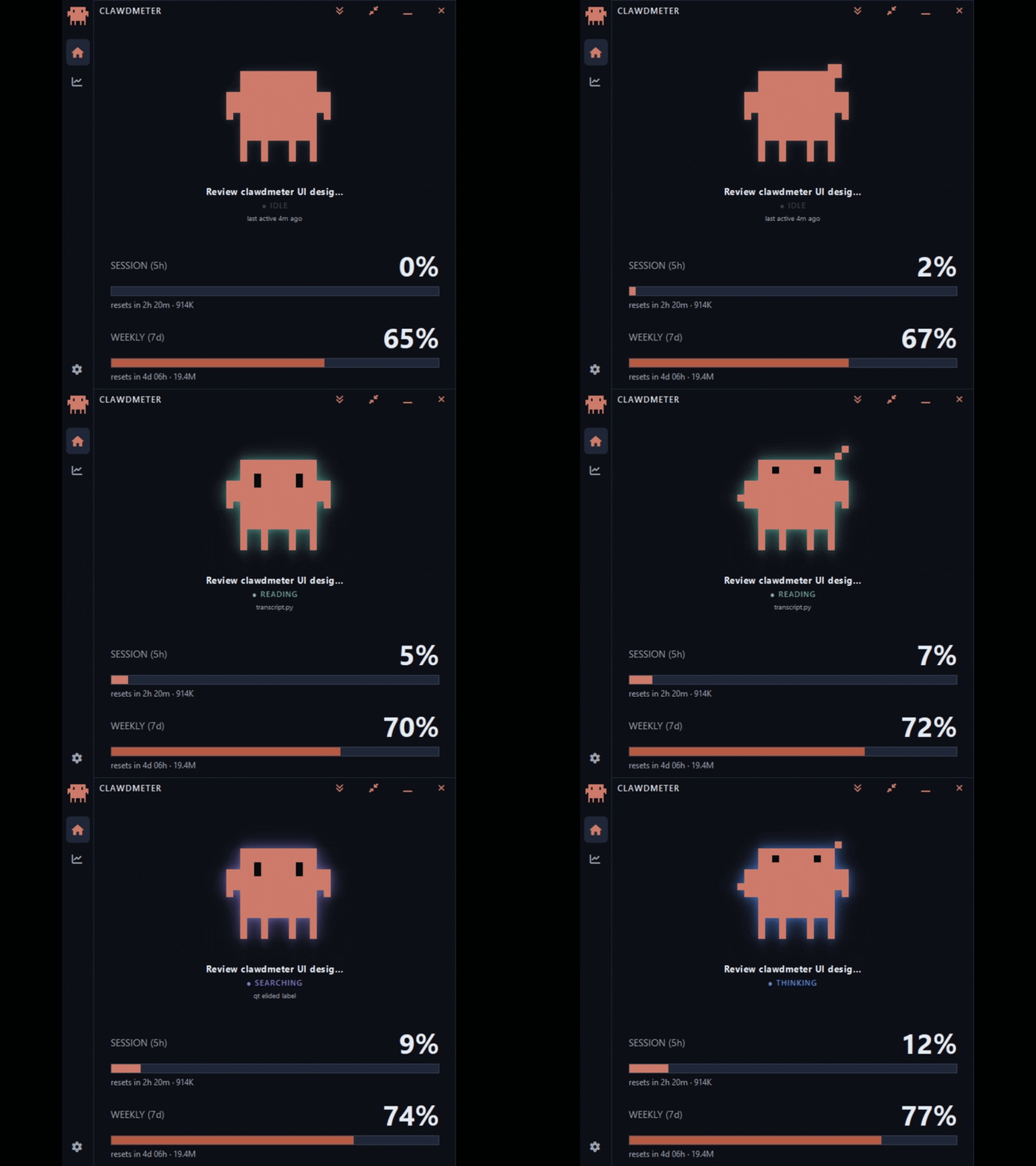
What it shows
- Session (5h) % with reset countdown
- Weekly (7d) % with reset countdown — and a red overage state on either
bar when it climbs past 100% onto usage credits - Token usage for each window (input+output), inline beside the bars and
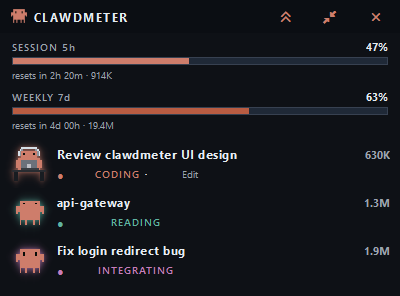
broken down per session - A session shelf — one Clawd mascot per active Claude Code session, each
labeled with its session title and live activity (plus small child mascots for
any subagents it spins up), falling back to a usage-rate mood when nothing's
running - Three view modes — the full dashboard, a slim compact list, and a tiny
always-on-top mini readout - A Stats page — what your subscription is actually worth (value vs price,
lifetime value, cache savings) and how you use Claude (value by model and
project, code by language, activity mix, streaks, a daily-value strip and an
activity heatmap) — all computed locally from your transcripts - A slim navigation rail down the left edge to switch between the
Dashboard, the Stats page, and Settings - Themes — 16 built-in light and dark presets, a follow-your-system mode, or
a custom theme you build yourself with an on-screen eyedropper and a
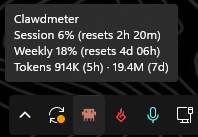
contrast checker - A system-tray icon whose fill arc tracks session % — hover it for a quick
session & weekly readout
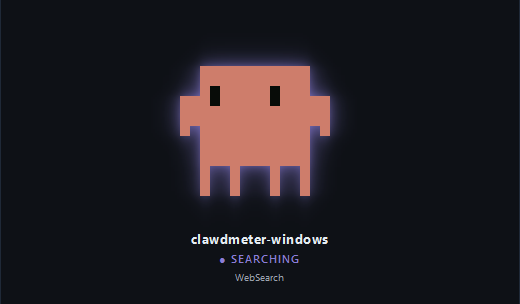
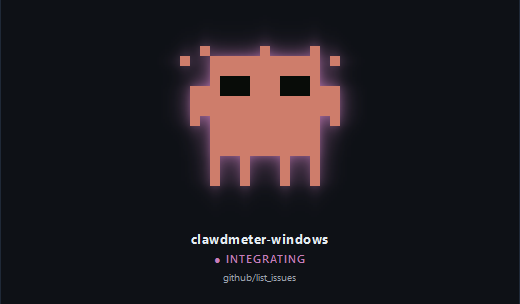
The mascot reacts to what Claude Code is doing
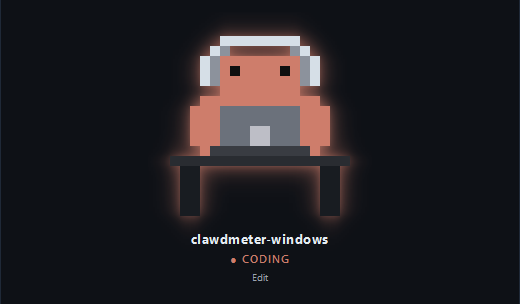
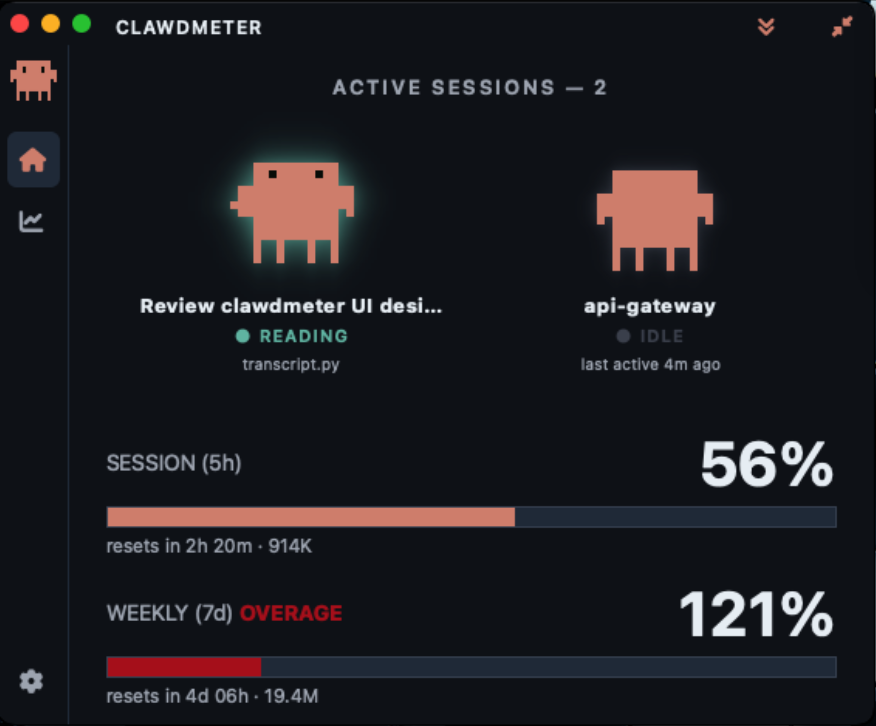
Clawd's animation and the label beneath it follow your live Claude Code session
in near-real-time — read from the local transcript:
 |
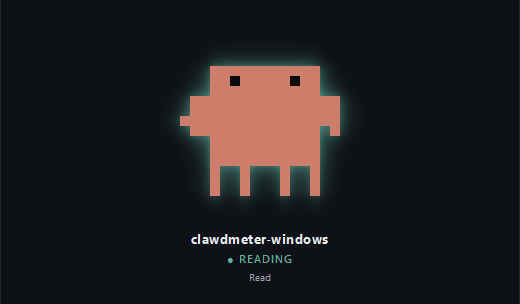 |
| CODING — editing, writing, running commands | READING — reading, grepping, globbing |
 |
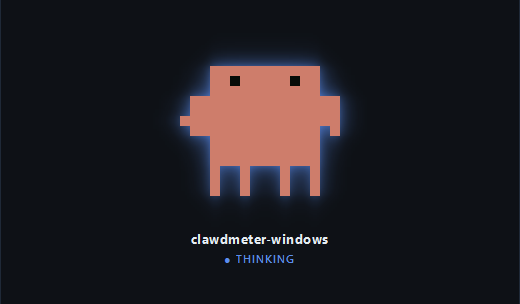 |
| SEARCHING — web fetch / search | THINKING — reasoning between tool calls |
 |
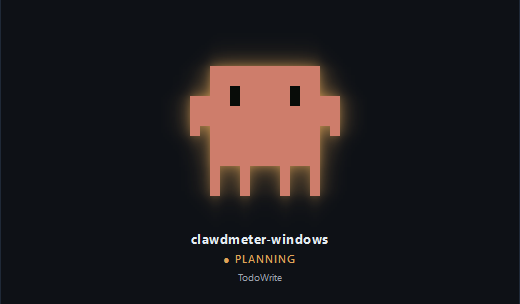 |
| INTEGRATING — MCP server tool | PLANNING — todos, sub-agents & task management |
The small line under the label is what Claude Code is acting on right now —
the file it's editing or reading (transcript.py), the pattern it's grepping,
the command it's running, or the host it's fetching — so you can tell what it's
working on, not just that it's working. When there's no natural target it falls
back to the bare tool name (Edit, Read, …); for an INTEGRATING mood it
names the MCP server and tool it's talking to (e.g. github/list_issues), so you
can tell which integration Claude Code reached for. An idle session's line
instead reads last active …, timed from the session's own last transcript
event rather than the wall clock.
When Claude Code goes quiet, the mascot falls back to a mood driven by your
usage rate — sleepy when you're idle, dancing when you're burning through
tokens (the same 4-group logic as the original firmware).
Multiple sessions
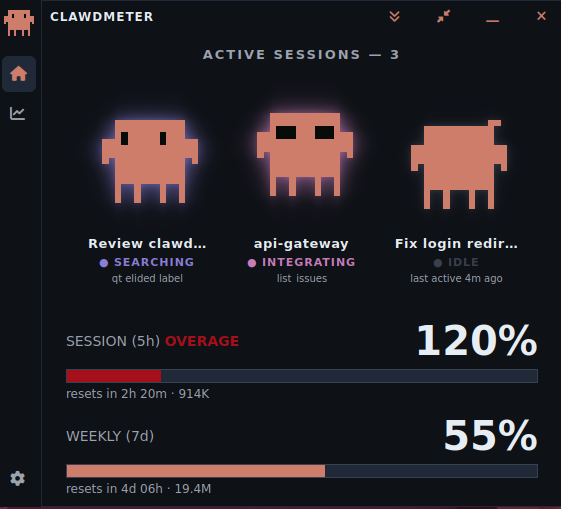
Run more than one Claude Code session at once and each gets its own mascot on the
session shelf — labeled with its session title (the one Claude Code shows
for the conversation, or a custom title you've set, falling back to the project
folder name) and its live activity, animating independently. Long titles are
shortened to fit and scroll into view when you hover the label, with the full
title on the tooltip. The session/weekly usage bars stay account-wide (a single
number from the API), shown once beneath the shelf.
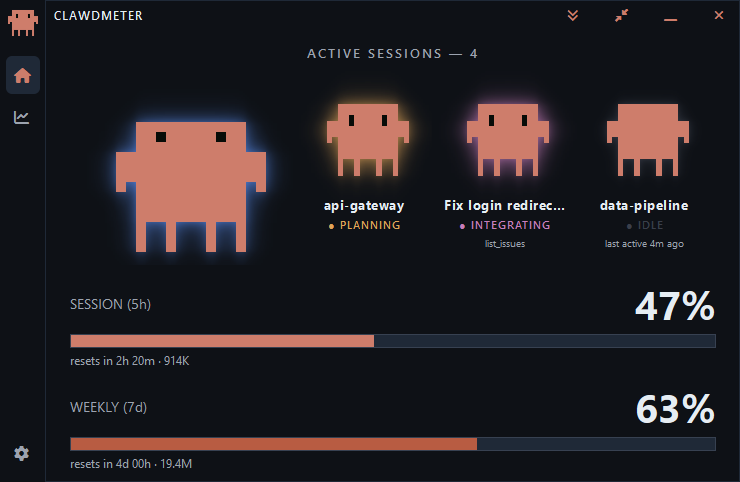
When a session spins up subagents (the Agent/Task tool), a row of small child
mascots appears under that session — one per live agent, each glowing with its
own activity — so a supervising session still looks busy even while its own
transcript is paused waiting on those agents.
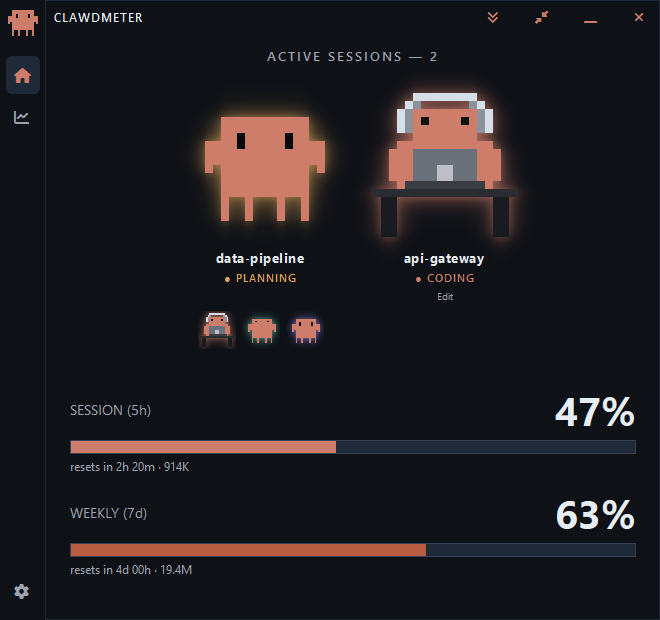
The window sizes itself to fit the mascots, growing and shrinking as sessions
come and go so there's no empty space. Prefer a fixed size? Drag the bottom
edge to set your own height and it sticks; double-click the title bar to
snap back to the automatic fit. (Width is always yours — the shelf scrolls
horizontally when more mascots are open than fit.)
Don't want the shelf? In Settings → Sessions, turn Show multiple sessions
off for a single mascot, and Show subagents off to hide the child mascots.
Token usage
Alongside the percentages, Clawdmeter shows how many tokens you've actually
used — read straight from your local Claude Code transcripts, no extra API
calls. The headline figure is input + output (the cache reads that dominate
raw totals are kept out of it, so the number reflects real work):
- Beside the bars — the 5h total rides the Session reset line and the 7d
total rides the Weekly line (e.g.resets in 2h 20m · 914K). - Per session — each mascot's tile carries that session's running total;
hover the mascot for a full breakdown (input, output, and the cache buckets). - In the tray tooltip — a
Tokens 914K (5h) · 19.4M (7d)line under the
usage readout.
It's all behind one switch — Settings → Token usage → Show token usage (on
by default). Turn it off and every token figure disappears.
Stats
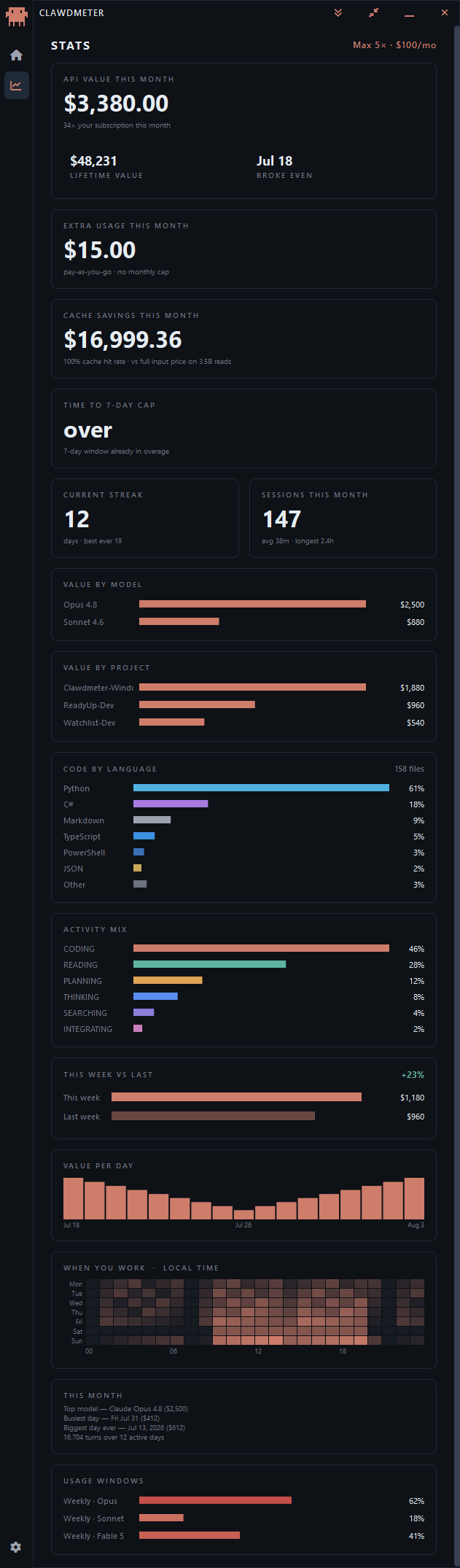
The chart icon in the left nav rail opens a Stats page that turns the usage
you've already racked up into a picture of what your Claude Code subscription is
actually worth. The dollar figures are computed locally — your transcripts
priced against a bundled rate card — enriched with Anthropic's OAuth usage
endpoint for real spend and plan details. Every visual is hand-drawn, so the
page adds nothing to the download size.
A plan badge (e.g. Max 5× · $100/mo) sits at the top, and below it:
- API value this month — what this month's usage would cost at
pay-as-you-go API rates, measured against your subscription price (e.g. "≈ 33×
your subscription this month"), with lifetime value and the break-even
day (when the month's value first passed what you pay) grouped alongside. - Extra usage this month — real pay-as-you-go spend beyond your plan, from
the usage endpoint, against your monthly cap if you have one. - Cache savings this month — dollars saved by prompt caching vs paying full
input price, plus your cache hit rate. - Time to 7-day cap — a burn-rate estimate of when you'd hit the weekly limit
at your current pace (or "steady" / "clear" when you're not on track to). - Current streak and sessions this month — your active-day streak (and
best ever), and how many work sessions you've had (with average and longest). - Value by model and value by project — where that value came from,
broken down by model and by project folder. - Code by language — the languages of the files Claude edited or created this
month, by share of files (Python, C#, TypeScript, … with an Other roll-up). - Activity mix — how your tool calls split across coding, reading, planning,
thinking, searching and integrating. - This week vs last — this week's value against last week's, with the change.
- Value per day — a per-day value bar strip across the month, with date ticks.
- When you work — a 7×24 weekday-by-hour heatmap of your activity.
- a this-month recap — top model, busiest day, biggest day ever, and totals.
- Usage windows — the per-model rate-limit windows the API reports (e.g.
Weekly · Opus), kept at the very bottom. The overall 5h/7d windows aren't
repeated here; they live on the Dashboard.
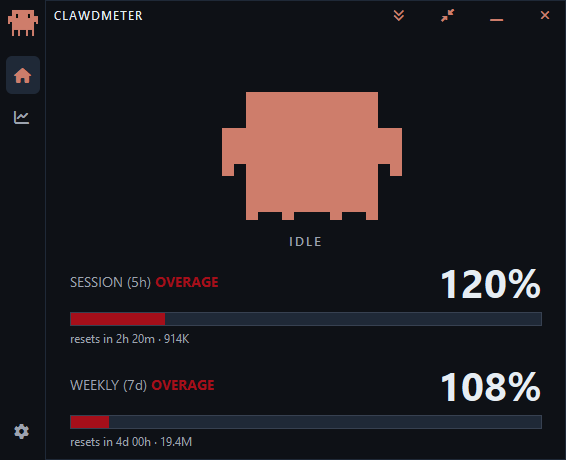
Overage
Go past a limit and keep working on paid usage credits, and that window's bar
switches to overage: it empties its normal fill and restarts in red, growing
from the left by how far past 100% you are, while the percentage keeps climbing —
so 20% over reads 120% — and a red OVERAGE tag joins the title. It works
on both the Session (5h) and Weekly (7d) bars — whichever window you actually
blew through — and clears itself the moment you drop back under 100%.
View modes
Clawdmeter comes in three sizes and remembers which one you left it in across
launches. Two controls in the title bar switch between them: a square-caret
toggle flips between the full dashboard and the compact list, and a mini
button drops to the tiny readout (from there, double-click — or right-click →
Expand — to pop back to whichever view you came from).
Compact is a slim, always-on-top list — the two usage bars on top, then one
row per session: mascot, title, token total, and live activity + target — so you
can keep tabs on several sessions in a fraction of the height.
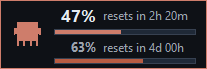
Mini shrinks all the way to a frameless, always-on-top chip — the mini mascot
beside your session and weekly percentages, each with a thin usage bar and its
reset time (and the same red overage restart past 100%). It keeps no taskbar
entry and is draggable (it remembers where you left it).
Themes
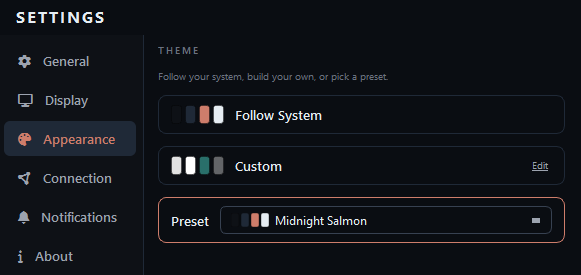
Settings → Appearance. Follow your system, pick a preset, or build your own —
the whole app restyles live, with no restart.
Follow your system tracks the OS light/dark setting and switches between two
themes you choose: Midnight Salmon for dark and Daybreak for light by
default, though any two presets will do.
16 presets, nine dark and seven light:
| Dark | Light |
|---|---|
| Midnight Salmon (default), Obsidian, High Contrast, Nord, Dracula, Gruvbox, Terminal Green, Amber CRT, Riptide | Daybreak, Sepia, Solarized Light, Nord Light, Gruvbox Light, High Contrast Light, Riptide Light |
Build your own opens a custom-theme editor over eight base roles —
Background, Surface / cards, Borders, Text, Accent,
Warning, Danger and Positive. Every other shade in the app is derived
from those eight, so you set a handful of colours rather than dozens.
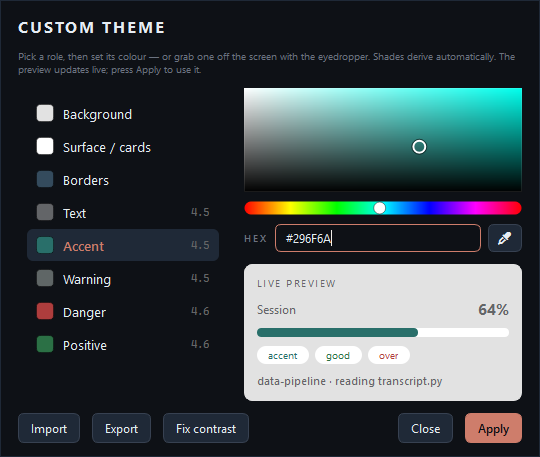
- Pick a role, then set its colour on the picker or type a hex value.
- Or grab a colour from anywhere on your screen with the eyedropper —
the whole desktop freezes and any pixel becomes the new value (on macOS this
is Apple's own system colour sampler). - Each role shows its live contrast ratio against the background as you go,
so you can see a problem before you commit it. - Fix contrast nudges the foreground roles until each clears WCAG AA
(4.5:1) — so a theme you invented is still readable. - The preview updates live; Apply commits it.
- Import and Export move a theme between machines, or share one.
Settings
Open Settings from the gear at the bottom of the left nav rail — it's a
full page in the same window, alongside the Dashboard and Stats, split across
six tabs that each scroll on their own. Here's every setting, grouped by tab.
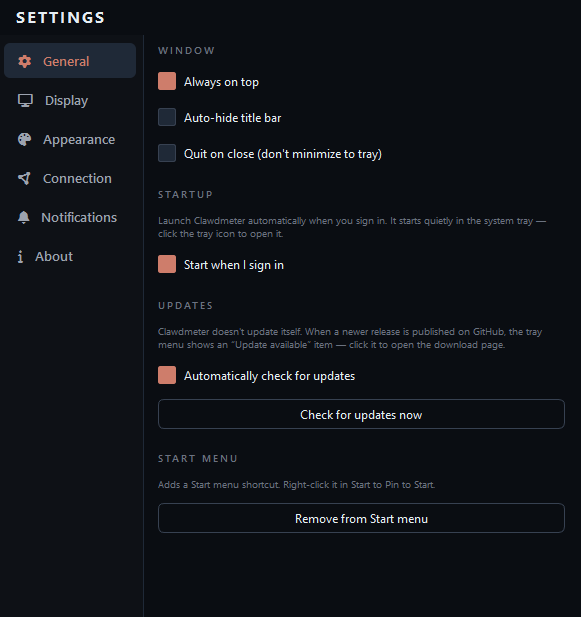
General
- Window — toggle Always on top, Auto-hide title bar (the title bar
collapses until you hover the top edge), and Quit on close (closes the app
instead of minimizing to the tray). Always on top is greyed out on
Wayland — see Linux notes. - Startup — Start when I sign in launches Clawdmeter automatically at
sign-in. It comes up quietly in the system tray (the menu bar on macOS), with
no window — click the icon to open it. On a Linux desktop with no system
tray at all there would be nothing to click, so it opens the window instead;
because a desktop's panel can still be starting up at login, it waits a few
seconds for a tray to appear before deciding. - Updates — Automatically check for updates (on by default — checks the
GitHub releases on launch, then about once a day) and Check for updates now. - Start menu — add or remove a Start-menu shortcut (right-click it in Start
to pin).
Display
- Sessions — Show multiple sessions (the session shelf; off shows a single
mascot for the most recent session) and Show subagents (the child mascots).
Both on by default. - Token usage — Show token usage toggles every token figure (the totals
beside the bars, the per-session tiles and hover breakdown, and the tray line).
On by default; read from your local transcripts, never the API.
Appearance
- Theme — follow your system, pick one of the 16 built-in presets, or build
your own. See Themes for the full list and the custom editor.
Connection
- Credentials — by default the app reads
~/.claude/.credentials.json. Use
Use alternative credentials (or setCLAUDE_CREDENTIALS_PATH) to point at
a non-default.credentials.json. - Token — Claude's OAuth access token expires roughly every 8 hours, which
would otherwise blank the dashboard. With Auto-refresh when expired on (the
default), the app mints a fresh token automatically so it stays live. The
Refresh token now button is a manual override, enabled only when the token
is actually expired. - Usage polling — how often the app checks your usage. Each check is a tiny
billed API request, so the interval is adjustable from 10 to 600 seconds
(60 by default): lower is fresher but makes more requests; higher is gentler on
your quota when you leave it running. Out-of-range entries snap to the nearest
allowed value. - Slow polling when idle (off by default) — when no Claude Code session has
been active for a configurable spell (Back off after, default 15 min), drop
to a slower idle interval (default 300s) until activity resumes, then snap
straight back. Cuts requests while you're away. Note your usage % is
account-wide, so usage driven from another machine just shows up more slowly
while idle — polling slows, it never stops.
Notifications
Choose what to be alerted about, then how you're reached — the delivery
channels are shared across every alert.
On a limit reset pings you the moment a usage limit resets so you know
you can resume — but only when you were actually near the limit (or already
throttled), so it stays quiet otherwise.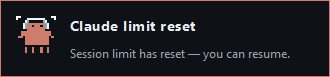
When approaching a limit warns you before you run out — pick a separate
% threshold for the 5h session and the 7d week (50–99%; defaults 90% and
80%, since the weekly window is the scarce one you can't recover quickly). Each
warning fires once when you cross its threshold and re-arms after that
window resets, so it never nags every poll. Also alert when I cross 100% into
overage adds a ping the moment either window tips onto paid usage credits.
Off by default — flip it on when you want the heads-up.You choose where alerts reach you — pick either channel, or both. Show a
Windows notification is the desktop toast plus a brief tray-icon flash, with
Play a sound and Pop the window to front as sub-options under it; Send
a push notification delivers off this machine. Under push you can add one or
more channels with Add a channel (remove with ✕), and every channel you
add fires on each alert — so you can get, say, a Pushover and a Discord alert
at once. The channels are ntfy (subscribe to a hard-to-guess
topic in the ntfy app — no account needed), Telegram (a bot token from
@BotFather + your chat ID), Discord / Slack (an incoming-webhook URL),
Pushover (an app API token + your user key), Gotify (a self-hosted server
URL + app token), and a generic webhook (a JSON{title, body, app}POST to
any URL — wire it to Zapier / Make / IFTTT / n8n / Home Assistant). Each channel's
in-app hint says where to get its credential; keep topics/tokens/URLs secret,
since anyone with them can post to or read your alerts. Send test notification
fires every configured channel at once.
About
- Version, author, and credits — the source is MIT licensed; the Clawd mascot
is © Anthropic PBC and not covered by it; icons are Font Awesome Free.
Windows, macOS and Linux
The same app, the same features, on all three — one codebase, no reduced
edition anywhere. Each build uses its platform's own window chrome and its own
tray, so it looks native rather than ported.
macOS gets a real transparent title bar with the native traffic lights, and
lives in the menu bar rather than a system tray. The download is universal —
one file for both Apple Silicon and Intel.
Linux runs on X11 and Wayland, with the tray icon provided by AppIndicator /
KStatusNotifierItem — see Linux notes for the two Wayland
differences and what to do if no tray icon appears. It ships two ways, and
neither supersedes the other: the AppImage is a single file you make
executable and run, while the tarball's install.sh registers a proper
menu entry. Pick by whether you'd rather have zero install steps or a launcher.
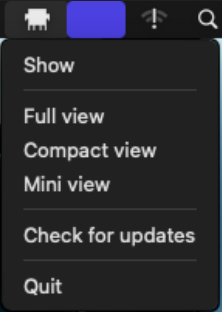
On every platform the tray/menu-bar icon carries the same menu — Show, the
three view modes, Check for updates and Quit. On macOS the icon is a
template image, so it follows the menu bar in both light and dark appearance:
Download
Grab your platform's build from the Releases page. Each one
bundles Python + Qt, so there's nothing else to install.
| Platform | File | Size | How to run it |
|---|---|---|---|
| Windows | Clawdmeter.exe |
~31 MB | Single self-contained file — just run it. |
| macOS | Clawdmeter.dmg |
~81 MB | Open it, drag Clawdmeter to Applications. Universal — one download for both Apple Silicon and Intel. |
| macOS (zip) | Clawdmeter-macos.zip |
~72 MB | The same .app, if you'd rather not mount a disk image. |
| Linux | Clawdmeter-3.0.0-x86_64.AppImage |
~57 MB | chmod +x it and run. One file, no install, delete it to uninstall. |
| Linux (tarball) | Clawdmeter-3.0.0-linux-x86_64.tar.gz |
~56 MB | Unpack and run ./install.sh — it drops the binary in ~/.local/bin and adds a menu entry. |
Every file ships with a .sha256 beside it. Verify before running if you like:sha256sum -c Clawdmeter-3.0.0-linux-x86_64.tar.gz.sha256 (or shasum -a 256 /Get-FileHash).
Clawdmeter checks the Releases page for a newer version on launch (then about
once a day) and, when one's out, shows an Update available item in the tray
menu — click it to open the download page and swap in the new build. You can
turn the automatic check off, or trigger one on demand, under Settings →
Updates.
Heads up: none of the builds are code-signed yet, so each OS will question
them the first time:
- Windows — SmartScreen shows "Windows protected your PC / unknown
publisher". Click More info → Run anyway.- macOS — Gatekeeper says the app "cannot be opened because the developer
cannot be verified". Right-click the app → Open → Open, or allow it
under System Settings → Privacy & Security. (The app is ad-hoc signed,
which is not the same as notarized.)- Linux — no prompt; make sure the binary is executable (
install.shdoes
this for you).If you'd rather not trust a binary, run from source or
build it yourself.
How it works
It reads your Claude Code OAuth token from ~/.claude/.credentials.json — or
from the login Keychain on macOS, where Claude Code stores it instead —
sends a minimal 1-token request to api.anthropic.com/v1/messages on a
configurable interval (60s by default), and reads the rate-limit headers from
the response. On the same poll it also reads Anthropic's OAuth usage and profile
endpoints (/api/oauth/usage, /api/oauth/profile) for your plan, extra-usage
spend and per-model limits. The Stats page values your local transcripts
against a bundled price map — no extra API calls. The window minimises to the
system tray; closing the window hides it. Quit from the tray menu fully
exits.
Linux notes
Clawdmeter runs on X11 and Wayland. Two things behave differently on Wayland,
and neither is fixable from the application side — Wayland deliberately does not
let a program raise or place its own windows:
- Always on top does nothing, so the setting is greyed out rather than left
looking broken. Use your compositor's own always-on-top shortcut instead — on
GNOME that's the window menu (Alt+Space) → Always on Top. - The mini and compact views don't reopen where you left them. The app still
remembers the position; the compositor decides where the window actually goes.
Both work normally on an X11 session if you need them.
No tray icon? GNOME has no system tray of its own. Install the
AppIndicator and KStatusNotifierItem Support extension and the icon appears.
Clawdmeter says so on startup if it can't find a tray — the window works either
way. A tray icon that shows up late (a panel still loading at login) is fine:
the icon docks by itself the moment a tray host registers.
Missing Qt xcb plugin? If the app exits with a xcb platform-plugin error,
install the one system library it needs — libxcb-cursor0 on Debian/Ubuntu,xcb-util-cursor on Fedora/Arch. install.sh prints this too.
Requirements
- Windows 10 or 11
- macOS 13 or newer — universal (Apple Silicon + Intel)
- Linux — a current desktop with glibc 2.35 or newer (Ubuntu 22.04+,
Fedora 36+, Debian 12+). The release binary is built on Ubuntu 22.04 so it
works on that floor and everything above it; older distributions need a
source run instead. - Only to run from source or build: Python 3.10 or newer (the code uses
3.10+ syntax)
Run from source
Windows:
py -3 -m venv .venv
.\.venv\Scripts\pip install -r requirements.txt
.\.venv\Scripts\python src\main.py
macOS / Linux:
python3 -m venv .venv
./.venv/bin/pip install -r requirements.txt
./.venv/bin/python src/main.py
Add --mock to drive the UI with synthetic data (no API calls) — handy for
seeing every state without burning tokens.
Building
| Platform | Command | Output |
|---|---|---|
| Windows | .\build.ps1 |
dist\Clawdmeter.exe — single file, no console window, ~31 MB |
| Linux | bash build.sh |
dist/Clawdmeter, Clawdmeter-<version>-linux-x86_64.tar.gz and Clawdmeter-<version>-x86_64.AppImage (each + .sha256) |
| macOS | bash build-macos.sh |
dist/Clawdmeter.app, Clawdmeter-macos.zip and Clawdmeter.dmg (each + .sha256) |
Each build must run on the platform it targets — there is no cross-compiling.
macOS: install python.org's Python first, or you get a single-arch app. The.app is universal2 only when the interpreter carries both slices, and every
compiled dependency (PySide6, pyobjc) already ships universal2 wheels — so the
interpreter is the only thing that decides. uv-managed and Homebrew CPythons
are single-arch. Use:
curl -LO https://www.python.org/ftp/python/3.12.10/python-3.12.10-macos11.pkg
sudo installer -pkg python-3.12.10-macos11.pkg -target /
It's picked up automatically from /Library/Frameworks. Confirm the result withlipo -archs dist/Clawdmeter.app/Contents/MacOS/Clawdmeter — you wantx86_64 arm64.
Linux: build on the oldest glibc you intend to support. PyInstaller vendors
the host's system libraries, so a binary built on a newer distribution simply
will not start on an older one. The releases are built on Ubuntu 22.04
(glibc 2.35). This applies to the AppImage too — an AppImage bundles the
app's libraries, not glibc, so it does not widen compatibility.
build.sh fetches a pinned appimagetool (never the rolling continuous tag)
and verifies its checksum. If it can't, the AppImage is skipped with a
warning and the tarball is still produced — CI turns that skip into a hard
failure so a release can't quietly ship without it. The AppImage embeds the
type2 runtime, which links libfuse statically: users need neither libfuse2 norlibfuse3 installed.
Clawdmeter.spec prunes the parts of PySide6/Qt the app doesn't use (the
QML/Quick stack, the ~20 MB software-OpenGL fallback, unused image-format and
platform plugins, and Qt's bundled translations) to keep the exe roughly half
the size of an unpruned PySide6 build. If you start importing additional Qt
modules, check the pruning block in the spec so you don't strip something you
now need.
Credit
- Original project — concept, firmware, and daemon by Hermann Björgvin
(@HermannBjorgvin): https://github.com/HermannBjorgvin/Clawdmeter. This is a
software-only desktop port of that work, for Windows, macOS and Linux. - Clawd pixel art — the mascot sprites originate from
https://claudepix.vercel.app (as noted inassets/sprites/manifest.json),
extracted from the upstream firmware'ssplash_animations.h. - Clawd mascot — the Clawd character is © Anthropic PBC (see below).
License & disclaimers
The source code in this repository is licensed under the
MIT License.
The Clawd mascot sprites and related artwork (assets/sprites/,assets/_splash_animations.h) are not covered by the MIT License. The
Clawd mascot is © Anthropic PBC and remains Anthropic's property. These assets
are included under the same "gray area" as the upstream project and are not
licensed for reuse — if you fork or redistribute, you are responsible for your
own use of them. See NOTICE for the full attribution and asset
carve-out.
This is an unofficial, independent project. It is not affiliated with,
endorsed by, or sponsored by Anthropic. "Claude", "Clawd", and "Anthropic"
are trademarks of Anthropic PBC, used here for descriptive/identification
purposes only.
This software is provided "as is", without warranty of any kind. Use at your
own risk.
Reviews (0)
Sign in to leave a review.
Leave a reviewNo results found