MercuryCLI
Health Uyari
- License — License: NOASSERTION
- Description — Repository has a description
- Active repo — Last push 0 days ago
- Low visibility — Only 6 GitHub stars
Code Gecti
- Code scan — Scanned 12 files during light audit, no dangerous patterns found
Permissions Gecti
- Permissions — No dangerous permissions requested
Bu listing icin henuz AI raporu yok.
Run multiple AI coding sessions in one terminal. Mix and match model providers, spawn cross-company agents, and use built-in debugging, screen control, and voice dictation.
Mercury
Website: mercury-cli.ai
Mercury runs AI coding agents in your terminal, inside your own repositories.
An agent reads and edits files, runs commands, and checks the results. You
choose the provider, the model, and what the agent is allowed to do.
Each session keeps its own conversation, model, permissions and workspace.
Leave one running while you work in another, then return to it when you need
to. You can switch providers and models within the same chat, use Mercury
from your editor, run it headless in scripts, or schedule work for later.
I use Mercury to develop Mercury, working with several agents and models
across long sessions. Keeping track of that work matters to me: what is still
running, what changed, and what needs a decision.
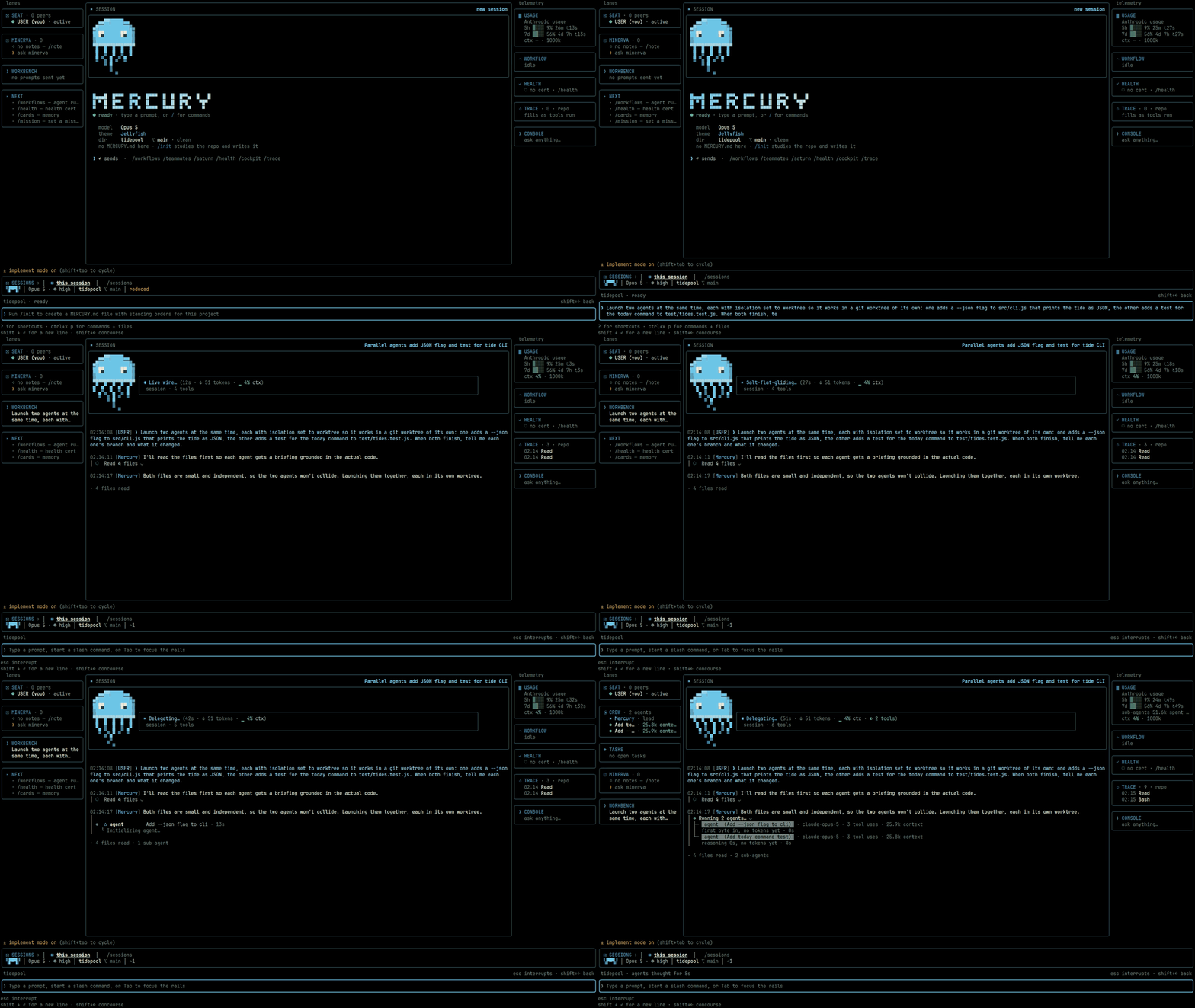
Mercury is source-available. See Licence for the production-use terms.
Install
Release archives are available for Apple silicon and Intel Macs, Linux x64,
and Windows x64. Each includes Node and ripgrep, so you need git but do not
need to install Node separately.
Choose one installation method:
curl -fsSL https://mercury-cli.ai/install | sh     # macOS and Linux x64
irm https://mercury-cli.ai/install.ps1 | iex        # Windows x64, in PowerShell 7
brew install Whq02/mercury/mercury                 # Homebrew: macOS and Linux x64
npm install -g mercury-tech-cli                    # npm; `bun install -g mercury-tech-cli` is the same package
mise use -g npm:mercury-tech-cli                   # mise, through the npm package
After installation, open a new terminal and run mercury --version to check
it. Then run mercury from a repository to start the first run.
To use Mercury in the terminal you installed from, follow the PATH instruction
printed by the installer.
How the installation methods differ
The shell and PowerShell installers fetch the newest release for your
platform, check its SHA-256 against SHA256SUMS.txt, unpack it, and run the
archive's own mercury install command.
Homebrew and the npm package are each pinned to a particular release and are
republished after a tag, so they can lag behind the newest release. The npm
package, mercury-tech-cli, is a launcher that downloads its pinned release;
mise installs that same package.
Mercury's installation is user-local and does not require administrator
access. You can safely rerun an installation command.
Installation paths
Release versions live under the config home at ~/.mercury/versions/<version>
(%USERPROFILE%\.mercury\versions on Windows). The mercury command is
installed in ~/.local/bin on macOS and Linux, or%LOCALAPPDATA%\Mercury\bin on Windows.
mercury install adds the command's directory to PATH once: a guarded line
in your shell startup file, or an entry in the Windows user PATH. A new
terminal picks up the change automatically.
Updates
Use mercury update with any installation method.
For an installation made with the shell or PowerShell installer, or withmercury install, it updates Mercury in place. --check checks for updates,--status reports update status, and --rollback returns to the previous
version, which stays on disk.
For Homebrew, it asks before running brew upgrade Whq02/mercury/mercury.
The default answer is no; enter y to approve. Mercury streams the command's
output and checks the installed version afterwards. Use --yes to skip the
prompt in scripts.
The npm launcher uses the same release layout as the installers and delegates
each run to the installed release. mercury update therefore updates an npm
installation in place through Mercury's own update channel.npm update -g mercury-tech-cli changes only the release the package installs
on its first run. This also applies when using mise.
--check reads the same release list for every installation method and tells
you how to update yours. When an update is available, the home screen showsvX.Y.Z available · mercury update once in its bottom-right corner, and the
chat shows a temporary notice. Set MERCURY_UPDATE_NOTICE=0 to hide both.
Install and update requests use the public release list and archives without
an account or token. A signed-in GitHub CLI (gh) is consulted only if the
anonymous request is refused; it is not a requirement.
After an update, Mercury checks whether the command on your PATH points to
the updated installation. If another installation takes precedence, or the
updated command is missing from PATH, it explains the problem and the fix.mercury doctor reports the same issue.
Release verification
Before activating a release, Mercury checks its archive againstSHA256SUMS.txt. It also requires a payload signed by the Mercury release
key in its compiled-in trust roster before staging the update. A rejected
signature leaves the active installation unchanged.
--allow-unsigned permits an unsigned payload only. It does not accept an
unknown signing key, a malformed signing block, or tampered contents. Both
the command's result and its local receipt record that exception.
From 1.0.0-beta.3, archives are signed during packaging and their signatures
are verified before publication. A verified installation adds no signature
notice at startup. mercury doctor shows signed — key 627b54b734ca0e72.
The 1.0.0-beta.2 archives are unsigned. These installations showprovenance — unsigned once per install when you start Mercury interactively
without a command or flag. The doctor continues to show that status. It means
the archive manifest has no signature; the download is still checked againstSHA256SUMS.txt.
docs/TRUST.md explains the verification results and how to
check an archive manually.
docs/TERMINAL-RUNTIME.md covers startup verification.
Platform notes
There is no native Linux arm64 or Windows arm64 archive. On Linux arm64, the
installer directs you to build from source. On Windows
arm64, the x64 build runs under emulation.
Intel Mac archives are available from 1.0.0-beta.3. They are cross-packaged on
an Apple silicon runner and tested at startup under Rosetta before
publication. Intel Macs using 1.0.0-beta.2 need a source build.
Requirements
Release archives include Node 24 LTS. The launcher, mercury install andmercury update use that bundled runtime; git is the only separate
requirement for the release itself.
To build from source, you need:
- Node 24 LTS, in the supported range
>=24.20.0 <25..node-version
pins the patch used for builds and included in release archives. - bun 1.3.x for the build. It is not bundled with releases.
- git. On Windows, use Windows Terminal or PowerShell 7. See
docs/INSTALL-WINDOWS-FROM-SOURCE.md.
The Node minimum includes the fix for nodejs/node#56645. Below 24.20.0,
headless -p runs that call a tool abort on exit on Windows.
Launchers select Node in this order: the explicit MERCURY_NODE binary, the
bundled runtime, then a compatible Node installation on PATH. A missing
runtime is reported rather than silently skipped.
Windows shells
Git for Windows supplies bash.exe, which the Bash tool uses when available.
Release archives also include Mercury's bash-compatible shell engine. It is
used automatically on Windows when bash.exe is missing.
The doctor's shell row tells you which shell is active and why: Git Bash
found on the machine, or the bundled engine because no bash.exe was found.
The bundled engine currently cannot run a .cmd shim such as npm directly;
use cmd /c npm … instead. It also needs an absolute program path when running
a program after cd.
Set MERCURY_SHELL_ENGINE=brush, or choose brush in /config under Shell
engine, to use the bundled engine even when bash.exe is available.MERCURY_SHELL_ENGINE=system uses only the system bash.exe.
A source build without the engine pack or Git for Windows still starts, but
the Bash tool is unavailable. The PowerShell tool remains available, and theshell diagnostic explains how to restore Bash support.
Build from source
Mercury builds with bun and runs on Node 24 LTS:
bun run setup                      # once; bun install + the vendored packs
bun run build.ts                   # writes dist/mercury.mjs + dist/manifest.json
node dist/mercury.mjs --version
node dist/mercury.mjs
node dist/mercury.mjs doctor --json
Terminal support
The full-screen interface needs a real TTY, but has no minimum terminal size.
The full layout starts at 100 columns by 26 rows; smaller windows use a
compact layout.
Mercury uses 24-bit colour when the terminal advertises support throughCOLORTERM=truecolor or is recognised as iTerm2, Ghostty, WezTerm, Kitty,
Windows Terminal or VS Code. Other terminals use 256 colours, including
Apple's Terminal on macOS 15 and earlier.
The doctor's Terminal color row reports the detected depth and the reason.
Set MERCURY_TRUECOLOR=1 for a terminal that supports true colour but does not
advertise it, or MERCURY_TRUECOLOR=0 to force 256 colours.
Optional components
setup fetches the bundled capability packs: pyright, debugpy, js-debug,
extra grammars, the platform's Node runtime, and brush. If a download fails,
that pack is skipped and the build and affected features report the missing
component. Running bun install alone produces a build without those packs.
With a Rust toolchain installed, setup also builds the voice capture addon
from native/voice. With Rust and cmake, it builds the on-device transcriber
from native/whisper. These addons are built locally rather than downloaded;
without the required tools, setup skips them and the doctor reports their
absence. The Windows shell engine is also built locally because upstream
provides no Windows binary.
brush is a bash-compatible shell written in Rust. It is optional on macOS
and Linux, where the system shell remains the default. Select it through/config (shellEngine) or MERCURY_SHELL_ENGINE=brush to use it for Bash
tool calls with persistent shell state. On Windows, it is selected
automatically when bash.exe is missing. See
docs/TERMINAL-RUNTIME.md.
The build writes only to dist/. Configuration and sessions live in~/.mercury, or the directory set by MERCURY_CONFIG_DIR, and are created on
first run. On Windows, run node dist\mercury.mjs directly.
Installing a source build as a command
scripts/ops/deploy-runtime.sh publishes a clean-tree build to<config home>/runtime/dist. scripts/ops/deploy-launcher.sh installs the
launcher at <config home>/bin/mercury. Add that directory to PATH; for zsh:
echo 'export PATH="$HOME/.mercury/bin:$PATH"' >> ~/.zshrc
The launcher reports a missing runtime as an error; it does not silently
switch to another build. Node selection follows the order in
Requirements.
Release installations use mercury install and mercury update instead.
They do not modify a source checkout or require a GitHub sign-in; gh is
consulted only if the anonymous release request is refused.
AGENTS.md is the short build-and-run guide.
BUILD-NOTES.md covers the build in more detail.
The first run
On your first interactive run, choose an appearance, then sign in to a
provider. The screen previews theme changes as you browse. True Black is
the default; the other option is the oasis dark theme. You can change this
later with /appearance.
You can also choose "sign in later" to look around without connecting an
account.
Next, Mercury asks whether you trust the folder you opened. Nothing requested
by a workspace configuration runs before you grant that trust. The grant
covers the whole repository; declining exits Mercury. See
docs/TRUST.md.
A normal interactive launch opens the home screen, called the Boot face.
It has ten menu entries, with Continue Last Session appearing only after you
have session history:
- New Session in <folder> starts a new session in the current folder.
- Continue Last Session returns to your most recent chat.
- Boot Menu configures future sessions, including motion, sub-agents and
workflows. - MCPs & Skills chooses what the next session loads. See
docs/KIT.md. - Agents creates and edits agents.
- Doctor / Health Check checks the installation.
- Saturn Scheduler schedules sessions. See
docs/SATURN.md. - Logins connects provider accounts.
- Session Concourse opens the current project's session board.
- Sessions · Projects lets you choose a session or repository.
Menu entries open over the home screen, and Esc returns to the entry you
selected. Session Concourse is the exception: it opens a separate screen,
also available with Shift+→. A prompt argument, --continue or --resume
takes you directly to the chat.
Motion, sub-agents and workflows
The Boot Menu's Performance section includes a Motion setting:auto, full, reduced or off. It controls idle animation in the
interface and is also available in /config.
Under Agents, the Sub-agents and Workflows switches determine whether new
sessions receive the Agent and Workflow tools. Turning a switch off removes
the corresponding tool; attempts to spawn that type of work return the same
explanation. Within a session, /subagents on|off and /workflows on|off
change the setting at the next turn boundary.
The daily loop
Starting a session
Press Enter on New Session to create a session in the current folder with
the model shown on screen. The session, chat and board entry are created
together. Mercury keeps a runner ready behind the menu to reduce startup
work.
Starting another session does not stop the previous one. You can leave a
task running and work elsewhere.
Working in chat
Describe the work in plain language. The agent reads, edits, runs and checks
code under your chosen permission mode. Tool calls appear as they run, either
as compact cards or with full output. Choose the display in /config under
Tool output; the setting is saved for later launches.
Use /model and /effort to adjust the session. /permissions controls what
can run without approval and what must ask first; /policy controls the
governance policy.
Review changes with /diff, by source, file and hunk. /tasks shows running
shells and agents. /clear parks the chat, /title names it, and /help
lists the available commands.
Moving between screens
Shift+← and Shift+→ move between the screens currently available. A fresh
launch has the home screen and Session Concourse. The chat screen is added
when a session is focused and removed when the last chat closes. The key
hints show only the available moves.
Closing every chat returns you to the home screen. Use --chat for just the
home screen and chat, without the concourse. --concourse-off saves that
preference for future launches; --concourse-on or /config turns it back on.
Managing sessions
Open Session Concourse with /concourse or Shift+→ from the home screen.
It shows the current project's running sessions, followed by parked chats,
newest first.
Each live session has a NOW cell showing its current activity. Select a row
and press Enter to return to it while the other sessions keep running. A
crashed session stays on the board as NEEDS YOU, with the reason, until you
release it. The terminal bell sounds once when a session needs attention or
finishes a run.
docs/SESSIONS.md covers the session lifecycle.
Providers and models
Use /logins to connect a provider. It opens the same sign-in catalogue used
during setup. /accounts manages connected provider slots afterwards.
- OpenAI: ChatGPT subscription or API key.
- Claude: subscription account.
- Anthropic usage-based billing: Console sign-in or API key.
- OpenRouter: catalogue access through OAuth or an API key.
- Google Gemini: API key or Google OAuth.
- Hugging Face: device-code sign-in or Hub token.
- Kimi (Moonshot): device-code sign-in or API key.
- GLM (Z.AI): API key.
- DeepSeek: API key.
Local model servers and custom OpenAI-compatible endpoints are discovered or
configured separately, without a provider sign-in. Each provider has its own
protocol, credentials and error handling. A request does not fall back from
one provider to another. See docs/ENGINES.md.
New sessions use your most recently connected provider and the newest model
available to that account. Models the account cannot access are not selected.
If that provider has no usable model, Mercury checks the next most recently
connected provider. This is the selection process for a new session, not
request failover.
/model explains the selection. With no provider connected, the home screen
and /model direct you to /logins. /defaultprovider lets you explicitly
make a provider the most recent choice.
Provider access remains subject to the provider's own terms and availability.
Mercury's licence does not replace them.
The headless CLI
The same build runs without the interactive interface.node dist/mercury.mjs --help lists every flag.
-p "<prompt>" runs one non-interactive turn. Choose its output with--output-format text|json|stream-json. json returns the result envelope;stream-json includes every event from initialisation to the final result,
without needing another flag.
Use -c to continue the most recent conversation, -r to resume by ID, title
or picker, -w to run in a managed worktree, and --bare for minimal mode.
Available commands include:
mercury health(aliasdoctor): diagnostic report, also called the
health certificate.--jsonreturns the full report,--deepruns the deep
inventory, and--fixruns guided fixes.mercury auth login|status|logout|token: sign in, check authentication,
sign out, or create a long-lived token.mercury mcp: manage MCP servers withadd,add-json,list,get,removeandserve.mercury extensions: install extensions and manage their sources.
Actions:list,sources,add,remove,check,install,approve,enable,disable,update,uninstall,block,unblock,validate
andinit.mercury agents: list the agent inventory.mercury daemon: run the background daemon that hosts sessions.mercury acp --stdio: connect an editor through the Agent Client
Protocol.mercury editor <action>manages the IDE integration.mercury godot run|check|capture|frames|profile|tour|jobs|cancel|result:
manage engine jobs for the Godot project in the current directory. Mercury
runs suites on its own headless workers from a frozen project copy. The
service includes a compilation gate, captures, frame statistics, settled
profiles, job queue access, cancellation and results by ID. See
docs/VULCAN-GODOT-TOOLS.md.mercury themis: run THEMIS integrity tools.mercury show <image>: display an image in the terminal.mercury installandmercury update(aliasupgrade): install or
update release archives. See Install.
What is inside
- Code editing and debugging. Anchored reads and atomic multi-file edits;
syntax-based search and rewriting across 23 grammars; persistent code
cells; and a debugger using the Debug Adapter Protocol. See
change transactions,
structural patterns,
Workshop and the debugger. - Extensions. Each extension has one manifest. Add sources from a git
URL, local folder or archive, with approval tied to the contributions hash.
See docs/EXTENSIONS.md. - MCPs & Skills. Per-repository configuration for what sessions load,
with named presets and controls you can change during a session. See
docs/KIT.md. - Agents and teams. Named agents, an agent studio, workflow runs and
boards for monitoring their work. See docs/TEAMS.md. - Saturn. Schedule a prompt for an existing session or start a new
session at a set time. Schedules can run once or recur. See
docs/SATURN.md. - Diagnostics. The doctor and
/healthproduce a report backed by
diagnostic evidence, with acertified,cautionorfaultverdict and
verified fixes. See docs/HEALTH-CERTIFICATE.md. - Trust, permissions and THEMIS. Workspace trust, permission rules and
modes, and the deterministic trust control plane. See
docs/TRUST.md and
docs/THEMIS-CONTROL-PLANE.md. - Apollo Mode. An initial interview fills in the missing specification,
then uses it to build a prototype. See
docs/APOLLO-MODE.md. - Editor integrations.
mercury acpconnects to editors that support the
Agent Client Protocol. The VS Code extension (mercury editor install)
runs Mercury in the editor and connects a terminal session to it./ide
provides access to selections, diagnostics and native diffs. Separate,
opt-in integrations connect to running Unity, Blender and Godot editors,
with batch access to Aseprite. See Unity,
Blender and Aseprite. - Memory. Experience cards and a project notepad. See
docs/TABULA-NOTES.md. - Voice input. Run
/speak on, then press space in an empty composer to
dictate. Transcription can run on-device or through your chosen cloud
provider. The on-device option uses a 60 MB English model, downloaded once
with/speak download. Audio leaves the machine only after you stop
recording, and only when using a cloud provider. See
docs/VOICE.md. - Computer use. Enabled by default when the desktop driver is available.
The model can see your screen and control the mouse and keyboard in the
foreground application. The first action in each application asks for
permission by name.Escstops it, only one session can control the
desktop at a time, and screenshots are not stored in the saved
conversation. SetMERCURY_COMPUTER_USE=0to remove the tool. See
docs/COMPUTER-USE.md. - Recovery. Atomic publication, journaled operations and startup
reconciliation. See docs/DURABILITY.md. - Web search for every model. Provider-native live search and Mercury's
bundled WebSearch, using a Brave or Tavily key or a keyless fallback.
Results identify which search service answered. See
docs/ENGINES.md.
Runtime flags are defined in src/substrate/flagRegistry.ts, exposed asMERCURY_* settings and rendered on demand. Integration compatibility is
documented in docs/COMPATIBILITY.md. The full
documentation index is docs/README.md.
Every slash command
/help lists the interactive commands, /palette provides fuzzy search over
the current catalogue, and /surfaces indexes the available interfaces. The
table below follows the grouping used by /help.
| Domain | Commands |
|---|---|
| current work | /run /tasks /workbench /diff /mission /themis /supervisor |
| crew & delegation | /agents /subagents /teammates /crew /team /workflows /fleet /monitor /router /daemon /saturn /seats /live /halt /kill /unkill /surfaces |
| session & context | /clear /compact /context /auto-compact-window /resume /rewind /sessions /concourse /branches /rename /title /contract /export /copy /cost /usage /insights /debrief /add-dir /realms |
| memory & goals | /memory /cards /remember /note /console /orient |
| model & effort | /model /effort /strategy /supercode /submodels /counsel /harness /caching |
| git & review | /branch /review /security-review /pr-comments |
| health & introspection | /health /verify /status /trace /substrate /capabilities /capabilities-detail /ledger /provenance |
| config & setup | /config /permissions /hooks /mcp /extensions /skills /policy /authority /sovereign /sandbox /ide /browser /init /keybindings /keys /vim /mouse /pings /terminal-setup /bootmenu /speak /voice |
| appearance & cockpit | /cockpit /home /appearance /accent /color /critter /companion /palette /fullscreen |
| account & app | /logins /logout /accounts /defaultprovider /update-notes /feedback /help /exit |
/mouse off returns the pointer to the terminal for native text selection
and copying. The preference is saved and appears in /config as Mouse
capture.
Reporting a problem
Run /bug <what happened> inside Mercury to preview a report before filing
it through your signed-in GitHub CLI (gh). Without gh, Mercury saves a
local draft under the config home and points you to the repository's issues
page.
You can also open an issue directly using the bug, provider/model, or feature
request template. Include your --version output, OS, terminal and exact
steps. Bug and provider reports also need mercury doctor --json, ornode dist/mercury.mjs doctor --json for a source build. A transcript of the
failing screen helps.
Report security problems through the repository's Security tab rather than
a public issue. See SECURITY.md.
CONTRIBUTING.md covers issues, pull requests and checks.
Licence
Mercury is source-available under the Business Source License 1.1, with the
Mercury Community Production Grant. The licence is in
LICENSE.md, with its companion
production terms and
trademark policy. The licence text controls; this is a summary.
You may read, copy, modify and fork the source. Individuals and organisations
below both community thresholds can use Mercury in production for free to
build and sell their own products, including commercial products. Both
consolidated annual revenue and total external funding must be below
US$1,000,000.
A qualifying user that reaches either threshold receives a 90-day grace
period. After that, new product work, including substantial new functionality,
requires a commercial licence. Products already in production when the
threshold was reached can still be maintained using Mercury versions obtained
before the grace period ended, subject to the licence's maintenance terms.
Selling, white-labelling or hosting Mercury itself for third parties, or
offering a substitute for it, requires a commercial licence regardless of
your revenue or funding.
Each version changes to the Apache License 2.0 on its own Change Date, three
years after that version's release.
For commercial licensing and trademark permission, visit
mercury-cli.ai/licensing. Bundled
third-party licences are listed in
THIRD_PARTY_NOTICES.md.
Yorumlar (0)
Yorum birakmak icin giris yap.
Yorum birakSonuc bulunamadi