agent-remote-control
Health Pass
- License — License: MIT
- Description — Repository has a description
- Active repo — Last push 0 days ago
- Community trust — 13 GitHub stars
Code Pass
- Code scan — Scanned 12 files during light audit, no dangerous patterns found
Permissions Pass
- Permissions — No dangerous permissions requested
No AI report is available for this listing yet.
Connect ChatGPT to local coding agents—including Codex, Claude, Gemini, Cursor, and more—to explore projects, run coding tasks, and track progress via Secure MCP Tunnel or HTTPS MCP.
Agent Remote Control(ARC)
ARC supports concurrent ingress for multiple MCP control sources. OpenAI Tunnel and HTTPS (Cloudflare, ngrok, Pinggy, LocalXpose, custom domain) share one Core and task namespace. Configure per-ingress authentication, tool policy and lifecycle with cli ingress; see Codex setup.
English | 简体中文
Discuss an idea in the AI app you already use. Let a coding agent on your computer do the work.
ARC did not start as an attempt to give ChatGPT a bigger tool list. It grew out of a workflow problem I kept running into, and each stage solved the next problem that became obvious.
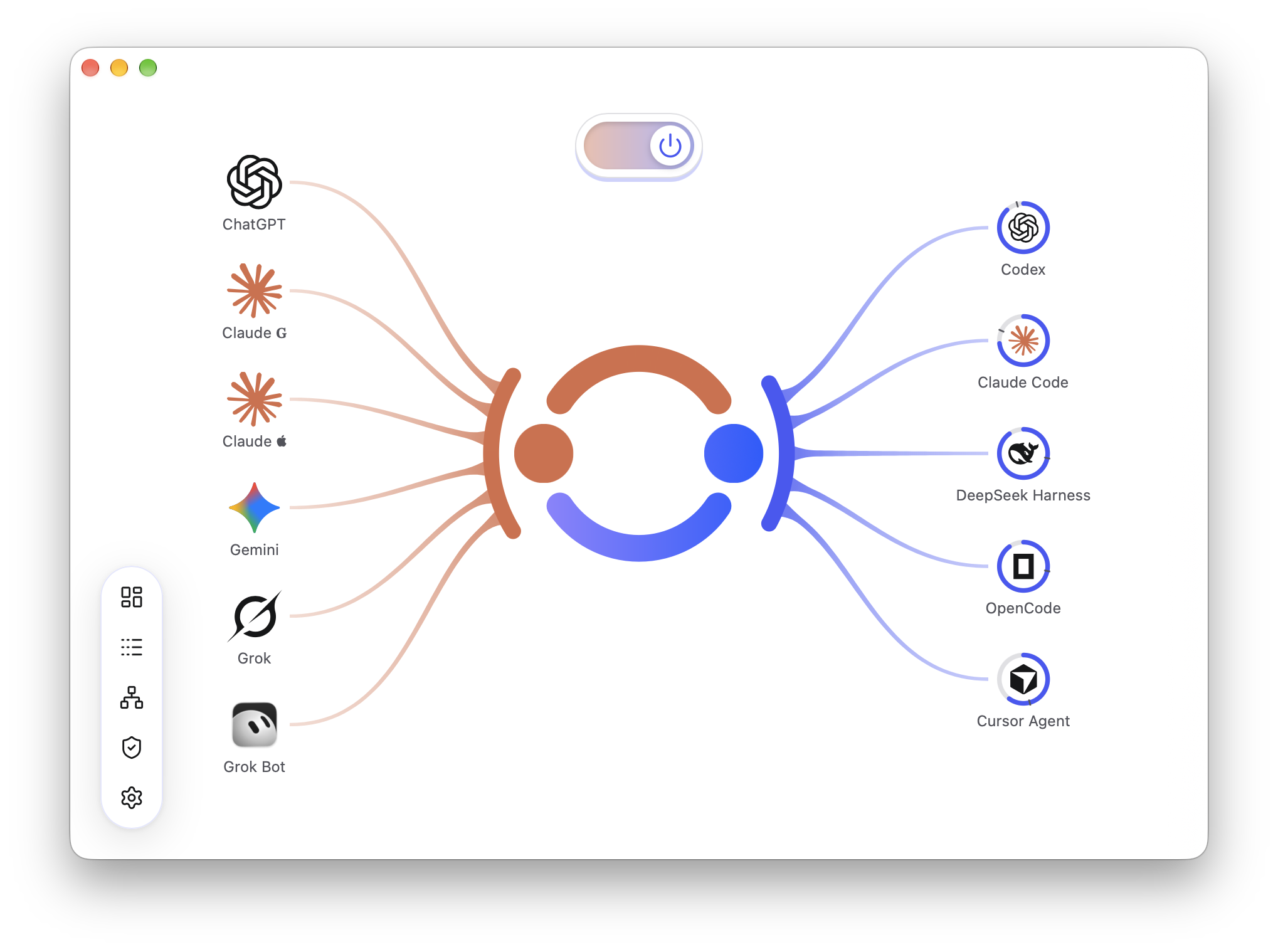
The primary brand uses uniform round-ended arcs; the tapered variant remains available. Regenerate all icons with npm run brand -- primary or alternate; see brand assets.
Why I built Agent Remote Control
Stage 1 — Let Chat see what is true now
I use ChatGPT's Chat mode to think through a lot of work. The recurring problem was continuity: Chat could remember the conversation, but it could not see what had just changed on my computer. A project might already have moved on, an architecture decision might have changed, or Codex might have finished another round of work, while Chat was still reasoning from stale context. Manually pasting files, diffs, and status updates every time became its own burden.
The first version of ARC was therefore simple: expose local project facts to ChatGPT through MCP. Chat can read the current files, code, documentation, project structure, and Git state when it needs them. The goal was not to make Chat “remember more”; it was to let it check the source of truth directly.
Stage 2 — Turn the discussion into Codex work
Once Chat could see the machine, the next question was obvious: if it can read project files, why stop there? Could it also run commands, understand what I had recently been doing in Codex, and create or continue tasks for me?
ARC then connected MCP to the Codex App Server. ChatGPT can inspect local Codex work, create and continue tasks, interrupt them when needed, and follow their progress and results. That produced the workflow I actually wanted: discuss the problem in Chat using live project facts, turn the conclusion into a concrete Codex task, and keep following the task from the same conversation. As long as the machine is online, I can check and steer that work through ChatGPT even when I am away from the computer.
Stage 3 — Expand from one agent to an agent control layer
Once ChatGPT could coordinate Codex, limiting the design to one agent no longer made much sense. After learning about ACP, I extended the same control model to other local agents and tried to cover the mainstream ACP ecosystem in one step. ARC now supports Pi and OpenCode alongside a broad set of built-in ACP agents, including Gemini, the Claude adapter, Cursor, Grok, Copilot, Kimi, Qwen, Kiro, Devin, Cline, Junie, and Hermes.
At this point, ARC had grown from “let ChatGPT read my local project” into “let ChatGPT coordinate the work happening on my machine.” Chat was where I discussed, reasoned, and turned project facts into decisions; local agents did the execution; ARC connected the two and kept the whole loop observable.
Stage 4 — From one-to-many to many-to-many
Once the execution side could choose between different Agents, another question became obvious: why should the place that starts the work still have to be ChatGPT? Whether I am thinking through a problem in Claude, working from Notion or Slack, or starting something from Cursor or Raycast, changing applications should not mean building another control layer just for that client.
So I opened up the other side of ARC as well. ChatGPT, Claude, Microsoft Copilot, Notion, Slack, Cursor, GitHub Copilot, Raycast, and other MCP clients can connect as independent control sources to the same Core. Each ingress keeps its own connection, authentication, and tool policy, while sharing the same local project facts, Agent capabilities, and task namespace. A task created through one ingress can be read, continued, or waited on through another ingress that exposes the required tools, while the task itself remains owned and executed by its original Agent and runtime.
ARC therefore moved from “one Chat controls many Agents” to “many control sources connect to many Agents.” Where a discussion happens and which Agent executes the result can be chosen independently. ARC does not try to invent another workflow engine between them; it keeps facts, control, and execution behind one local control layer. The original workflow is still the same—understand the problem from current facts first, then let the right Agent carry it forward—without tying that loop to a single product.
What this means in practice
- Less copying and pasting: let a connected control source read local projects, files, and Git status so discussion stays grounded in current facts.
- Start work from multiple clients: supported control sources such as ChatGPT, Claude, Notion, Slack, Cursor, Copilot, and Raycast can connect concurrently, including multiple entries of the same type.
- Turn decisions into work: create, continue, or interrupt Codex and other Agent tasks from any ingress that exposes the required tools.
- Follow the same task across ingresses: all ingresses share the task namespace, so another permitted ingress can read, wait on, or continue existing work.
- Use one control layer for multiple Agents: Codex stays native and remains the default, while Pi, OpenCode, built-in ACP Agents, and Custom ACP share the
agent_*workflow. - Manage each ingress independently: connection, authentication, tool policy, and lifecycle stay per ingress while the app manages Tunnel Clients, state, and the shared local Core.
ARC itself requires no Node, npm, Rust, or Cargo installation. The ChatGPT Desktop plugins are maintained in separate repositories and run independently. External Agents still need their own runtimes. Desktop task integration supports Apple Silicon Mac and Windows x64.
Codex remains the default, with its native capabilities preserved. External Agents use their own configuration and sign-in. The home view’s More button opens Agents management, which lists brands, installation status and versions, and lets you enable installed Agents. Its settings button opens appearance, quota, and usage preferences. See Subscription usage for quota monitoring and usage estimates. Native/adapter distinctions and capabilities are documented in Local Agents. Codex tasks use codex_*; agent_* only accepts non-Codex agents and is hidden when none is available. New connections expose the default tool tier; advanced tools are enabled through All or Custom. See MCP tools for text editing, per-turn changes, logs, shell commands and compact receipts.
Linux headless (x86_64 / aarch64)
Linux runs native/ without Tauri or Codex Desktop. Codex tasks use the installed Codex CLI app-server. No GUI or screen capture is included.
curl -fsSL https://raw.githubusercontent.com/whzxc/agent-remote-control/main/tooling/install-agent-remote-control.sh | sh
Use a release containing Linux tarballs, or build from source. See Linux installation and usage for exact build commands, start / stop / status, token/provider/port configuration, the /mcp bearer-authenticated HTTP endpoint, and systemd --user with loginctl enable-linger.
Installation: choose an entry point
| How you want to use ARC | Start here |
|---|---|
| Inside ChatGPT Desktop on this computer | Independent plugins; no Tunnel or Agent Remote Control Desktop required |
| Tray, floating panels and connection settings | Desktop installation |
| Access this computer from Web, mobile or another device | Remote ingress; separate authentication and connection setup required |
Available downloads are the actual assets on GitHub Releases. Plugin and desktop updates are separate; use the same native build when sharing state.
Releases
Maintainers publish macOS Apple Silicon from a clean main with npm run release: select the next patch version, run tests once, inject the version while building and signing, generate and verify release metadata, then tag the existing development commit and publish through a GitHub Release draft. No version commit or source changelog is created. Use -- --version 0.9.0 to select a version or retry an unpublished version. Configure an existing updater key through TAURI_SIGNING_PRIVATE_KEY, TAURI_SIGNING_PRIVATE_KEY_FILE, or ~/.tauri/local-connector.key. Use -- --dry-run to build all release files locally without Git changes or uploads, -- --ci to dispatch the optional Actions build, and -- --skip-tests if tests have already passed. Tag pushes do not trigger a release.
Windows x64 is added on demand through the manual release-windows.yml workflow (optional tag, default: latest public Release). Until supplemented, the latest update manifest has no Windows entries, so Windows clients cannot obtain an update from it. See Release maintenance.
Let Codex configure remote access
For local plugin use, follow the plugin guide above. The following workflow is for remote access from Web, mobile or another device.
Send the following message to Codex on the target computer. It checks existing progress and handles installation, configuration, troubleshooting, and verification. You can provide a signed-in ChatGPT browser session for it to operate. You only need to handle steps that require your identity or confirmation, or that its tools cannot reliably complete. The default connection uses the official OpenAI Secure MCP Tunnel.
Install, configure, and fully verify ARC on this computer. Default to the official Secure MCP Tunnel, preserve any working Tunnel / HTTPS configuration, and do not introduce a ARC cloud service or public relay. Check the installation first and read cli help, cli guide, and cli doctor. If the CLI is unavailable, read https://github.com/whzxc/agent-remote-control/blob/main/docs/codex-setup.md and follow the actual installed release.
Complete all automatable steps. If I provide a signed-in ChatGPT page or browser environment, use the available browser / GUI / Computer Use tools on the visible page: check Developer Mode, reuse or create a custom MCP connection, enter its details, refresh tools, and select it. Do not just give me instructions. Do not use private APIs, extract cookies, run fixed DOM scripts, or bypass security controls.
Read URLs, Tunnel ID, configuration, and verification messages from cli onboarding / status without asking me to copy values already on this computer. Configure existing secure local credentials through stdin. Ask me to enter missing keys directly in the app, never in chat. Pause only for required sign-in, identity confirmation, authorization, verification codes, administrator access, or a step the available tools cannot reliably perform. Explain the exact blocker and the minimum action, then continue.
Call connector_verify from ChatGPT and check the current code, tool result, and local challengeVerifiedAt. Then run a harmless Codex task over the same connection: do not call tools or read or modify files; only reply ARC_ONBOARDING_OK. Read the persistent receipt, native threadId / turnId, and completed output. Read back unknown states with the original requestId instead of submitting again. Report separate evidence for local readiness, ChatGPT inbound access, and task completion. Opening a page or reaching Tunnel ready is not proof of successful setup.
You can reuse this message for connection problems. Use a Codex session that can execute commands on the target computer. Your ChatGPT account/workspace permissions, Tunnel identity, and required authorizations are still necessary.
The Codex setup and CLI guide covers configuration and diagnostics; the installed release's cli help / cli guide take precedence. For self-service setup, see the manual connection guide.
Everyday use
Choose Auto / English / 简体中文 in Settings → General → Language. Auto follows your system or browser language, falling back to English for unsupported languages. A manual selection takes priority, is saved, and takes effect immediately. Like the theme, this preference belongs to the current WebView/browser; it does not affect MCP tools, task content, or protocols.
After setup, keep the computer online, Desktop available, and Agent Remote Control connected. Connecting at sign-in is optional. Closing the window leaves the connection running; the shared backend stops after its last local Agent Remote Control client exits. On macOS, Settings → General → Show app in offers All, Menu bar only, or Dock only. Changes apply immediately and are saved automatically.
agent_wait supports Pi, all built-in ACP Agents, and Custom ACP while the local connection is running; codex_wait preserves native semantics. Use the corresponding read/events tools for history and events. An ordinary Chat response does not keep waiting after it ends; these tools provide neither scheduled wakeups nor proactive push notifications. See task waiting.
Responsibilities and boundaries
Automatically open Codex tasks is enabled by default: Desktop owns and runs new tasks. When disabled, Agent Remote Control runs new tasks in the background without opening Desktop, and Desktop control of those tasks is not guaranteed. The setting affects only new tasks; existing tasks retain their execution owner. Closing the last Core client stops Agent Remote Control-owned execution but does not actively interrupt Desktop-owned tasks. Unknown states are not shown as idle.
Connections are not restricted by Codex Desktop version numbers. Availability depends on the actual IPC handshake and support for each operation. Private protocols can change with Desktop updates; a successful connection does not guarantee compatibility with every operation.
Development
npm ci
npm run dev:ui
The stack is Tauri + Rust + React. Rust manages connections, configuration, MCP, and Desktop communication; React runs in the system WebView. Installers contain no Node, npm, Rust, or Cargo runtime. Node is used only for source development and frontend builds.
Development requires Node 24.12+, stable Rust, and the platform SDK. Run npm run dev to start the complete development desktop app and its backend. Open http://127.0.0.1:5187 to debug the same backend in a browser. Frontend edits hot-reload; Rust changes rebuild and restart the development app. No installed build is required. Development shares the installed app’s persistent data by default; quit the installed app before starting development.
Documentation:
- Installation and updates
- Release maintenance
- Changelog
- Development and builds
- Desktop lifecycle
- MCP tools and task boundaries
- Independent ChatGPT Desktop plugins
- Architecture
Local data defaults to ~/.local/state/chatgpt-local-connector on macOS or %LOCALAPPDATA%/chatgpt-local-connector on Windows. Override it with CLC_STATE_DIR. Keys, receipts, and logs are stored locally; removing the app does not remove Codex history.
Licensed under MIT. Source and desktop installers are distributed through GitHub. No public npm package is published.
Curated control sources are ChatGPT, Claude, Microsoft Copilot, Notion, Slack, Cursor, GitHub Copilot and Raycast, plus Custom. Repeated sources are allowed and default names receive an available numeric suffix. See the support matrix for authentication limits.
OAuth 2.1 for HTTPS connections includes local consent, PKCE, dynamic client registration, refresh and revocation. See OAuth authentication.
Reviews (0)
Sign in to leave a review.
Leave a reviewNo results found