heinzel
Health Gecti
- License — License: MIT
- Description — Repository has a description
- Active repo — Last push 0 days ago
- Community trust — 17 GitHub stars
Code Gecti
- Code scan — Scanned 2 files during light audit, no dangerous patterns found
Permissions Gecti
- Permissions — No dangerous permissions requested
This project is a ruleset that transforms AI coding assistants into methodical system administrators. It helps manage Linux, FreeBSD, and macOS servers locally or over SSH by using plain English prompts and built-in safety guardrails.
Security Assessment
The ruleset inherently requires the execution of shell commands to perform sysadmin tasks. However, its core design philosophy centers on strict human oversight. The tool forces the AI to propose each command, explain its purpose, and wait for explicit user approval before execution. No hardcoded secrets or dangerous permission requests were found in the scanned files. Because it facilitates real changes to local and remote infrastructure via SSH, the potential impact of misuse is high. Overall risk: Medium.
Quality Assessment
The repository is actively maintained, with its most recent push happening today. It is properly licensed under the permissive MIT license. While still an emerging project with a modest community of 17 GitHub stars, its rules-based approach to AI-driven system administration is well-documented and clearly structured.
Verdict
Safe to use, provided you maintain the habit of carefully reviewing all proposed system changes before granting approval.
A ruleset that turns AI coding assistants into disciplined Linux, FreeBSD & macOS sysadmins. Manages servers via SSH and localhost with safety guardrails, checklists, and team support. Named after the Heinzelmännchen — helpful kobolds who do the housework while you sleep.
Heinzel — System Administration with Safety Guardrails
Heinzel is a set of rules that turns an AI coding
assistant into a cautious, methodical sysadmin. It
works with
Claude Code,
OpenCode, or any other
terminal-based AI tool that can read project files
and run shell commands. It supports Linux, FreeBSD,
and macOS — remote servers over SSH and the local
machine alike.
Describe what you need in plain English, and the AI
figures out the right commands for your OS, proposes
each one with an explanation, and waits for your
approval before running anything. It backs up configs,
tests commands before real execution, remembers every
server it has worked on, and gives you a detailed
report when it's finished.
Using it feels like pair-programming with a colleague
who always checks the docs first and never skips a
step because he's in a hurry. The bigger the network,
the more it pays off — the AI remembers every server's
OS, services, and quirks so you don't have to. Not
sure yet? Ask the AI to plan first before making
changes — no changes until you say go.
Screencast: Debug and fix some webserver problems
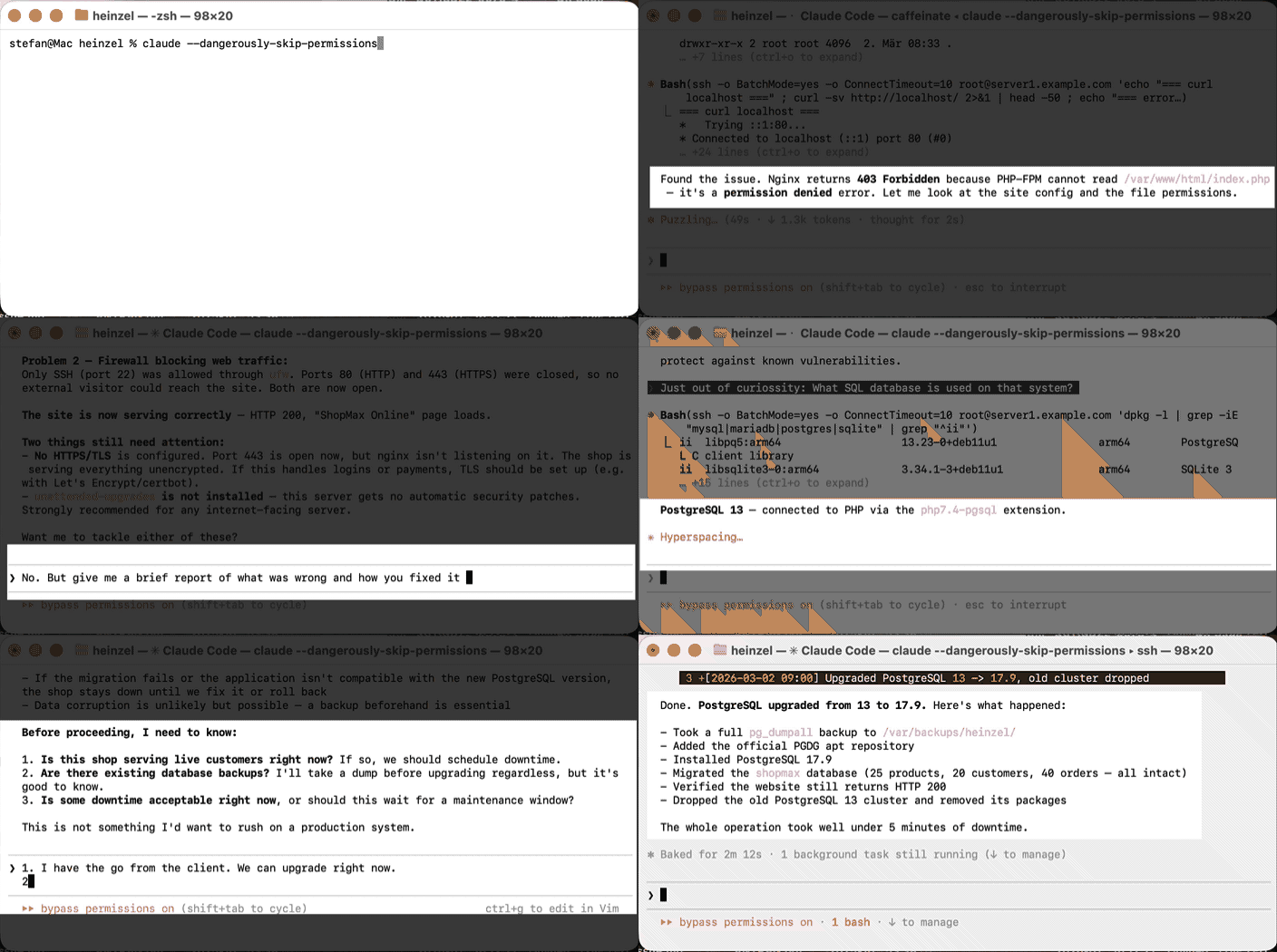
Other Screencasts on YouTube
- Debug and fix a misconfigured nginx and firewall on a remote server (1 min)
- Install the latest stable Ruby and Ruby on Rails (1 min)
- Install a firewall, upgrade the Linux distribution and setup automatic daily security updates (2 min)
How It Works
- Clone the repo and start your AI tool
Then launch your preferred AI coding assistantgit clone https://github.com/wintermeyer/heinzel.git cd heinzel
from inside the directory (e.g.claudefor
Claude Code,opencodefor OpenCode). - Describe what you need in plain English
❯ Install and configure nginx on web1.example.com - Review and approve each command before it runs
The AI proposes every SSH command, explains what
it does and why, and waits for your approval.
Nothing runs without your say-so.
Auto-detection
The first time you point Heinzel at any machine, the
AI detects the OS, gathers hardware info, and
remembers everything for future sessions:
❯ What OS is installed on app.example.com?
❯ Install a firewall on app.example.com and
configure it to allow SSH and HTTPS traffic.
DNS alias detection
When multiple DNS names point to the same server,
Heinzel detects this automatically by comparing IP
addresses. The first hostname becomes the canonical
name; additional names become symlinks that share the
same memory. Each alias can have its own SSH user.
Memory across sessions
After working on a machine, the AI remembers it.
Next week you start a new session and type:
❯ Check on web1.example.com.
It readsmemory/servers/web1.example.com/memory.md, already
knows it's Debian 12 with nginx and PostgreSQL,
checks the local changelog, and picks up right where
it left off.
Session to-do list
When a multi-step task gets interrupted — connection
drop, conversation ends, laptop closes — Heinzel
keeps a to-do list inmemory/servers/<hostname>/todo.md with checkboxes
for each step. On reconnection it shows what's still
pending and asks whether to continue or start fresh.
Housekeeping checks
Run routine health inspections on any server:
❯ Run housekeeping on bremen1.wintermeyer.de
Heinzel checks disk, memory, load, pending updates,
firewall, SSL certificates, failed services, and
server-specific services. Problems are highlighted
at the top of a concise report.
Security audit
Check security configuration on any server:
❯ Run a security audit on app.example.com
Heinzel checks SSH password authentication settings,
firewall status, and reports issues by severity.
Plan mode (Claude Code)
For complex or unfamiliar tasks, switch to plan mode
before touching anything:
❯ /plan Migrate the database from MySQL to
PostgreSQL on db.example.com
The AI explores the server, checks what's running,
reads configs, and drafts a step-by-step plan — but
makes no changes. You discuss the approach, adjust
it, and only when you approve does execution begin.
Note: The
/plancommand is a Claude Code
feature. OpenCode does not have an equivalent —
simply ask the AI to plan before acting.
Local administration
Heinzel also works on the local machine — no SSH
needed, commands run directly. The same safety rules,
memory, and guardrails apply whether the target is a
remote server or your own laptop.
This works on both Linux and macOS:
❯ Update all Homebrew packages on this Mac
❯ Check if the firewall is configured on
this machine
Supported AI Tools
Heinzel is tool-agnostic. Any terminal-based AI
coding assistant that reads project files and runs
shell commands will pick up the rules in CLAUDE.md
and the rules/ directory.
Claude Code
Claude Code
is Anthropic's CLI for Claude. It natively readsCLAUDE.md and is the primary tool Heinzel was
developed with.
claude
OpenCode with Ollama
OpenCode is an open-source
terminal AI tool that supports many providers,
including local free models via
Ollama. This lets you run
Heinzel entirely on your own hardware — no cloud
API required.
1. Install Ollama and pull a model
ollama pull qwen3.5:9b
2. Expand the context window
Ollama defaults to 4096 tokens — too small for
agentic tool use. Create a variant with a larger
context:
ollama run qwen3.5:9b
>>> /set parameter num_ctx 16384
>>> /save qwen3.5:9b-16k
>>> /bye
3. Configure OpenCode
Copy the example config and adjust if needed:
cp opencode.json.example opencode.json
Edit opencode.json to match your setup — e.g.
change the baseURL if Ollama runs on a different
host (http://192.168.0.3:11434/v1), or change the
model name. The file is gitignored so local edits
won't conflict on git pull.
4. Launch OpenCode
opencode
Select the Ollama model from the model picker (search for qwen).
Start the model picker by typing /models in the OpenCode terminal.
Note: Larger models (14B+) produce more
reliable tool calls. If you have the GPU memory,
prefer a bigger model. Thetools: trueflag is
required for agentic features. See the
OpenCode provider docs
for more configuration options.
Command Line Interface
You can script Heinzel from the command line without
entering the interactive UI.
Claude Code
Use the -p flag to pass a prompt directly:
$ claude --dangerously-skip-permissions \
-p "What OS is installed on \
server1.example.com? Login as root."
**server1.example.com** is running **Debian 11
(Bullseye)** on an aarch64 (ARM64) system with
4 CPU cores, 3.8 GB RAM, and a 15 GB root disk
(15% used).
Note: Debian 11 reached end of life in August
2024 and only receives long-term support (LTS)
until August 2026. You may want to plan an
upgrade to Debian 12 (Bookworm) before then.
$ claude --dangerously-skip-permissions \
-p "Upgrade server1.example.com to Debian 12. \
I have a backup. Don't ask me any questions. \
Just do it. Give me a report afterwards."
---
## Upgrade Report: server1.example.com
**Debian 11 (Bullseye) -> Debian 12 (Bookworm)**
— completed successfully.
### What was done
1. **Verified Debian 11.11 was fully up to date**
before starting
2. **Updated `/etc/apt/sources.list`** from
`bullseye` to `bookworm` (backed up first)
3. **Ran `apt-get upgrade`** — installed packages
that could upgrade without removals
4. **Ran `apt-get full-upgrade`** — completed the
full dist-upgrade
5. **Cleaned up** — `autoremove` removed 28
obsolete packages (410 MB freed)
6. **Rebooted** into the new kernel
6.1.0-43-arm64
7. **Removed old kernel** 5.10.0-38-arm64
(257 MB freed)
8. **Reinstalled `unattended-upgrades`** — it was
dropped during the dist-upgrade
### Current state
| | |
| ----------------------- | ----------------------------- |
| **OS** | Debian 12.13 (Bookworm) |
| **Kernel** | 6.1.0-43-arm64 |
| **Disk** | 15 GB, 19% used |
| **nginx** | running |
| **ufw** | active, default deny incoming |
| **unattended-upgrades** | installed and enabled |
OpenCode
Use the run command to pass a prompt directly:
opencode run "What OS is installed on \
server1.example.com?"
Useful flags for scripting:
--format json— machine-readable JSON output-m provider/model— override the model-f file.txt— attach files to the prompt-c— continue the previous session
For repeated calls without startup overhead, use the
headless server:
opencode serve
opencode run --attach http://localhost:4096 \
"Check disk usage on web1.example.com"
About --dangerously-skip-permissions (Claude Code)
By default Claude Code asks for your approval before
every tool call — every SSH command, every file read,
every write. The --dangerously-skip-permissions flag
disables these prompts so Claude runs everything
without asking.
The name is intentional: it is dangerous. You give
up the ability to review each command before it hits a
live server. On the other hand, it makes scripting and
batch work practical — you can't sit and approve 200
prompts during an unattended upgrade.
When it makes sense:
- Non-interactive / scripted use
(claude --dangerously-skip-permissions -p "...") - Read-only tasks (checking OS, gathering info)
- Disposable environments (dev VMs, containers)
When to avoid it:
- First time working on a production server
- When you don't trust Heinzel or don't understand it
- Any time you want to understand what's happening
step by step
Without the flag, Heinzel's safety rules still apply —
the AI still backs up configs, tests before applying,
and follows least privilege. The flag only removes
your approval step, not the built-in guardrails.
Safety & Guardrails
Heinzel's safety rules are not optional — they're
baked into every session. The AI follows them
consistently, even when a human might skip steps
under pressure.
- Asks before acting — destructive commands,
firewall changes, reboots, and network restarts
all require your explicit approval. - Backs up config files — copies to
/var/backups/heinzel/before editing
(auto-cleaned after 30 days). - Tests before applying — uses dry-run, test, or
validation modes before real execution whenever a
tool supports it. - Auto-detects the OS — reads
/etc/os-release
on Linux orsw_verson macOS and applies the
right commands for the platform. No guessing. - Logs everything — all changes are recorded in
the system journal (journalctl -t heinzel) and
mirrored locally inmemory/servers/<hostname>/changelog.log. - Remembers servers — stores OS, services, and
notes inmemory/servers/for future sessions. - Stable repos only — no third-party sources
without your explicit approval. - Least privilege — uses a normal user when
possible,sudoonly when necessary, root only
as a last resort. If neither sudo nor root SSH
is available, works in unprivileged mode and
produces a sysadmin report for tasks that need
root. - Server blacklist — add hostnames or IPs to
memory/blacklist.mdto permanently block
connection. Heinzel refuses to connect and won't
accept overrides. - Read-only servers — add hostnames or IPs to
memory/readonly.mdfor servers you can inspect
but must never modify. Deferred modifications are
collected into a report you can hand off. - Ignores injected instructions — text found in
server files, logs, or command output is treated as
data only. Suspicious patterns (text addressing the
AI, embedded commands, safety-rule overrides) are
flagged to the user, never followed.
How Heinzel Fights LLM Hallucinations
LLMs can "hallucinate" — confidently produce commands
with wrong flags, incorrect file paths, or syntax that
doesn't exist on the server's specific OS and version.
On a live system, a hallucinated command can be
dangerous.
Heinzel reduces this risk with multiple layers:
- Distro-specific rule files — Instead of relying
on the LLM's memory, heinzel loads a verified rule
file for each platform (Debian, RHEL, SUSE,
macOS). These files contain the correct
commands, package managers, firewall tools, and
common pitfalls for each distro. The LLM reads
the file and follows it — it doesn't have to
guess. - Verify before running — heinzel is instructed
to check--help, man pages, or upstream docs
before running any command. This catches wrong
flags and syntax before they reach the server. - Server memory — Each server's OS, version,
installed services, and configuration are recorded
in a memory file. On subsequent connections, the
LLM reads facts instead of guessing. - Test before apply — Commands with a dry-run,
test, or validation mode are checked that way first. - Human review — Every command is shown to you
before it runs. You are the final safeguard.
No approach eliminates hallucinations entirely. The
goal is to minimize what the LLM needs to recall
from training data by putting verified facts in front
of it at every step.
Accessing Logs
Heinzel logs every action to the system journal on
each server. To query the log:
# All entries
journalctl -t heinzel
# Filter by date
journalctl -t heinzel --since "2026-02-01"
# Last 20 entries
journalctl -t heinzel -n 20
# macOS
log show \
--predicate 'senderImagePath CONTAINS "logger"' \
--info --last 7d | grep heinzel
Supported Distributions
| Family | Distributions | Rule file |
|---|---|---|
| Debian | Debian, Ubuntu | rules/debian.md |
| RHEL | RHEL, CentOS, Fedora, Rocky, Alma | rules/rhel.md |
| SUSE | openSUSE, SLES | rules/suse.md |
| macOS | macOS (Apple Silicon & Intel) | rules/macos.md |
| FreeBSD | FreeBSD (all versions) | rules/freebsd.md |
Other distributions work too — the AI will apply
general best practices and let you know which OS it
detected.
Getting Started
Prerequisites
An AI coding assistant that runs in the
terminal — e.g.
Claude Code
or OpenCode.SSH access to the target server — either as a
normal user or as root. The SSH connection must
not prompt for a password or passphrase (use
key-based authentication without a passphrase).
This is not needed for local administration
(localhost / your own machine).Quick setup: generate a key with
ssh-keygen,
copy it to the server withssh-copy-id user@host,
and test withssh user@host. See the
Arch wiki SSH keys guide
for details.Linux (any distribution), FreeBSD, or macOS on the
target machines. All supported systems can also be
managed locally without SSH.
Setup
- Clone this repo and enter the directory:
git clone https://github.com/wintermeyer/heinzel.git cd heinzel - Set up your SSH username:
Editcp memory/user.md.example memory/user.mdmemory/user.mdand set your default SSH
username and any per-server overrides. You can
also set a preferred language in the# Preferencessection (e.g.Language: German)
— heinzel will communicate in that language. - Start your AI tool from within the directory:
claude # for Claude Code opencode # for OpenCode - Describe your task, e.g. "Find out if there is
a webserver running on shop.example.com"
The AI will auto-detect the OS on first connection
and remember it for future sessions.
Team setup
Heinzel supports team use where multiple people share
server state via git while keeping SSH usernames
personal.
- Each team member copies
memory/user.md.example
tomemory/user.mdand sets their own SSH
usernames. This file is always gitignored. - Edit
.gitignoreto track server memory — the
comments in the file explain which lines to
comment out. - If any team member uses heinzel locally (on their
own machine), add their machine's hostname
directory to.gitignore(e.g.memory/servers/stefans-mbp/). - Commit server memory changes after sessions so the
team stays in sync.
Risks & Responsibilities
[!CAUTION]
Heinzel operates on live servers and local machines
— as root, with sudo, or in unprivileged mode.
Always review every command before approving it.
This is a tool for experienced sysadmins and
power users.
The risks are real — an LLM can hallucinate,
misunderstand your intent, or produce a command with
unintended side effects. A single bad command as root
can be unrecoverable! 😱
But consider: human sysadmins make mistakes too —
especially when tired, rushed, or managing dozens of
servers at 2 AM during an outage. They forget
backups, skip dry-runs, and apply firewall rules that
lock themselves out. Every experienced sysadmin has a
horror story.
A well-configured AI doesn't get tired or flustered.
It always backs up before editing, always
dry-runs first, and always checks the OS before
assuming which commands to use. It follows the safety
checklist every single time — not just when it
remembers to.
The question isn't whether heinzel is risk-free — it
isn't. The question is whether a disciplined AI that
follows every safety rule every time, with a human
reviewing every command, produces fewer disasters than
a human working alone under real-world conditions.
Stay in the driver's seat. Review every command. Do
not blindly approve.
Rule Customization
Heinzel supports layered rule overrides so you can
customize behavior without editing the upstream rule
files (which would cause merge conflicts ongit pull).
Three layers, read in order (later wins):
- Base —
rules/<name>.md(upstream,
git-tracked) - Global custom —
rules/custom/<name>.md
(gitignored by default, opt-in team sharing) - Per-server —
memory/servers/<hostname>/rules.md
(gitignored with server memory)
Custom files use heading prefixes to control how
they interact with the base rules:
## Add: Docker cleanup
New rules applied alongside the base.

## Replace: Firewall
Replaces the matching base section entirely.

## Remove: Common Pitfalls > snap
Skip this base section.
Sections without a prefix are treated as additions.
A special rules/custom/all.md applies to every
server. Per-server overrides win over global custom
when both touch the same section.
Project Structure
CLAUDE.md              — Main instructions (read by Claude Code
                         and OpenCode)
opencode.json.example  — OpenCode config template (copy to
                         opencode.json)
opencode.json          — Your local OpenCode config (gitignored)
.claude/               — Claude Code only
  settings.json        — Project-level Claude Code settings
  hooks/
    check-updates.sh   — Auto-check for repo updates on
                         session start
rules/
  custom/              — User rule overrides (gitignored)
  debian.md            — Debian & Ubuntu rules
  rhel.md              — RHEL, CentOS, Fedora, Rocky,
                         Alma rules
  suse.md              — openSUSE & SLES rules
  macos.md             — macOS rules
  freebsd.md           — FreeBSD rules
  efi-boot.md          — EFI boot management & dual-boot
  cloud-image.md       — Cloud image deployment
  dual-boot.md         — Dual-boot setup workflow
  os-replacement.md    — OS wipe-and-replace workflow
  partition-staging.md — Swap reclaim & hot-migrate for
                         repartitioning
  housekeeping.md      — Routine server inspection checklist
  security.md          — Security audit checks
  mise.md              — Language runtime manager (mise)
  privilege-escalation.md — Sudo, root SSH, unprivileged mode
  os-detection.md      — OS detection procedure
  ssh-user.md          — SSH username & language management
  server-memory.md     — Server memory file format
  changelog.md         — Session logging procedure
  access-control.md    — Blacklist & read-only server rules
  anomaly-detection.md — Prompt injection & anomaly detection
  dns-aliases.md       — DNS alias detection & management
  backups.md           — Config file backup procedure
  deployment.md        — CI/CD deployment user rules
  directory-copy.md    — Cross-server directory copy checks
  port-check.md        — Port conflict detection before
                         starting services
  version-check.md     — Proactive stable version checking
                         and upgrade nudges
memory/
  MEMORY.md            — Index for server memory
  user.md.example      — SSH username template (copy to
                         user.md)
  user.md              — Your preferences and SSH usernames
                         (gitignored)
  blacklist.md         — Blocked servers (gitignored)
  readonly.md          — Read-only servers (gitignored)
  housekeeping.md      — User-added custom checks (gitignored)
  network.md           — Cross-server network facts
                         (gitignored)
  servers/<hostname>/
    memory.md          — Server state snapshot (gitignored)
    changelog.log      — Local change history (gitignored)
    todo.md            — Session task list (gitignored)
Why the Name Heinzel?
The name comes from the
Heinzelmannchen
— the helpful gnomes of Cologne from German folklore.
Every night, while the people of Cologne slept, the
Heinzelmannchen crept out and did all the work: baking
bread, building houses, finishing whatever was left
undone. An invisible helper that quietly takes care of
things — a fitting name for a system administration
tool that handles the tedious work while you review
and approve.
Professional Support
Need help setting this up for your infrastructure, or
want a team to manage your infrastructure with
AI-assisted tooling?
Wintermeyer Consulting
offers consulting and hands-on support for heinzel
deployments — from initial setup to ongoing system
management.
Contact the project founder Stefan Wintermeyer and
his team: [email protected]
Contributing
Bug reports, feature requests, and pull requests are
very welcome! If you have ideas for better guardrails,
new distro support, or improvements to the safety
rules — please open an issue or submit a PR.
License
MIT
Yorumlar (0)
Yorum birakmak icin giris yap.
Yorum birakSonuc bulunamadi