xpair
Health Gecti
- License — License: AGPL-3.0
- Description — Repository has a description
- Active repo — Last push 0 days ago
- Community trust — 31 GitHub stars
Code Basarisiz
- fs module — File system access in client/cli/approve-permission-prompts.test.js
- fs module — File system access in client/cli/detached-session-handling.test.js
- spawnSync — Synchronous process spawning in client/cli/folder-mapping-launch.test.js
- process.env — Environment variable access in client/cli/folder-mapping-launch.test.js
- fs module — File system access in client/cli/folder-mapping-launch.test.js
- fs module — File system access in client/cli/host-child-computer-use.test.js
- fs.rmSync — Destructive file system operation in client/cli/platform-portability.test.js
- process.env — Environment variable access in client/cli/platform-portability.test.js
- fs module — File system access in client/cli/platform-portability.test.js
- rm -rf — Recursive force deletion command in client/cli/reset-onboarding.sh
- fs module — File system access in client/cli/session-engines-q0261.test.js
Permissions Gecti
- Permissions — No dangerous permissions requested
Bu listing icin henuz AI raporu yok.
Run Claude Code as a worker on a dedicated Mac. It keeps working after you close your laptop.

Xpair
English · Korean
Run the agent you already subscribe to — Claude, Codex, or OpenCode — on an always-on Mac, with full macOS computer-use (screenshot, click, type) intact, and attach to it from your laptop or phone over mosh/SSH. Your work keeps running while you're away; you bring your own subscription, so there are no extra AI credits.
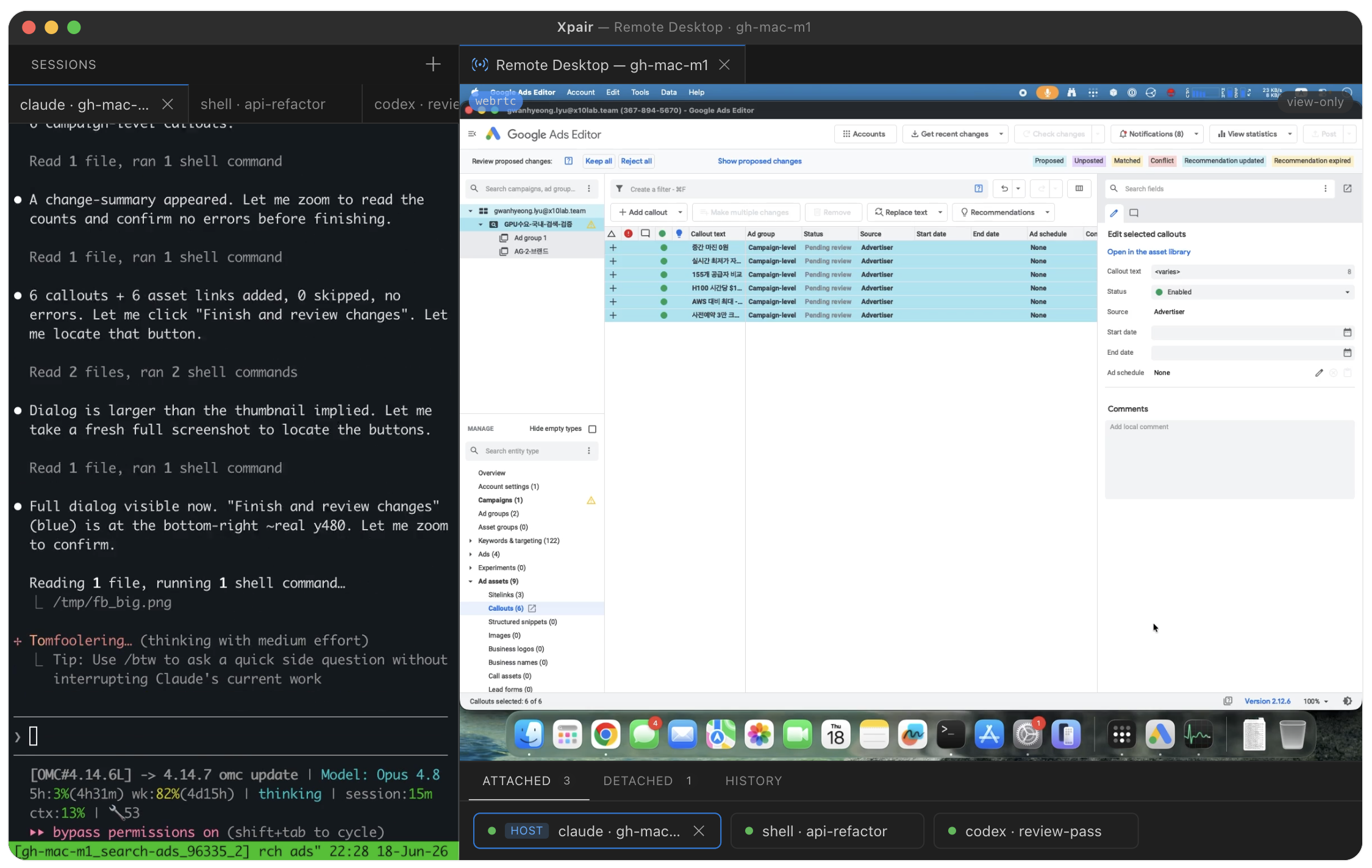
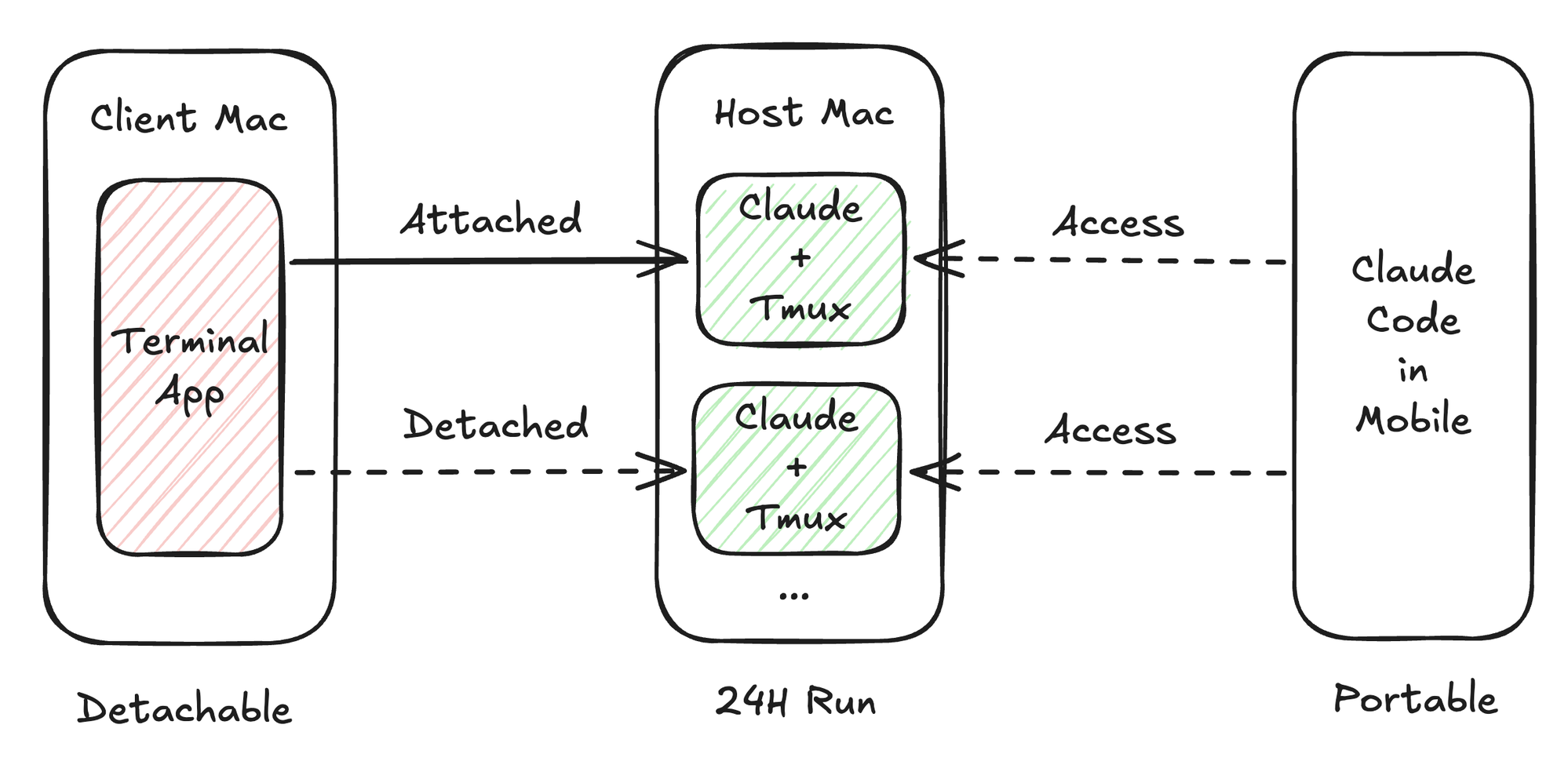
- Host Mac — runs your agent inside persistent tmux sessions, 24/7, with computer-use working.
- Client — Xpair, the desktop app (a VSCodium-based fork), or the
xpairCLI; attach with a Finder right-click. - Mobile — reach the same sessions from any SSH/mosh client, including Claude Code on your phone.
Quick start — let Claude Code install it
Already have Claude Code? Paste the block below into a session on the Mac you're setting up and it drives the whole install end-to-end — figuring out the role, installing, wiring SSH, and walking you through the one manual permission step.
Set up Xpair (https://github.com/x10lab/xpair) on this Mac. Fetch and read its README, then follow it. Figure out whether this Mac is the host or the client, explain each command before you run it, and stop for anything that needs my input or my physical screen (like the one-time permission grant). Finish with xpair doctor and a summary of what's left for me to do.
Prefer to do it by hand? See Installation below. Either way, first launch drops you into a guided onboarding flow (below) that walks the rest.
Features
Computer-use that survives going remote
Run your agent over SSH and macOS strips its Accessibility (AX) and Screen Recording (SR) grants, so screenshot/click/type silently stop. A privileged menu-bar app (XpairHost.app) owns the grants and keeps the agent inside its process subtree, so computer-use keeps working no matter which client is attached.
Sessions that survive disconnects
Close the laptop or drop Wi-Fi and a normal agent session dies with the connection. A patched tmux (tmux-aqua) keeps every session alive on the host — Attached while you're there, Detached while you're gone, running 24/7 either way.
Pick your engine
Bring whichever subscription you have: claude (with its unique --remote-control), codex, or opencode. The agent runs on the host, so it must be installed there. Switch with xpair config set engine <claude|codex|opencode>, or override per launch with xpair launch --engine <e>.
Onboarding that resolves, not just blocks
First run opens a guided setup where each step is a hard gate that fixes itself instead of dead-ending: it installs the CLI, brew installs the engine, sets the API key, and verifies SSH key-auth. Secrets go over stdin, never argv or disk.
Attach from your laptop or your phone
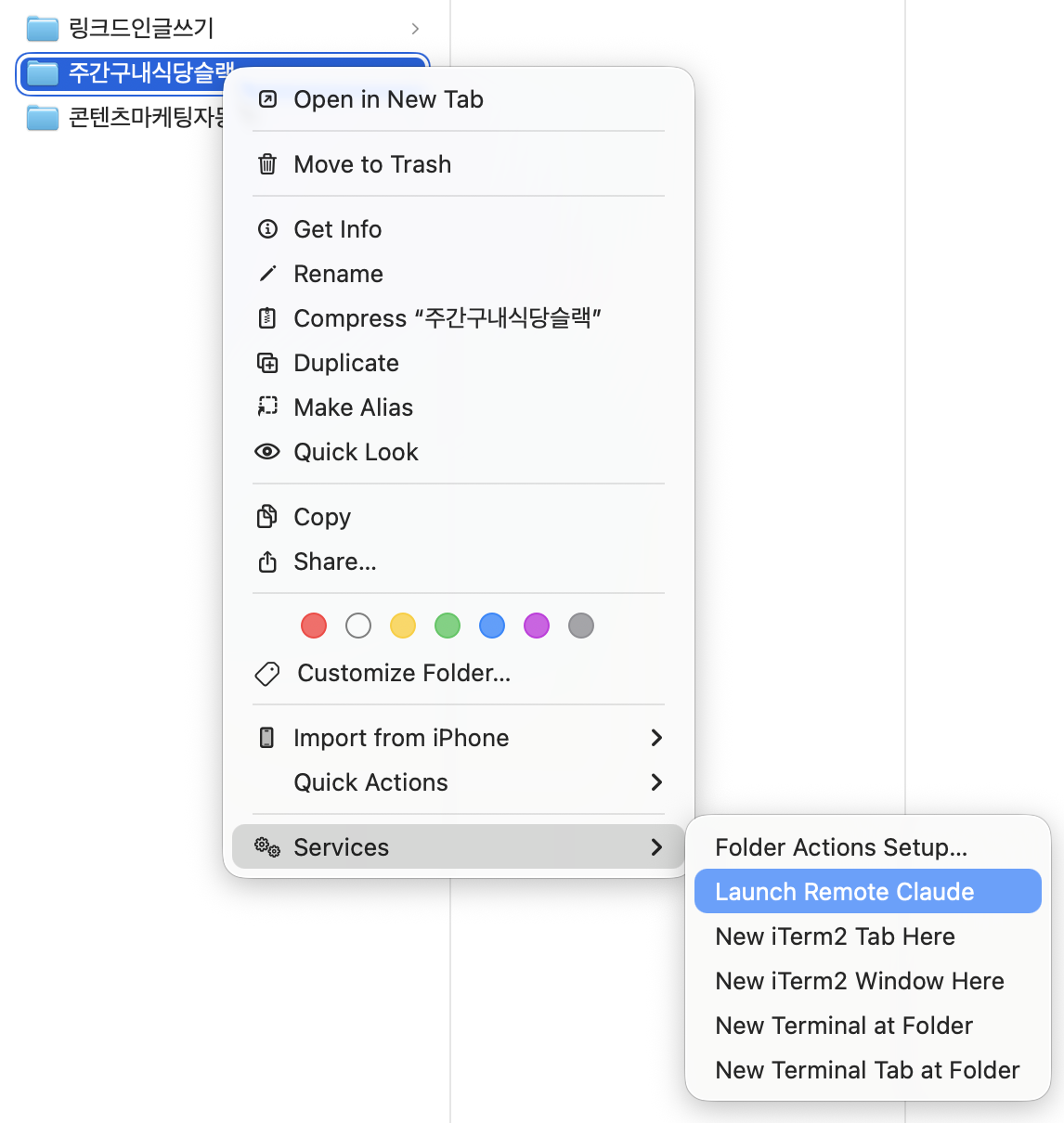
Attach from a client Mac (Finder → right-click → Launch Remote Pair), Xpair's Sessions sidebar, or any SSH/mosh client including Claude Code on mobile. Same sessions, same state, wherever you are.
Remote Desktop, built in
View and drive the host screen from Xpair's Remote Desktop tab over a native H.264/WebRTC stream with authenticated pointer, wheel, keyboard, and text input. xpair desktop falls back to macOS Screen Sharing.
Permission dialogs answered for you
A blocking "Allow?" dialog (or a 1Password unlock prompt) on a headless host stalls the whole session. An on-demand approve router (OCR + click, with a Claude fallback classifier) detects and clicks the right button, so unattended sessions don't hang.
Requirements
- Apple Silicon Mac (host and client)
- macOS Sequoia or later recommended
- Remote Login enabled on the host (onboarding generates the SSH key and wires the rest)
moshon both machines — onboarding installs it via Homebrew; without it, attach falls back to plain SSH (which dies on disconnect)- Host: Homebrew. The engine CLI (
claude/codex/opencode) and the host app are installed by onboarding.
Installation
Setup runs from Xpair, the client app: install it, launch it, and its first-run onboarding does the rest — installs the CLI, wires SSH, installs and authenticates your engine on the host, and pushes the signed host app onto the host. Every step is a hard gate that fixes itself instead of dead-ending. The only thing it can't automate is the permission grant on the host's physical screen.
1. Install Xpair and launch it
curl -fsSL https://raw.githubusercontent.com/x10lab/xpair/main/shared/install-client.sh | bash
This installs the latest stable release that actually includes the Xpair.zip client asset. Xpair currently has no stable release on the renamed Xpair asset line, so the installer falls back to the newest 0.5.0aN pre-release with a notice. To choose that channel explicitly, pass --prerelease:
curl -fsSL https://raw.githubusercontent.com/x10lab/xpair/main/shared/install-client.sh | bash -s -- --prerelease
It downloads the chosen Xpair.app and strips its Gatekeeper quarantine with xattr — exactly what the cask does in its postflight (Homebrew's --no-quarantine), so the self-signed app opens without the "unidentified developer" block.
Prefer Homebrew? The cask follows the stable line — the same channel as the default curl install above (alpha builds come from the --prerelease one-liner, not the cask). No stable Xpair release exists on the renamed asset line yet, so the cask is interim-pinned to the latest 0.5.0aN pre-release; brew upgrade moves you onto stable the moment it ships:
brew tap x10lab/xpair https://github.com/x10lab/xpair && brew install --cask xpair
Open Xpair. First run opens onboarding (in-app, not a separate window) and walks:
- CLI — auto-installs the bundled
xpairCLI if it's missing. - Connection — generates an SSH key, discovers hosts (LAN Bonjour + Tailscale), and verifies passwordless reachability. You enable Remote Login on the host once (System Settings → General → Sharing); outside your LAN, a mesh VPN like Tailscale gives the host a stable name.
- Engine — probes the host for
claude/codex/opencode, installs it if missing, and sets the API key. The key travels over SSH stdin — never argv, log, or disk. - Host app — runs
xpair install-host, copying the signedXpairHost.appto the host and installing its daemon (LaunchAgent,~/.xpair/host, tmux-aqua, watchdog). The app is self-signed but its grants stick to a stable signing identity. - Permissions — polls the host's grant status and stops at the one manual step below.
Coming from an old RemotePair build on the host? Uninstall it first — the bundle id changed, so its macOS permission grants don't carry over.
2. One-time permission grant — needs a physical screen or VNC
This is the one step onboarding can't do for you; it can't be done over SSH (TCC on SIP-enabled, non-MDM Macs). On the host, in System Settings → Privacy & Security, turn XpairHost ON for:
| Grant | Why | Needed? |
|---|---|---|
| Accessibility | Synthetic input (click/type) for computer-use | Required |
| Screen Recording | Screenshots for computer-use | Required |
| Full Disk Access | Prevents macOS folder prompts a headless host can't answer (an unanswered prompt stalls the session). The grant is exercised by the agent session running inside the app, which can then read the whole disk — prefer a non-protected project root instead if you can. | Recommended |
Then pick up the grants: launchctl kickstart -k gui/$(id -u)/com.x10lab.xpair-host (or menu bar → Restart tmux host).
Prefer not to grant Full Disk Access? Keep project folders under a non-protected root (e.g.
~/Spaces, not~/Desktop/~/Documents/~/Downloads) — then sessions never hit a protected folder and never prompt.
Doing it by hand (CLI only)
Prefer the CLI to the app? The bootstrap script and xpair install-host do the same work (the bootstrap script needs git — it clones the repo for its source):
# Client: CLI + Finder Quick Action (auto-runs `xpair onboard`):
curl -fsSL https://raw.githubusercontent.com/x10lab/xpair/main/shared/bootstrap.sh | ROLE=client bash

# Host: install the CLI + approve glue on the host itself:
curl -fsSL https://raw.githubusercontent.com/x10lab/xpair/main/shared/bootstrap.sh | ROLE=host bash

# Deliver the signed XpairHost.app onto the host from a configured client:
xpair install-host --host <user@host>
You normally don't download the host app yourself — the client carries the signed XpairHost.app and xpair install-host copies it over (the same step onboarding runs for you). It's still published as a release asset if you ever need it directly.
Uninstall: ~/.local/share/xpair/shared/uninstall.sh [--purge].
Host files
Xpair runs your agent on the host, against files on the host — it attaches to a host path, it never copies your project around. The project lives on the host; the client just reaches it.
To browse and edit those files from the client, mount the host folder. In Xpair's Browser, Add Root mounts a host folder and adds it as a workspace root (xpair mount does the same from the CLI — see docs/m-mount.md). No syncing, no two copies to keep in step: there's one copy, on the host.
xpair launch <host-folder>   # start / attach a session for a folder on the host
xpair mount                  # mount a host folder locally (smb/sshfs) to browse + edit it
Usage
xpair launch <dir>     # launch / attach a session for a folder (--engine to override)
xpair attach <name>    # attach an existing tmux-aqua session by exact name
xpair ls               # host sessions + folder mappings
xpair map add|rm|list  # client path ↔ host path mappings
xpair onboard          # re-runnable client setup (host, terminal, mappings, doctor)
xpair discover         # find Xpair/SSH hosts (LAN Bonjour + Tailscale)
xpair status           # app PID, host server, heartbeat age
xpair doctor           # check SSH auth, host app, tmux-aqua on host
xpair desktop open     # open the host screen via macOS Screen Sharing (vnc://)
xpair editor start     # launch the in-app code-server editor (loopback)
xpair mount            # mount a host folder directly (smb/sshfs)
xpair notify           # pull recent host notifications (Stop / approve / …)
xpair logs [--host -f] # tail launcher/app logs (or host logs over ssh)
xpair config set host my-mac-mini
xpair config set engine codex
Host-side / install helpers: xpair install-host (idempotent, integrity-verified remote install), xpair update / xpair self-update (hot-swap the glue layer without touching the signed .app), xpair approve (handle a blocked dialog), xpair host (ensure the tmux-aqua server is up).
xpair launch <dir> (or Finder → right-click → Quick Actions → Launch Remote Pair) starts/attaches the session; the only per-session prompt is the agent's own "Allow for this session" — press Enter once.
Xpair, the client app
Xpair is a VSCodium-based desktop app (xpair cask) reshaped around remote pairing, on top of stock VSCodium:
- Sessions sidebar — lists your host sessions (Attached / Detached) with a session picker; the home base of the app.
- Browser container — folder / Search / Extensions with per-folder favorites.
- Remote Desktop — view and drive the host screen in-app over the native H.264/WebRTC pipeline (
host/rd), including pointer, wheel, keyboard, and text input over the active RD session;xpair desktopremains a macOS Screen Sharing fallback. - First-run onboarding — a guided, hard-gated flow that resolves each prerequisite (CLI install, engine, API key, SSH) before handing you the app.
- Editor (code-server) (scaffold) — an in-app editor over
xpair editor, still being wired in.
Stock VSCodium stays inviolable — Xpair changes live only in client/ide/remotepair/, so upstream pulls stay conflict-free. See client/ide/remotepair/REMOTEPAIR.md.
Notifications: the host hook (host/hooks/xpair-notify.sh, installed by bootstrap) appends Claude Code Stop/Notification events to ~/.xpair/host/notifications/queue.jsonl; the client polls it over SSH (xpair notify).
Security & responsibility
⚠️ Xpair deliberately lowers macOS's safety guardrails on the host: it holds Accessibility + Screen Recording (and optionally Full Disk Access) and keeps an autonomous agent running inside that privileged subtree, reachable remotely 24/7. That agent can see the screen, synthesize input, and — with Full Disk Access — read and write your entire disk. That is the point of the tool, and a trade-off you opt into. You are solely responsible for what runs on the host. Run it only on a personal machine you own, grant the minimum permissions you need, and don't point it at anything you can't afford to lose. Provided as-is, without warranty (see LICENSE).
Telemetry is off by default. Two independent opt-in switches (PostHog product analytics, Sentry crash reports) stay silent unless you turn them on, and never carry repo names, paths, command contents, or personal data. See docs/logging.md §11 for the full event catalog.
Troubleshooting
xpair doctor— checks SSH auth, the host app, and tmux-aqua; catches most setup problems.xpair status+ logs at~/.xpair/host/logs/xpair.log(orxpair logs --host -f).- Computer-use stopped after an agent update? Toggle the MCP server:
/mcp disable computer-usethen/mcp enable computer-use. - Permissions look granted but computer-use fails? Re-pick up the grants with the
launchctl kickstartcommand above.
Still stuck? Open an issue with your version (xpair status), macOS version, xpair doctor output, and repro steps. Scrub secrets from logs first.
For maintainers
Single monorepo (host/ + client/ + shared/), built in lockstep. Versions are declared once in shared/identity/versions.json (host 0.5.0, client 0.1.0, screen-engine 0.1.0) and verified across consumers; everything is signed with one stable cert (the in-app Updater verifies the leaf CN). The host app is built first — published to the release and bundled into the client, which delivers it to the host via xpair install-host. .github/workflows/release.yml ships both; users install the client cask and let it push the host.
./host/build-host.sh                   # → build/XpairHost.app (signed + verified)
./client/ide/build.sh                  # → the Xpair client app (VSCodium fork)
shared/identity/check-identity.sh      # brand/version consistency
See docs/monorepo-structure.md for the full layout.
License
AGPL-3.0-or-later. See LICENSE. (Commercial/dual licensing inquiries welcome.) Not endorsed by Apple. Contributions welcome — please open an issue before large changes.
Yorumlar (0)
Yorum birakmak icin giris yap.
Yorum birakSonuc bulunamadi