HyperCapslock
Health Pass
- License — License: GPL-3.0
- Description — Repository has a description
- Active repo — Last push 0 days ago
- Community trust — 29 GitHub stars
Code Pass
- Code scan — Scanned 12 files during light audit, no dangerous patterns found
Permissions Pass
- Permissions — No dangerous permissions requested
No AI report is available for this listing yet.
AI-native macOS CapsLock → Hyper key remapper: Vim navigation, CJKV input-source switching, per-app shortcuts, and built-in Agent Skill + live-reload CLI.

HyperCapslock
AI-Native macOS Hyper Key Engine — turn your Caps Lock into a system-wide vim navigation, CJKV input-source, and per-app shortcut layer without losing Caps Lock.
🇺🇸 English • 🇨🇳 中文 • 🇯🇵 日本語 • 🇩🇪 Deutsch




⭐ If HyperCapslock saves your pinky, please star the repo — it helps others find it.
The Idea
Caps Lock sits right on the home row, yet does almost nothing. HyperCapslock remaps it to a key that doesn't exist on any physical keyboard — one no other app ever sees — then intercepts Caps + other key combos at the OS level to simulate navigation, editing, input-source switching, key combos, and shell commands.
Because this trigger isn't a real modifier (not Cmd, Ctrl, Shift, or Alt), it stacks with all of them for free, without eating up any combos of its own:
So if you map Caps + H to the ← arrow key, you get these four behaviors natively:
| Combo | Action |
|---|---|
Caps + H |
← Move left |
Caps + Shift + H |
← Select left |
Caps + Alt + H |
← Move left one word |
Caps + Shift + Alt + H |
← Select left one word |
No extra configuration — system modifiers pass straight through.
And if you just tap Caps Lock and release without pressing anything else, it still toggles Caps Lock on/off as usual.
✨ AI-Native Configuration (Built-in Agent Skill + Live-Reload CLI)
Configure HyperCapslock visually in the native macOS UI or simply describe what you want to your favorite local coding agent — zero API keys required:
- One-click AI Setup inside the app (
✨ AI Setup): Copies a localized bootstrap prompt populated with your exact runtime paths (SKILL.md/SKILL.zh.md, CLI binary, and active config directory) — or pick from 6 ready-to-send example prompts — and paste directly into Claude Code, Codex, Cursor, Antigravity, Windsurf, or any local AI agent. You can also link the bundled skill into local agent skill folders in one click. - Optional standalone Agent Skill install:
npx skills add XueshiQiao/HyperCapslock - Deterministic CLI, automatic backups & live IPC hot-reload:
- Pre-flight validation (
cli validate) checks YAML syntax (with exact line/column), JS keyCodes, the 15 built-in action IDs, custom action UUIDs, and app/input-source references before touching disk. - Automatic
<timestamp>-<UUID>snapshots (cli backups/cli rollback) preserve every outgoing configuration inbackups/for instant one-command rollback. - Zero-restart live reload (
cli apply/cli reload) hot-swaps mappings and settings in the running menu-bar engine over local IPC while losslessly preserving unknown fields.
- Pre-flight validation (
✨ Feature Overview
Here is the complete set of capabilities in the current version. Everything can be configured point-and-click in the native GUI or conversationally via the built-in AI Agent Skill & CLI.
🎹 Triggers
A mapping is a trigger plus an action. The supported triggers are:
| Trigger | Description |
|---|---|
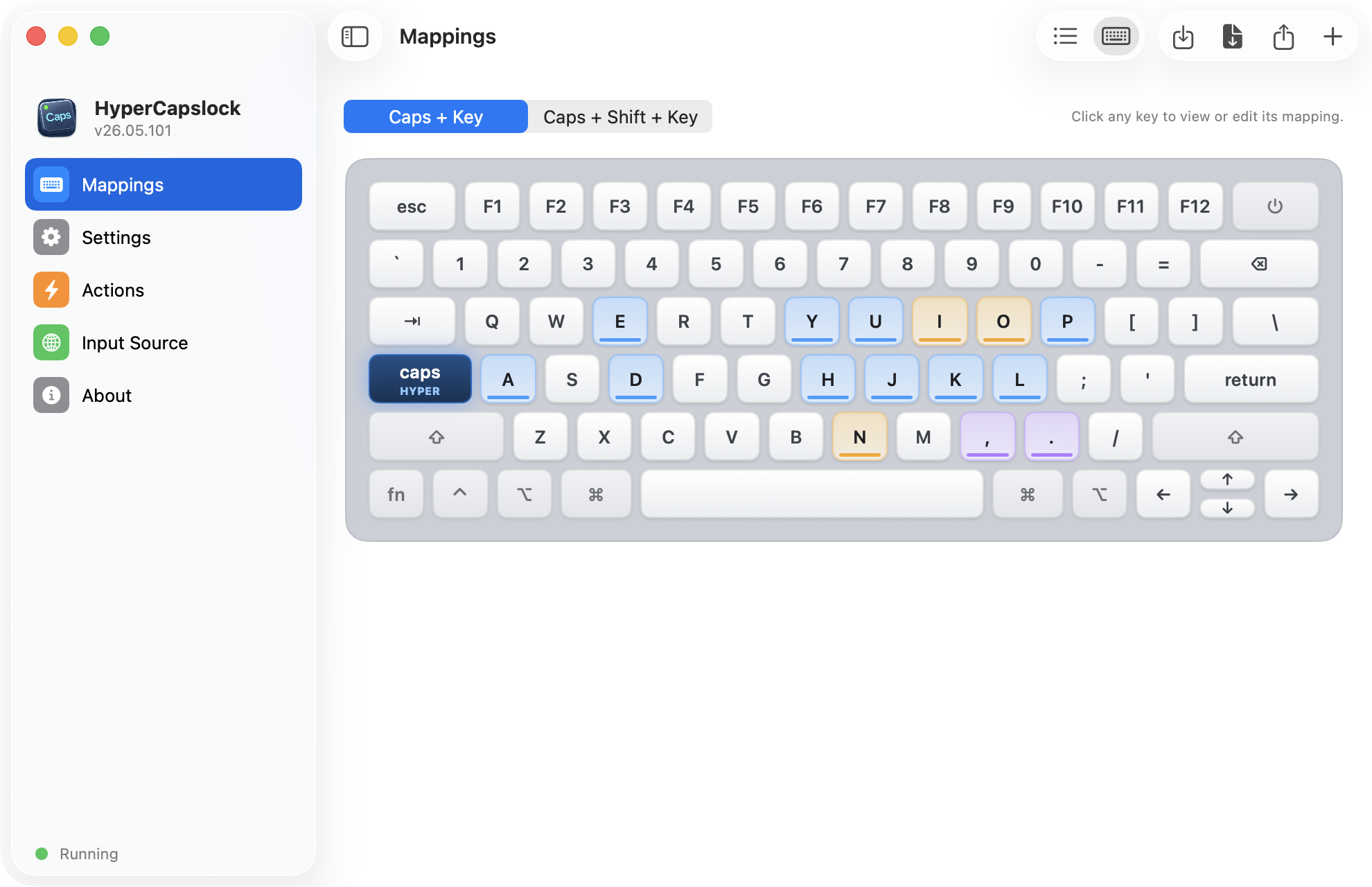
| Caps + key | Hold Caps and press a key, e.g. Caps + H |
| Caps + Shift + key | A separate mapping with Shift held — can bind a different action than the non-Shift version |
| Single-tap Caps (Caps×1) | Fires on a single tap of Caps (replaces the default Caps Lock toggle) |
| Double-tap Caps (Caps×2) | Fires on two quick taps of Caps; doesn't affect single-tap behavior |
| Double-tap modifier | Fires on two quick taps of a modifier, with left/right awareness: ⌘ / ⌃ / ⌥ / ⇧ / Fn |
Once you bind an action to single-tap Caps, you can still keep the original Caps Lock toggle by binding any key to the built-in Toggle Caps Lock action.
⚡ Actions
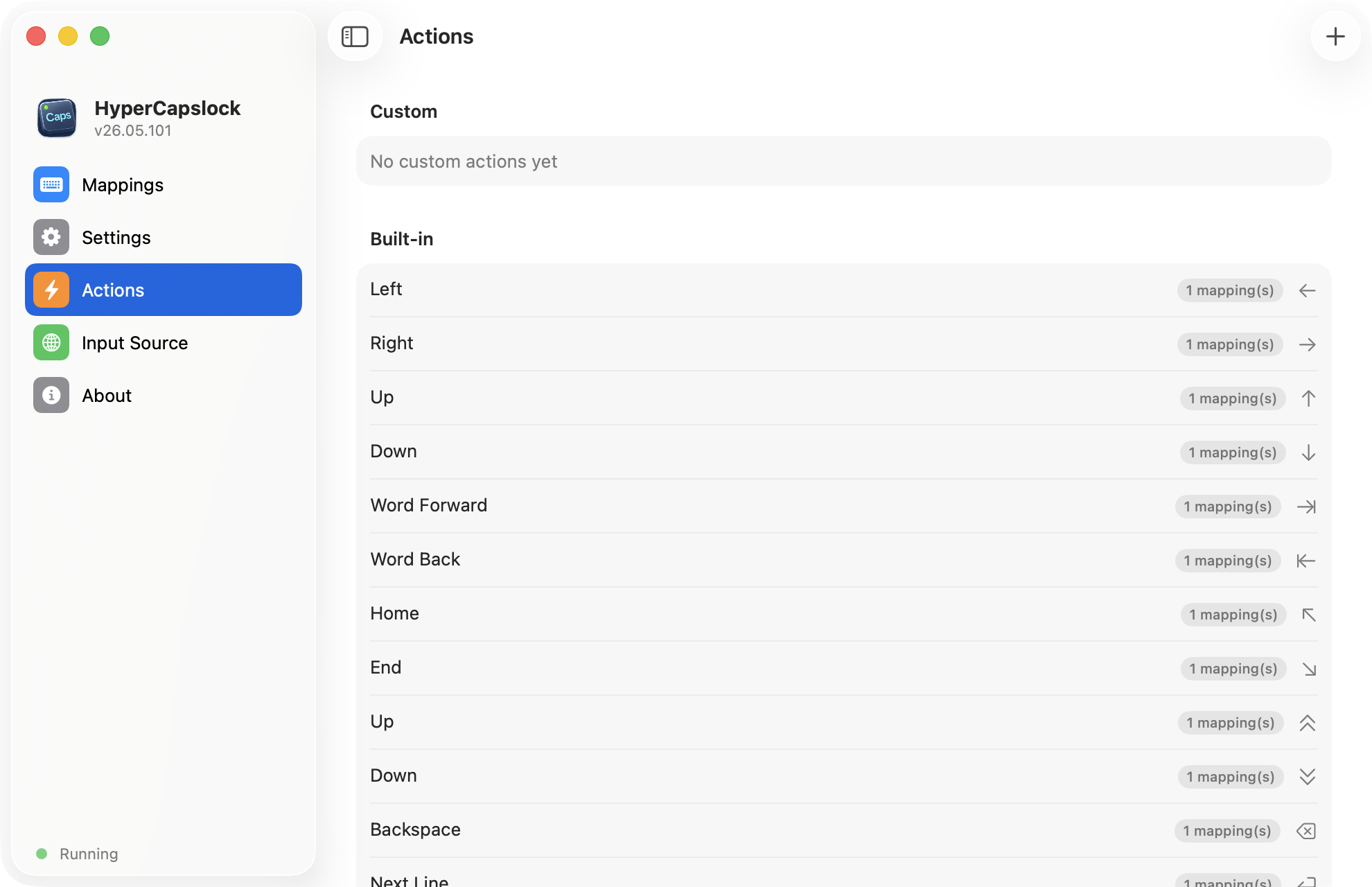
A trigger can be bound to any one of these actions:
| Action | What it does |
|---|---|
| Directional move | Up / Down / Left / Right, previous/next word, line start (Home), line end (End) |
| Jump N lines | Jump up or down any number of lines at once (e.g. 10 lines down); the count is configurable |
| Backspace / New line / Insert quotes | Backspace, open a new line below (line end + Return), insert a pair of quotes with the cursor centered |
| Switch input source | Switch directly to a specific input source (ABC, WeChat pinyin, a Japanese IME, etc.), chosen from a picker |
| Key Combo | Synthesize any system shortcut, e.g. Cmd+Shift+V, Cmd+Ctrl+Space |
| Run shell command | Run an arbitrary shell command (e.g. open -a Calculator, kick off a script) |
| Open / switch app | Launch and activate a specific application |
| Hold Modifier | Hold a modifier down for as long as the trigger is held, and release it when you let go — built for push-to-talk apps |
| Toggle Caps Lock | Explicitly toggle the system Caps Lock (to preserve the original Caps Lock function) |
| Do Nothing | Swallow the key and do nothing — handy for "disabling" a key in specific apps |
Directional move and Backspace forward whatever modifiers you're actually holding, so Caps + Shift + H selects and Caps + Option + H moves by word, all out of the box. (Switch input source, Key Combo, Run command, Open app, and Hold Modifier each carry their own explicit modifier intent and don't take part in this pass-through.)
🎯 Per-App Rules
The biggest addition over older versions: the same trigger can perform different actions in different apps.
- Add a per-app rule to any mapping: when the frontmost app matches your chosen app list, the rule's action runs; otherwise the default action runs.
- Rules are matched in order — the first match wins, and you can reorder their priority.
- Pick apps from
/Applicationswith the app picker; no need to type bundle ids by hand. - Typical uses: remap
Caps + Jto something else in one app, or use Do Nothing to fully disable a key in specific apps.
🧩 Custom Actions
- Beyond the built-ins, you can create named custom actions (e.g. "Jump down 20 lines", "Open Calculator", "Hold right Option") and save them to the library.
- A custom action can be reused by many mappings — edit it once, and every mapping that references it updates.
- Built-in and custom actions are listed side by side, labeled "Used by N mappings", and deleting one warns you if it's still referenced.
🖥️ On-Screen HUD
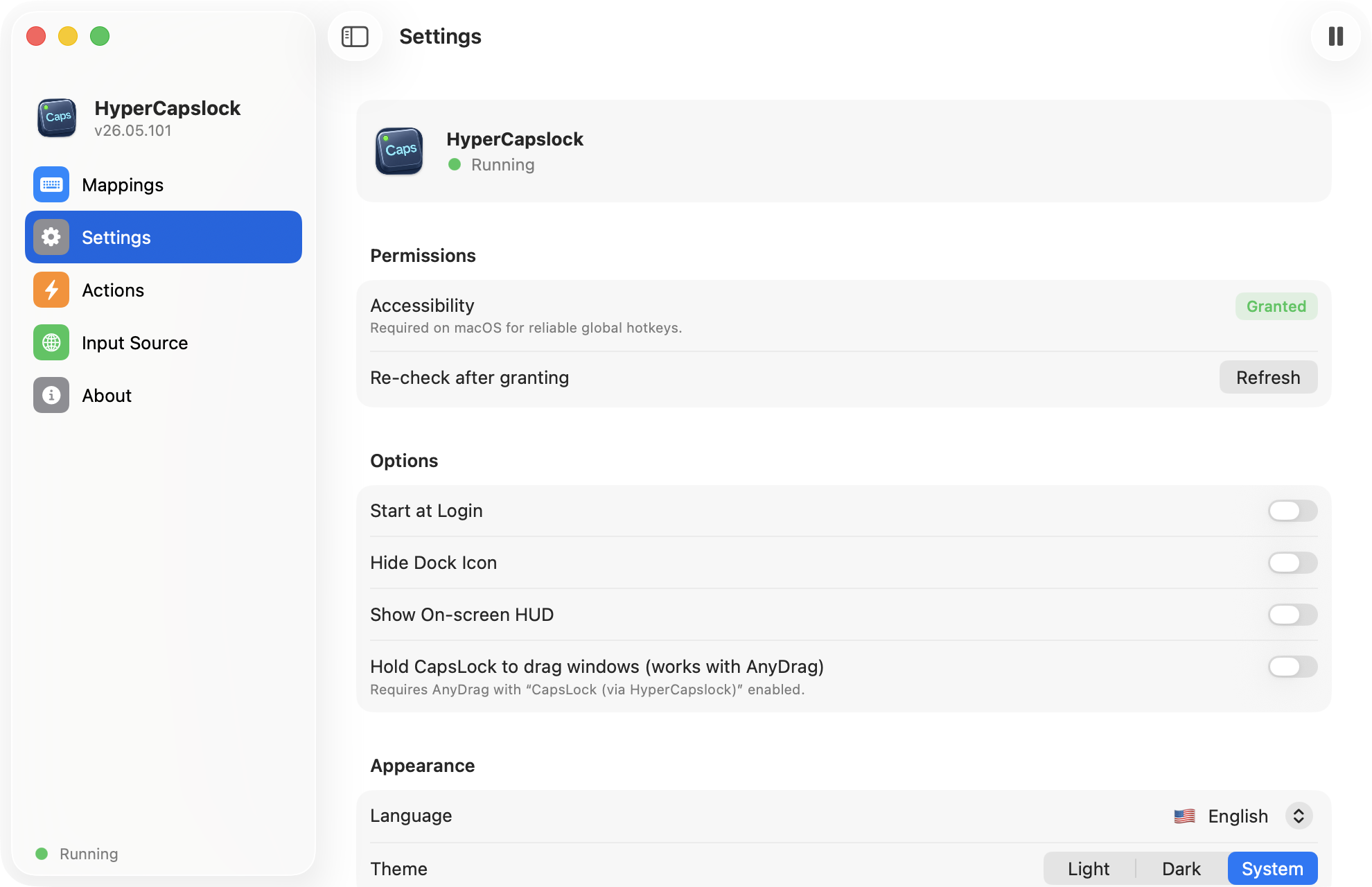
- When an action fires, a HUD pops up at the bottom of the screen showing "trigger → action", e.g.
Caps + J → ↓. - Toggle it in Settings and tune the display duration (300–6000 ms, default 1350 ms).
- For Hold Modifier actions, the HUD stays on screen until you release the key, so you can confirm push-to-talk is active.
⌨️ Input-Source Switching & CJKV Fix
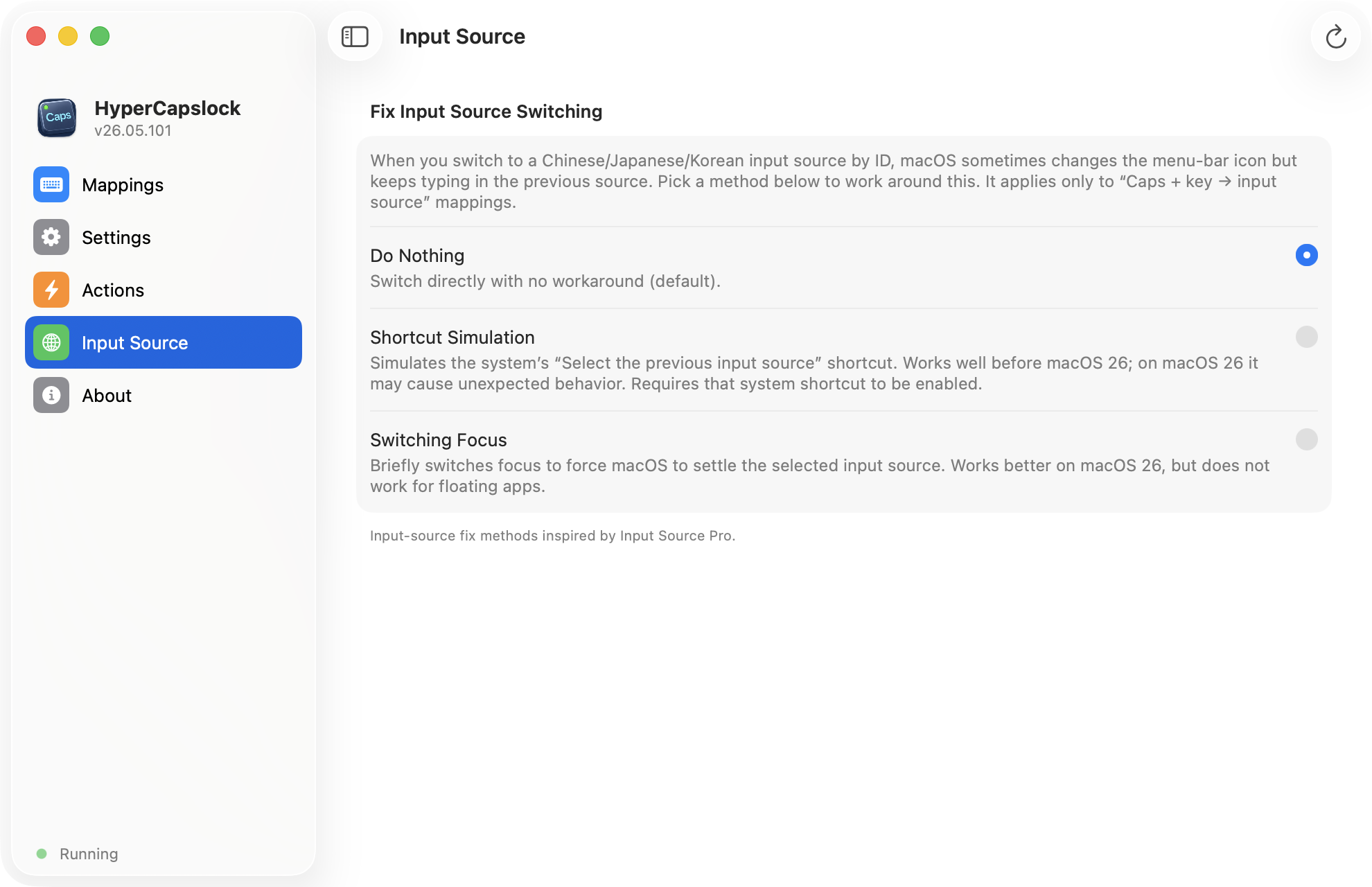
- The Switch input source action jumps straight to a specific input source.
- For the long-standing problem where switching to a Chinese / Japanese / Korean / Vietnamese (CJKV) IME via
TISSelectInputSourcechanges the menu-bar icon but leaves typing stuck on the previous source, three fix strategies are available on the Input Source page:- None (default — plain switch)
- Shortcut simulation (simulates the system "Select the previous input source" shortcut)
- Switching focus (forces it through by briefly switching window focus; may not work for floating / non-activatable windows)
- The fix applies only to "Caps + key → input source" mappings.
🛠️ More
- Menu-bar control: pause / resume (Gaming Mode — temporarily disable all remapping), check for updates, more apps, open settings, quit.
- Config import / export: export the complete, self-contained
.ymlconfig in one click, or import from a file. - Auto-update: built-in Sparkle, with background and manual update checks.
- Launch at login: starts automatically at login via
SMAppService. - Hide Dock icon: run as a menu-bar-only app.
- Theme: Light / Dark / follow system.
- Localized UI: English / 中文 / 日本語 / Deutsch.
- Config compatibility: the YAML format is byte-compatible with the earlier Tauri version, so existing users'
action_mappings.yml/app_config.ymlload unchanged; unknown keys written by a newer version are preserved losslessly when an older build saves.
Default Key Mappings
These are the defaults on a fresh install — all of them are customizable in the GUI:
Navigation (vim-style)
| Combo | Action |
|---|---|
Caps + H / J / K / L |
← ↓ ↑ → Arrow keys |
Caps + A |
Home (start of line) |
Caps + E |
End (end of line) |
Caps + U |
Jump up 10 lines |
Caps + D |
Jump down 10 lines |
Editing
| Combo | Action |
|---|---|
Caps + I |
Backspace |
Caps + O |
New line below (line end + Return) |
Apps & Screenshot
| Combo | Action |
|---|---|
Caps + C |
Open Chrome |
Caps + F |
Open Finder |
Caps + T |
Open Terminal |
Caps + X |
Open Xcode |
Caps + N |
Open Notes |
Caps + S |
Open Safari |
Caps + 4 |
⇧⌘4 (screenshot of a selected area) |
Pressing an app key while that app is already in front hides it. If the app isn't installed, the key does nothing.
These are just defaults. You can add, remove, and rebind keys, and bind any key to any of the actions listed above.
Install (macOS)
Homebrew
brew install --cask XueshiQiao/tap/hypercapslock
brew tap XueshiQiao/tap
brew install --cask hypercapslock
Or download the .dmg from GitHub Releases and drag it into Applications.
Permissions
The app needs the Accessibility permission to install its keyboard event tap:System Settings → Privacy & Security → Accessibility
(Input Monitoring is not needed — that's only for .listenOnly taps; this app uses an active .defaultTap, which macOS gates on Accessibility.)
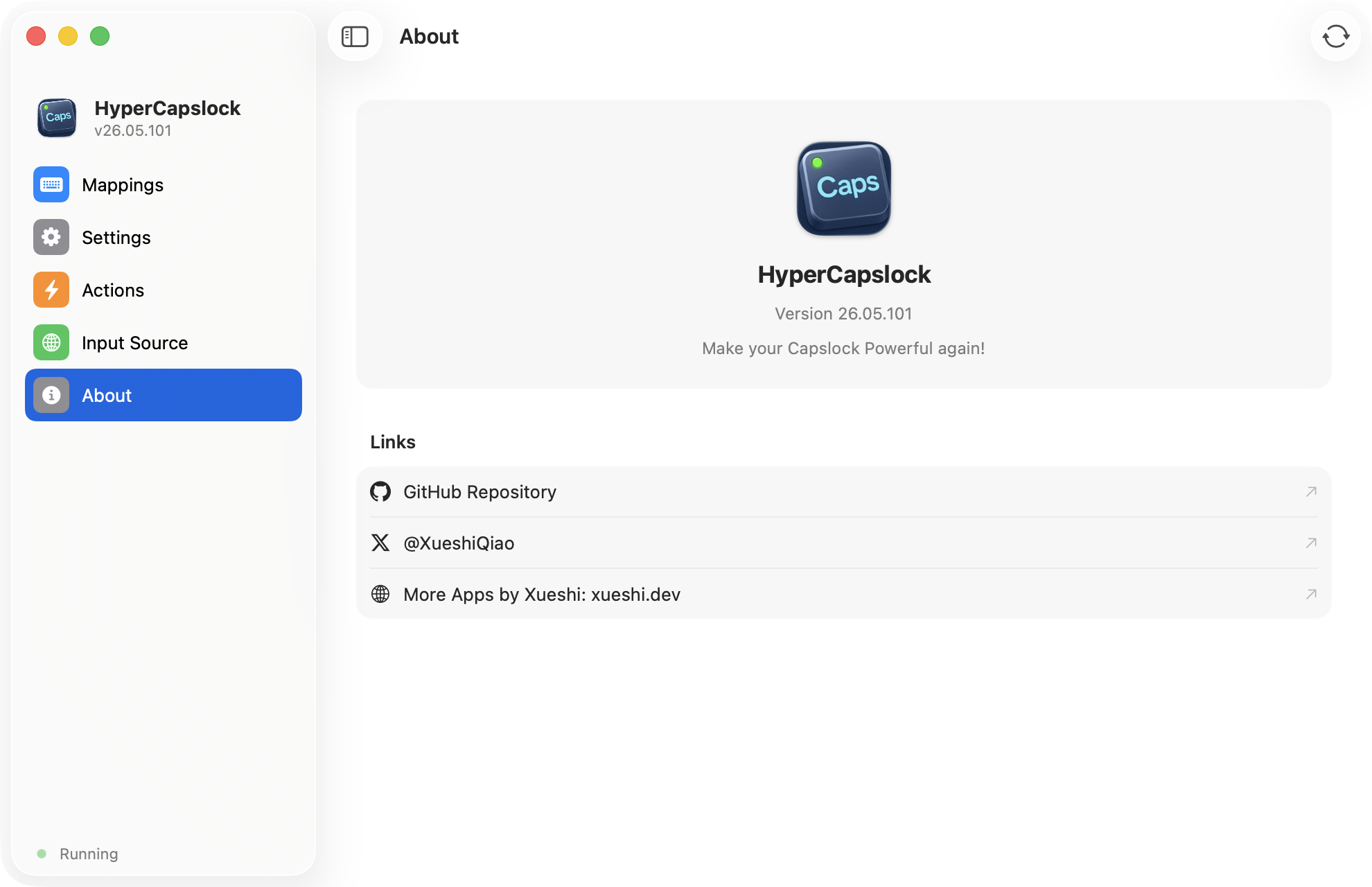
Screenshot
 |
 |
 |
 |
Why Not Karabiner-Elements?
Karabiner-Elements is a powerful tool with 21k+ stars, and I used it for years. But for the specific use case of "Caps Lock as a navigation layer":
- Config complexity — Karabiner requires hand-editing JSON for non-trivial remaps. HyperCapslock has a point-and-click GUI, plus per-app rules, a custom-action library, and more.
- Footprint — Karabiner installs a kernel extension and several background processes. HyperCapslock is a single lightweight native macOS app.
- The modifier problem — Karabiner typically maps Caps Lock to a real modifier combo (e.g. Ctrl+Shift+Cmd+Opt). This "hyper key" approach works but can conflict with existing shortcuts. HyperCapslock maps Caps Lock to a key that doesn't exist on any keyboard, so it conflicts with nothing and naturally stacks with real modifiers.
If you need Karabiner's full power (mouse remapping, device-specific profiles, etc.), use Karabiner. If you mainly want vim navigation and editing everywhere with next to no setup, this might be the simpler path.
Tech Stack
- Native macOS — SwiftUI + AppKit, Swift 5 language mode, macOS 14+
- CoreGraphics
CGEventTap+hidutilfor the Caps Lock remap; IOKit for CapsLock state; Carbon TIS for input-source switching - Sparkle for auto-update, Yams for YAML config
- A single, lightweight native process
Curious how the event interception works under the hood? See the technical deep-dive.
Development
Prerequisites
- macOS 14+
- Xcode 16+
- XcodeGen (
brew install xcodegen)
Setup
git clone https://github.com/XueshiQiao/HyperCapslock.git
cd HyperCapslock
brew install xcodegen
xcodegen generate
open HyperCapslock.xcodeproj   # Cmd+R to build & run
project.yml is the single source of truth for the Xcode project; run xcodegen generate after changing it.
Build
xcodebuild -project HyperCapslock.xcodeproj -scheme HyperCapslock -configuration Release build
Troubleshooting
- Hotkeys stop working: logs are written to
~/Library/Application Support/me.xueshi.hypercapslock/hypercapslock.log. Try removing and re-adding the app under Accessibility permissions, then relaunch. - Gaming Mode: pause/resume from the menu-bar icon to temporarily disable all remapping.
- Chinese/Japanese input switching doesn't take effect: try the Shortcut simulation or Switching focus fix strategy on the Input Source page.
License
GPL v3.0 — see LICENSE.
Reviews (0)
Sign in to leave a review.
Leave a reviewNo results found