tmux-ccm
Health Uyari
- License — License: MIT
- Description — Repository has a description
- Active repo — Last push 0 days ago
- Low visibility — Only 7 GitHub stars
Code Basarisiz
- rm -rf — Recursive force deletion command in hooks/lib.sh
Permissions Gecti
- Permissions — No dangerous permissions requested
Bu listing icin henuz AI raporu yok.
An attention manager for parallel Claude Code sessions — tmux plugin with live state detection, dashboard, and cross-project messaging.
ccm is a tmux plugin for developers who run Claude Code across several projects at once. Each Claude session becomes a tagged tmux window with live state detection — so you stop tabbing through windows trying to remember which is mid-response, which is waiting for your approval, and which is idle.
It's effectively an attention manager: every project gets a state (BUSY / IDLE / waiting for permission), the dashboard sorts them by urgency, and one keystroke takes you to whichever needs you next.
A popup dashboard shows every project's state (busy / idle / waiting for permission), git branch, and listening ports at a glance. Snapshots restore your full layout after a tmux restart. Desktop notifications surface only the projects that need attention.
ccm's value scales with parallelism: useful with 2–3 projects, daily infrastructure with 4+. Best fit for Max-tier users running agents across multiple projects in parallel.
How ccm models your work
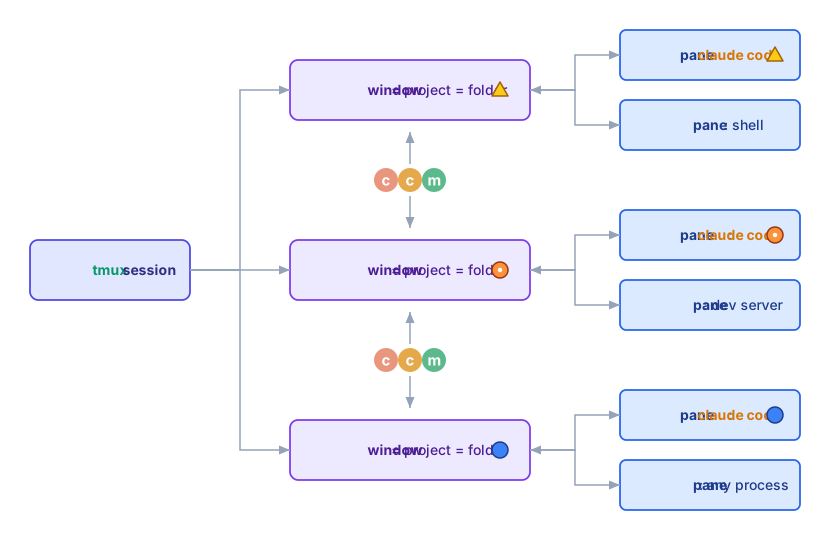
One project = one folder = one tmux window. A window holds any number of panes (claude code, a shell, a dev server, an Agent Teams teammate, …). The state of each claude code pane (PERMIT / BUSY / IDLE) aggregates up to its window, and ccm dashboard (prefix + Tab) switches between windows.
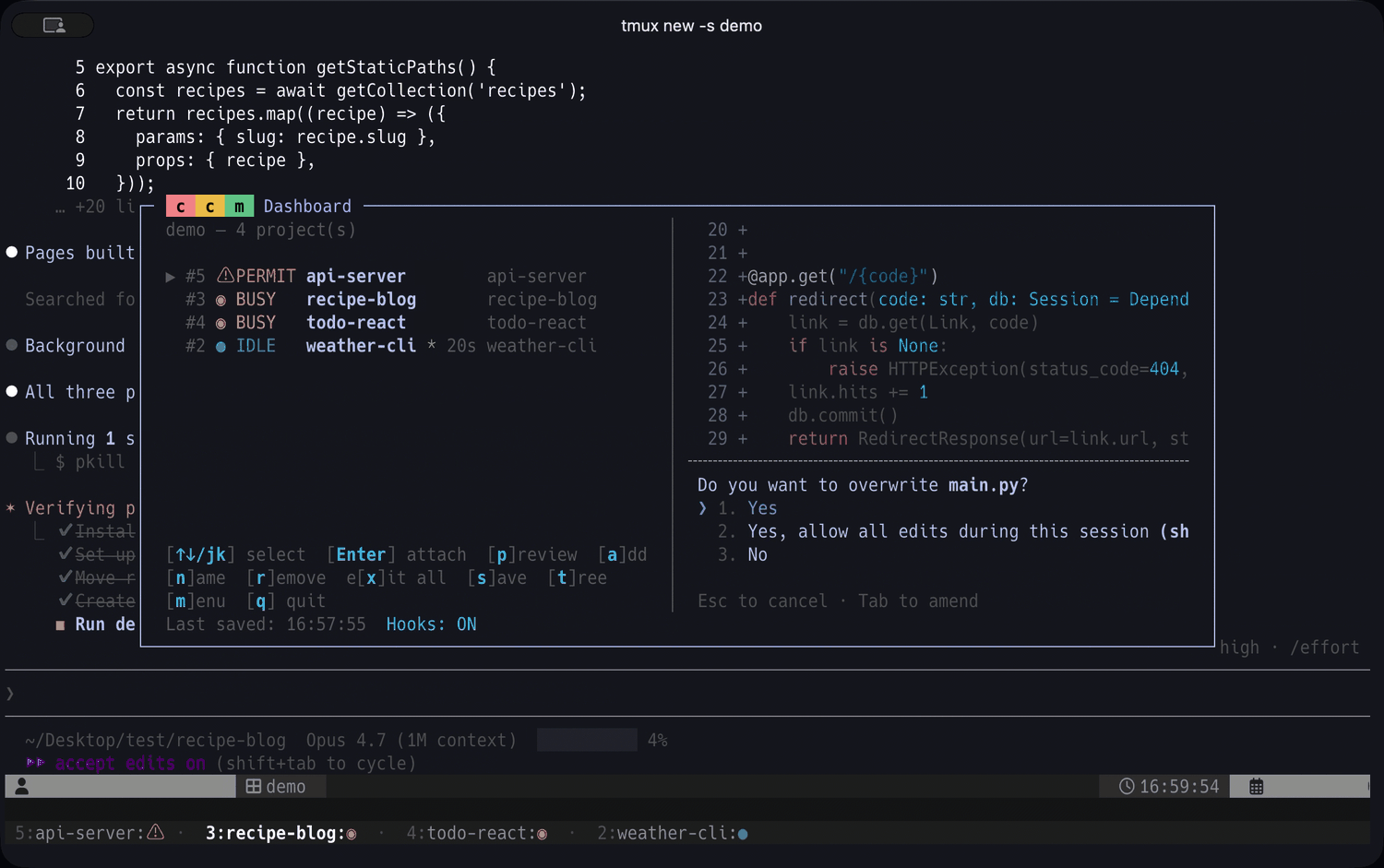
Dashboard (prefix + Tab) with the mode-2 status bar visible at the bottom:
Features
- Resource Management — Idle Claude Code sessions auto-exit after 10 minutes to free memory and CPU; auto-restart and resume when you switch back
- Dashboard — Interactive popup with real-time Claude Code status (BUSY / IDLE / PERMIT)
- Tree View — Hierarchical session/window/pane display with navigation
- Git Integration — Per-project git branch with dirty-state indicator
- Port Detection — Listening ports per project
- Snapshots — Save and restore your project layout
- Cross-Project Messaging —
ccm send <project> <message>delivers prompts between projects with state-based safety gating (PERMIT-safe, BUSY-queueable) - Auto-start — Claude Code auto-launches when you attach to a project where it's not yet running
- Status Line — Inject active project status into tmux status bar
- Multi-byte text — CJK characters and emoji in project names align correctly across dashboard, status bar, and CLI tables
- Agent Teams Compatible — Works alongside Claude Code's Agent Teams: manage projects with ccm while running parallel agents within each project
Requirements
- tmux 3.2+
- Python 3.9+
- TPM (or manual install)
- jq
- fzf
- Claude Code v2.1.107+
Installation
With TPM (recommended)
Add to your ~/.tmux.conf:
set -g @plugin 'yohasebe/tmux-ccm'
Reload tmux and press prefix + I to install.
Manual
git clone https://github.com/yohasebe/tmux-ccm.git ~/.tmux/plugins/tmux-ccm
Add to your ~/.tmux.conf:
source-file ~/.tmux/plugins/tmux-ccm/ccm.tmux.conf
Add to PATH
For CLI usage (ccm add, ccm status, etc.), add the plugin directory to your PATH:
# In your .zshrc or .bashrc
export PATH="$HOME/.tmux/plugins/tmux-ccm:$PATH"
Zsh Completion (optional)
# In your .zshrc (before compinit)
fpath=($HOME/.tmux/plugins/tmux-ccm/completions $fpath)
First-Time Setup
If you haven't used Claude Code before, complete the initial authentication first:
claude
This opens an interactive setup where you choose your plan (subscription or API key) and authenticate via browser. Once authenticated, run the setup wizard:
ccm init
This guides you through hooks installation, auto-restore, and status bar configuration in one step.
[!NOTE]
Hooks are automatically installed on plugin load (via TPM) and kept up to date on plugin updates. If you prefer manual control, useccm setup-hooksandccm remove-hooks.
Usage
Keybindings
| Key | Action | Default |
|---|---|---|
prefix + Tab |
Toggle dashboard popup | Enabled |
prefix + T |
Toggle tree view popup | Disabled (opt-in) |
prefix + C |
Open ccm menu | Disabled (opt-in) |
Only the dashboard keybinding is enabled by default to avoid conflicts with other plugins. Tree view and menu are also accessible from within the dashboard by pressing t or m.
To override the dashboard keybinding or enable the optional bindings, add to ~/.tmux.conf:
[!IMPORTANT]
Allset -g @ccm-*options must be placed before the ccm plugin loads in~/.tmux.conf— that means before both thesource-fileline (manual install) and the TPMrunline (TPM install). The plugin reads these options at load time, so settings placed after will be silently ignored.
set -g @ccm-key-dashboard "Tab"  # default; override to remap (e.g. "F12")
set -g @ccm-key-menu "C"         # optional: enable prefix + C for menu
set -g @ccm-key-tree "T"         # optional: enable prefix + T for tree view
set -g @ccm-key-search "/"       # optional: enable prefix + / to open the dashboard
                                  # directly in live-filter search (Unicode-safe,
                                  # type to narrow, Enter to attach, Esc to cancel)
[!TIP]
For even quicker access, bind a single key (no prefix) to toggle the dashboard via@ccm-key-dashboard-noprefix. For example, to useF1:# Must come BEFORE the ccm plugin load line (see IMPORTANT above). set -g @ccm-key-dashboard-noprefix "F1"Press
F1to open,F1again to close. The coloured ccm logo on the popup title is preserved (writing your ownbind-key -n F1 display-popup …works mechanically but loses the logo unless you replicate the full-Tformat string).
Desktop Notifications
ccm can send desktop notifications (macOS and Linux) when project states change:
set -g @ccm-notify "permit,completed" # notify on PERMIT and completion
| Value | Behavior |
|---|---|
permit,completed (default) |
Notify on permission prompt and completion |
permit |
Notify when permission is needed |
completed |
Notify on completion (Claude finished responding) |
all |
All state changes |
off |
No notifications |
Enable notification sound:
set -g @ccm-notify-sound "on"     # default: off (plays "Glass" sound on macOS)
set -g @ccm-notify-sound-name "Ping"  # optional: customize sound (macOS only)
macOS — install terminal-notifier (recommended)
By default ccm uses osascript for macOS notifications. Each notification is added to Notification Center and stays there until the user dismisses it. On a long-running multi-project setup this can accumulate hundreds of stale notifications and drive WindowServer / NotificationCenter to high CPU.
Installing terminal-notifier resolves this — ccm sends per-project group IDs (-group ccm-<project>) so a fresh notification for the same project replaces the previous one in Notification Center rather than stacking.
brew install terminal-notifier
ccm auto-detects it on PATH and uses it preferentially. No configuration needed.
[!IMPORTANT]
The first timeterminal-notifiersends a notification, macOS may show a permission dialog — accept it. If you don't see ccm notifications afterwards, openSystem Settings → Notifications → terminal-notifierand confirm "Allow Notifications" is on. Notifications are delivered under terminal-notifier's own bundle id (independent of which terminal emulator you use), so the grant is one-time and works the same on Terminal.app / iTerm2 / WezTerm / kitty / ghostty.
To bulk-clear ccm notifications from Notification Center (requires terminal-notifier):
ccm clear-notifications
This only removes notifications whose group id is prefixed with ccm- — notifications from your other terminal-notifier-using scripts (deploy alerts, monitoring, …) are left intact. The command reports the count it removed.
If you cannot install terminal-notifier and notice the accumulation problem, set @ccm-notify "permit" to receive only the actionable PERMIT notifications and skip the more-frequent COMPLETED ones.
Linux — notify-send
ccm uses notify-send on Linux. There is no per-project dedup equivalent of macOS's -group, so set @ccm-notify "permit" to limit volume on long-running sessions.
ccm clear-notifications is macOS-only; on Linux there is no command-line API to enumerate or remove existing notifications, so the command reports "terminal-notifier is not installed" and exits.
Status Bar
ccm shows active project status in the tmux status bar. Configure the display mode:
set -g @ccm-status-line 2 # default
| Value | Mode | Description |
|---|---|---|
0 |
Icon | Priority icon with window indices appended to status-right (most conservative — does not change tmux's existing chrome) |
1 |
Full | Replaces window list with ccm-style colored entries |
2 |
Dedicated line (default) | Adds dedicated status line(s) below the main bar with branch / port details for all projects |
Mode 2 is the default. Mode 0 is the most conservative choice if you want to leave your existing tmux theme untouched.
Mode 0 — Icon with indices
Appends a priority icon with window indices to your existing status-right. Your clock, battery, etc. are preserved. When active projects exist, window numbers are shown (e.g., 5: PERMIT ⚠). When all are IDLE, a single ≡ icon is shown:
 ... your existing status-right ...   5: PERMIT ⚠   14:32
                                      └────────────┘
                                  window# + highest-priority state
| Priority | Condition | Icon | Color |
|---|---|---|---|
| 1 (highest) | Any project has PERMIT | ⚠ |
Yellow |
| 2 | Any project has BUSY | ◉ |
Orange |
| 3 (lowest) | All projects are IDLE | ≡ |
Gray |
Click the icon to open the dashboard for full details.
Mode 1 — Full (ccm-style window list)
Replaces the standard tmux window list with ccm-style colored entries showing project name and status icon. Your existing status-right (clock, etc.) is preserved.
2:weather-cli ● 3:recipe-blog ◉ 4:todo-react ◉ 5:api-server ⚠
Mode 2 — Dedicated status line
Adds one or more tmux status lines below the main bar. Shows all projects including idle ones, with git branch and port details when available. The main status bar is not modified. (See the dashboard screenshot above — the bottom rows show mode 2 in action.)
 ... your normal status row, untouched ...                       14:32
 ────────────────────────────────────────────────────────────────────── (gutter)
 5:api-server (main) ⚠ PERMIT  ·  3:recipe-blog (main) ◉ BUSY
   ·  4:todo-react ◉ BUSY  ·  2:weather-cli ● IDLE * 20s
| State | Icon | Color |
|---|---|---|
| PERMIT | ⚠ |
Yellow |
| BUSY | ◉ |
Orange |
| IDLE | ● |
Blue |
| IDLE (recently completed) | * <elapsed> after the project name |
Green |
| SHELL | ■ |
Dark gray |
Lines auto-expand based on terminal width and project count.
Override the default colour palette via tmux options if the dark-grey gutter clashes with your theme:
set -g @ccm-status-bg         "#262626"   # entry-row background
set -g @ccm-status-gutter-bg  "#1a1a1a"   # one-row gutter between main bar and entries
set -g @ccm-status-fg         "#9E9E9E"   # default foreground
set -g @ccm-status-fg-dim     "#5a5a5a"   # separators / hints
Accepted values: hex (#RGB / #RRGGBB), colour123 palette indices, or named colours (red, blue, default, …). Invalid values fall back to the default.
[!NOTE]
Mode 2 uses additionalstatus-formatslots (one gutter row plus one row per layout line, up to slot 16). If other plugins also use those indices, conflicts may occur.
Dashboard Controls
| Key | Action |
|---|---|
↑↓ / jk |
Navigate projects |
Enter |
Attach to selected project |
s |
Save snapshot |
p |
Preview pane content (c to copy) |
a |
Add new project |
n |
Rename selected project |
g |
Register existing window |
r |
Remove — choose [u]nregister (keep window) or [d]elete |
x |
Exit all idle Claude Code sessions |
/ |
Search projects |
t |
Switch to tree view |
b |
Toggle background-sessions section |
m |
Switch to menu |
q / Esc / F1 |
Close |
CLI Commands
ccm add <dir> [name]              Add project (creates window + starts Claude). If <dir>
                                  doesn't exist, prompts to create it (parent must exist).
ccm open <dir> [name]             Start Claude in current pane (split-pane use)
ccm register <window> [name]      Register existing window as ccm project
ccm unregister <name>             Unregister window from ccm (keep window)
ccm rename <name> <new_name>      Rename a project
ccm remove <name>                 Remove project window (kill window)
ccm attach <name|number>          Switch to project window
ccm list                          List managed projects
ccm status                        Show projects with status, branch, ports
ccm tree                          Show session/window/pane hierarchy
ccm ports                         Show listening ports per project
ccm capture [--copy] <name|#id>   Capture pane content (--copy: clipboard)
ccm dashboard                     Open interactive dashboard popup
ccm menu                          Interactive menu (for keybinding)
ccm snapshot save|load|list|delete  Manage snapshots
ccm start <snapshot>              Restore from snapshot
ccm stop [--all|name]             Stop project (--all saves _autosave snapshot)
ccm send <name> <msg> [flags]     Send a prompt to another project's Claude session
                                  flags: --file --stdin --no-enter --force --start -y --
ccm bg list                       List external Claude Code agent-view sessions (read-only)
ccm init                          Interactive setup wizard (hooks, restore, status bar)
ccm setup-hooks                   Install Claude Code hooks (improved state detection)
ccm remove-hooks                  Uninstall ccm hooks from Claude Code settings
ccm setup-claude-md               Add ccm section to ~/.claude/CLAUDE.md
ccm remove-claude-md              Remove ccm section from ~/.claude/CLAUDE.md
ccm statusline                    Print one-line status (used by tmux status bar)
ccm inject-status                 Update tmux status bar (called internally)
ccm debug trace <name> [interval] Live state-detection trace (read-only; Ctrl-C to stop)
ccm errors [--clear]              View / clear the silent-exception log
ccm reset <name>                  Clear stuck runtime state (last-resort recovery)
ccm doctor                        Self-check (deps, hooks, canaries, projects, errors)
ccm clear-notifications           Remove ccm notifications from macOS Notification Center
[!TIP]
Most commands have short aliases:ls(list),st(status),a(attach),rm(remove),d(dashboard),reg(register),unreg(unregister),mv(rename),cap(capture),snap(snapshot),sl(statusline).
Status Icons
| Icon | State | Description |
|---|---|---|
| ⚠ | PERMIT | Waiting for user permission |
| ◉ | BUSY | Claude is processing |
| ● | IDLE | Waiting for input |
* <elapsed> |
IDLE (recently completed) | Transient marker (asterisk green, time dim) shown for 30 s after BUSY/PERMIT → IDLE |
[N] |
(any state, multi-pane window) | Pane count marker (brackets dim, digit cyan) when a window has more than one pane |
| ■ | SHELL | Shell active, Claude not running |
| ○ | DOWN | Window not available |
Claude Code Hooks (Recommended)
For more accurate state detection, install Claude Code hooks:
ccm setup-hooks
This adds hooks to ~/.claude/settings.json that signal state changes:
- UserPromptSubmit → BUSY when you submit a prompt (detects text generation)
- PreToolUse / PostToolUse / PostToolUseFailure → BUSY across tool execution
- SubagentStart / SubagentStop → BUSY around subagent execution (the parent agent is still working)
- PreCompact / PostCompact → BUSY (context compaction is busy work)
- Stop / StopFailure → clears BUSY signal when Claude finishes responding
- PermissionRequest → PERMIT when a tool requires permission
- Notification → PERMIT (permission_prompt / elicitation_dialog) or clears signal (idle_prompt)
- SessionEnd → SHELL when Claude Code session ends (/exit, Ctrl+D, etc.)
- PermissionDenied → PERMIT when auto mode denies an action (check
/permissionsto retry)
ccm has hook-independent fallbacks so detection keeps working when Claude Code stops firing hooks mid-session:
- JSONL session-log heartbeat: a fresh user/assistant record in the project's
~/.claude/projects/.../jsonlconfirms the session is alive (housekeeping records are filtered out). - Permission dialog footer match: the permission footer (
Esc to cancel · Tab to amend) is detected directly from the visible pane. ~/.claude/hooks.logsize canary: ccm warns when this file exceeds 100 MB — a known cause of silent hook failure. Clear it with: > ~/.claude/hooks.log.
Hook status is shown in the dashboard footer and ccm status output (Hooks: ON/OFF). If hooks are already installed, ccm setup-hooks will skip re-installation. If you reinstall ccm to a different path, it will automatically update hook paths.
To remove: ccm remove-hooks
Snapshots
Save your workspace layout and restore it later:
ccm snapshot save my-workspace
ccm snapshot list
ccm start my-workspace
The _autosave snapshot is also updated automatically every 2 minutes while projects are active. When you run ccm stop --all, it is saved as well:
ccm start _autosave # restore previous session
Auto-Restore on tmux Start
Automatically restore the last _autosave snapshot when tmux starts:
set -g @ccm-auto-restore "on" # default: off
When enabled, ccm loads the _autosave snapshot via TPM on tmux startup (only if no ccm projects are already loaded).
Idle Auto-Exit
Claude Code sessions that remain idle are automatically exited to free system resources. When you switch to an exited window, Claude Code restarts with --continue and resumes the conversation.
set -g @ccm-idle-timeout "10" # minutes (default: 10, 0 to disable)
Dashboard Preview Panel
Show a live preview of the selected project's terminal content alongside the project list:
set -g @ccm-preview "on"              # default: off
set -g @ccm-preview-position "right"  # or "bottom"
The preview updates when you move the cursor and refreshes automatically. ANSI colors (256-color and RGB) are rendered. Requires terminal width ≥ 80 columns (right position) or height ≥ 20 rows (bottom position). Can also be toggled from the dashboard menu (m).
Auto-Start Claude Code
When you switch to a project window where Claude Code has exited (SHELL state), ccm automatically restarts it with --continue to resume the conversation.
set -g @ccm-auto-start "on" # default: on (set to "off" to disable)
Also configurable from the dashboard menu (m).
Background-Sessions Section (agent-view coexistence)
Claude Code 2.1.139 introduced an agent view (claude agents, claude --bg, claude attach) that runs sessions under a per-user supervisor daemon. ccm can surface these external sessions as a read-only section below the project list, so a single dashboard shows both ccm-managed project windows and out-of-tmux background sessions.
set -g @ccm-bg-section "always" # default: off
Off by default — window-as-project workflows are unaffected. Press b in the dashboard to toggle on demand without persisting the setting, or set always (also reachable from the dashboard menu m) to keep it visible across opens. Pressing Enter on a bg row opens a fresh tmux window (not a ccm project) and runs claude attach <short> — using a non-ccm window prevents the auto-start path from racing your attach. ccm only observes the daemon's roster.json and per-session state.json; dispatch and stop stay with the claude CLI itself. Outside the dashboard, ccm bg list prints the same data.
Anti-Flicker
ccm automatically sets CLAUDE_CODE_NO_FLICKER=1 to reduce UI flicker when running Claude Code inside tmux. No user configuration needed.
Tips
Make Claude Code Aware of Other Projects
By default, each Claude Code session is isolated and unaware of your other projects. You can change this by adding ccm commands to your global Claude Code instructions (~/.claude/CLAUDE.md):
## Multi-Project Environment

This user manages multiple projects with ccm (Claude Code Manager for tmux).
Use the following commands to discover and inspect other projects:

- `ccm list` — List all managed projects (names and directories)
- `ccm status` — Show all project states (branch, port, Claude status)
- `ccm capture <name>` — Capture visible terminal output from another project
This lets every Claude Code session discover sibling projects and inspect their state — for example, checking how a library is used in another project, or reading another project's CLAUDE.md.
To set this up automatically:
ccm setup-claude-md     # add ccm section to ~/.claude/CLAUDE.md
ccm remove-claude-md    # remove it
Organize Projects by Category with tmux Sessions
Use separate tmux sessions to group projects by context (e.g., work, OSS, research). ccm manages each session independently — dashboard and status bar only show that session's projects.
tmux new-session -s work       # Work projects
tmux new-session -s oss        # Open source projects

# In each session, add projects as usual:
ccm add ~/code/auth-service
ccm add ~/code/dashboard-ui

# Switch between sessions:
tmux switch-client -t oss      # Standard tmux session switching
[!TIP]
This pairs well with snapshots. Each session can save and restore its own project layout independently withccm snapshot save/ccm start.
How It Works
- Projects are tmux windows tagged with
@ccm_projectand@ccm_dir - Claude Code state is detected via hook signals + process tree inspection (with prompt pattern matching as supplement)
- Completion marker (
* <elapsed>) is shown for 30s after BUSY/PERMIT → IDLE transitions - Works with any tmux theme — ccm auto-detects theme changes to status-right
Uninstall
Remove from
~/.tmux.conf:# Delete this line: set -g @plugin 'yohasebe/tmux-ccm' # Or if using source-file: # source-file ~/.tmux/plugins/tmux-ccm/ccm.tmux.confClean up tmux state:
# Remove ccm options
tmux set -g -u @ccm-orig-status-right 2>/dev/null
tmux set -g -u @ccm-orig-sr-length 2>/dev/null
tmux set -g -u @ccm-status-line 2>/dev/null
tmux set -g -u window-status-format 2>/dev/null
tmux set -g -u window-status-current-format 2>/dev/null

# Remove temp files
rm -rf "${TMPDIR:-/tmp}/ccm-$(id -u)"

# Remove runtime data (optional — keeps snapshots)
rm -rf ~/.local/share/ccm
Reload tmux:
tmux source-file ~/.tmux.conf
Documentation
License
MIT
Yorumlar (0)
Yorum birakmak icin giris yap.
Yorum birakSonuc bulunamadi