oops
Health Uyari
- License — License: MIT
- Description — Repository has a description
- Active repo — Last push 0 days ago
- Low visibility — Only 8 GitHub stars
Code Basarisiz
- rm -rf — Recursive force deletion command in docs/demo/record-claude.sh
- rm -rf — Recursive force deletion command in docs/demo/record.sh
- network request — Outbound network request in lib/oops/clipboard.rb
Permissions Gecti
- Permissions — No dangerous permissions requested
Bu listing icin henuz AI raporu yok.
Copy the last shell command and its output to the clipboard as a paste-ready block, or let Claude Code read it
oops
English | 日本語



Copy the last shell command and its output to the clipboard, ready to paste. Or ask Claude Code why it failed: it reads the same record itself.
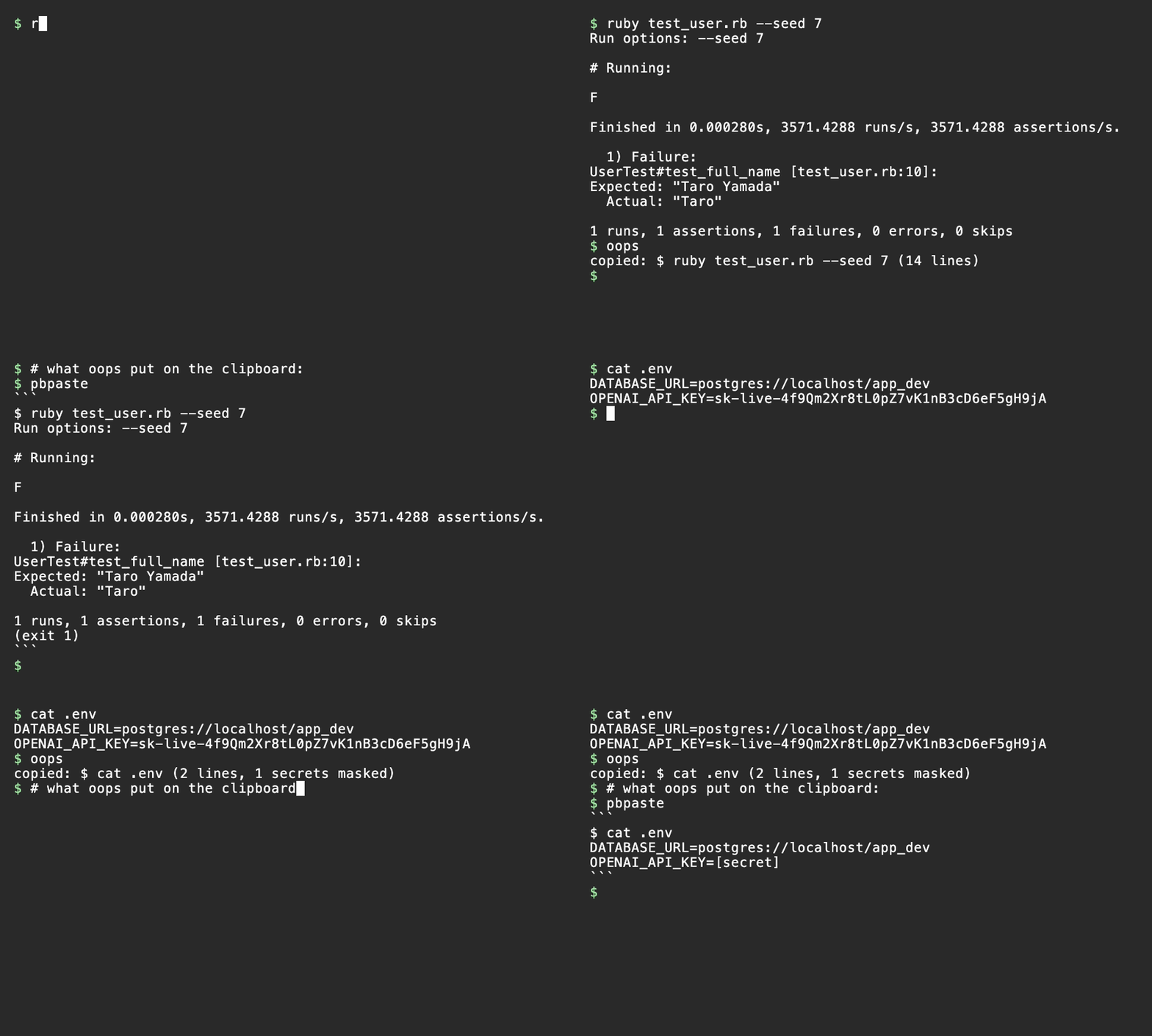
Using Claude Code? Install the plugin with
/plugin install oops --marketplace ysb3996-blip/oops, then ask "why did that fail?". Claude reads the failed command and its output itself, with secrets masked, so you neither paste it nor have Claude run it again. See With AI coding agents.
You ran a command and it failed. You want to show it to a chat assistant, a teammate on Slack, or a GitHub issue. Normally that means dragging to select the output, copying, pasting, and adding the code fences yourself. With oops it is two steps:
- Type
oops(oroops errfor the last failed command). - Paste with Cmd-V.
What lands on your clipboard is a code block with the command, its output, and the exit code. Colors are stripped, and tokens, keys and email addresses are masked.
Install
gem install oops-cli
Or with Homebrew:
brew install ysb3996-blip/oops/oops
The Homebrew formula runs oops with Homebrew's own Ruby, so it works even if an older Ruby comes first on your PATH.
Requires Ruby 3.3 or newer on macOS or Linux (WSL counts as Linux), and zsh, bash or fish. There are no runtime gem dependencies.
Checked by hand on macOS in Terminal.app, iTerm2, Ghostty and the VS Code integrated terminal. If it misbehaves in another terminal, please open an issue.
gem install puts oops into the Ruby that is active at that moment; each Ruby version has its own gems. With rbenv, asdf or mise, a tab that uses another Ruby gives a command not found error for oops, also when the shell starts. The fix that always works is to run gem install oops-cli again under the active Ruby (with rbenv, follow with rbenv rehash). Outside directories that pin a Ruby with .ruby-version, .tool-versions or mise.toml, you can instead set the Ruby you installed into as your global Ruby (for example rbenv global 3.3.5).
With a zsh plugin manager
For zsh you can load oops as a plugin instead. It runs oops from the cloned repository, so there is no gem to install (Ruby 3.3 or newer is still needed), and the plugin replaces the rc line below.
# antidote: add to ~/.zsh_plugins.txt
ysb3996-blip/oops

# zinit: in ~/.zshrc, without `wait` (turbo mode)
zinit light ysb3996-blip/oops

# Oh My Zsh: clone, then add oops to plugins=(...) in ~/.zshrc
git clone https://github.com/ysb3996-blip/oops "${ZSH_CUSTOM:-$HOME/.oh-my-zsh/custom}/plugins/oops"

# No plugin manager: clone, then add the source line to ~/.zshrc
git clone https://github.com/ysb3996-blip/oops ~/.oops
source ~/.oops/oops.plugin.zsh
- Load it right away, not deferred (zinit
wait, zsh-defer). The plugin starts your shell again under the recorder, which should happen before the first prompt. - The notes on where the line goes (below) apply to where the plugin is loaded. With powerlevel10k's instant prompt, the plugin has to be loaded above the instant prompt block, which plugin managers usually are not; use the rc line there.
- If the Ruby on
PATHis too old, the shell printsoops: ... init zsh failed (oops needs Ruby 3.3 or later); recording disabledand starts as usual, without recording. - Plugin managers update from the
mainbranch, which can be ahead of the latest release.
For Claude Code
If you use Claude Code, also install the oops plugin inside it, so Claude can read the last command that failed in your tab without you pasting it (see Claude Code plugin):
/plugin install oops --marketplace ysb3996-blip/oops
Set up your shell
Add one line to your rc file (~/.zshrc for zsh, ~/.bashrc for bash; if you keep your bash setup in ~/.bash_profile on macOS, put it there):
eval "$(oops init zsh)"    # zsh
eval "$(oops init bash)"   # bash
For fish, add this line to ~/.config/fish/config.fish:
oops init fish | source
Then open a new tab. Existing tabs pick it up after exec zsh (or exec bash, exec fish).
Where to put the line matters:
- Put it after whatever puts the Ruby that has oops on your
PATH(rbenv, asdf, mise, Homebrewshellenv, and so on). On macOS, login shells resetPATH, so if the line comes first, the system Ruby 2.6 may be picked and oops will not start. If oops cannot run, your shell still starts normally, just without recording. - Put it before slow or noisy setup that you do not want to run twice (nvm, prompt themes, banners). The snippet starts your shell again under a small recorder (
oops record, a pty relay), so anything above the line runs once in the outer shell and again in the inner one. Anything below it runs only in the inner shell. - With powerlevel10k, put the line above the instant prompt block at the top of
~/.zshrc. The instant prompt redirects the shell's input and output while the rest of~/.zshrcruns, and the snippet does nothing then (it only acts on a real terminal), so oops would silently not record. If a tab is not recorded although the line is in~/.zshrc, runoops doctor: it showsrecording: no. - In zsh the shell is restarted as a non-login shell, so setup that lives only in
~/.zloginis not applied to the recorded shell. Keep it in~/.zprofileor~/.zshrc(above the line). In bash, a login shell is restarted with-l, and in fish with--login. - fish is restarted just before its first prompt, so all of
config.fishruns in both the outer and the recorded shell, wherever the line is. (Starting it earlier would also catchfish -i -candfish -i script.fish, which never show a prompt and must not be restarted.)
If something looks wrong, run oops doctor. It reports whether this tab is recorded, the shell and whether the hooks are loaded, which clipboard method will be used, the config file, the size of the session logs, and the Ruby version.
To turn oops off for one shell, start it with OOPS_DISABLE=1 (for example OOPS_DISABLE=1 zsh). The snippet then does nothing.
Usage
| Command | What it does |
|---|---|
oops |
Copy the last command and its output |
oops 3 / oops -n 3 |
Copy the last 3 commands (oldest first) as one code block |
oops err |
Copy the last command that exited non-zero, skipping over successful ones |
oops err -n 2 |
Copy the last 2 failed commands (oldest first), skipping over successful ones |
oops init zsh / oops init bash / oops init fish |
Print the shell snippet (for eval, or | source in fish) |
oops doctor |
Diagnose recording, hooks, clipboard, config and log size |
oops pause / oops resume |
Stop and restart recording. While paused, nothing is written to disk |
oops status |
Print recording, paused or off on one line, for scripts and prompts |
oops clear / oops clear --all |
Delete the logs of closed tabs; --all also empties this tab's log |
oops record -- <shell> |
Internal: runs a shell under the recorder. The snippet calls this |
oops --version, oops --help |
Version and usage |
Options for oops, oops N and oops err:
| Option | What it does |
|---|---|
-n N |
Copy the last N commands (with err, the last N failed commands) |
--github |
Format for a GitHub issue or PR comment |
--time |
Add the time each command started as a # 2026-10-31 19:30:09 +09:00 line |
--output-only |
Leave out the $ command line and copy only the output |
-p, --print |
Write the text to stdout instead of the clipboard (no copied: line) |
--json |
Write the commands as JSON to stdout, for scripts and agents |
--gist |
Upload the text as a secret gist with the GitHub CLI and copy its URL (below) |
--show-secrets |
Do not mask secrets and do not apply the replace table |
N must be a positive integer. Specify the command count once, either as a positional N or with -n N; combining them or repeating -n is a usage error. If fewer matching commands are available, oops copies those it finds. -n can be combined with the formatting options above.
oops never copies itself: if the previous command was oops, you get the command before it.
Exit codes: 0 copied (or printed with --print or --json, or uploaded with --gist), 1 nothing copied (not recording, no command yet, no failed command, paused, the clipboard command failed, or gh failed with --gist), 2 usage error.
Default output
oops prints one line such as copied: $ bundle exec rspec (5 lines, 2 secrets masked) and puts this on the clipboard:
```
$ bundle exec rspec
....F

Failures:
  1) User#name returns full name
     expected "Taro Yamada", got "Taro"
(exit 1)
```
(exit N) appears only when the exit code is not 0. If the output itself contains a code fence, the block is fenced with four backticks instead.
--github
Output of 30 lines or fewer becomes a console block, which GitHub highlights as a shell session:
```console
$ bundle exec rspec
....F
(exit 1)
```
Longer output is wrapped in a collapsible section whose summary shows the command, exit code and line count:
<details>
<summary><code>$ bundle exec rspec</code> — exit 1, 312 lines</summary>

```console
$ bundle exec rspec
...
(exit 1)
```

</details>
--time and --output-only
oops --time puts the local time the command started on a # line before each $ command, and adds it to the --github summary. oops --output-only leaves out the $ command line and keeps the output and (exit N); the copied: $ ... line on screen and the --github summary then show the exit code and line count without the command. Both can be combined with the other options:
```
# 2026-10-31 19:30:09 +09:00
....F
(exit 1)
```
--json
oops --json writes the selected commands to stdout as a JSON array, oldest first, instead of copying a Markdown block. It works with N, err, -n and --show-secrets; --github, --time and --output-only shape the Markdown and are a usage error with it. Command, directory and output are cleaned and masked as on the clipboard. output has no trailing newline, exit is the exit code (0 on success), and the times are ISO 8601 in local time (null when unknown):
[
  {
    "command": "ls /nothing-here",
    "cwd": "~/app",
    "exit": 1,
    "started_at": "2026-11-07T10:19:05+09:00",
    "ended_at": "2026-11-07T10:19:05+09:00",
    "output": "ls: /nothing-here: No such file or directory"
  }
]
--gist
A long output is awkward to paste into a chat or an issue. oops --gist uploads the formatted text as a secret gist and copies the gist's URL instead, then prints it:
$ oops err --gist
gist: https://gist.github.com/you/4f1e8c0b2d9a7e6f5c3b1a0d9e8f7c6b (1 lines)
oops does not talk to GitHub itself: it runs gh gist create from the GitHub CLI, so you need gh installed and logged in once with gh auth login. The gist holds one file, oops.md, and its description is the first command line. It works with N, err, -n, --github, --time and --output-only.
A secret gist is not listed or searchable, but anyone who has the URL can open it, so secrets are always masked: --show-secrets is a usage error with --gist, and so are --print and --json. Delete a gist you no longer need on gist.github.com or with gh gist delete. If no clipboard tool is found, the URL is still printed and oops warns that it was not copied.
oops status
oops status prints recording, paused or off (this shell is not recorded, or its log was deleted) and exits 0 only when recording. It prints no error, so a prompt or script can call it, for example with a starship custom module. Each call starts Ruby, which takes roughly 0.1 to 0.2 seconds; oops doctor tells more when the answer is off.
With AI coding agents
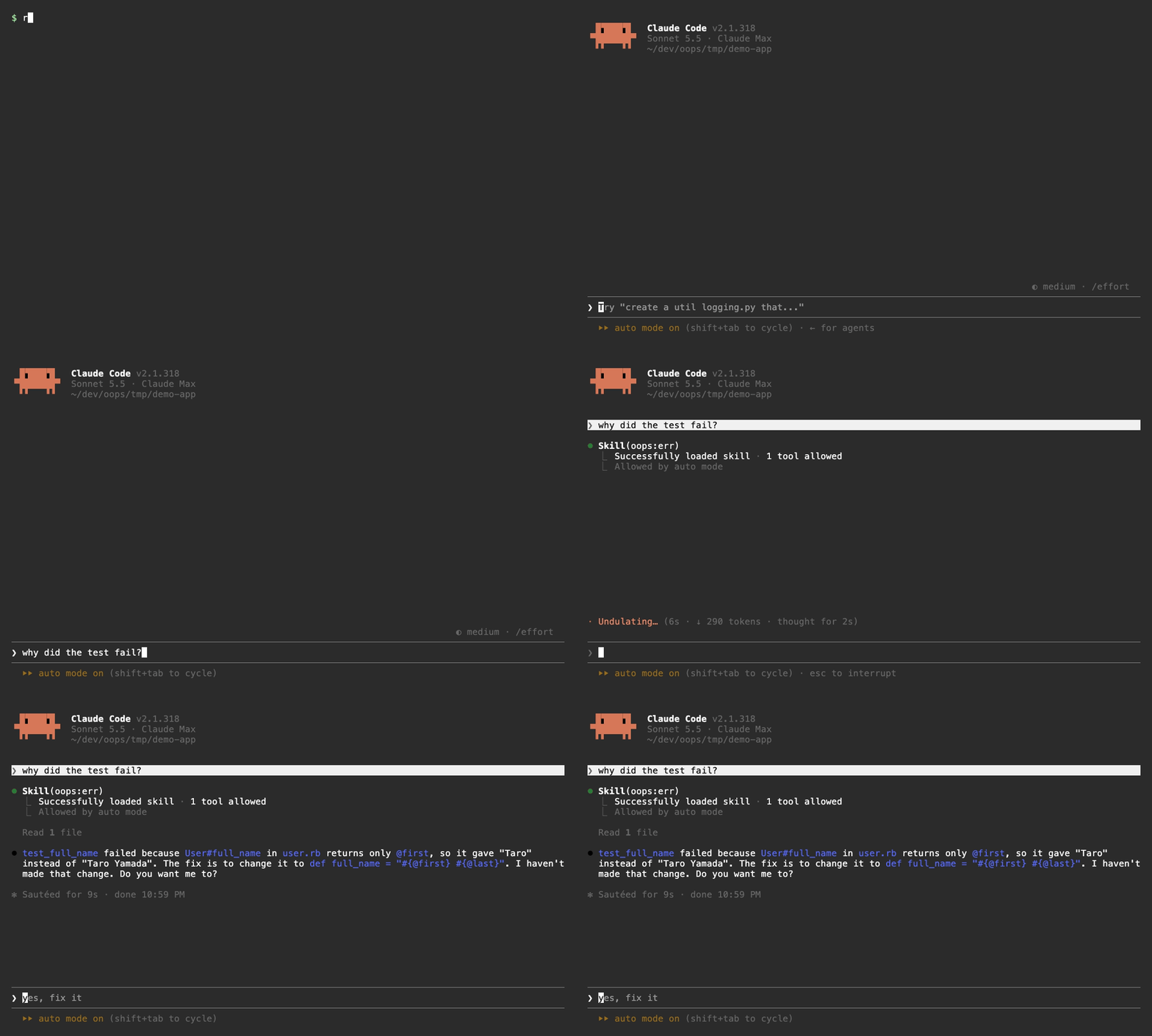
A coding agent that runs in your terminal, such as Claude Code, starts its shell commands with the environment of the tab you started it in. In a recorded tab it can therefore run oops -p itself and read the commands you ran there before starting it, with their output, masked as on the clipboard. You do not paste anything, and the agent does not run the command again.
$ bundle exec rake test      # fails
$ claude
> Run `oops -p err` and fix the failing test.
In Claude Code you can also type ! oops -p err to put the output into the conversation yourself. Add -n 3 for the last 3 commands, or use --json when a script or agent wants the exit code and output as separate fields. Other terminal agents work the same way when they pass your environment to their shell commands; see Codex CLI for one.
This helps most when running the command again is a bad idea:
- It is slow (a full test suite, a Docker build) or fails only sometimes.
- It changes things (
terraform apply, a migration, a deploy). - It needs access you do not give the agent (production
kubectl, an MFA session,sudo). - Its output holds tokens or keys: they are masked before the agent sees them (masking is pattern based, see Configuration for what it covers).
The agent reads only the tab it was started in, and only what finished before it started. To show it something new in Claude Code, quit, run the command, and come back with claude --continue.
Claude Code plugin
The oops plugin for Claude Code adds /oops:err, which puts the last failed command of the tab into the conversation, optionally followed by a request (/oops:err fix it). You rarely need to type it: when you ask about a command that just failed ("why did that fail?"), Claude Code uses it on its own. Install it inside Claude Code:
/plugin install oops --marketplace ysb3996-blip/oops
On Claude Code before 2.1.275, run /plugin marketplace add ysb3996-blip/oops and then /plugin install oops@oops. The plugin needs the oops command itself (see Install).
Without the plugin, save this as ~/.claude/commands/oops.md and type /oops instead; Claude Code uses it on its own in the same way:
---
description: Read the last failed command in this terminal tab (recorded by oops)
allowed-tools: Bash(oops:*)
---
The last command that failed in this terminal tab, recorded by oops (secrets masked):

!`oops -p err`

$ARGUMENTS
When nothing has failed yet, or the tab is not recorded, Claude Code shows oops's message instead.
Codex CLI
Codex CLI started in a recorded tab can run oops -p err too, for example codex exec "Run oops -p err and fix the failing test". It works in Codex's read-only sandbox as well. To have it look there without being told, add this to ~/.codex/AGENTS.md (all projects) or to the project's AGENTS.md:
## Failed commands in my terminal

This terminal tab is recorded by [oops](https://github.com/ysb3996-blip/oops). When I ask about a command I ran that failed, run `oops -p err` to read its command line, output and exit code (secrets are masked) instead of asking me to paste it or running it again. `oops -p -n 3` shows the last 3 commands.
With that in place, "my last command failed, why?" is enough. Without it, Codex answers that it cannot see your terminal.
Configuration
Optional file at ${XDG_CONFIG_HOME:-~/.config}/oops/config.yml:
replace:            # plain string replacements applied when copying
  takeuchi: dev
  MacBook-Pro: laptop
secrets:            # extra regular expressions to mask
  - "sk_live_[A-Za-z0-9]+"
clipboard: auto     # auto | pbcopy | wl-copy | xclip | xsel | clip.exe | osc52 | any command (reads stdin)
retention_days: 7   # delete commands older than this many days; false keeps them
- Replacements and masking are applied at the moment you copy; the recorded log stays untouched, so a config change also affects earlier commands.
replacekeys are applied longest first and are case-sensitive.- Unknown keys produce a warning and are ignored. A broken YAML file produces a warning and oops carries on without a config.
- With
clipboard: auto, oops triespbcopyon macOS,clip.exeon WSL,wl-copyon Wayland,xcliporxselon X11, and falls back to the OSC 52 terminal escape sequence (also used over SSH).oops doctorshows which one it picked. retention_days(default 7) counts from the last time a closed tab wrote its log. Old logs are deleted when a tab starts recording. A tab that stays open also drops commands older than that from its own log when a command finishes (at most once an hour), so a tab that runs nothing keeps them until its next command. Withfalse, logs stay until the 50 MB limit removes them.- A custom
clipboard:command runs in its own process group with a 5 second timeout, so it must not read from or configure the terminal (no password prompts, nostty); Ctrl-C during a copy does not reach it.
Built-in masking covers AWS access keys, GitHub, GitLab, Slack, npm, OpenAI/Anthropic (sk-...), Stripe and Google API tokens, Slack webhook URLs, JWTs, Authorization header values, private key blocks (also when the END line is missing), values assigned to names containing key, token, secret, password, passwd or pwd, passwords given as --password <value>, curl -u user:pass, mysql -p<value> or docker login -p <value>, email addresses, credentials inside URLs, and public IPv4 addresses (loopback and private ranges are left alone). It is applied to the command line as well as the output.
Masking is pattern based, so it is a safety net, not a guarantee: a secret in a format it does not know (a bare password printed on its own line, for example) is copied as it is. Read what you are about to paste, and add your own patterns under secrets: in the config file.
How it works
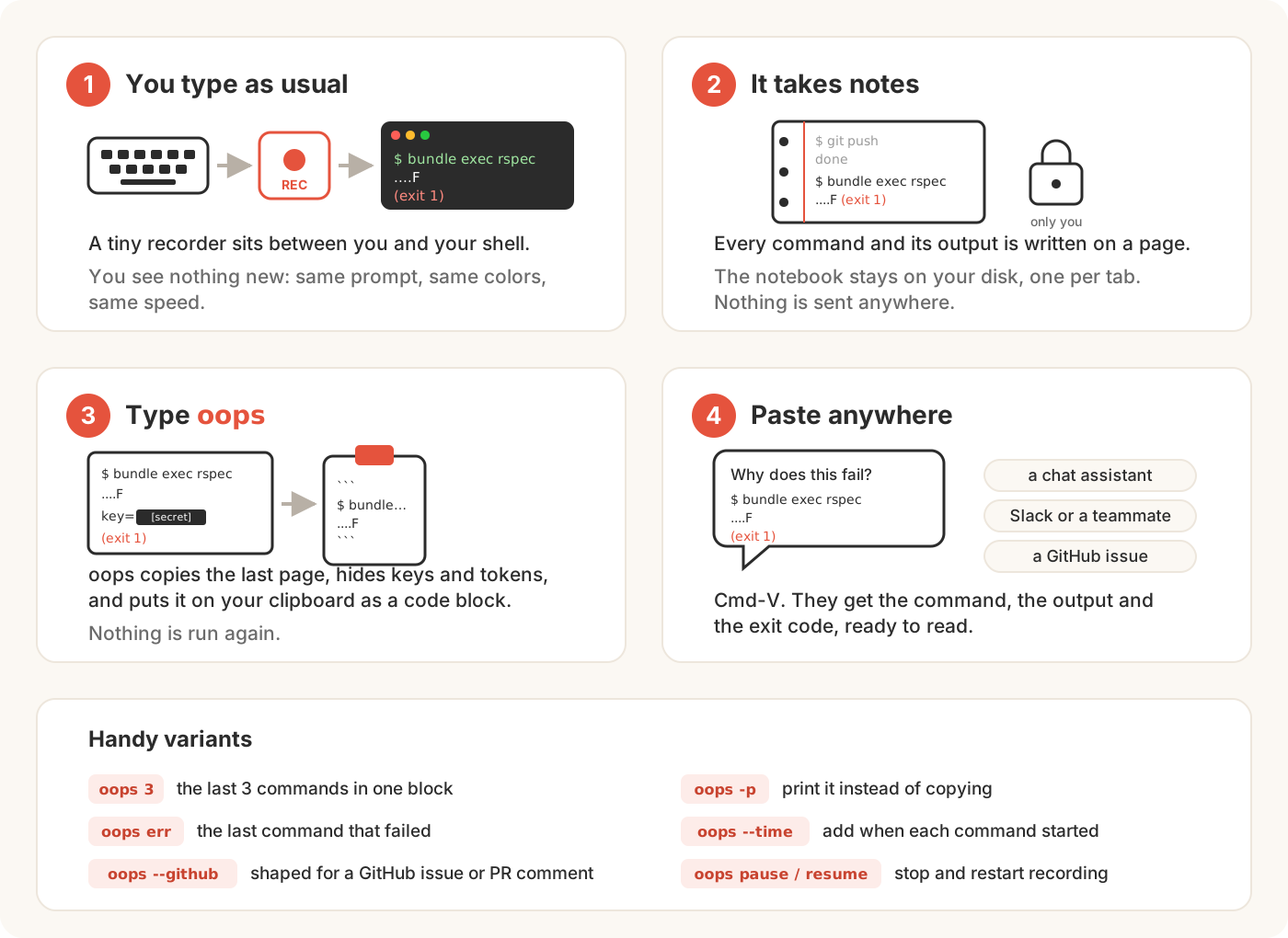
oops initprints a snippet that youevalfrom your rc file (| sourcein fish). In an interactive shell on a terminal that is not recorded yet, it restarts the shell underoops record.oops recordis a small Ruby pty relay: it passes your keystrokes and the shell's output through untouched and forwards window resizes to the shell.- Hooks in the shell (zsh
preexec/precmd, bashDEBUGtrap andPROMPT_COMMAND, fishfish_preexec/fish_postexecevents) emit invisible APC markers around each command. The relay strips them, so your terminal never sees them. - For each finished command the relay appends one JSON line (command, directory, times, exit code, raw output) to a per-tab log under
${XDG_STATE_HOME:-~/.local/state}/oops/sessions/. Output is capped at 1 MB per command (the tail is kept). Each tab's log is capped at 50 MB: when it passes that, it is rewritten to keep only its newest commands (down to about 37 MiB). When a tab starts recording, logs of closed tabs older thanretention_days(7 by default) are deleted, and then the oldest of the rest until all logs together take at most 50 MB; logs of open tabs are never deleted, so several busy tabs can together use more. A tab counts as open while the process in its log name is running and started before the log was last written. An open tab also drops commands older thanretention_daysfrom its own log when a command finishes, at most once an hour. oopsreads the end of the current tab's log, cleans and masks the text, builds the code block and hands it to the clipboard. Nothing is ever re-run.
Privacy and security
- The session logs hold the raw, unmasked output of every recorded command. Masking and the replace table are applied only when you copy. The logs live under
${XDG_STATE_HOME:-~/.local/state}/oops/sessions/, readable only by you (mode 0600, directory 0700). With the defaultretention_daysof 7, a closed tab's log is deleted once 7 days have passed since its last command (when another tab starts recording), and an open tab drops commands older than 7 days when it finishes a command.oops cleardeletes the logs of closed tabs now, andoops clear --allalso empties the current tab's log. To delete everything, including the logs of other open tabs, runrm -rf "${XDG_STATE_HOME:-$HOME/.local/state}/oops"(by defaultrm -rf ~/.local/state/oops). Useoops pausebefore showing secrets you do not want on disk. - To report a security problem privately, see SECURITY.md. Please do not open a public issue for it.
- Recorded output is untrusted: any program you run can print text that looks like oops's markers. oops therefore obeys a pause or resume marker only when it agrees with the flag file that
oops pauseandoops resumeset, so output cannot silently pause recording. A program can still fake where a command starts and ends in the log, so check what you paste.
Known limitations
- Each recorded tab keeps one Ruby process alive (about 17 MB).
sudo -sorsuthat drops the environment starts a second, nested recording, so those commands are logged twice.- Only the current tab is available. A tab you closed, or an earlier tab, cannot be retrieved.
- Via OSC 52 (SSH, or no clipboard tool), terminals limit how much can be sent at once. oops truncates to roughly 100 KB and warns. OSC 52 is a one-way escape sequence, so oops cannot tell whether the terminal accepted the copy; some terminals ignore it or ask first, and tmux needs
set -g set-clipboard on. - Commands longer than 8192 characters are truncated in the recorded command line.
- Output of full-screen apps (vim, less, tmux and so on) is not kept; it is replaced by one line. When the command line holds a single command with a plain name (letters, digits and
. _ + - /), that line names it, such as[git: full-screen output omitted]forgit logthrough a pager; otherwise it reads[full-screen app output omitted]. Lines printed before and after the full-screen part are kept. - A command line that starts with a space is recorded in zsh but dropped in bash (bash does not save it to history, which is where oops reads the command).
- bash with bash-preexec (also behind atuin and Ghostty's bash integration): oops registers its hooks with it instead of using its own
DEBUGtrap, whichever of the two comes first in your rc file. A line that bash did not save to history (HISTCONTROL=ignorespace,HISTIGNORE) is then recorded as(not saved in history), because the text of the line is read from history there. Without bash-preexec, oops records the first command of such a line instead. - Ghostty adds its shell integration (prompt marks, new tabs in the same directory, titles) only to the outer shell. When it did, the snippet loads it again in the recorded shell, for zsh, fish and bash. Ghostty cannot add it to bash 3.2 (macOS's
/bin/bash), so there it is not loaded unless you load it yourself below the oops line in~/.bashrc:[ -n "$GHOSTTY_RESOURCES_DIR" ] && source "$GHOSTTY_RESOURCES_DIR/shell-integration/bash/ghostty.bash". - bash: the line after a pipeline sees
PIPESTATUSwith only the last status (false | true, thenecho ${PIPESTATUS[*]}prints0, not1 0), because oops'sPROMPT_COMMANDentry runs first.$?and$_are kept. A prompt that shows pipeline statuses (starship'spipestatus) shows less in bash. zsh keepspipestatus. - macOS:
pbcopychooses its text encoding fromLANG/LC_*. If Japanese or other non-ASCII text arrives garbled, check that a UTF-8 locale is set (for exampleLANG=en_US.UTF-8), which can be missing in shells started over SSH. - Native Windows is not supported yet.
Troubleshooting
oops doctor prints one label: value line per check. When a line looks wrong, find it below. Paths in the examples are placeholders.
recording: no: this tab is not recorded (the shell line then showshooks: missingtoo, which is expected). Check that theoops initline is in your rc file and comes after whatever puts oops's Ruby on yourPATH(see "Set up your shell"), then open a new tab. With powerlevel10k, the line must be above the instant prompt block.recording: yes (/Users/you/.local/state/oops/sessions/... - log file missing): this tab's log does not exist. If a later line sayslog writable: no (no status file), the recorder could not create the log when the tab opened (the tab then printedoops: warning: session log unavailable (...)), usually because the state directory (~/.local/state/oopsby default) belongs to another user, for example after running oops withsudo, or cannot be written. Make it yours and writable again, then open a new tab; until then every new tab shows the same. Otherwise the log was deleted while the tab was open (for example withrm -rf ~/.local/state/oops); open a new tab.this terminal: not the recorded tty (this: ..., recorded: ...): this shell runs on another terminal than the recorded tab it was started from (a tmux pane, or a terminal window opened from a recorded tab) and was not recorded on its own, sooopshere reads the other tab's log. Such a shell is normally recorded on its own; check that theoops initline runs there too and thatOOPS_DISABLEis not set. Withthis: unknown,oops doctorwas not run from a terminal (for example an AI coding agent ran it in a recorded tab), so it cannot tell which terminal it is on; runoops doctoryourself at the prompt.log writable: no (log-error: ...): writing the log failed; the message afterlog-error:says why (for example a full disk). Fix that and open a new tab.paused: yes: recording was paused withoops pause. Runoops resume.shell: zsh, hooks: missingwhile the first line saysrecording: yes: the shell is recorded but its hooks did not load, so commands are not logged. The line was probably typed at the prompt instead of being in the rc file; the recorded shell reads the rc file again and needs the line there. Open a new tab after adding it.clipboard: osc52when you expectedpbcopy,wl-copy,xcliporxsel: that tool is not onPATH(orDISPLAY/WAYLAND_DISPLAYis not set). Install it, or setclipboard:in the config. Over SSH,osc52is expected.config: /Users/you/.config/oops/config.yml (unknown key: clipbord): a misspelled key; it is ignored.(could not parse /Users/you/.config/oops/config.yml: ...)means the YAML is broken and oops runs without a config.(missing)only means there is no config file, which is fine.warning: ~/.bashrc sets a DEBUG trap ...orwarning: ~/.bashrc assigns PROMPT_COMMAND without appending ...(bash only): a line below theoops init bashline can replace oops's hooks. Move it above the oops line. APROMPT_COMMANDassignment can instead keep what is there:PROMPT_COMMAND="...;$PROMPT_COMMAND".
If none of these help, open a bug report with the full oops doctor output (never a session log).
Development
Set up your machine
You need Git, Ruby 3.3 or newer, Bundler (it ships with Ruby), and both zsh and bash (the end-to-end tests start real shells). macOS has zsh and bash; on Debian or Ubuntu run sudo apt-get install zsh. fish is optional: its end-to-end tests are skipped when it is not installed (CI installs it).
git clone https://github.com/ysb3996-blip/oops.git
cd oops
The repository pins Ruby 4.0.9 in .ruby-version. With a version manager such as rbenv, asdf or mise, install that version (rbenv install 4.0.9, then rbenv rehash). Any Ruby 3.3 or newer also works if you delete or ignore the pin. Check with ruby -v.
bin/setup # checks Ruby, zsh and bash, installs gems, runs the checks
bin/setup is the same as bundle install followed by bundle exec rake. bundle exec rake runs the whole test suite (about 30 seconds) and then rubocop (style check); bundle exec rake test and bundle exec rubocop run them one at a time.
CI runs both on Ubuntu and macOS with Ruby 3.3, 3.4 and 4.0, builds the gem, and runs shellcheck on the bash snippet (shellcheck -S warning lib/oops/shell/oops.bash bin/setup, if you have it). Before opening a pull request, run:
bundle exec rake && gem build oops-cli.gemspec
Try your changes
Run a single test file with bundle exec ruby -Itest -Ilib test/ansi_test.rb. To run the command straight from the checkout, without installing anything:
bundle exec exe/oops --version
bundle exec exe/oops doctor
To try it as your shell does, build and install the gem into the Ruby you are using, then add the line from "Set up your shell" to a new tab:
gem build oops-cli.gemspec
gem install ./oops-cli-0.6.0.gem     # the file name follows lib/oops/version.rb
rbenv rehash                         # only with rbenv
- A gem is installed per Ruby version. If a new tab uses another Ruby than the one you installed into (for example the repository pins 4.0.9, but your global Ruby is 3.3.5), the shell cannot find oops when it starts (bash prints
bash: oops: command not found, zsh printscommand not found: oops). Rungem installagain under that Ruby, e.g.RBENV_VERSION=3.3.5 gem install ./oops-cli-0.6.0.gem. - Reinstall after every change. The installed gem is a copy, not a link to your checkout.
- To remove it:
gem uninstall oops-cli. - Put
eval "$(oops init zsh)"in your rc file, not just at the prompt: the recorded shell reads the rc file again, and without the line it has no hooks (oops doctorshowshooks: missing).
Never run oops record in the terminal you are working in; the tests drive it through their own pty. Try it in a new terminal tab instead. To delete the logs your experiments leave behind, see "Privacy and security".
The tests cover formatting, secret masking, the log reader, the stream parser and an end-to-end run of the relay with real zsh, bash and fish.
Manual checklist before a release:
- No marker garbage is visible in Ghostty, Terminal.app, iTerm2 and the VS Code integrated terminal.
- vim, less and a full-screen terminal app keep up while you resize the window.
exec zshin a recorded tab does not start a second recording.- A VS Code terminal opened with
code .from a recorded tab is recorded on its own.
Contributing
Bug reports, ideas and pull requests are welcome. See CONTRIBUTING.md; issues labeled good first issue are a good place to start. Every pull request must include the test and rubocop results and a check in a new terminal tab; see What every pull request must include.
Contributors
Thanks to everyone who has helped (emoji key). To add someone, comment @all-contributors please add @<username> for <contributions> on an issue or pull request.
 ysb3996-blip 💻 📖 ⚠️ 🚧 |
 Sanghyuk Lee 💻 |
 agenticsymphony-tech 📖 |
 ShahadatTest 💻 |
 wolf4032 📖 |
License
MIT. See LICENSE.
Yorumlar (0)
Yorum birakmak icin giris yap.
Yorum birakSonuc bulunamadi