openclaw-kasmvnc
Health Gecti
- License — License: MIT
- Description — Repository has a description
- Active repo — Last push 0 days ago
- Community trust — 36 GitHub stars
Code Basarisiz
- rm -rf — Recursive force deletion command in openclaw-kasmvnc-zh.sh
- rm -rf — Recursive force deletion command in openclaw-kasmvnc.sh
Permissions Gecti
- Permissions — No dangerous permissions requested
This agent provides a one-click deployment for OpenClaw and KasmVNC, offering a browser-based remote desktop environment to visually manage container lifecycles.
Security Assessment
Risk: High. While no hardcoded secrets or dangerous OAuth permissions were found, the tool presents significant operational risks. The Docker deployment explicitly uses the `--privileged` flag and runs Docker-in-Docker, granting the container vast access to the host system. The audit flagged recursive force deletion commands (`rm -rf`) inside the shell scripts. Additionally, the "one-click" script option requires piping a remote URL directly into the system shell, which can execute arbitrary code without prior review. Any compromise inside this container could easily escalate to the host machine.
Quality Assessment
The project is actively maintained, with its most recent push occurring today. It is covered by the permissive and standard MIT License. Community trust is currently low but growing, represented by 36 GitHub stars.
Verdict
Use with caution — while active and properly licensed, the privileged container execution and dangerous `rm -rf` flags in the installation scripts necessitate a thorough manual code review before deploying on any trusted machine.
One-click deployment for OpenClaw + KasmVNC. Browser-based remote desktop with full container lifecycle management.
openclaw-kasmvnc
One-click deployment for OpenClaw + KasmVNC (Windows / macOS / Linux).
🇨🇳 中文版 / Chinese version: README-zh.md
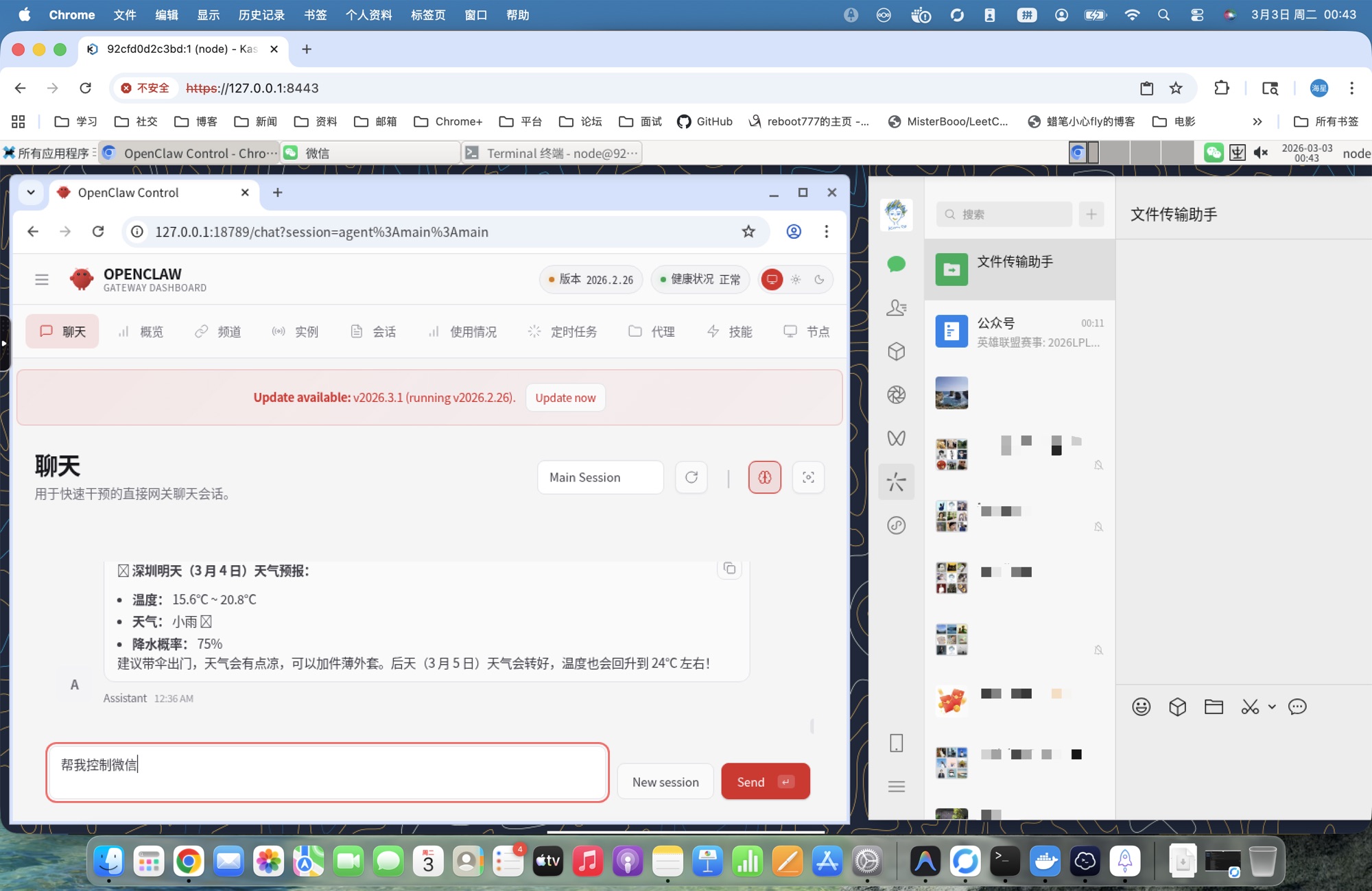
Key Advantages
🔧 Full Lifecycle Management Inside Container
Solves the core limitation of official OpenClaw Docker deployment:
In the official OpenClaw Docker setup, the Gateway runs on the host machine, and containers lack systemd, causing:
- ❌ Cannot run
openclaw gateway restartinside container - ❌ Cannot run
npm install -g openclaw@latestfor hot updates inside container - ❌ Must manually restart container after config changes
This project solves it with systemctl shim:
- ✅ Supports
openclaw gateway restartinside container - ✅ Supports
upgradecommand for hot updates (no image rebuild needed) - ✅ Complete
install / upgrade / restart / uninstalllifecycle management
👁️ Visual Desktop Environment
Solves the visibility problem of cloud vendor one-click deployments:
Cloud vendor OpenClaw deployments typically only provide CLI, making it impossible to:
- ❌ Watch OpenClaw operate the browser in real-time
- ❌ Observe Agent task execution with visual feedback
- ❌ Debug desktop application issues
This project provides a complete desktop environment:
- ✅ Browser-based XFCE desktop (KasmVNC)
- ✅ Watch OpenClaw operate Chromium in real-time
- ✅ Full Linux desktop experience
Quick Start
Option 1: Docker Image (Recommended)
docker run -d \
  --name openclaw-kasmvnc \
  --privileged \
  --shm-size=2g \
  -p 18789:18789 \
  -p 8443:8444 \
  -e OPENCLAW_GATEWAY_TOKEN=your-token-here \
  -e OPENCLAW_KASMVNC_PASSWORD=your-password-here \
  -v ~/openclaw-data:/home/node \
  ddong8/openclaw-kasmvnc:latest-intl
Data Persistence: Mounting ~/openclaw-data:/home/node persists all user data including OpenClaw configs, VS Code settings, Git credentials, and desktop files.
📖 Full documentation: DOCKER-en.md
Option 2: One-Click Script
Windows:
irm https://raw.githubusercontent.com/ddong8/openclaw-kasmvnc/main/openclaw-kasmvnc.ps1 | iex
macOS / Linux:
curl -fsSL https://raw.githubusercontent.com/ddong8/openclaw-kasmvnc/main/openclaw-kasmvnc.sh | bash -s -- install
Access Services
| Service | URL | Credentials |
|---|---|---|
| WebChat | http://127.0.0.1:18789/chat?session=main |
OPENCLAW_GATEWAY_TOKEN |
| KasmVNC Desktop | https://127.0.0.1:8443 |
User node, password OPENCLAW_KASMVNC_PASSWORD |
Token and password are auto-generated on first install. Save them somewhere safe.
Other Features
- Environment isolation -- OpenClaw, desktop, and all dependencies live inside the container
- One-click deploy -- install, upgrade, and restart via a single script + Compose
- Cross-platform -- identical container behavior on Windows, macOS, and Linux
- Docker-in-Docker -- built-in dockerd lets OpenClaw create and manage child containers
- GPU auto-detect -- automatically enables
nvidiaruntime when a host GPU is present - Mass deployment -- standardized container approach enables large-scale lobster deployments
Prerequisites
- Docker (with Docker Compose v2)
- Windows: PowerShell 5+ / 7+
- macOS / Linux: Bash
Common Commands
Windows (PowerShell)# Install
powershell -ExecutionPolicy Bypass -File .\openclaw-kasmvnc.ps1 -Command install
# Uninstall (stop services only)
powershell -ExecutionPolicy Bypass -File .\openclaw-kasmvnc.ps1 -Command uninstall
# Uninstall and remove install directory
powershell -ExecutionPolicy Bypass -File .\openclaw-kasmvnc.ps1 -Command uninstall -Purge
# Restart
powershell -ExecutionPolicy Bypass -File .\openclaw-kasmvnc.ps1 -Command restart
# Upgrade
powershell -ExecutionPolicy Bypass -File .\openclaw-kasmvnc.ps1 -Command upgrade
# Status / Logs
powershell -ExecutionPolicy Bypass -File .\openclaw-kasmvnc.ps1 -Command status
powershell -ExecutionPolicy Bypass -File .\openclaw-kasmvnc.ps1 -Command logs -Tail 200
chmod +x ./openclaw-kasmvnc.sh

./openclaw-kasmvnc.sh install              # Install
./openclaw-kasmvnc.sh uninstall            # Uninstall (stop services only)
./openclaw-kasmvnc.sh uninstall --purge    # Uninstall and remove install directory
./openclaw-kasmvnc.sh restart              # Restart
./openclaw-kasmvnc.sh upgrade              # Upgrade
./openclaw-kasmvnc.sh status               # Status
./openclaw-kasmvnc.sh logs --tail 200      # Logs
Optional Parameters
| Parameter | Windows (PS1) | macOS/Linux (sh) | Default |
|---|---|---|---|
| Install directory | -InstallDir |
--install-dir |
$HOME/openclaw-kasmvnc |
| Gateway port | -GatewayPort |
--gateway-port |
18789 |
| VNC HTTPS port | -HttpsPort |
--https-port |
8443 |
| Gateway token | -GatewayToken |
--gateway-token |
Auto-generated |
| VNC password | -KasmPassword |
--kasm-password |
Auto-generated |
| HTTP proxy | -Proxy |
--proxy |
None |
| Disable Docker-in-Docker | -NoDinD |
--no-dind |
No |
| Disable Docker build cache | -NoCache |
--no-cache |
No |
| Log lines | -Tail |
--tail |
200 |
| Purge install dir | -Purge |
--purge |
No |
Custom install examplesThe script fetches the
latestOpenClaw version via npm. Runupgradeto update.
# Windows
powershell -ExecutionPolicy Bypass -File .\openclaw-kasmvnc.ps1 `
  -Command install `
  -InstallDir "D:\openclaw-deploy" `
  -GatewayPort "18789" `
  -HttpsPort "8443"
# macOS/Linux
./openclaw-kasmvnc.sh install \
  --install-dir "$HOME/openclaw-deploy" \
  --gateway-port 18789 \
  --https-port 8443
Pass --proxy at install time to route all container HTTP/HTTPS traffic through a proxy:
# Linux/macOS
./openclaw-kasmvnc.sh install --proxy http://192.168.1.131:10808

# Windows
powershell -ExecutionPolicy Bypass -File .\openclaw-kasmvnc.ps1 -Command install -Proxy "http://192.168.1.131:10808"
You can also edit .env after install and restart to apply:
OPENCLAW_HTTP_PROXY=http://192.168.1.131:10808
By default, the container installs Docker CE and runs in privileged mode to support Docker-in-Docker. If you don't need OpenClaw to manage child containers, you can disable DinD for better security:
# Linux/macOS
./openclaw-kasmvnc.sh install --no-dind

# Windows
powershell -ExecutionPolicy Bypass -File .\openclaw-kasmvnc.ps1 -Command install -NoDinD
When --no-dind is enabled:
- Docker CE is not installed in the container
- Container runs without
privileged: true(more secure) - OpenClaw cannot create or manage child containers
Default is KasmVNC 1.3.0. Override via environment variable:
# Linux/macOS
OPENCLAW_KASMVNC_VERSION=1.4.0 ./openclaw-kasmvnc.sh install

# Windows
$env:OPENCLAW_KASMVNC_VERSION="1.4.0"
powershell -ExecutionPolicy Bypass -File .\openclaw-kasmvnc.ps1 -Command install
Project Structure
openclaw-kasmvnc.sh-- macOS/Linux script (international)openclaw-kasmvnc.ps1-- Windows script (international)openclaw-kasmvnc-zh.sh-- macOS/Linux script (Chinese, with China-optimized mirrors)openclaw-kasmvnc-zh.ps1-- Windows script (Chinese, with China-optimized mirrors)
After running, the install directory contains:
<install-dir>/
├── .env                              # Environment config (token, password, ports)
├── .openclaw/                        # OpenClaw persistent config and workspace
├── docker-compose.yml                # Compose service definition
├── Dockerfile.kasmvnc                # Image build (node:22 + KasmVNC + XFCE)
└── scripts/docker/
    ├── kasmvnc-startup.sh            # Container entrypoint (VNC → desktop → gateway)
    └── systemctl-shim.sh             # systemctl shim (translates systemd calls to signals)
Built-in Features
- UTC timezone, en_US locale --
TZ=UTC,LANG=en_US.UTF-8, Noto fonts pre-installed - Gateway auto-restart -- supervisor loop restarts the gateway on crash; VNC session stays connected
- X11 cleanup -- entrypoint clears stale X11 lock files and VNC processes to prevent black screens
- systemctl shim -- no systemd in the container; the shim makes
openclaw gateway restart/stop/startwork - Clipboard safety -- removes the default
chromium/x-web-custom-dataMIME type sopkill -f chromiumwon't kill VNC
Open a terminal in the VNC desktop and use standard OpenClaw commands:
openclaw gateway restart          # Restart (reload latest code)
openclaw gateway stop             # Stop
openclaw gateway status --probe   # Check status
These commands work via the built-in systemctl shim -- no real systemd required.
Pre-installed Tools
The desktop environment comes with these development tools pre-installed:
- Chromium - Web browser (desktop icon)
- Visual Studio Code - Code editor (desktop icon)
- vim - Terminal text editor
- Git - Version control system
- Node.js 22 - JavaScript runtime
- npm - Package manager
- Docker CE - Container engine (DinD variants only)
Desktop icons are located in /home/node/Desktop and can be launched with a double-click.
Configuration Changes
Config files: <install-dir>/.env, <install-dir>/.openclaw/openclaw.json
- Edit the config file
- Run
restart - Verify with
statusandlogs --tail 200
If you changed image-level config (Dockerfile, system packages), run
upgradeinstead ofrestart.
Known Issues
VNC flicker during openclaw update
npm install causes high CPU/IO, which may trigger KasmVNC WebSocket heartbeat timeouts. This is temporary resource contention -- the session recovers automatically. Run upgrade when the host has spare resources.
FAQ
1. Build fails with package installation errors?
If you encounter errors during the Docker build process (e.g., apt-get failures), try rebuilding without cache:
# Windows
.\openclaw-kasmvnc.ps1 install -NoCache

# macOS/Linux
./openclaw-kasmvnc.sh install --no-cache
This forces Docker to re-download all packages and can resolve transient network or repository issues.
2. Port conflict
Change ports at install time: Windows -GatewayPort 28789 -HttpsPort 9443, macOS/Linux --gateway-port 28789 --https-port 9443, then re-run install.
3. HTTPS certificate warning
KasmVNC uses a self-signed certificate by default. Click through the browser warning, or set up a reverse proxy (Nginx / Caddy) with a real cert.
4. Black screen after entering desktop
Try in order: restart → status → logs --tail 200 → upgrade.
5. Container restart loop
Common causes: missing .env parameters, directory permission issues, port conflicts. Re-run install or change ports.
6. macOS chown: Operation not permitted
This warning may appear on Apple Silicon Macs for certain mount paths. If the container runs fine, it can be safely ignored.
7. Why Chromium instead of Chrome?
- Multi-arch -- Google does not ship ARM64 Chrome; Chromium supports both x86_64 and arm64
- License -- Chrome includes proprietary components (DRM, etc.) unsuitable for public images
- Clean dependencies --
apt install chromiumintegrates cleanly with system libraries
8. Too many logs
Use logs --tail 200 for recent output, logs --tail 50 to quickly spot errors.
Star History
License
Yorumlar (0)
Yorum birakmak icin giris yap.
Yorum birakSonuc bulunamadi